
Backup encryption software safeguards sensitive files against theft, ransomware, and unauthorized access. This guide highlights the top encrypted backup options for Windows and cloud storage, including MiniTool ShadowMaker, EaseUS Todo Backup, and AOMEI Backupper.
Quick Answer: What Is the Best Backup Encryption Software?
The best backup encryption software depends on your needs. When choosing one, focus on AES-256 encryption, private key control, password protection, backup flexibility, and recovery features. Strong security and reliable recovery matter more than the software name.
What Is Backup Encryption Software?
Backup encryption software is a security tool that protects backup data by encrypting it with a key. Only users with the correct password or encryption key can access or restore the backup files.
This prevents unauthorized access and keeps sensitive data secure — even if users’ physical backup drives are lost, or their cloud storage is compromised.
Key Features to Look for Backup Encryption Software
When choosing backup software with encryption, prioritize these essential features:
- Strong Encryption and Security Protection: Provides advanced encryption standards, password protection, and secure data transmission to protect backup data.
- Flexible Backup Methods: Supports full, incremental, and differential backups to improve efficiency and reduce storage usage.
- Automated Backup Management: Enables scheduled backups and automatic operations to reduce manual effort.
- Storage and Destination Support: Supports local drives, external devices, network locations, and cloud storage options.
- Recovery and Version Control: Offers version history and flexible restore options for easier data recovery.
- Backup Reliability: Verifies backup integrity to ensure backup files remain complete and usable.
- Ease of Use and Compatibility: Provides a user-friendly interface and supports multiple operating systems and devices.
# 1. MiniTool ShadowMaker: Lightweight and Dependable
Best for: Home users needing simple encrypted backups
MiniTool ShadowMaker is a lightweight and dependable backup tool. It supports full, incremental, and differential backups for the system and files. These backup methods help users balance storage efficiency and data protection.
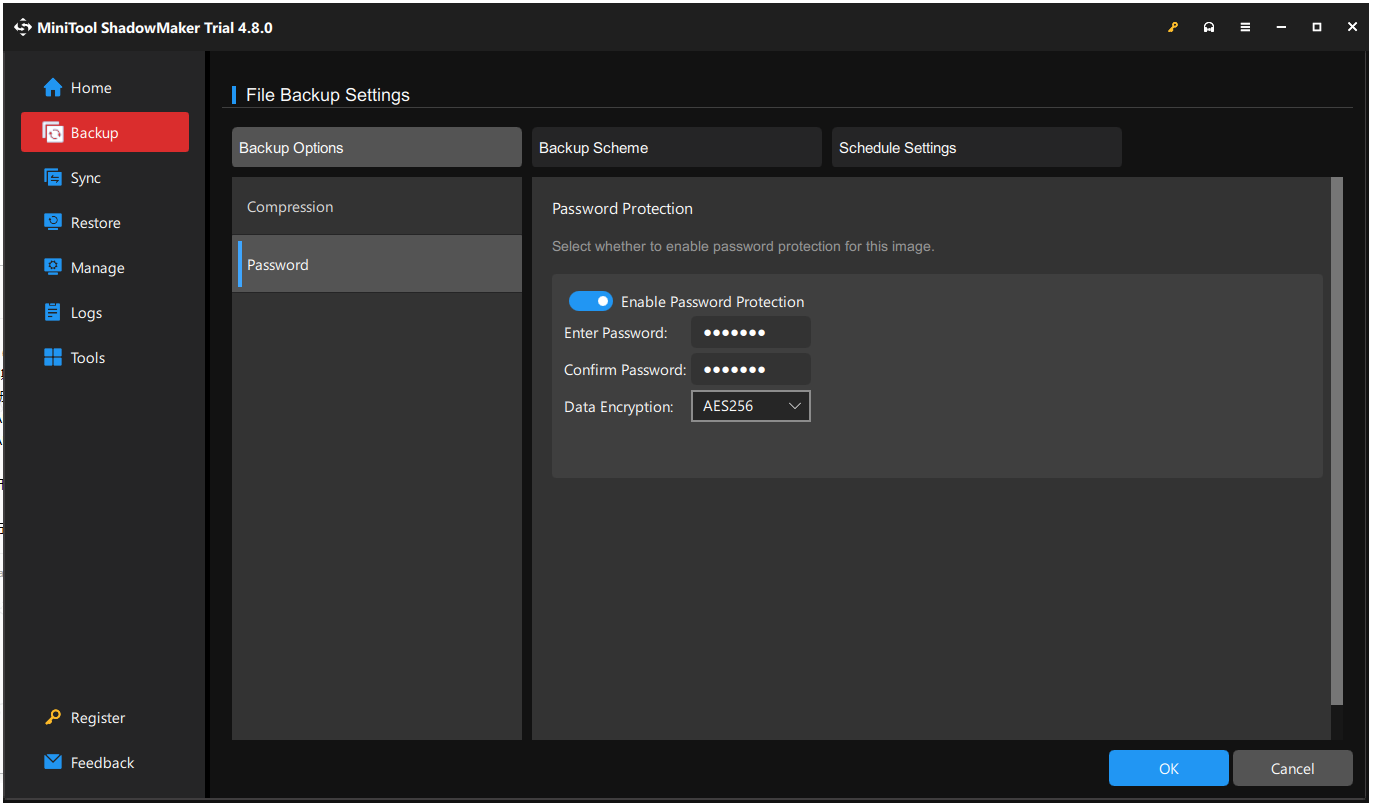
To prevent unauthorized access, the software secures backup images via industry-standard AES encryption and password protection. Supported destinations include local drives, external disks, and network-attached storage (NAS).
The clean interface makes advanced encryption and compression settings easy to use. Running efficiently with low resource usage, this program offers reliable protection for both beginners and advanced users.
Key Features
- Applies AES-128 and AES-256 encryption to backups to block unauthorized access.
- Encrypts system files and data partitions at the block level before transferring them to storage destinations.
- Allows users to browse backup images and copy specific files without restoring the entire system.
- Creates a bootable USB drive or CD/DVD to restore users’ system when the computer fails to boot.
- Offers the Copy Disk feature to create an exact copy of a hard drive for data migration without any data loss.
- Validates backup images for integrity after creation.
- Automatically deletes older backups to prevent storage drives from filling up.
- Supports setting scheduled tasks to run daily, weekly, monthly, or upon specific triggers.
- Enables full, incremental, and differential backup options to save space and time.
Pros & Cons
| Pros | Cons |
| 1. Uses AES-128 encryption for backup images. 2. Protects system, disk, partition, and files. 3. Applies password protection to restrict access. 4. Secures backups on local drives, NAS, or network. 5. Validates backup integrity. | 1. The free edition lacks full encryption options. 2. There is no option to refresh file trees directly. |
Personal Experience
MiniTool ShadowMaker uses password-based AES encryption (commonly AES-256 in paid editions) to protect backup images, disks, and selected files from unauthorized access. Users can enable encryption by setting a password during backup creation, ensuring only authorized restoration.
In use, it offers a simple and beginner-friendly experience. File backups support AES-256 encryption, while disk and partition backups support Normal or AES-128 options. The clean interface makes encryption easy to configure.
It also supports backups to local drives and network locations, with flexible scheduling options such as daily, weekly, monthly, or event-based tasks for automated protection.
# 2. EaseUS Todo Backup: Versatile and Intuitive
Best for: General users and small offices
EaseUS Todo Backup is a flexible and easy-to-use backup encryption tool that safeguards files, disks, partitions, and operating systems with secure backup options.
It supports full, incremental, and differential backups and enables users to save backup data locally, externally, on networks, or in the cloud.
The interface is straightforward and user-friendly, offering useful features like disk cloning, system migration, and encrypted backups for versatile data protection.
Key Features
- Provides comprehensive system, disk, and file backup modes.
- Supports incremental and differential backups to save time and space.
- Schedules automatic backups or triggers them by system events.
- Checks backup integrity immediately after completion.
- Allows storage on local drives, cloud, or network devices.
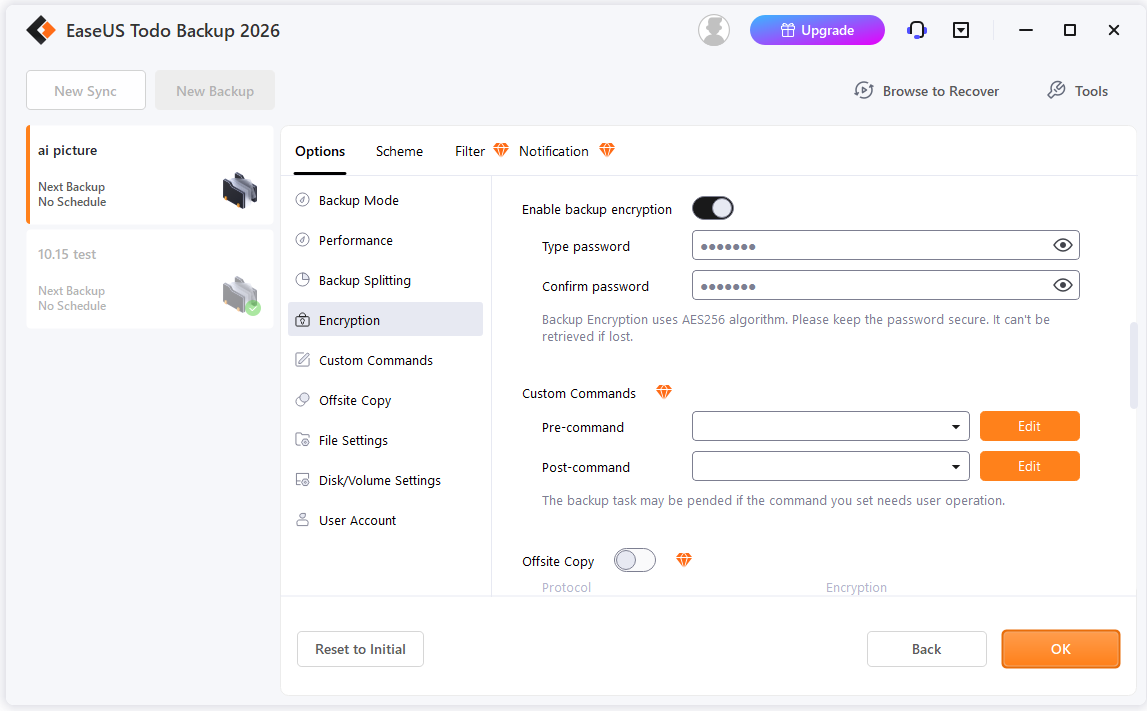
- Protects backup images using strong AES-256 encryption.
- Restricts access to encrypted backups with password authentication.
- Facilitates disk and OS migration without reinstallation.
Pros & Cons
| Pros | Cons |
| 1. Encrypts backup images and files with AES-256 encryption to prevent unauthorized access. 2. Offers a wide range of backup features. 3. Provides an intuitive, beginner‑friendly interface. 4. Secures local and cloud backups. 5. Validates encrypted backups after creation. | 1. Limits many important features in the free edition. 2. Displays frequent upgrade prompts. 3. Limits encryption to archives only. 4. Offers only one encryption method. |
Personal Experience
EaseUS Todo Backup uses AES-256 encryption to protect backup archives and prevent unauthorized access. Users can set a password during backup creation, ensuring only authorized users can open or restore the data.
In practical use, it provides stable and secure data protection. However, the encryption status is not always clearly indicated during backup management, which can make verification less intuitive.
The software supports flexible scheduled backups for files, disks, and systems. It ensures reliable recovery, including WinPE bootable media for Windows startup failures.
# 3. AOMEI Backupper: Streamlined and Practical
Best for: Windows users needing flexible backups
AOMEI Backupper is a streamlined and practical backup encryption software designed for system, disk, partition, and file protection.
Multiple backup modes, including full, incremental, and differential backups, help simplify backup management and improve storage efficiency.
A clean interface, together with features like disk cloning, system migration, and encrypted backups, makes daily data protection more convenient.
Key Features
- Protects systems, disks, partitions, files, and Outlook emails.
- Restores data and systems to different hardware setups.
- Creates bootable rescue media for emergency recovery boot.
- Syncs files and folders instantly or on schedules.
- Mirrors changes and deletes extra target path files.
- Clones disks, partitions, and operating systems to SSDs.
- Aligns SSD partitions to optimize drive speed performance.
- Automates daily or weekly tasks with flexible scheduling.
- Captures only changed data to minimize storage use.
- Deletes old backup versions to clear disk space.
Pros & Cons
| Pros | Cons |
| 1. Offers a user-friendly interface with clear wizards to guide complex tasks. 2. Includes a pay-once plan that covers all your basic needs forever. 3. Costs less than its competitors. 4. Runs quietly in the background without user intervention. | 1. Displays upgrade prompts and commercial advertisements frequently. 2. Lacks backup encryption in the free edition. |
Personal Experience
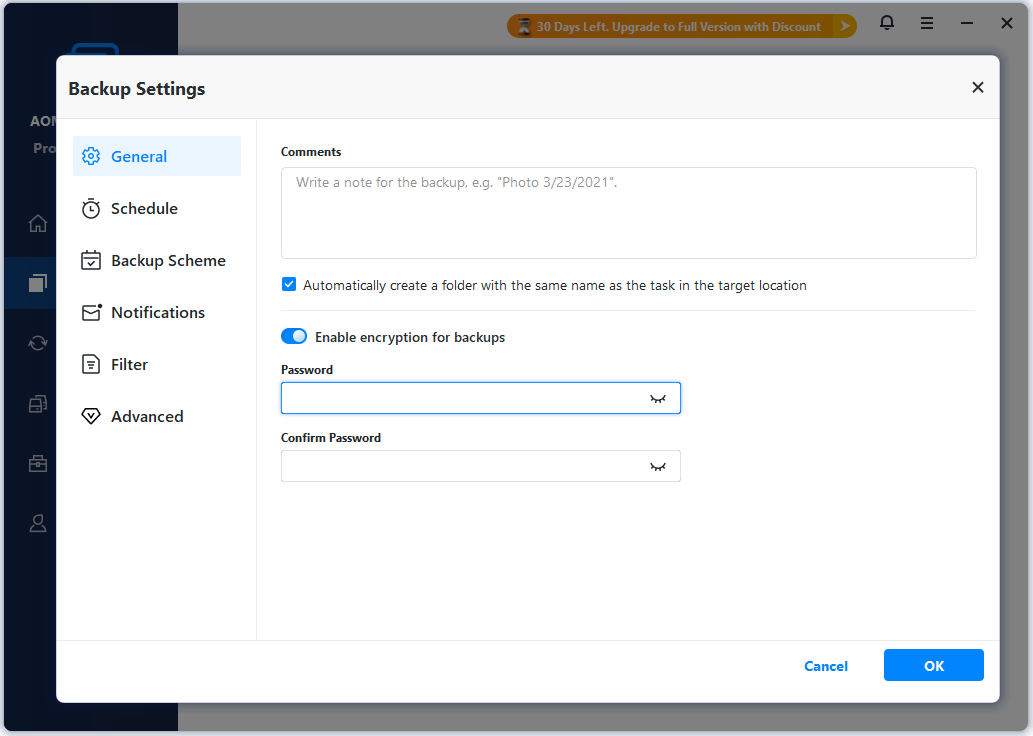
AOMEI Backupper uses password-based encryption to protect backup images from unauthorized access and supports AES-256 encryption in its advanced editions. During backup creation, users can easily set a password to secure files, system images, or entire disk backups.
In practical use, the AES-256 encryption provides reliable protection against unauthorized restoration while keeping the backup process simple and efficient.
The software features a clear wizard-style interface that guides users through system, disk, and file backup tasks step by step, making it beginner-friendly.
Even the free edition covers most everyday personal backup needs, while backup and restore operations remain stable across common usage scenarios.
# 4. Macrium Reflect: Precision-Oriented and High-Speed
Best for: Advanced users and IT professionals
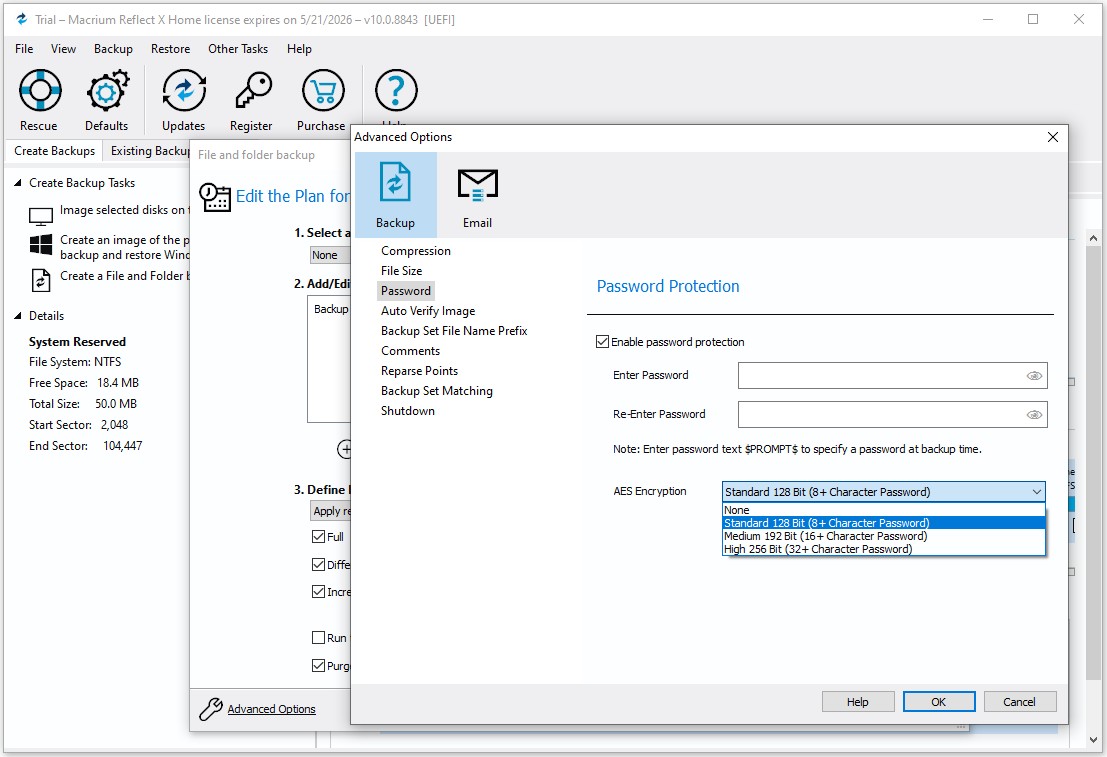
Macrium Reflect is a fast, precise backup encryption tool designed to ensure reliable imaging and recovery.
It offers full, incremental, and differential backups for systems, disks, and files, aiding users in maintaining efficient backup processes.
The software operates swiftly and accurately, offering features like quick restore, disk cloning, and encrypted backups for robust protection.
Key Features
- Performs full, incremental, and differential disk and file backups.
- Protects partitions, disks, system, and personal files.
- Schedules automated backups based on specific events and times.
- Validates backup files immediately after creation.
- Supports storage on local drives, network locations, NAS, or cloud.
- Encrypts backups with AES and password protection.
- Enables disk and OS migration without reinstalling Windows.
Pros & Cons
| Pros | Cons |
| 1. Uses AES encryption for disks, partitions, system images, and files. 2. Creates local and network backups. 3. Secures backups with password protection. 4. Verifies backups to ensure data integrity. | 1. Restricts key features in the free edition. 2. Needs manual setup for complex backup tasks. 3. Presents a steep learning curve for beginners. |
Personal Experience
Macrium Reflect secures disk and system image backups with AES encryption, including AES-128, AES-192, and AES-256. Users can set a password to prevent unauthorized access or restoration of backup files.
The software delivers strong enterprise-level security and suits users with high data protection requirements. Backup images remain well-protected during storage and recovery. Backup and restore performance are reliable, especially in professional environments.
The interface targets IT professionals and advanced users, so beginners may face a steeper learning curve. The menu structure and setup process can also feel more complex than some competing backup tools. In addition, the Home edition costs more than many similar solutions.
# 5. Paragon Backup & Recovery: Adaptive and Contemporary
Best for: System imaging users
Paragon Backup & Recovery is an adaptive, contemporary backup encryption software designed to satisfy evolving storage and recovery needs.
It supports disk, partition, and file backups while helping users create flexible backup strategies.
The software provides a straightforward experience while including features such as backup automation, recovery tools, and encrypted data protection.
Key Features
- Delivers full and partial backups for files, disks, and partitions.
- Executes automatic backup routines and event-based tasks.
- Validates images and ensures error-free backup sets.
- Saves backups to external drives, network locations, NAS, or cloud.
- Enables sector-level and file-level backup operations.
- Implements AES encryption and password safeguards.
- Supports system recovery and bare-metal restoration.
Pros & Cons
| Pros | Cons |
| 1. Applies AES encryption to backup images. 2. Uses password protection for access control. 3. Offers automated backup scheduling for routine protection. 4. Supports sector-level and file-level encrypted backups | 1. Limits encryption to local and network backups. 2. Requires a paid edition for advanced encryption options. 3. Doesn’t support end-to-end encryption for cloud backups. |
Personal Experience
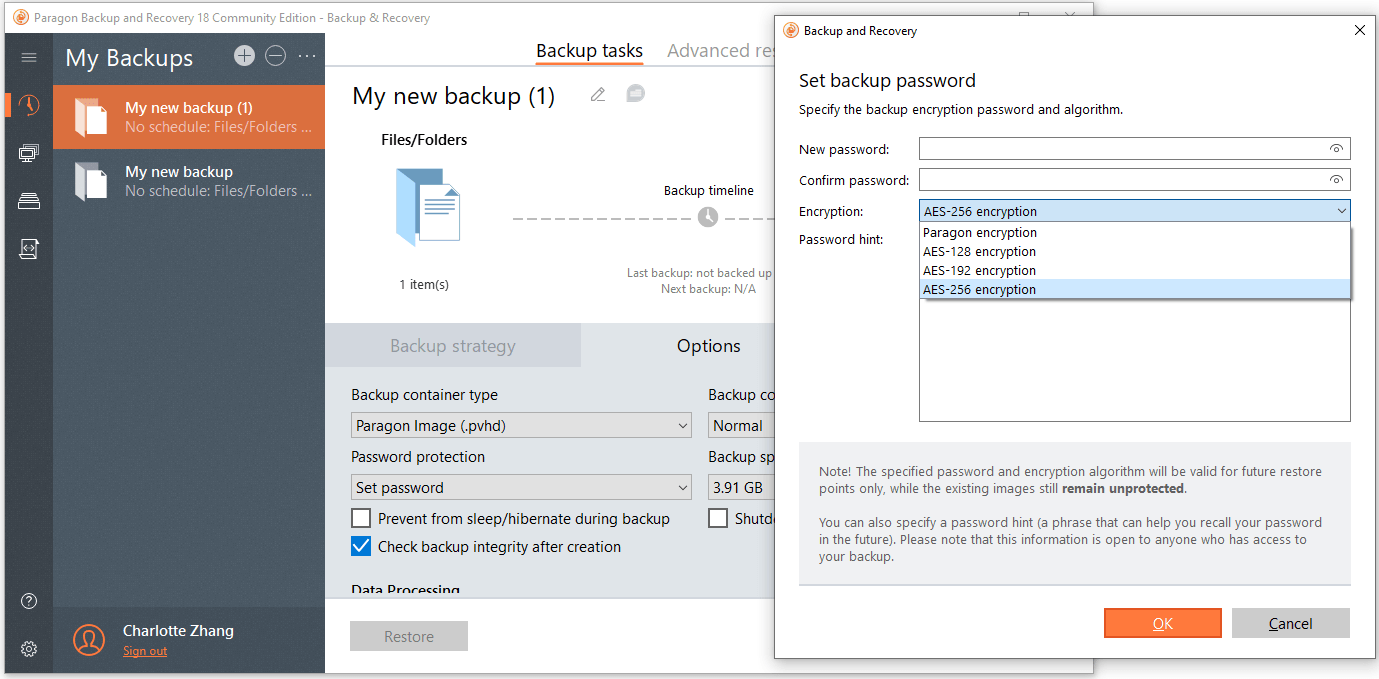
Paragon Backup & Recovery uses password-based AES encryption to secure backup archives and block unauthorized access, including Paragon encryption, AES-128, AES-192, and AES-256, although advanced encryption features are mainly available in paid editions.
Users must enable encryption during backup creation to protect file, partition, and system image backups. Only users with the correct password can access, mount, or restore the backup data. Lost passwords cannot be recovered.
In practical use, backup files remain well protected from unauthorized access. The software also supports flexible recovery options, including bare-metal restore and full system recovery.
The interface can feel complex for beginners, and backup speed is slower than that of some lightweight backup tools. However, restore reliability remains strong across recovery scenarios.
# 6. SyncBackPro: Feature-Packed and Flexible
Best for: Power users and synchronization tasks
SyncBackPro is a feature-packed and flexible backup encryption software that helps users manage backup and synchronization tasks across different environments.
It supports backing up to local drives, network locations, and cloud storage while providing extensive customization options.
The interface offers flexibility while providing advanced features such as encrypted backups, file versioning, and automated scheduling.
Key Features
- Synchronizes files and folders with backup profiles.
- Supports full, incremental, and differential modes.
- Automates tasks and schedules them during off-hours.
- Offers cloud, network, NAS, FTP/SFTP storage options.
- Ensures backup integrity with verification reports.
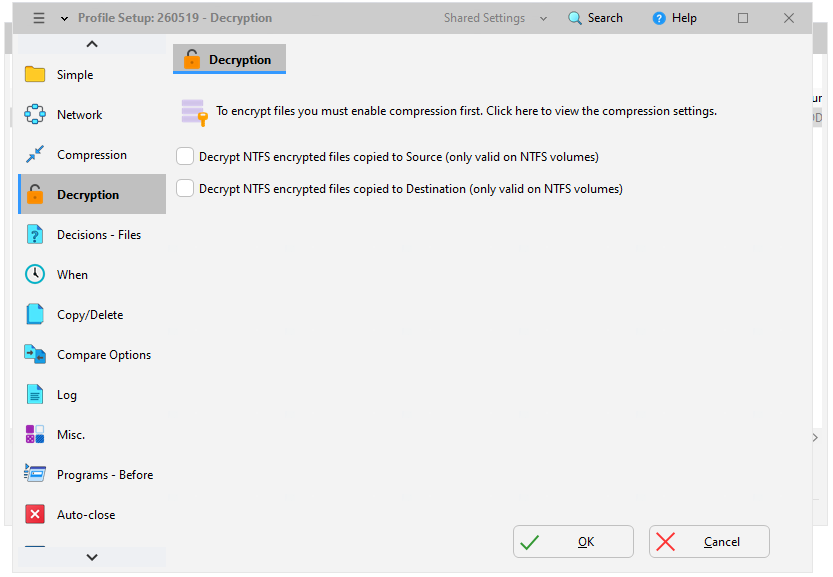
- Provides AES encryption and password protection for backups.
- Tracks backup history with file versioning.
- Sends email notifications for monitoring and alerts.
Pros & Cons
| Pros | Cons |
| 1. Secures files, folders, and cloud backups via AES encryption. 2. Works with local, network, FTP, and cloud storage. 3. Offers strong filtering and customization. 4. Provides flexible backup and sync options. | 1. Requires setup time for advanced rules. 2. Needs a paid license for full features. 3. Presents a steep learning curve. |
Personal Experience
SyncBackPro uses up to AES-256 password-based encryption to secure backups, transfers, and cloud syncs. Unrecoverable passwords restrict data access.
In practical use, SyncBackPro offers stable and highly configurable performance. It provides detailed control over file skipping rules, scheduling triggers, conflict handling, and log storage. Encryption settings are available, but not very intuitive to configure.
The interface looks outdated, but performs reliably. Initial profile setup involves multiple tabs and options, which can feel complex for new users. Overall control is powerful, but the learning curve is relatively steep.
# 7. NovaBACKUP: Business-Oriented and Secure
Best for: Small businesses
NovaBACKUP is a business-oriented and secure backup encryption software built to help protect important business systems and data.
It supports image-based and file-level backups while helping organizations maintain reliable backup routines.
The software delivers dependable protection while offering features such as encrypted backups, automated scheduling, and recovery tools for business continuity.
Key Features
- Provides flexible full, incremental, and differential backups.
- Covers file, folder, disk, and system backup needs.
- Automates backup schedules and event-triggered actions.
- Supports storage on local drives, NAS, network locations, or cloud.
- Performs image-based and file-level backup operations.
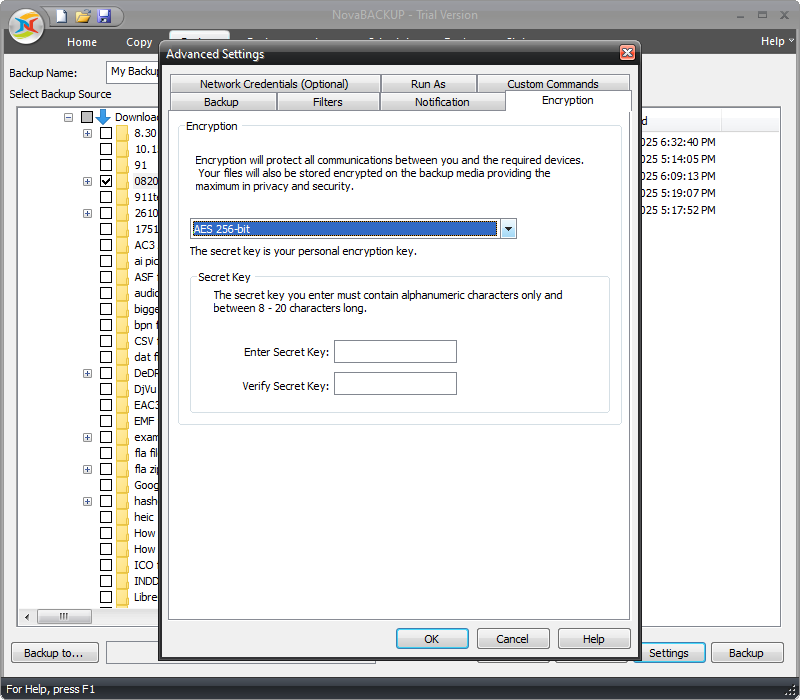
- Secures backups via AES encryption and passwords, restricting access and recovery.
- Supports disaster recovery, full system, and bare-metal restore.
Pros & Cons
| Pros | Cons |
| 1. Uses password protection for backup images. 2. Supports image-based and file-level encrypted backups. 3. Provides full image, file, and application backup options. 4. Offers built-in disaster recovery and bare-metal restore. | 1. Offers limited flexibility compared to more advanced competitors. 2. Presents an outdated and less modern interface. 3. Requires a paid subscription for full functionality. |
Personal Experience
NovaBACKUP applies AES-128, AES-192, AES-256, and Blowfish password encryption to secure files, system images, and server backups. Authorized access requires carefully managing unrecoverable passwords.
In practical use, NovaBACKUP provides strong local and image-based backup capabilities. It supports multiple backup modes and integrates local drives, external storage, and cloud destinations. Automated scheduling helps maintain continuous data protection.
The UI feels outdated compared with newer backup tools. The interface is functional but not very intuitive. Despite these design limitations, backup reliability remains solid. It is better suited for technical users who need structured control over backup environments.
Backup Encryption Software Comparison Table
| Software | Encryption Algorithm | Password Protection | Backup Encryption Scope | Custom Encryption Settings | Best For |
| MiniTool ShadowMaker | AES-128 / AES-256 | Yes | Full backup / file backup | Yes | Home users needing simple encrypted backups |
| EaseUS Todo Backup | AES-256 | Yes | File / partition / system | Limited | General users and small offices |
| AOMEI Backupper | AES-256 | Yes | File / system / disk | Limited | Windows users needing flexible backups |
| Macrium Reflect | AES-128 / AES-192 / AES-256 | Yes | Image and file backup | Yes | Advanced users and IT professionals |
| Paragon Backup & Recovery | Paragon encryption/AES-128/AES-192/AES-256 | Yes | Disk / partition backup | Limited | System imaging users |
| SyncBackPro | AES-256 | Yes | File-level backup | Advanced | Power users and synchronization tasks |
| NovaBACKUP | AES-128 / AES-192 / AES-256/Blowfish | Yes | File / image backup | Limited | Small businesses |
Backup Encryption Software FAQ
AES-256-GCM + customer-controlled keys
AES-256-GCM + RSA/ECC key wrapping
Encrypted backup file/image (AES password): You usually cannot restore or open it without the password.
Third-party backup software: Use a password hint, recovery key, or key file. If there aren’t any recovery options, you may not be able to recover data from the encrypted backup.
If no recovery key or saved password exists, access may be permanently lost.
Conclusion
Overall, backup software with encryption serves different needs across user types.
MiniTool ShadowMaker and EaseUS Todo Backup are suitable for simple and general backup use. AOMEI Backupper offers a balanced option with flexible features for Windows users.
More advanced tools include Macrium Reflect and Paragon Backup & Recovery, which focus on stronger system-level control. SyncBackPro provides deep customization and synchronization features, while NovaBACKUP is more suited for business environments.
Each tool fits a different level of backup and security needs.
About The Author

Position: Columnist
Charlotte is a technology columnist with a strong focus on the Windows operating system, specializing in disk management, backup, and data recovery. She is passionate about analyzing computer errors, identifying root causes, and delivering practical solutions. In her free time, she stays updated on the latest developments in computer systems and hardware while continuously learning new technologies to broaden her expertise. Her writing style is clear and easy to understand, making complex technical topics accessible even to users with limited computer knowledge.
User Comments :