
Quick Answer
Dell error code 2000-0151 usually means that Dell hardware diagnostics has detected a problem with the hard drive. This error often indicates a failing drive, SMART warning, or potential data loss risk.
If the computer can still boot, back up important files immediately before trying repairs. To fix this issue, check BIOS settings, run Dell hardware diagnostics, repair disk errors, or replace the hard drive if it has failed.
What Is Dell Error Code 2000-0151
Dell error code 2000-0151 is a hardware diagnostic error from Dell ePSA (Pre-Boot System Assessment). It usually indicates a hard drive problem, often related to SMART warnings or declining drive health.
In most cases, it means the hard drive may be failing. The system might still boot, but the drive could stop working at any time. Backing up important data immediately is strongly recommended.
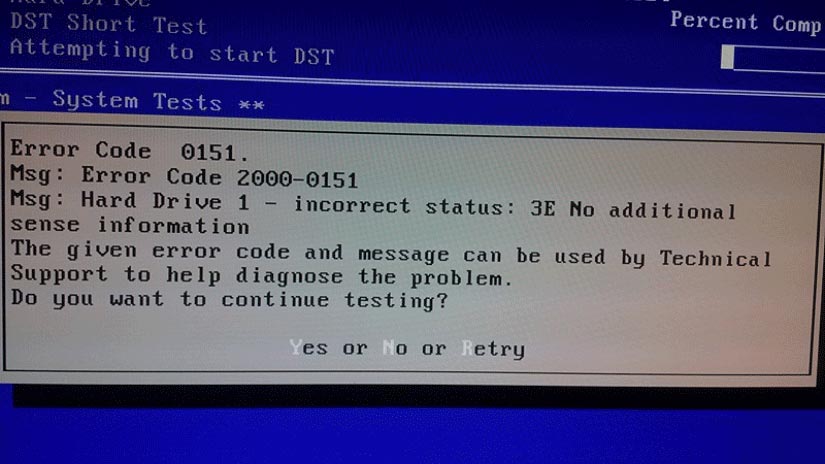
When booting the computer, the error message is shown below:
Error code 0151
Msg: Error Code 2000-0151
Msg: Hard Drive 1 – incorrect status: 3E No additional sense information
The given error code and message can be used by Technical Support to help diagnose the problem.
Do you want to continue testing?
What Causes Dell Error Code 2000-0151
Dell error code 2000-0151 is mainly related to hard drive health issues. Common causes include:
Hard drive aging or failure
After long-term use, a hard drive may begin to fail, causing Dell diagnostics to detect abnormal conditions and trigger this error.
Bad sectors or disk errors
Damaged sectors or file system issues can reduce drive performance and lead to hardware warnings.
SMART status warning
SMART (Self-Monitoring, Analysis, and Reporting Technology) monitors drive health. A critical SMART alert may trigger error code 2000-0151 as an early sign of drive failure.
Is Dell Error Code 2000-0151 Serious?
Yes, Dell error code 2000-0151 should be taken seriously because it often indicates a hard drive health problem. This error does not always mean the drive has completely failed, but it suggests that the storage device may become unreliable.
In some cases, the computer may continue working normally for a period of time. However, a drive with health warnings can fail without much notice, which may cause system crashes or data loss.
How to Protect Data Before Fixing Dell Error Code 2000-0151
In this section, we will show you how to keep data safe when you encounter the Dell error code 2000-0151. To get your data off from the Dell computer with the error code 2000-0151, we will show you two different situations: the computer is bootable or the computer is unbootable. We will elaborate on them one by one.
Case 1: Back Up Data If Your Dell PC Still Boots
If your Dell computer can still start normally, create a backup as soon as possible. MiniTool ShadowMaker can help back up Windows, disks, partitions, and personal files before the hard drive completely fails.
1. Click the following button to download MiniTool ShadowMaker, install it and launch it.
MiniTool ShadowMaker TrialClick to Download100%Clean & Safe
2. Click Keep Trial.
3. After entering its main interface, go to the Backup Then click SOURCE module to continue.
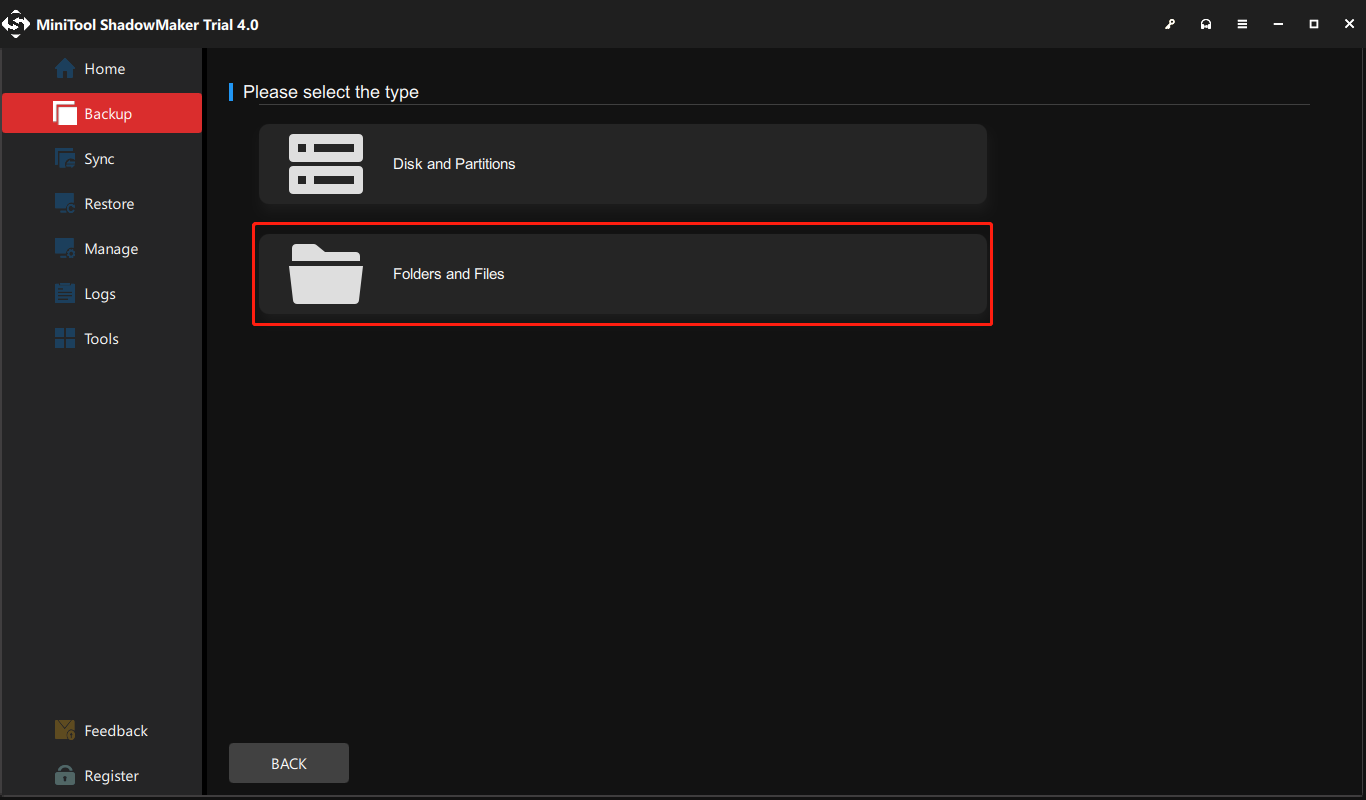
4. Then choose Folders and Files. Next, select the files you want to back up and click OK to continue.
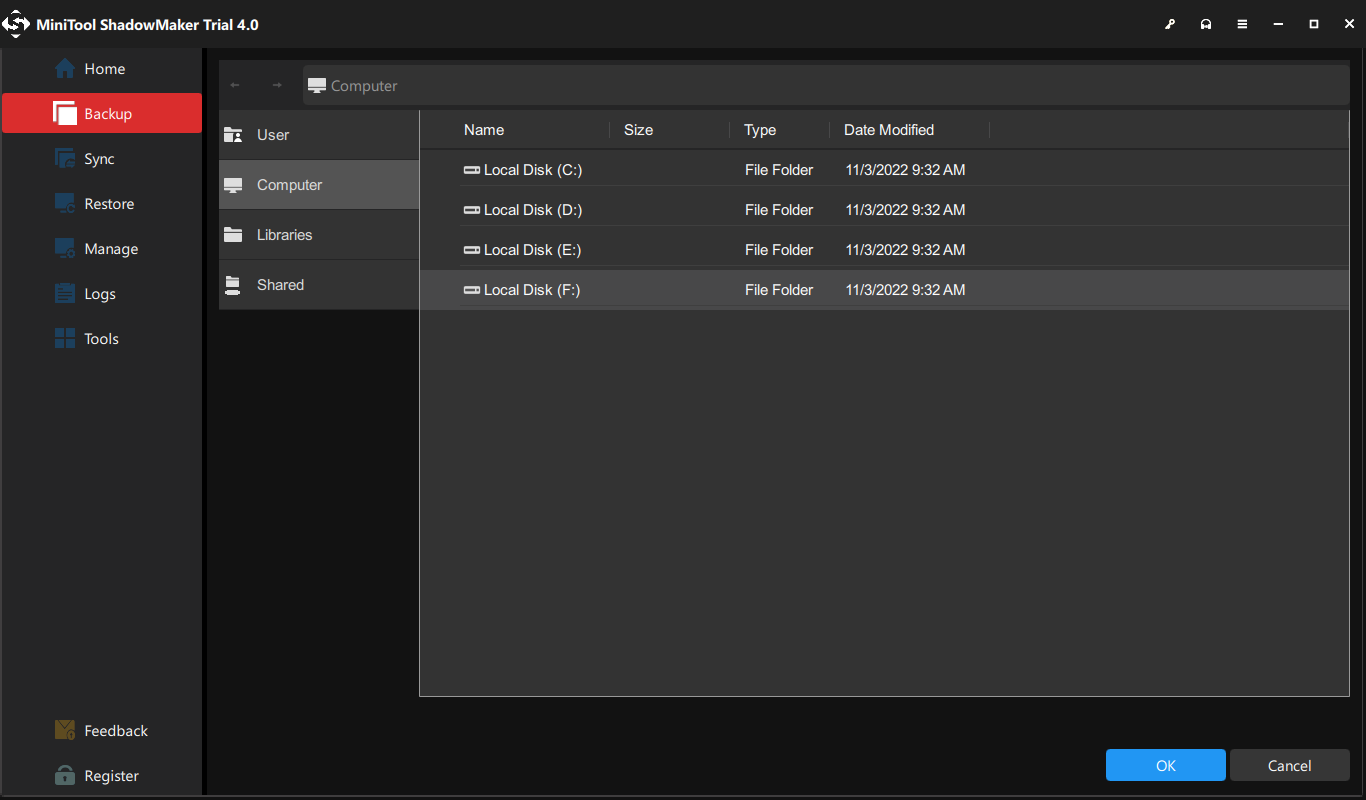
5. Then click DESTINATION module to choose a target disk. Here, it is recommended to choose an external hard drive and click OK to continue.
6. After selecting the backup source and destination, click Back Up Now to perform the backup task immediately.
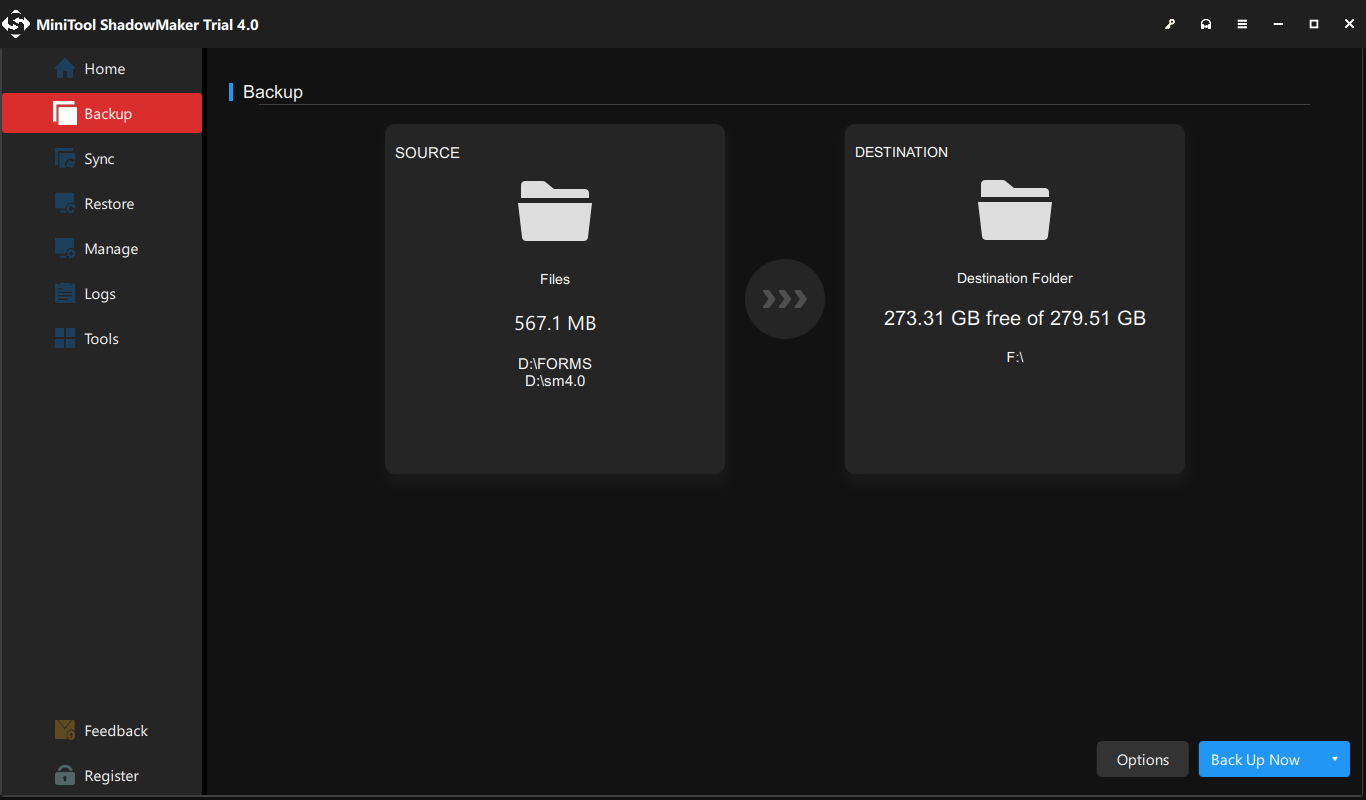
After all steps are finished, you have successfully backed up files from the hard drive with error code 2000 0151. If you have a mass of files and folders on the hard drive, you can choose to back up hard drive. Once you have kept data safe, you can go ahead to fix the Dell error code 2000-0151. For the solutions, please read the following part in this post.
Case 2: Recover Data If Your Dell PC Cannot Boot
As mentioned in the above part, the Dell error code 2000-0151 may also indicate the hard drive is failed. In this situation, you may fail to boot the computer. Thus, you need to recover your important data first from the unbootable computer with error code 2000-0151 and look for solutions to fix the Dell hard drive error.
So, to recover data from the unbootable computer, you come to the right place. To do that, you can use the third-party software – MiniTool Partition Wizard Pro Ultimate.
It is an all-in-one partition manager and data recovery utility. Its Data Recovery feature enables you to recover data from the unbootable computer with ease.
Now, here is the tutorial.
1. Click the following button to download MiniTool Partition Wizard Demo and install it on a normal computer.
MiniTool Partition Wizard DemoClick to Download100%Clean & Safe
2. Then launch it and click Bootable Media feature to create the bootable media. (The demo edition does not support this feature.)
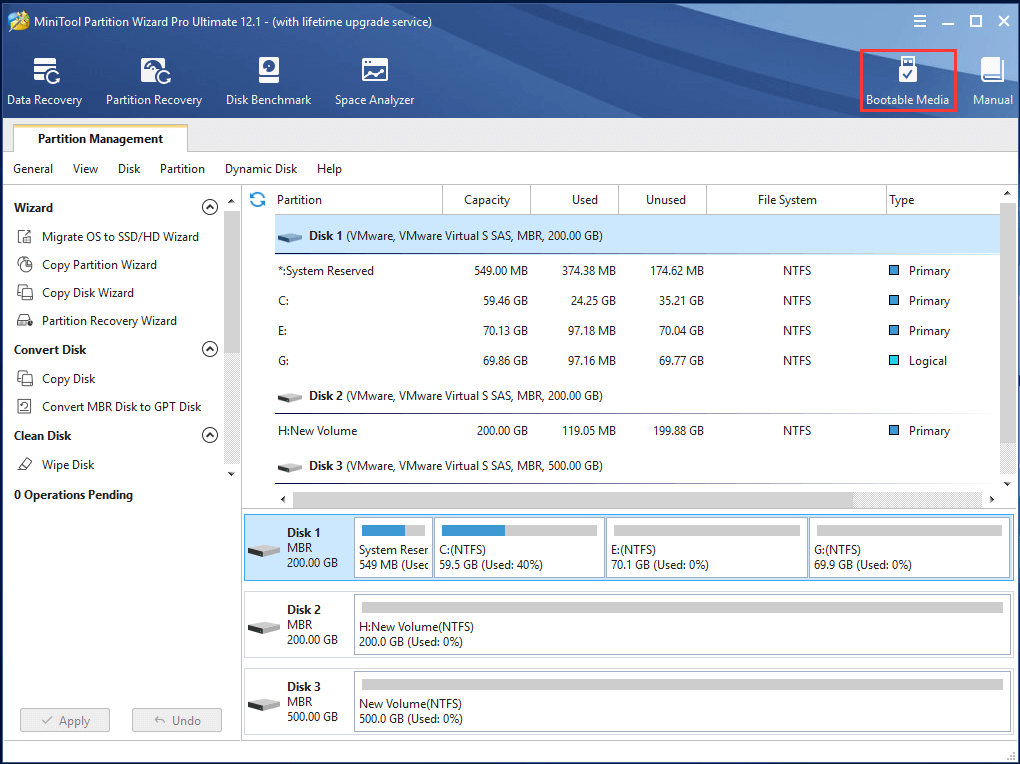
3. Then connect the bootable media to the unbootable computer with error code 2000-0151, change boot order and boot from it.
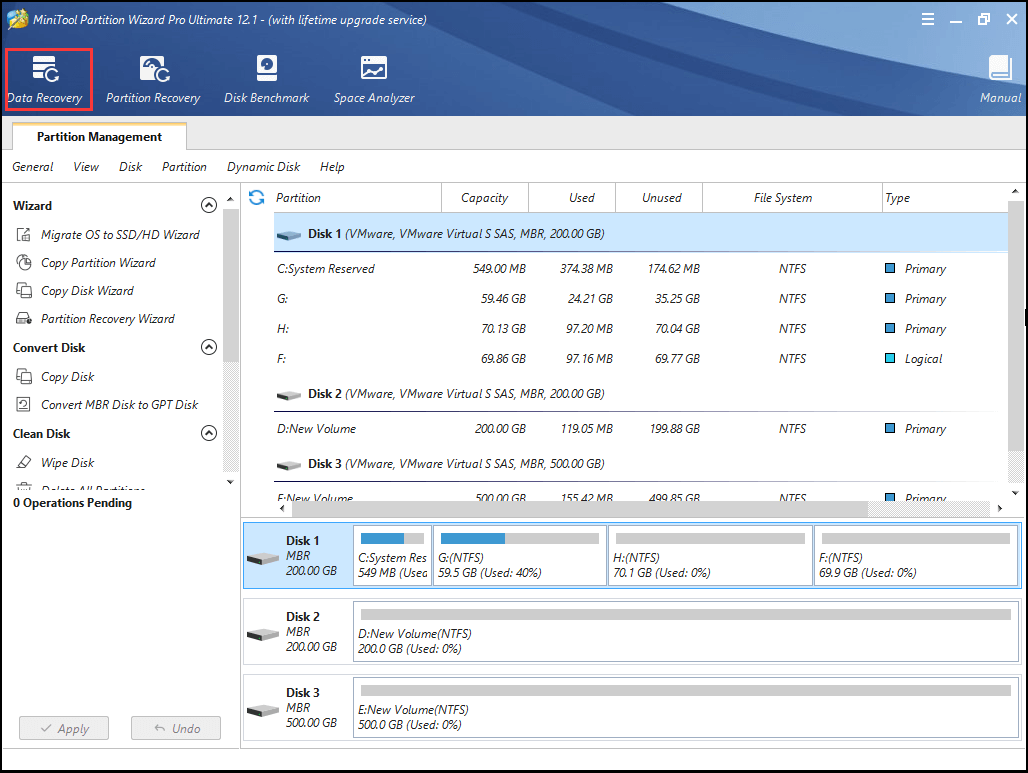
4. After entering the main interface of MiniTool Partition Wizard, click Data Recovery.
5. On the Data Recovery interface, all disks and partitions will be listed here. Select the partition containing important files and choose Scan to continue.
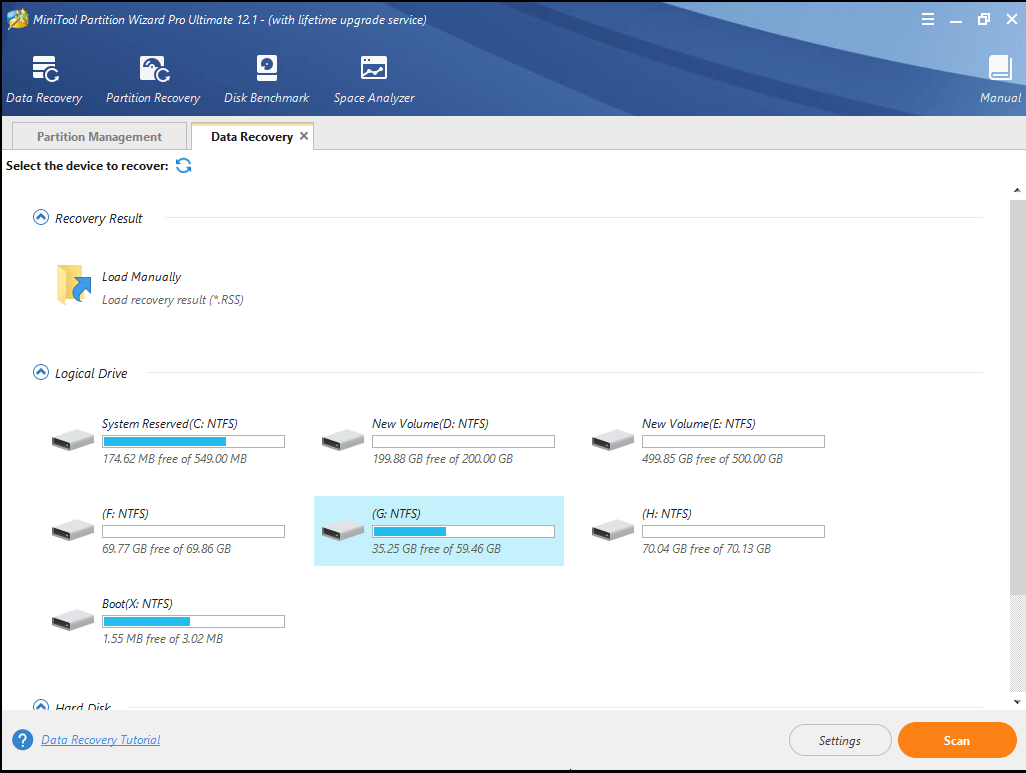
6. Then wait for the scanning process to be finished. During the process of scanning, you can choose to stop or pause it if you find the files you need.
7. After that, check the files you need and click Save to store them to another location.
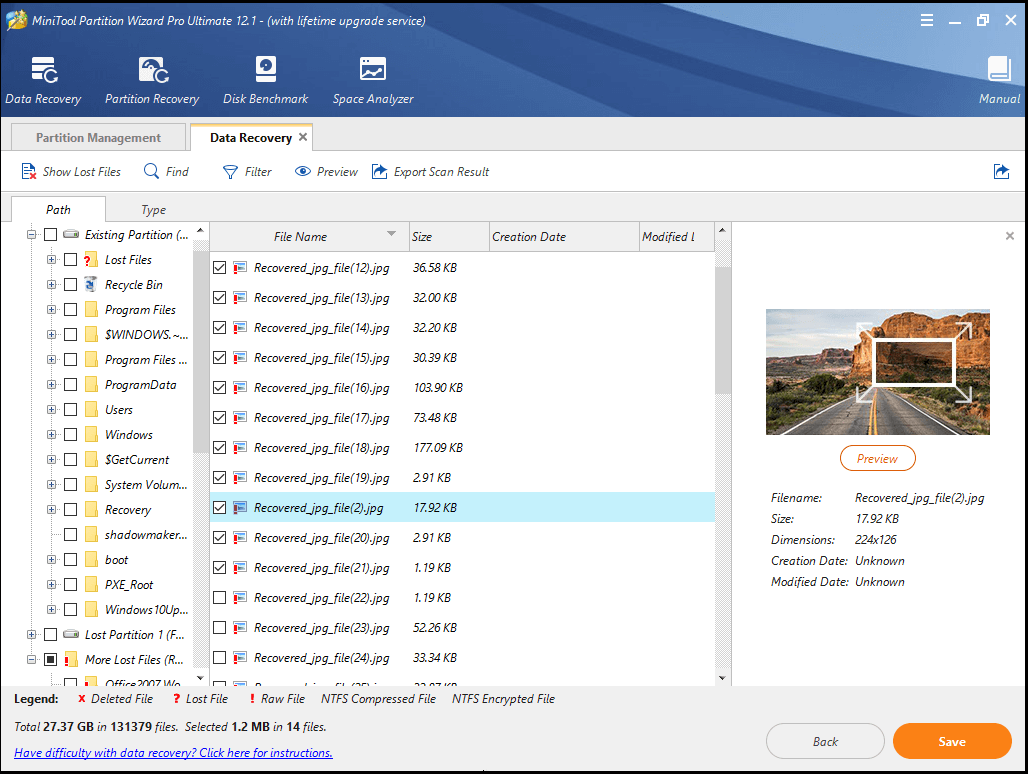
After all steps are finished, you have successfully recovered files from the unbootable computer with error code 2000-0151. So, you can go ahead to fix the Dell error code 2000-0151. In the next content, we will show you how to solve the Dell error code 2000-0151.
How to Fix Dell Error Code 2000-0151
In this section, we will show you the solutions to the error code 2000-0151. Please note that all these solutions are demonstrated based on the unbootable computer. If your computer is bootable, you can ignore the steps of booting the computer from Windows installation media and just try the repairing steps.
The following solutions are not 100% effective because the Dell error code 2000-0151 indicates severe hardware issues. So, it may depend on your hardware conditions. Sometimes the error may be solved unless you replace the hard drive. However, the following solutions are still worth trying and you can try them one by one.
Way 1. Check BIOS Settings
The Dell error code 2000-0151 may be caused by the wrong BIOS settings. So, in order to fix this error, you need to check whether there are changes in the BIOS settings and reset it to the default settings.
Now, here is the tutorial.
- Restart your computer and press F12 continuously to enter the BIOS settings.
- Then select Load Default, Load Setup Defaults, Load Default Settings, Load Optimal Defaults, or similar option in BIOS Settings and hit Enter to reset the BIOS setting.
- Then press F10 to save the changes.
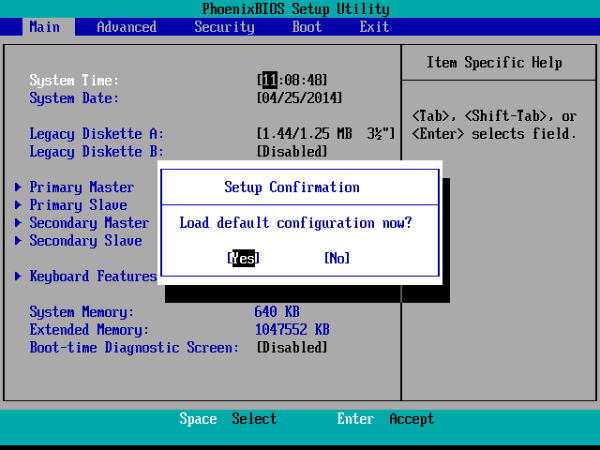
Once all steps are finished, reboot your computer and check whether the Dell error code 2000-0151 is removed.
Way 2. Run Surface Test
The Dell error code 2000-0151 may occur when there are bad sectors on your hard drive. So, it is necessary for you to check how many bad sectors on the hard drive. If there are too many, it means that your hard drive is imminent to fail.
So, how to check bad sectors on the hard drive? MiniTool Partition Wizard is able to help you. If you have created a MiniTool recovery USB drive in the above, you can connect it to the unbootable computer with error code 2000 0151 and boot from it. If not, create a bootable media first.
MiniTool Partition Wizard DemoClick to Download100%Clean & Safe
Now, we will show you how to check bad sectors on the hard drive.
1. Connect the MiniTool recovery USB drive to the computer and boot from it.
2. Then enter the main interface of MiniTool Partition Wizard.
3. Then select the hard drive you want to scan and choose Surface Test.
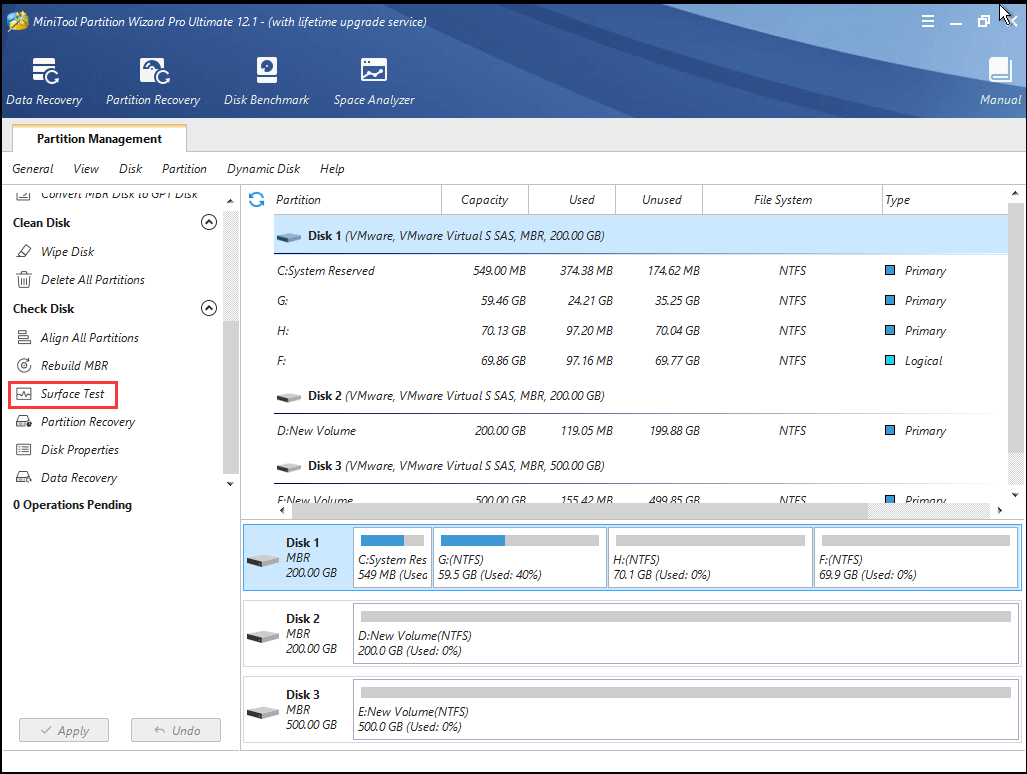
4. Then click Start Now to continue.
5. When the scanning process is finished, you can check the result. The disk block without reading error will be marked as green color, while the disk block with reading error will be marked as red color.
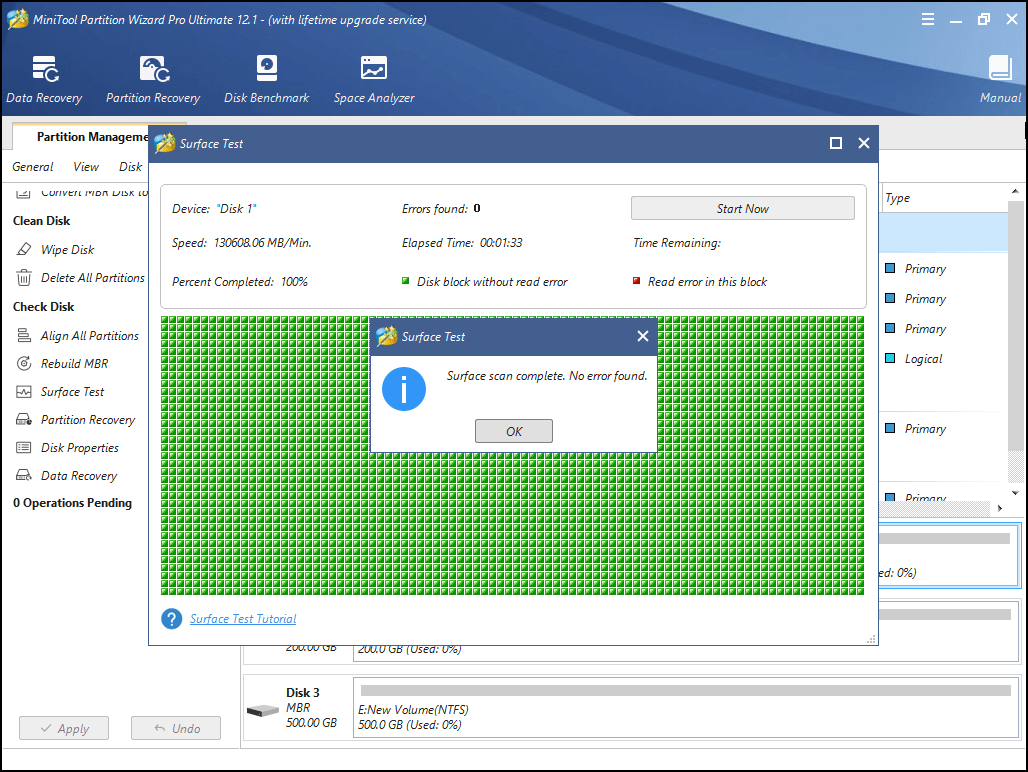
If there are few bad sectors on the hard drive, you can choose to shield them. If there are too many bad sectors, you need to back up your files and replace the hard drive.
Way 3. Run CHKDSK
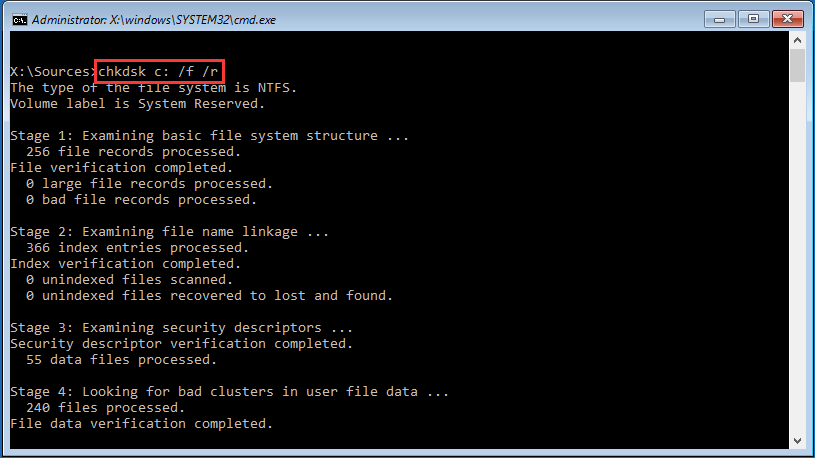
CHKDSK is able to help you to fix some hard drive errors, such as bad sectors, improper shutdowns or corrupted software, etc. So, in order to fix the Dell error code 2000-0151, you can try running the CHKDSK tool.
Now, here is the tutorial.
1. Create a Windows installation disc with Windows Media Creation Tools.
2. Insert the Windows installation disc to the unbootable computer and boot from it.
3. Then select the language, keyboard input and time.
4. Next, click Repair your computer.
5. Next, choose Troubleshoot > Advanced Options > Command Prompt to continue.
6. Then type the command chkdsk c: /f /r in the Command Line window and hit Enter to continue. (C represents the drive letter and you can change it by yourself.)
Way 4. Replace the Hard Drive
If the above solutions cannot fix the Dell error code 2000 0151, the last option you should choose is to replace the hard drive. If you already recovered data before, you can replace the hard drive directly and reinstall the operating system.
However, if you do not want to reinstall the OS to the new hard drive, you can choose to migrate OS to new hard drive. After that, the Dell error code 2000-0151 will be removed from your computer.
Related article: How to Replace Laptop Hard Drive Without Reinstalling Windows?
Dell Error Code 2000-0151: Causes and Fixes GuideClick to Tweet
Dell Error Code 2000-0151 FAQ
Bottom Line
Dell error code 2000-0151 usually indicates a potential hard drive issue and should not be ignored. The drive may still work for a while, but failure can happen unexpectedly.
It’s best to back up your data first, then check the drive’s health and take action. If the drive is failing, replacing it is often the most reliable solution.
For any issues with MiniTool products, please get in touch with us at [email protected], and we will respond as soon as possible.
About The Author

Position: Columnist
Charlotte is a technology columnist with a strong focus on the Windows operating system, specializing in disk management, backup, and data recovery. She is passionate about analyzing computer errors, identifying root causes, and delivering practical solutions. In her free time, she stays updated on the latest developments in computer systems and hardware while continuously learning new technologies to broaden her expertise. Her writing style is clear and easy to understand, making complex technical topics accessible even to users with limited computer knowledge.
User Comments :