
For a Lenovo laptop or desktop, Lenovo factory reset from boot is just a breeze. Here MiniTool offers a comprehensive guide on how to reset Lenovo to its default settings from boot. As well, a tip to protect data is introduced here.
Key Takeaways
- You can press the Novo button or access Windows Recovery Environment (WinRE) to factory reset a Lenovo laptop from boot when Windows won’t start.
- It is recommended to back up important files first, as a reset may erase personal data.
Why Lenovo Factory Reset from Boot Windows 11/10
A factory reset, just as its name implies, includes erasing all the settings, system files, data & applications and reverting the PC to its original default state it was in when it left the factory.
For Lenovo laptops or desktops, Lenovo factory reset can be a good option in some situations.
- Troubleshoot some problems: When your Lenovo PC has an issue or error that cannot be solved using other methods, resetting the device to its default settings could be the last resort.
- Optimize the PC performance: In case your PC always keeps freezing or crashing for no reason or runs slowly, a factory reset does wonders in optimizing the device for optimal performance.
- Erase personal data in some situations: Before selling, giving away, discarding, recycling, or disposing of this device, you may perform a factory reset to delete all the disk data to avoid data leaks.
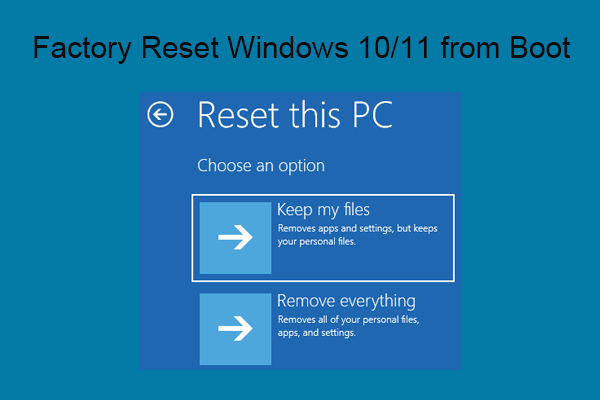
Back Up Important Files Before Lenovo Factory Reset Windows 10/11
Before proceeding, it is recommended to back up your important files and folders since the operation could erase your data. You can back up your documents, pictures, videos, downloads, and more to an external hard drive or a USB flash drive.
For data backup, we strongly recommend running MiniTool ShadowMaker. It includes many rich features, making it a handy backup software for file/folder backup, system backup, disk backup, and partition backup.
This software also enables you to create a bootable USB drive to back up your data even when the system fails to boot.
MiniTool ShadowMaker TrialClick to Download100%Clean & Safe
Step 1: Connect a USB flash drive to a working PC, run MiniTool ShadowMaker Trial Edition, and tap on Keep Trial to continue.
Step 2: Under the Tools tab, tap Media Builder.
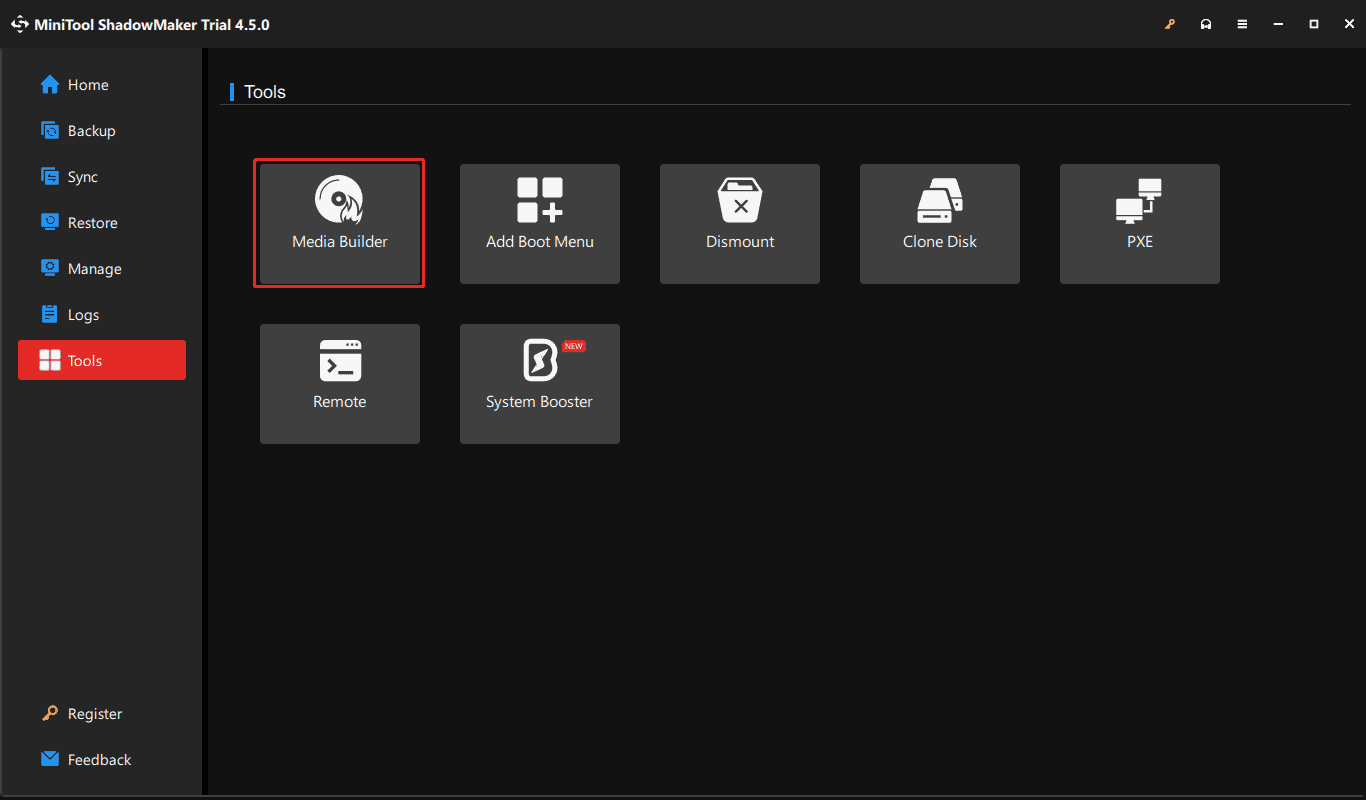
Step 3: Click on WinPE-based media with MiniTool plug-in. Then, choose your USB drive and start creating a bootable drive.
Step 4: Boot your Lenovo PC from the USB drive and open MiniTool ShadowMaker.
Step 5: Go to Backup, choose the files you want to back up, and select a drive as the destination.
Step 6: Click Back Up Now.
After data backup, follow the instructions below to factory reset Lenovo laptop from boot in Windows 11/10.
How to Run Lenovo Factory Reset from Boot Windows 11/10
There are two approaches to factory reset a Lenovo laptop or desktop from boot in Windows 11/10:
- Use the Novo Button (if supported)
- Access Windows Recovery Environment
Find the differences from the comparison table.
| Feature | Novo Button | WinRE Reset this PC |
| How to access | Press the Novo button while the laptop is off | Enter WinRE by interrupting startup 3 times or using a bootable drive |
| Availablity | Supported Lenovo models only | Most Windows 11/10 PCs |
| Recovery options | Lenovo recovery options (model-dependent) | Keep my files or Remove everything |
| When to use | You want a full factory reset | You want to keep files or don’t have a Novo button |
Method 1. Factory Reset Lenovo Using the Novo Button
If your Lenovo laptop has a Novo button, you can perform a factory reset even when Windows cannot start normally.
This button is a small circular button or pinhole, usually located on the side, near the power button, or on the bottom/back edge.
Note: Not all Lenovo computers have a Novo button. The exact recovery options vary by Lenovo model. On some models, pressing it does not always launch OneKey Recovery, but accesses the Reset this PC feature.
Step 1: Completely shut down your computer.
Step 2: Locate the Novo button and press it.
Step 3: Choose System Recovery from the Novo Button Menu.
Step 4: Enter Lenovo OneKey Recovery or the available recovery environment.
Step 5: Choose the appropriate system recovery option, such as Restore from initial backup, to restore the PC to its initial state.
Method 2: Factory Reset Lenovo from Windows Recovery Environment (WinRE)
If your Lenovo PC doesn’t have a Novo button or the recovery feature isn’t available, enter WinRE to perform a PC reset.
Step 1: Force your laptop to Automatic Repair:
- Shut down the Lenovo device.
- Press the Power button to turn it on.
- Press this button again when seeing the Windows logo or Lenovo logo to power off it to interrupt the boot process.
- Repeat this step three times and on the third boot, a screen saying Prepare Automatic Repair will show.
Step 2: Hit Advanced options in the Automatic Repair interface to access Windows Recovery Environment (WinRE).
Step 3: Click Troubleshoot > Reset this PC.
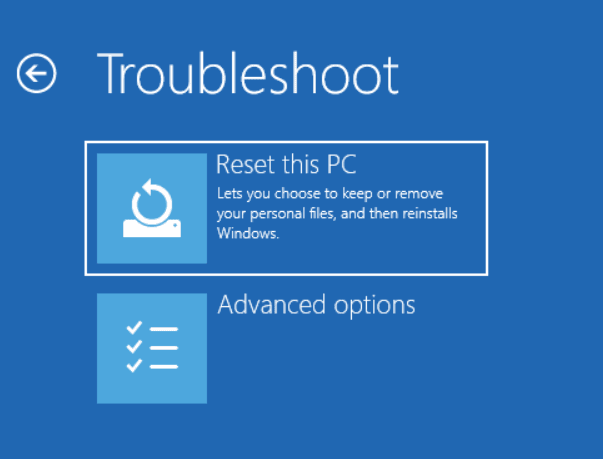
Step 4: Choose an option to reset as per your situation: Keep my files or Remove everything. For example, choose the first option if you only need to reinstall Windows to boost PC performance or fix some issues; remove everything when you need to sell, donate, or recycle the computer.
Step 5: Decide how you would like to reinstall Windows 10/11 and just click Cloud download or Local reinstall to proceed.
Step 6: To continue, choose Just remove my files or Full clean the drive. You had better choose the second option before giving away the Lenovo laptop.
Step 7: Hit Reset and your PC begins resetting itself to the default settings. Once completed, you need to re-set up your computer by following the instructions on the screen according to your needs for use.
Final Words
Lenovo factory reset from boot is necessary for various situations and you can find some in this guide. Before resetting your Lenovo PC to factory settings, remember to back up data using MiniTool ShadowMaker. Then, follow the given step-by-step guide for this task in Windows 11/10.
For issues with MiniTool software, contact us at [email protected].
Lenovo Factory Reset from Boot FAQ
About The Author

Position: Columnist
Vera has been working at the MiniTool Team for over 10 years as a technical editor and content writer. She mainly focuses on disk and partition management, data recovery, Windows backup and restore, and PC troubleshooting. Through in-depth software testing and hands-on experience, she has helped users solve a wide range of computer problems and better protect their data on Windows devices.
User Comments :