
Threat Service Has Stopped Restart It Now Windows 10/11
Windows Defender, also called Windows Security, is a powerful antivirus program that is built in Windows 10 and 11. It can help to scan the entire operating system and protect the PC against malware and viruses in real-time.
However, sometimes this antivirus software doesn’t function properly. When trying to launch this antivirus program, you may see this error message “threat service has stopped restart it now”.
If you click the Restart now button, the service starts and the error disappears. That’s good. However, if not, another error occurs on the computer screen saying “Unexpected error. Sorry, we ran into a problem. Please try again”.
Well then, how can you get rid of the trouble? Don’t feel vexed since you can easily fix this error after trying the methods below.

Fixes for Threat Service Has Stopped Restart It Now
Check the table below to identify the possible causes of this error and find the appropriate fixes.
| Possible cause | Recommended fix |
| Another antivirus program is installed. | Disable or uninstall the third-party antivirus software |
| Windows Defender services may be stopped. | Check the status of the relevant services |
| Defender is disabled in the registry. | Edit the Windows Registry |
| Windows system files are corrupted. | Run DISM & SFC to repair corruption |
Method 1: Disable or Uninstall Third-Party Antivirus
Sometimes “Threat service has stopped. Restart it now” is only an informational message. If you install any third-party antivirus program on your Windows 10/11 PC, Windows Defender will stop working automatically and show you the message.
To fix it, temporarily disable this software and run Windows Security again.
If you want to keep using Windows Security, uninstall the conflicting third-party app.
Step 1: Go to Control Panel and click Uninstall a program from the Program category.
Step 2: Right-click on the antivirus program and click Uninstall.

Method 2: Enable Windows Defender Services in Services
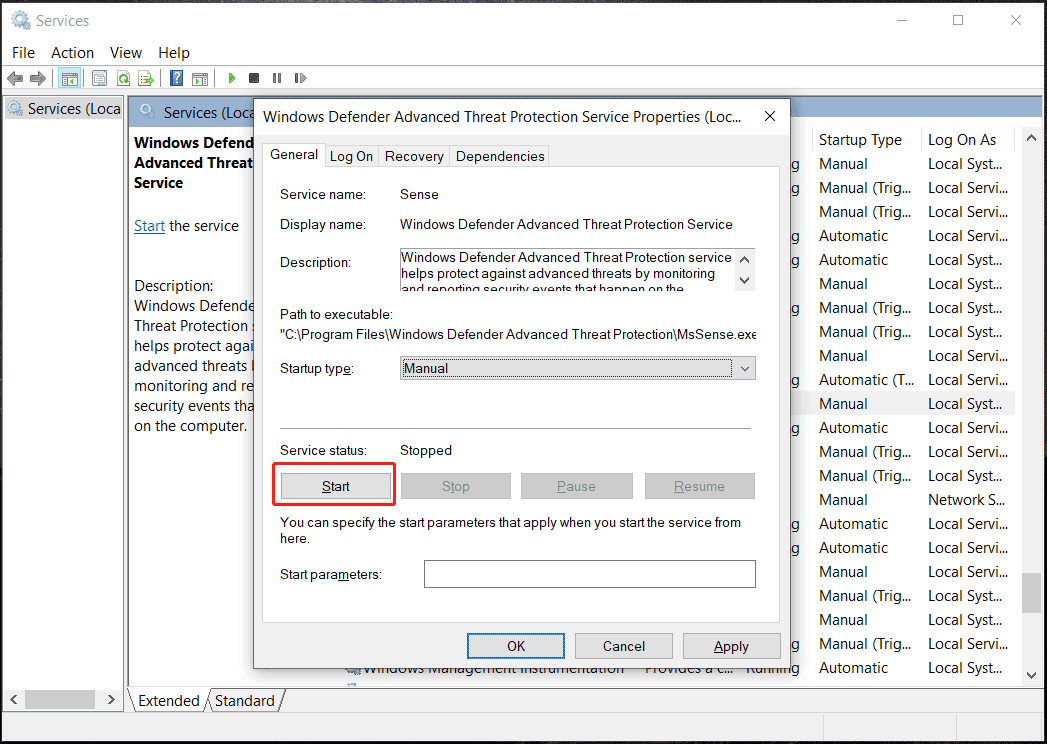
To run Windows Defender or Windows Security, the related services should be running. Or else, you may get the error “Threat service has stopped. Restart it now” in Windows 11/10. The following is how to enable these services in the Services window:
Step 1: Open the services management console by typing services.msc in the search box and clicking Services. Or you can press Win + R, type services.msc and click OK.
Step 2: Locate the following services and make sure the startup type of these services is set to the default values:
- Windows Defender Advanced Threat Protection Service – Manual
- Windows Defender Antivirus Network Inspection Service – Manual
- Windows Defender Antivirus Service – Manual
- Windows Defender Firewall Service – Automatic
If any service is stopped, start it. Just double-click on it and choose Start. To change the startup type, double-click on one service and choose the correct option from the drop-down menu in Startup type.
Method 3: Run DISM and SFC
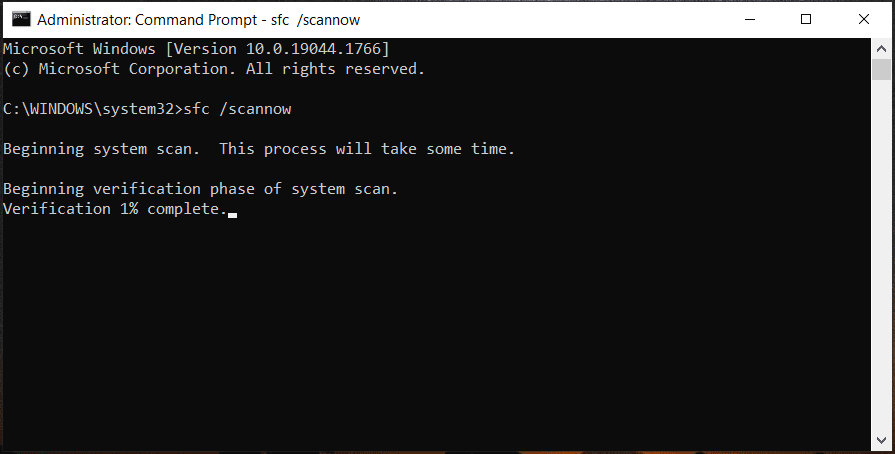
Sometimes “threat service has stopped restart it now unexpected error” is caused by missing or corrupted system files. So, you can try to run an SFC and DISM scan to check for the entire operating system and repair corruption to fix some issues like the Windows Security issue.
Step 1: Type command prompt in the search box in Windows 10/11 and click Run as administrator from the right pane.
Step 2: Type Dism.exe /Online /Cleanup-Image /Restorehealth to the CMD window and press Enter.
This process will take a few minutes and wait patiently.
Step 3: Type sfc /scannow and press Enter to begin verification.
Method 4: Edit Windows Registry
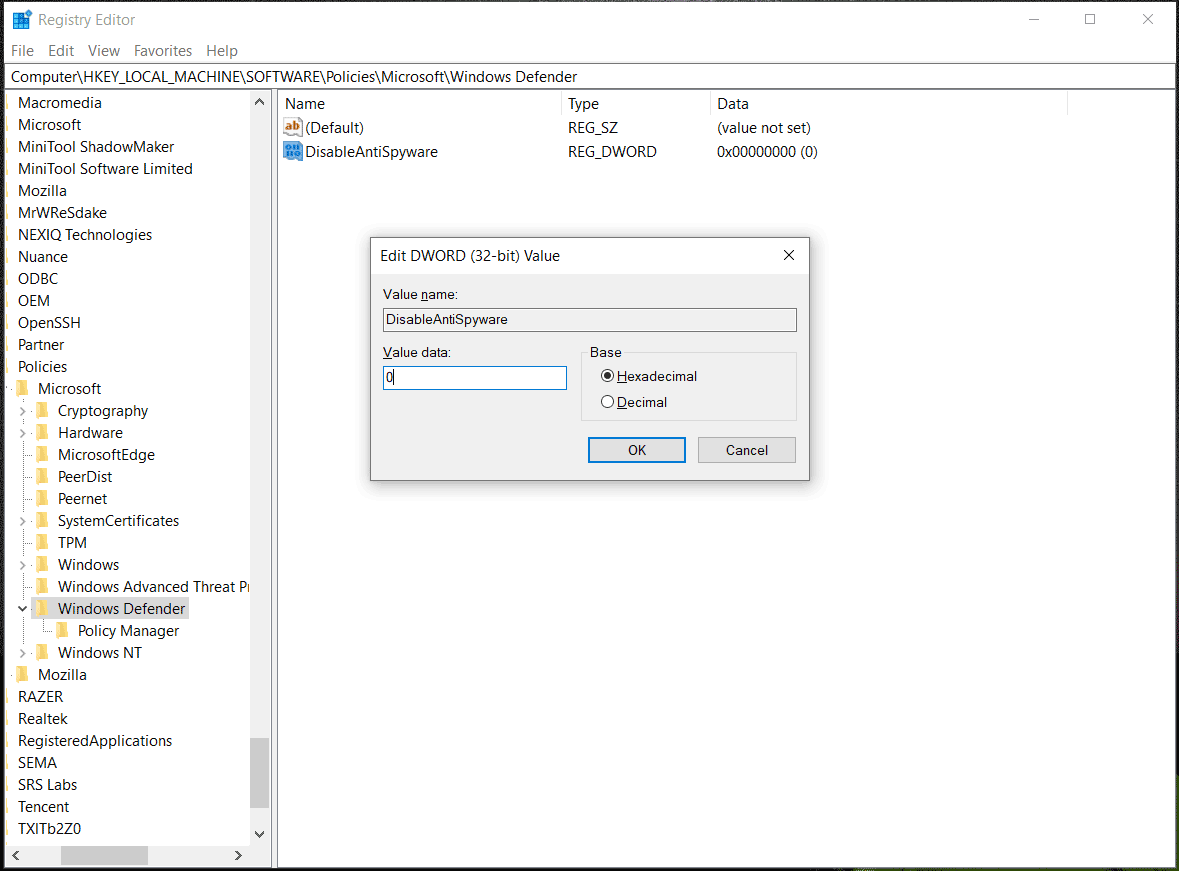
If the above fix cannot work to remove “threat service has stopped restart it now”, you can try to enable Windows Defender services in Windows Registry.
Before you proceed with the modification of the Windows Registry, it is recommended to back up your registry items since mistaken operations may cause the system to go wrong. To do this work, follow the guide - How to Back up Individual Registry Keys Windows 10/11.
See how to do this task:
Step 1: Launch Windows Registry Editor by clicking Win + R, typing regedit to the text box, and clicking OK. Or, type regedit to the search box in Windows 10/11 and click the result to open this editor.
Step 2: Click Yes in the User Account Control window to continue.
Step 3: Navigate to this path step by step: HKEY_LOCAL_MACHINE\SOFTWARE\Policies\Microsoft\Windows Defender. Or you can copy & paste the path to the address bar and press Enter.
Step 4: If you see the two items – DisableAntiVirus and DisableAntiSpyware in the right pane, double-click on each one and set the value data to 0.
If these two items are not displayed, create them: right-click on the empty space and choose New > DWORD (32-bit) Value. Give a name to one. Then, change the value data of each item to 0.
Step 5: Close Registry Editor and restart your Windows PC. Then, go to run Windows Defender to see if the issue is solved.
Besides, there is another thing you can have a shot.
Step 1: Go to the path: HKEY_LOCAL_MACHINE\SYSTEM\CurrentControlSet\Services\WinDefend.
Step 2: In the right pane, double-click on the Start item and change its value data to 2 from 4.
If your PC misses some required services like WinDefend and SecurityHealthService, you cannot see them in this path HKEY_LOCAL_MACHINE\SYSTEM\CurrentControlSet\Services. Try the next method.
Method 5: Repair Windows 10/11 via an In-Place Upgrade
If the previous solutions do not resolve the problem, an in-place repair may help.
Before you upgrade this PC, it is recommended to back up your important files to prevent data loss.
To do this task, we strongly recommend using MiniTool ShadowMaker, a professional PC backup software for Windows 11/10/8/7. It can be used to back up files, folders, systems, disks, and partitions. This program can meet your requirements well. It is free to use to enjoy all the features in 30 days. Just click the following button to download it.
MiniTool ShadowMaker TrialClick to Download100%Clean & Safe
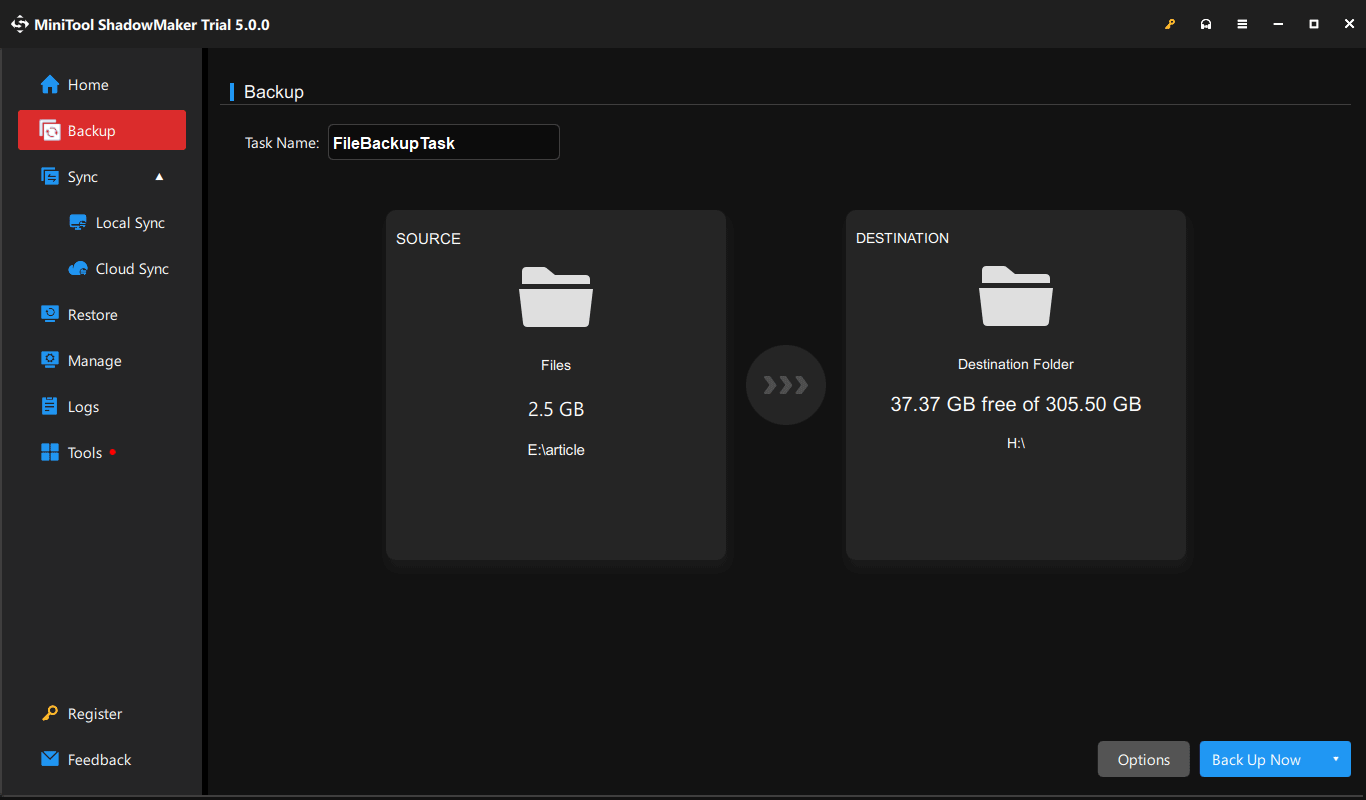
Step 1: Launch MiniTool ShadowMaker and go to Backup.
Step 2: Navigate to SOURCE > Folders and Files, check the items you want to back up, and click OK.
Step 3: Go to DESTINATION and choose a path to save the backup. An external hard drive or a USB flash drive is recommended.
Step 4: Click the Back Up Now button to execute this task at once.
Next, perform an in-place upgrade to fix “threat service has stopped restart it now”.
To repair your Windows 10/11 via the upgrade, you need to ask Media Creation Tool for help and here we take Windows 10 as an example.
Step 1: Go to the Download Windows 10 page from Microsoft and download Windows 10 Media Creation Tool by clicking the Download tool now button.
Step 2: Double-click on the exe file on your PC and click Yes in the User Account Control interface.
Step 3: After a few things are ready, click the Accept button to agree to applicable notices and license terms.
Step 4: Check the option of Upgrade this PC now and click Next to go on.
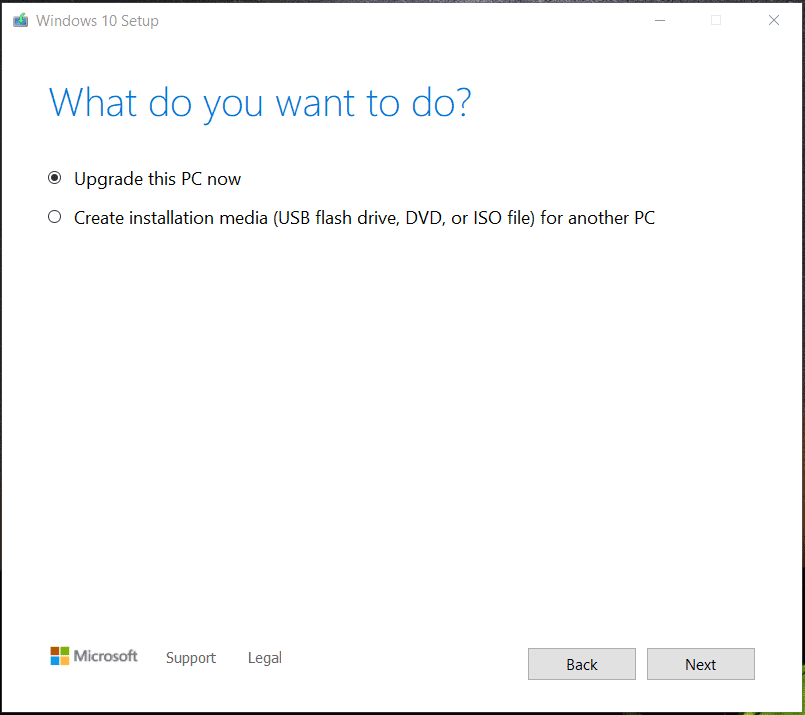
If you need to create a bootable USB drive or download an ISO file of Windows 10, tick the option of Create installation media (USB flash drive, DVD, or ISO files) for another PC.
Step 5: This tool is downloading Windows 10 and this can take a few minutes. During the process, you can feel free to keep using your PC.
Step 6: This tool is checking for updates and wait patiently.
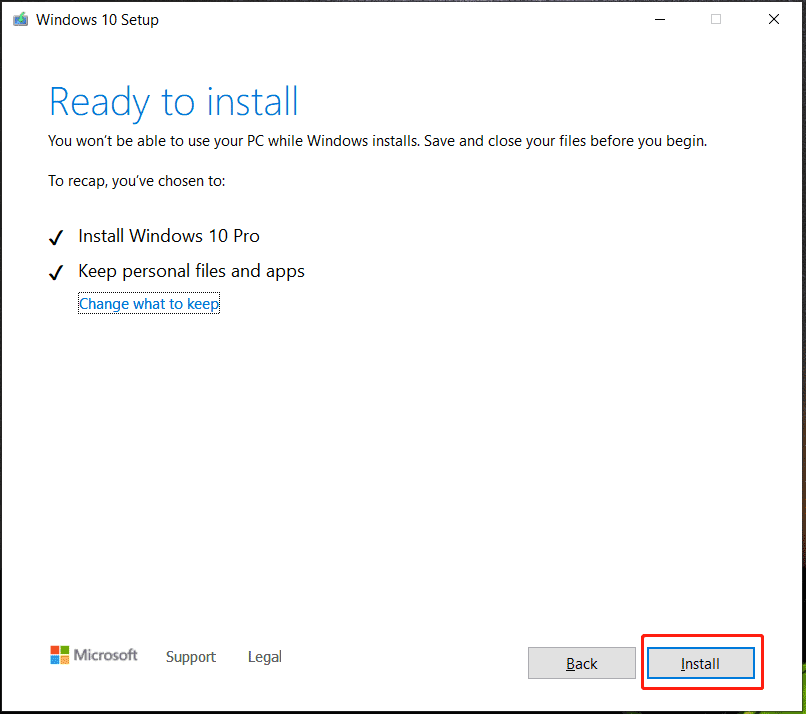
Step 7: When everything is ready, click the Install button to start installing Windows 10.
If you want to keep other things during the installation, click Change what to keep and select the corresponding option.
If you are running Windows 11 and need to perform an in-place upgrade, refer to this post to find what you should do – How to Perform a Windows 11 In-Place Upgrade.
After finishing the update, now you can try to run Windows Defender or Windows Security and the issue should be removed.
Tips to Protect Your PC
Only running Windows Defender is not enough to keep your PC secure and you can find why from our previous post – Is Windows Defender Enough? More Solutions to Protect PC. To make sure your computer is safe and avoid some threats, there are some things you should do:
- Don’t Open Emails from Unfamiliar Users
- Turn on SmartScreen Filter
- Turn on User Account Control (UAC)
- Don’t Visit Suspect Websites
- Don’t Install Cracked Software
- Pay Attention to Your Downloaded Files
- Strengthen Your Internet Browser Security Settings
- More…
To find details, read our previous post – How to Protect Your Computer from Viruses? (12 Methods).
Final Words
“Threat service has stopped restart it now” is a common issue on Windows 10/11. If your PC confronts this annoying problem, try the solutions above one by one and you should easily get rid of the trouble. If you find some other methods to help you out, you can write it in the comment below.
Besides, after fixing the issue, we strongly recommend backing up your PC to keep the machine safe. In addition, try some other reliable ways to protect your PC against viruses and malicious programs since Windows Defender is not enough to keep the PC safe.
Threat Service Has Stopped Restart It Now FAQ
About The Author

Position: Columnist
Vera has been working at the MiniTool Team for over 10 years as a technical editor and content writer. She mainly focuses on disk and partition management, data recovery, Windows backup and restore, and PC troubleshooting. Through in-depth software testing and hands-on experience, she has helped users solve a wide range of computer problems and better protect their data on Windows devices.
User Comments :