
Windows 11/Windows 10 taskbar icons missing can be caused by corrupted system files, issues with the icons cache, and other causes. To fix it, follow the instructions from MiniTool to restart Windows Explorer, run SFC, clear the icon cache, and more.
Why Is Taskbar Not Showing Icons Windows 11/10
Windows taskbar is an important part of the operating system, located at the bottom of the screen. It provides quick access to Start, Task Manager, system tray, notifications, and pinned apps. Besides, the taskbar displays the running apps’ icons.
However, you may encounter a serious case: Windows 11/Windows 10 taskbar icons missing.
Why do icons disappear from the taskbar? Here are some common causes.
- Windows Explorer crash: An issue with Windows Explorer can cause the taskbar and its icons to malfunction and then disappear.
- Enabled Tablet Mode: Windows 10 Tablet Mode can let the system switch to a user interface for touchscreens. This mode hides taskbar icons by default.
- Corrupted system files: Corrupted system files can cause various issues, including taskbar icons not showing up.
- Incorrect settings: You may configure icons to be turned off in the taskbar settings.
- Damaged icon cache: The icon cache that stores the display information for icons may be corrupted, preventing them from showing correctly.
- Iris service: In some cases, this service causes icons to disappear. Just consider deleting it.
![[Full Fixes] Can’t Click on the Taskbar on Windows 10/11](https://images.minitool.com/minitool.com/images/uploads/2022/03/cant-click-on-taskbar-windows-10-11-thumbnail.png)
How to Fix Windows 11/Windows 10 Taskbar Icons Missing
To fix missing taskbar icons, restart Windows Explorer, check taskbar settings, delete the icon cache, and try other ways.
We will give a comprehensive guide to walk you through how to fix your issue with ease.
Method 1: Restar Windows Explorer
First, restart Windows Explorer. When you perform this task, your Start menu, taskbar, and desktop will briefly disappear and then reappear.
To do this:
Step 1: Open Task Manager by pressing Ctrl + Shift + Esc.
Step 2: Under the Processes tab, right-click Windows Explorer, and choose Restart.

After refreshing the user interface, Windows taskbar icons should show.
Method 2: Restart Windows Components
Issues related to some Windows components can result in numerous problems, such as Windows 10/Windows 11 taskbar icons missing. Restarting certain processes can refresh components to show taskbar icons.
Take these steps below:
Step 1: Right-click the taskbar and choose Task Manager.
Step 2: Head to the Details tab that lists all running processes.
Step 3: Locate SearchIndexer.exe, right-click it, and select End task.
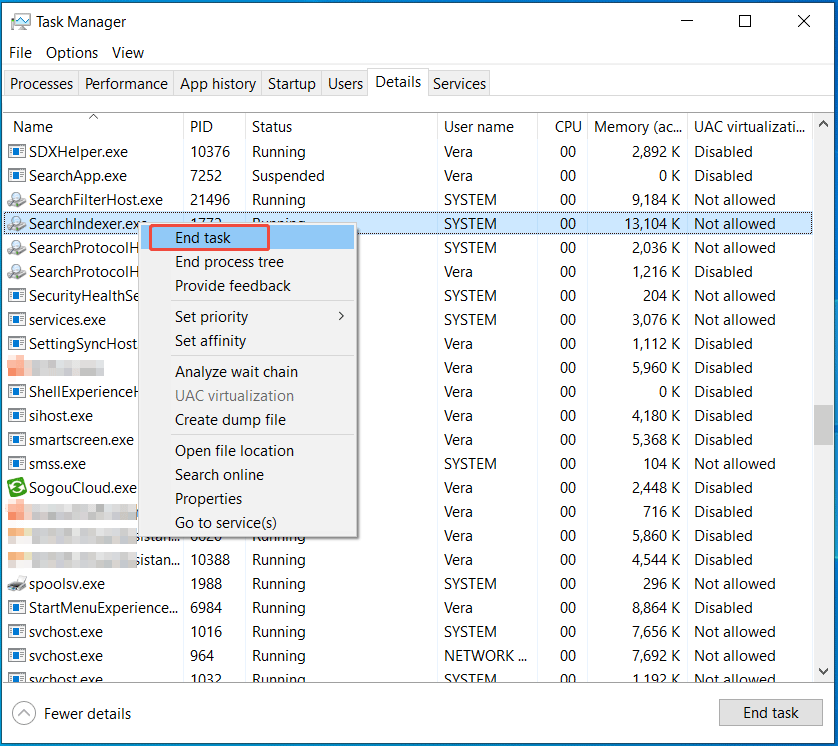
Step 4: End these processes one by one: SearchHost.exe, ShellExperienceHost.exe, and RuntimeBroker.exe.
Step 5: Once you end these processes, hit File > Run new task.
Step 6: Type SearchIndexer.exe and OK. Repeat this operation for other processes that you have killed.
After that, check if taskbar icons return.
Method 3: Check Taskbar Settings
In case you don’t configure certain icons to show on the taskbar, you may think they disappear. So, to fix missing taskbar icons, check if taskbar settings are correct.
Step 1: Press Win + I to open the Settings app.
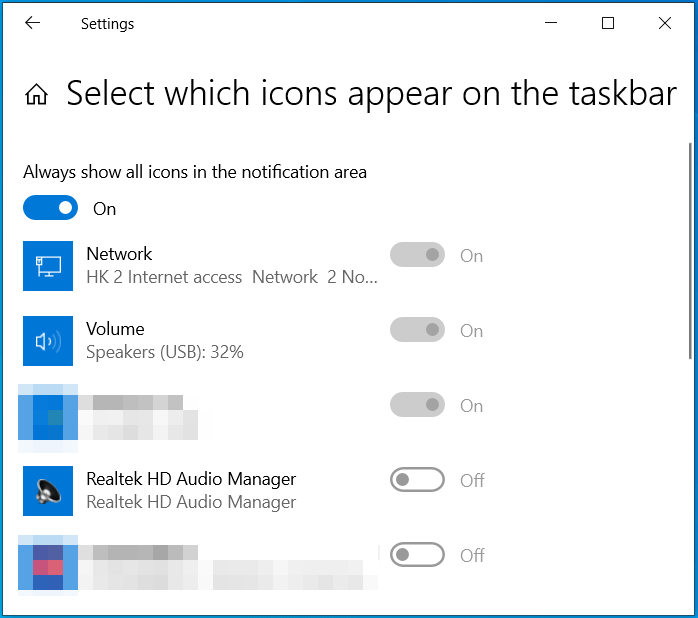
Step 2: Navigate to Personalization > Taskbar.
Step 3: In Windows 11, hit Other system tray icons, and switch all the icons you want to show to On.
In Windows 10, click Select which icons appear on the taskbar, and enable the option of Always show all icons in the notification area.
Method 4: Clear Icon Cache
The Windows icon cache temporarily stores icons for applications and files to allow them to quickly load in File Explorer and other locations. Once the cache is corrupted, icons may be incorrect, blank, or missing.
Thus, try clearing the cache if you are confronted with taskbar icons not showing in Windows 10/11.
Step 1: Press Win + S, input Command Prompt, and click Run as administrator.
Step 2: Click Yes when a User Account Control prompt appears.
Step 3: Copy and paste the following command to the CMD window, then press Enter.
cd /d %userprofile%\AppData\Local\Microsoft\Windows\Explorer
Step 4: Type dir and press Enter.
Step 5: Run the del iconcache* command that deletes all the icon cache files.
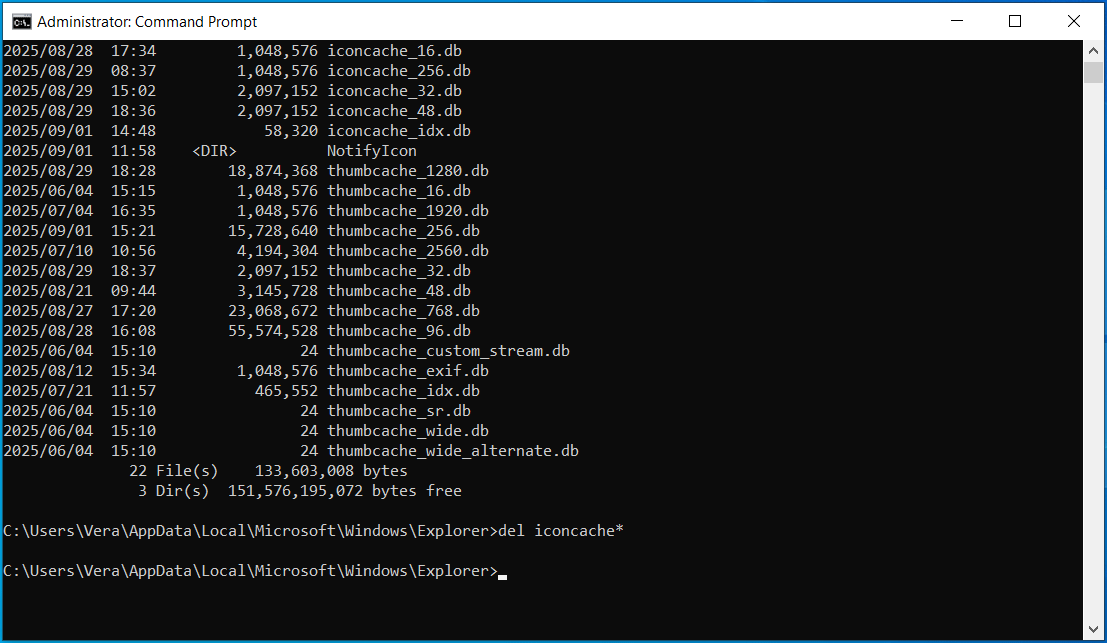
Once completed, restart the system. Windows rebuilds the icon cache from scratch and restores taskbar icons.
Method 5: Run System File Checker
If your PC has corrupted or missing system files, it may end up with various issues, including Windows 11/Windows 10 taskbar icons missing.
To restore taskbar icons, try running System File Checker (SFC). This built-in tool can detect and repair these problematic system files.
Step 1: Launch Command Prompt as admin via the Search box.
Step 2: Type the following command in the new window and press Enter.
sfc /scannow
Step 3: After SFC completes scanning your PC, Windows will display the result to you. You may see it successfully repair corrupted files.
Step 4: If SFC fails to repair files, we suggest running the DISM scan via the command.
DISM /Online /Cleanup-Image /RestoreHealth
Method 6: Disable Tablet Mode
In Windows 10, there is a mode called Tablet Mode that is an interface optimized for touchscreens. In Windows 11, Microsoft has removed this mode.
This mode gives you large app icons, a full-screen Start menu, and a simplified taskbar (no regular app icons by default).
To fix taskbar icons missing, disable Tablet Mode.
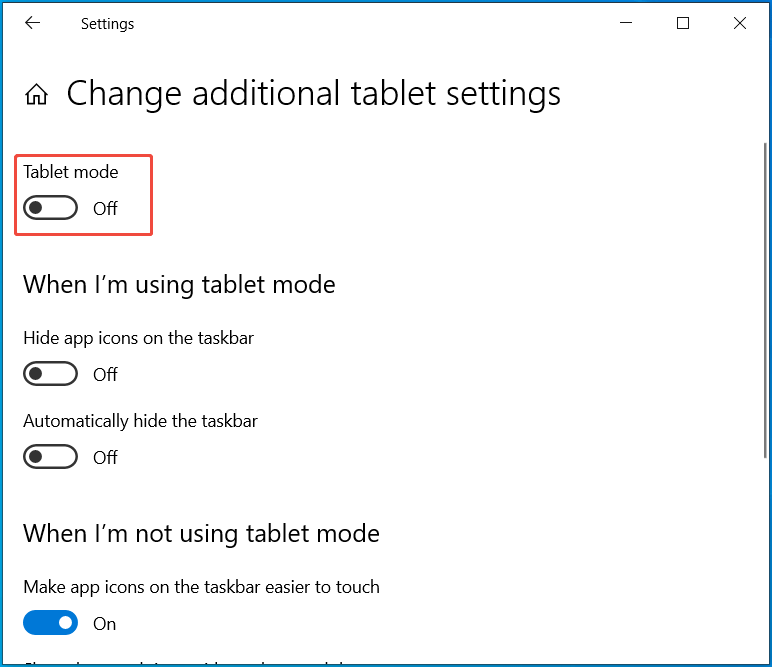
Step 1: Navigate to Settings > System > Tablet.
Step 2: Click the Change additional table settings link.
Step 3: Disable Tablet Mode by switching the toggle to Off.
Method 7: Change Registry
Windows Registry Editor stores all the configurations for the system, apps, and users. Usually, it acts as a great tool for users to modify some settings to troubleshoot issues with the system.
If icons disappear from the taskbar in Windows 11/10, follow the instructions to edit the registry.
Step 1: Search for registry editor in the Search box and run it.
Step 2: Navigate to this path: Computer\HKEY_CURRENT_USER\SOFTWARE\Classes\Local Settings\Software\Microsoft\Windows\CurrentVersion\TrayNotify.
Step 3: In the right pane, right-click the IconStreams entry, and hit Delete.
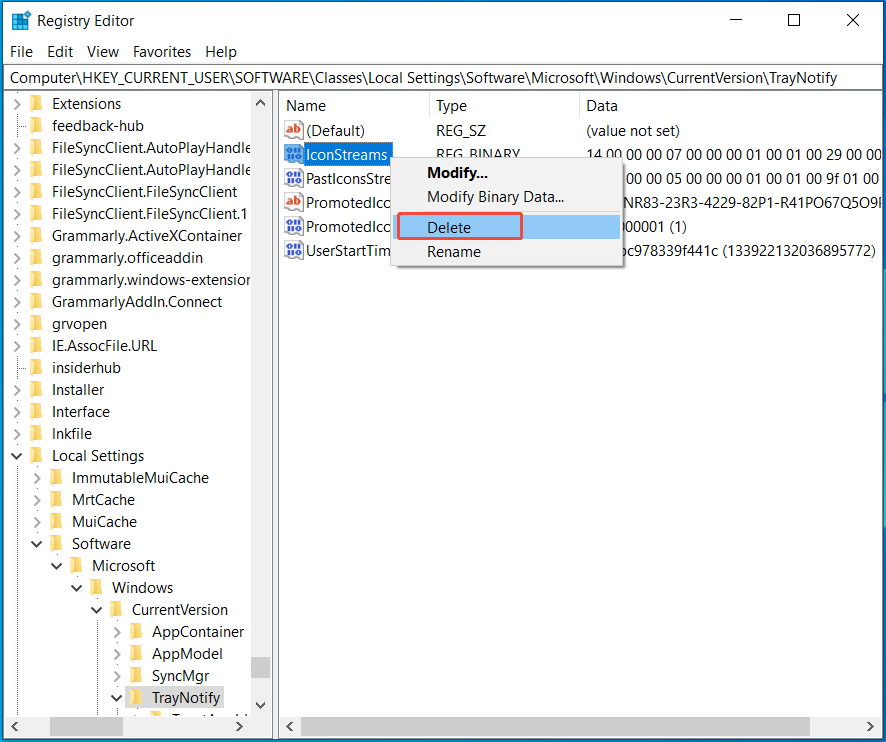
Step 4: Also, delete the PastIconsStream entry.
Step 5: Exit the editor and restart the operating system. The missing icons should appear on the taskbar now.
Method 8: Repair Windows Apps via PowerShell
If taskbar icons are missing, another possible reason can be corrupted apps. To fix this issue, repairing Windows apps via PowerShell can help.
Here are the steps:
Step 1: In Search, type Windows PowerShell, and click Run as administrator.
Step 2: Copy and paste the following command to the new window and press Enter to execute it.
Get-AppxPackage -AllUsers| Foreach {Add-AppxPackage -DisableDevelopmentMode -Register “$($_.InstallLocation)\AppXManifest.xml”}
This command re-registers all Windows apps for all user accounts on the system.
After that, restart the system, and Windows 11/Windows 10 taskbar icons missing may be solved.
Method 9: Delete the Iris Service
The Iris service is a part of Windows Spotlight. It is used to manage features, such as the Bing wallpaper and lock screen images. However, it can cause problems with the taskbar, including taskbar icons not showing up.
To return the disappeared icons to the taskbar, delete this service.
Step 1: Open Task Manager by right-clicking on the taskbar and choosing this app.
Step 2: Go to File > Run new task.
Step 3: Type cmd in the Open field and click OK to open Command Prompt.
Step 4: Copy and paste the following command: reg delete HKCU\SOFTWARE\Microsoft\Windows\CurrentVersion\IrisService /f && shutdown -r -t 0.
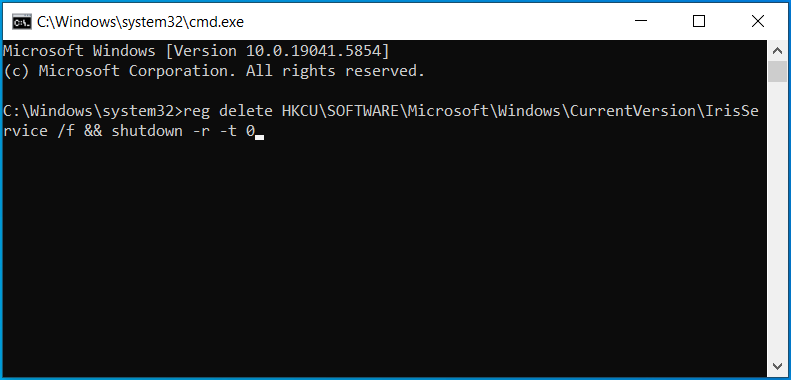
Step 5: Press Enter, and then Windows should restart. After rebooting, the missing icons will be back to normal.
Method 10: Uninstall a Recent Update
Sometimes taskbar icons disappear after installing a Windows update. If so, the update may have bugs that lead to the issue. Try uninstalling that update via these steps.
Step 1: In Windows 10, go to Settings > Update & Security > View update history.
Step 2: Hit Uninstall updates to open a window in Control Panel.
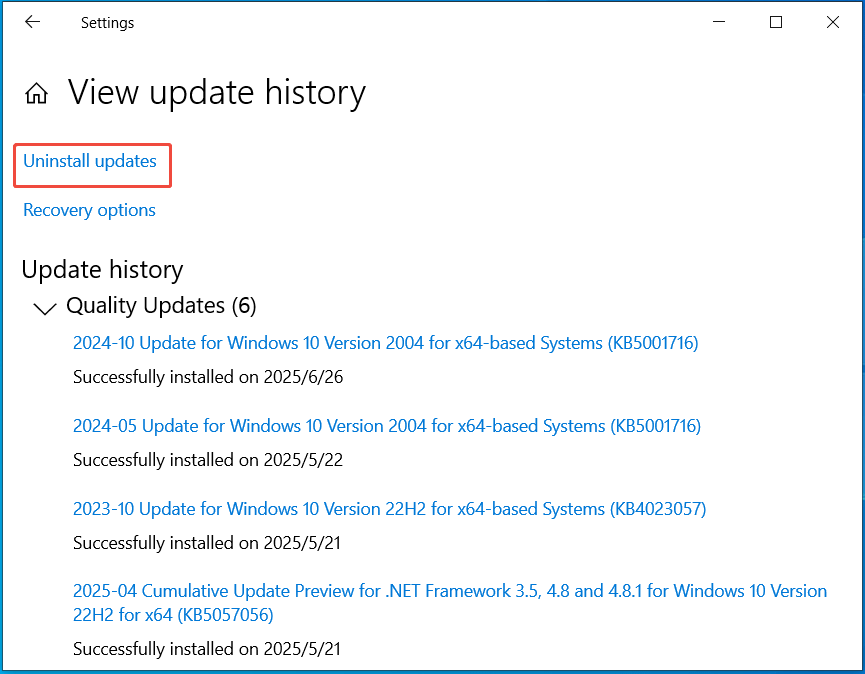
Step 3: Right-click on the recent update and choose Uninstall.
Method 11: Perform a Clean Boot
Icons may be missing from the taskbar due to software conflicts. So, run a clean boot.
Step 1: Press Win + R to open Run.
Step 2: Input msconfig and click OK.
Step 3: In the System Configuration window, go to Services.
Step 4: Check Hide all Microsoft services and click Disable all.
Step 5: Under Startup, hit Open Task Manager, and choose the startup programs to disable.
Step 6: Exit Task Manager and click OK to save changes.
Then, restart the computer.
If the taskbar icons are restored, the issue is related to the third-party programs. You should determine what the culprit is and reset the PC to start normally. For more information, refer to this help document on how to perform a clean boot in Windows from Microsoft.
Method 12: Perform a System Restore
A restore point is useful to restore the PC to a previous state. If icons disappear from the taskbar, try this way. They may restore to a normal state.
Step 1: Type create a restore point in Search and press Enter.
Step 2: Click System Restore.
Step 3: Tick Choose a different restore point and hit Next.
Step 4: Pick another restore point from the list.
Step 5: Click Finish to begin the restoration.
Method 13: Change Date and Time
Some Reddit users recommended this solution. It worked. So, have a try.
Step 1: Open Control Panel and view its items by Category.
Step 2: Click Clock and Region > Date and Time > Change date and time.
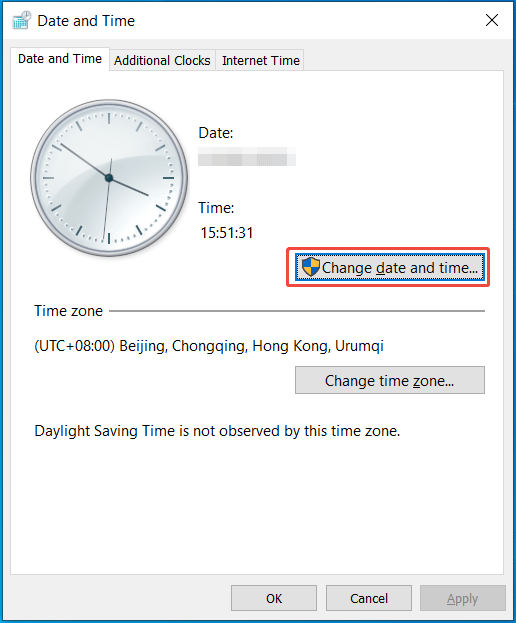
Step 3: Change the time to tomorrow. For example, today is September 2, you should set it to September 3.
Step 4: Head to Internet Time, click Change settings, and disable the sync feature.
Top Recommendation: Back up System
After applying the methods above, it is recommended to create a system backup. When you come across taskbar icons not showing up again or other system issues, the backup is useful. It can easily and quickly restore the system to a normal state, minimizing downtime.
To back up the system, we recommend MiniTool ShadowMaker. This PC backup software is compatible with Windows 11/10/8/7, specializing in disk/partition/system/folder/file backup.
What’s more, it enables you to restore the created system backup to a PC that has dissimilar hardware. This is because the Universal Restore feature can fix compatibility issues to ensure a successful boot.
Importantly, this software supports scheduled backups, making you regularly back up the system and data. That way, you always keep the backups up-to-date. Now, install MiniTool ShadowMaker Trial Edition to try.
MiniTool ShadowMaker TrialClick to Download100%Clean & Safe
Here’s a guide on how to back up Windows to an external hard drive.
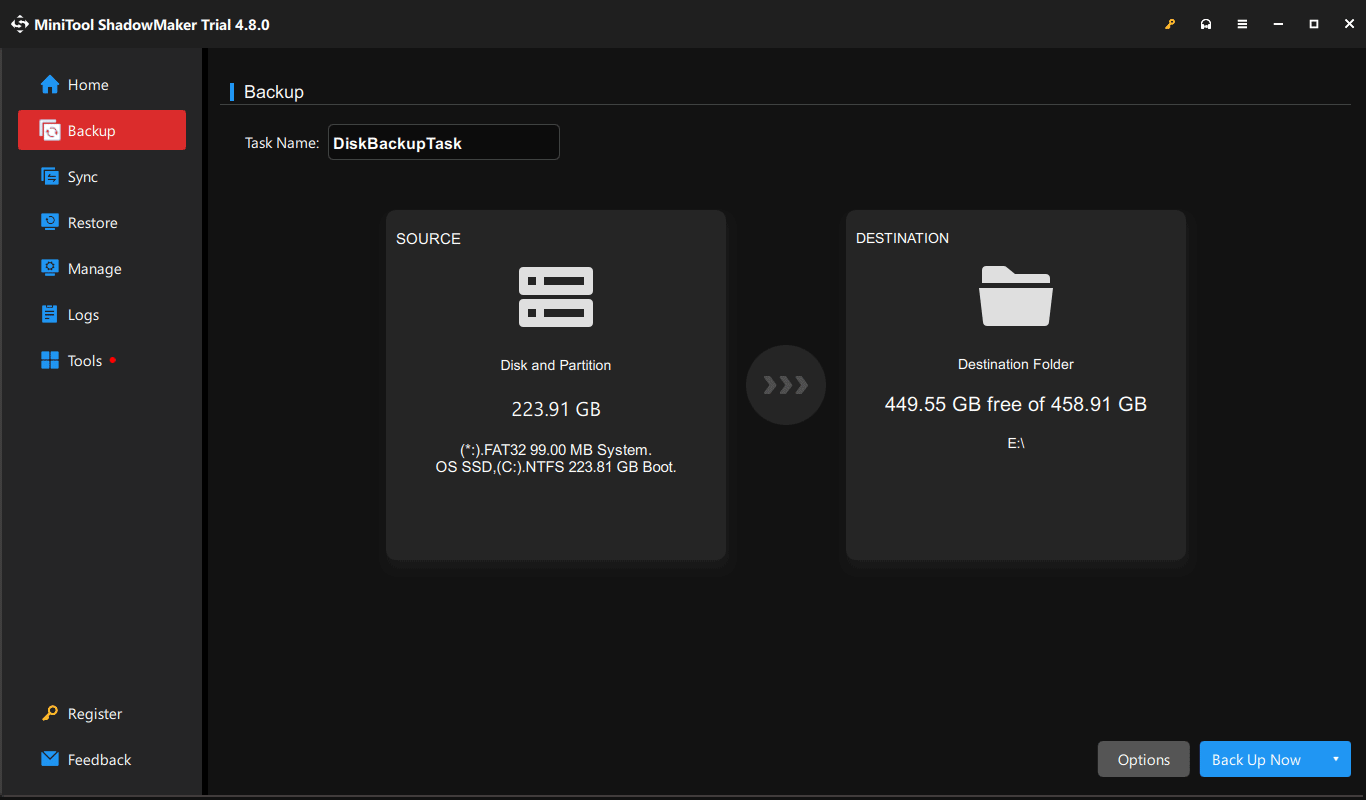
Step 1: Connect an external disk to the PC and launch the program to the Backup tab.
Step 2: By default, the software selects system partitions as the backup source. To proceed, choose the connected external drive under DESTINATION.
Step 3: Click Back Up Now to create a system image at once.
The End
It is annoying to experience Windows 11/Windows 10 taskbar icons missing on the PC, but don’t worry. In this pro guide, we demonstrate the possible reasons and effective solutions. By restarting Windows Explorer, clearing the icon cache, deleting the Iris service, and so on, the taskbar should work properly.
By the way, having a backup habit is great. Just run MiniTool ShadowMaker to back up your PC.
Do you have any issues with MiniTool software? If yes, send an email to [email protected].
Windows 10 Taskbar Icons Missing FAQ
1. Restart Windows Explorer
2. Rebuild the icon cache
3. Run SFC
4. Delete the Iris service
1. Restart Windows Explorer
2. Run SFC
3. Check for Windows Updates
4. Run System Restore
2. Click and hold the taskbar, then drag it to the bottom of the screen.
3. Lock the taskbar again to prevent it from moving again.
About The Author

Position: Columnist
Vera has been working at the MiniTool Team for over 10 years as a technical editor and content writer. She mainly focuses on disk and partition management, data recovery, Windows backup and restore, and PC troubleshooting. Through in-depth software testing and hands-on experience, she has helped users solve a wide range of computer problems and better protect their data on Windows devices.
User Comments :