
Windows Server 2025 was officially released on November 1, 2024. Some users may want to try it but don’t know the differences between it and Windows Server 2022. Here is about Windows Server 2022 vs Windows Server 2025. You can know which one is more suitable for you after reading this post.
Windows Server 2025 marks the latest advancement in Microsoft’s server OS, focusing on improved security, performance, scalability, and IT infrastructure management. Windows Server 2022 builds on the solid foundation of Windows Server 2019 and brings many innovations. Then, we will introduce more details about Windows Server 2022 vs Windows Server 2025.
Overview of Windows Server 2022 and Windows Server 2025
Windows Server 2022
Windows Server 2022 is Microsoft’s powerful and secure server operating system designed for modern hybrid cloud environments. It builds on Windows Server 2019 and introduces enhanced security features, improved performance, and deeper integration with Azure services.
A key improvement in Windows Server 2022 is the Secure Core Server technology. It uses hardware-based security measures such as TPM 2.0, virtualization-based security (VBS), and secure boot to defend against firmware and ransomware attacks. In addition, it also supports AES-256 encryption for HTTPS and SMB protocols to ensure data transmission security.
Windows Server 2025
Windows Server 2025 is Microsoft’s next-generation server operating system, designed to deliver cutting-edge security, hybrid cloud innovation, and AI-driven management for modern enterprise environments. As the successor to Windows Server 2022, it has made significant advances in automation, scalability, and threat protection to meet changing IT needs.
A big focus of Windows Server 2025 is next-generation security, with features including AI-powered hacking, post-quantum cryptography support, and enhanced zero-trust policies to protect against sophisticated cyberattacks. It also enhances Secure-core Server capabilities with deeper hardware-based isolation.
Windows Server 2022 vs Windows Server 2025
Interface and Desktop Experience
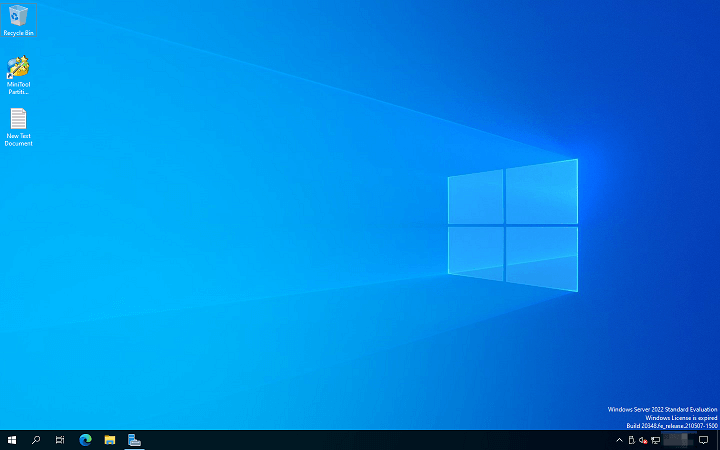
One of the key distinctions between the two versions is that Windows Server 2025 adopts the contemporary Windows 11-style interface, offering a wide range of customization options. While Windows Server 2022 uses the Windows 10-style interface.
This is the interface of Windows Server 2022.
This is the interface of Windows Server 2025.
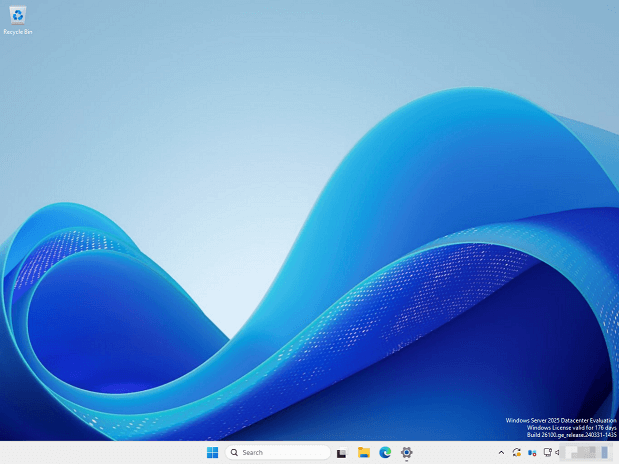
For instance, the Start menu and Task Manager feature a redesigned, sleek layout built using Mica material. You can personalize and pin apps as needed, resulting in a more user-friendly design and an improved overall workflow.
Moreover, the new release includes enhanced Bluetooth functionality, simplifying the process of connecting wireless devices.
Main Features
Then, let’s see Windows Server 2025 vs 2022 for the main features. The following features are only available on Windows Server 2025, and they are fully supported.
- Arc-enabled Hotpatch (Windows Server Standard/Datacenter)
- Credential Guard by Default
- 32k Database Page Size Option
- AD Object Repair
- LDAP Encryption by Default
- Passphrase Feature
- Replication Priority Order
- Improved Readability Password Dictionary
- SMB NTLM Disable
- Routing and Remote Access Services (RRAS) Hardening
- Hyper-V GPU Partitioning (GPU-P), High Availability and Live Migration
Here are some of the key features of Windows Server 2022:
- Azure Edition
- Hotpatching
- SMB over QUIC
- Software-Defined Networking
- Storage Replica
Released Data & Lifecycle
The third aspect of Windows Server 2022 vs Windows Server 2025 is the released data and lifecycle. Windows Server 2025 was released on November 1, 2024. In terms of support, it still follows the usual 5-year mainstream assurance and 5-year extended support cycle in Windows Server 2022. The following are details about Windows Server 2025 vs Windows Server 2022 for release and lifecycle.
| Version | Windows Server 2022 | Windows Server 2025 |
| Release Date | August 18, 2021 | November 1, 2024 |
| Mainstream Support | October 13, 2026 | October 9, 2029 |
| Extended Support | October 14, 2031 | October 10, 2034 |
Performance Optimization
Next, let’s see Windows Server 2025 vs Windows Server 2022 in performance. Windows Server 2022 provides dependable and consistent performance, efficiently managing routine workloads. It features enhanced networking capabilities and compatibility with modern technologies, making it a versatile choice for various IT setups.
On the other hand, Windows Server 2025 takes performance further with optimizations in storage and networking, enabling it to manage heavier workloads while maximizing hardware efficiency. Businesses leveraging this version will benefit from lower latency and improved reliability, making it ideal for data-intensive operations and demanding applications.
Security
The fourth aspect of Windows Server 2025 vs 2022 is security. Windows Server 2022 is built with strong security, including a secure-core server, which safeguards hardware, firmware, and the operating system. It also comes with Windows Defender to block cyberattacks, making it a good choice for businesses with standard security needs.
Windows Server 2025 takes security further by adding zero-trust measures and AI-powered threat detection. While Server 2022 has strong protections, Server 2025 integrates even better with Microsoft Defender, making it perfect for industries with strict security and compliance demands.
Hybrid Cloud Integration
Windows Server 2022 helps businesses use both on-site servers and cloud services (like Azure) together, thanks to tools like Azure Arc and Azure Automanage. This is great for companies that want to start using the cloud without moving everything at once.
Windows Server 2025 makes this even smoother with deeper connections to Azure services. Compared to 2022, it works more seamlessly, making it easier to move data and apps between local servers and the cloud.
AI and Automation
Windows Server 2022 provides essential automation tools with basic AI support to streamline common IT tasks like applying updates and monitoring systems. These features help teams work more efficiently by handling routine operations automatically.
Windows Server 2025 steps up with smarter AI capabilities, automating more complex processes like optimizing server resources and managing backups. This makes it ideal for businesses wanting to maximize efficiency through advanced, intelligent automation.
Management and User Experience
Windows Server 2022 keeps things simple with its classic Server Manager interface, designed for hands-on control. This works well for teams who prefer manual configuration and are used to traditional management methods.
Windows Server 2025 upgrades the experience with a modern dashboard featuring smart automation. The new interface makes handling multiple servers quicker and easier, especially useful for larger IT teams looking to work more efficiently.
Update Windows Server 2022 to Windows Server 2025
Windows Server 2025 has significant advantages over Windows Server 2022, but both versions have their own unique features to meet specific needs. For organizations looking for strong foundational capabilities, Windows Server 2022 is a solid choice. However, if you want advanced security, seamless cloud integration, AI automation, and higher performance, then Windows Server 2025 will be a better choice.
If you decide to upgrade to Windows Server 2025, you need to follow the below steps to perform the task.
Step 1: Verify Compatibility
First, please check if your PC meets the minimum system requirements of Windows Server 2025.
- Processor: 1.4 GHz 64-bit CPU
- RAM: 512 MB and ECC (Error-Correcting Code) memory supported
- Storage: 32 GB or more and SSD is recommended for better performance
- Graphics: Super VGA (1024 x 768) or higher-resolution monitor
- TPM: TPM 2.0
- Boot: UEFI and Secure Boot
Step 2: Back up Windows Server
Next, you had better back up your current system in advance since you can restore the PC to the previous state with the backup when you don’t want to use Windows Server 2025 or encounter the BSOD issue during the installation.
To finish the task, you can try the Server backup software – MiniTool ShadowMaker. It supports backing up files/systems, cloning HDD to SSD, and moving Windows to another drive. It devotes itself to creating a system image for various Windows systems, like Windows 11/10/8.1/8/7 and Windows Server 2016/2019/2022, etc.,
MiniTool ShadowMaker TrialClick to Download100%Clean & Safe
1. After downloading and installing MiniTool ShadowMaker, double-click the exe file to run it to enter the main interface.
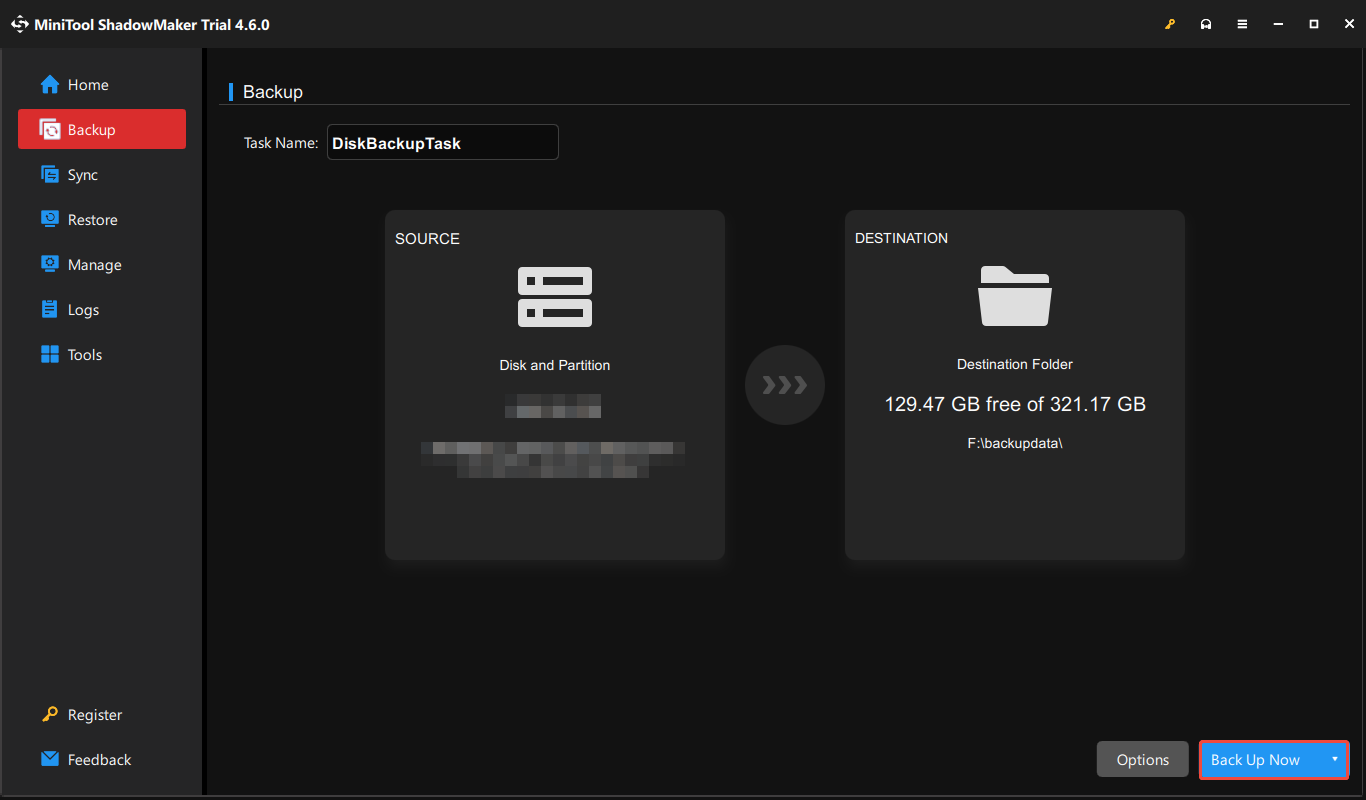
2. Go to the Backup tab and you can see the system has been selected by default in the SOURCE part. Then, you just need to click the DESTINATION part to choose a location to store your backup. It’s highly recommended to choose the external hard drive as the backup destination.
3. Then, you can click the Options button to set some advanced settings.
- Backup Options: You can compress your backup files, choose the image creation mode, set the password for your image, etc.
- Backup Scheme: There are 3 ways – full backup, incremental backup, and differential backup.
- Backup Settings: You can set the automatic backup – daily, weekly, monthly, and on event.
4. Then, you can click Back Up Now to start the backup task immediately or click Back Up Later to delay the task. If you choose Back Up Later, you can find and start the task in the Manage tab.
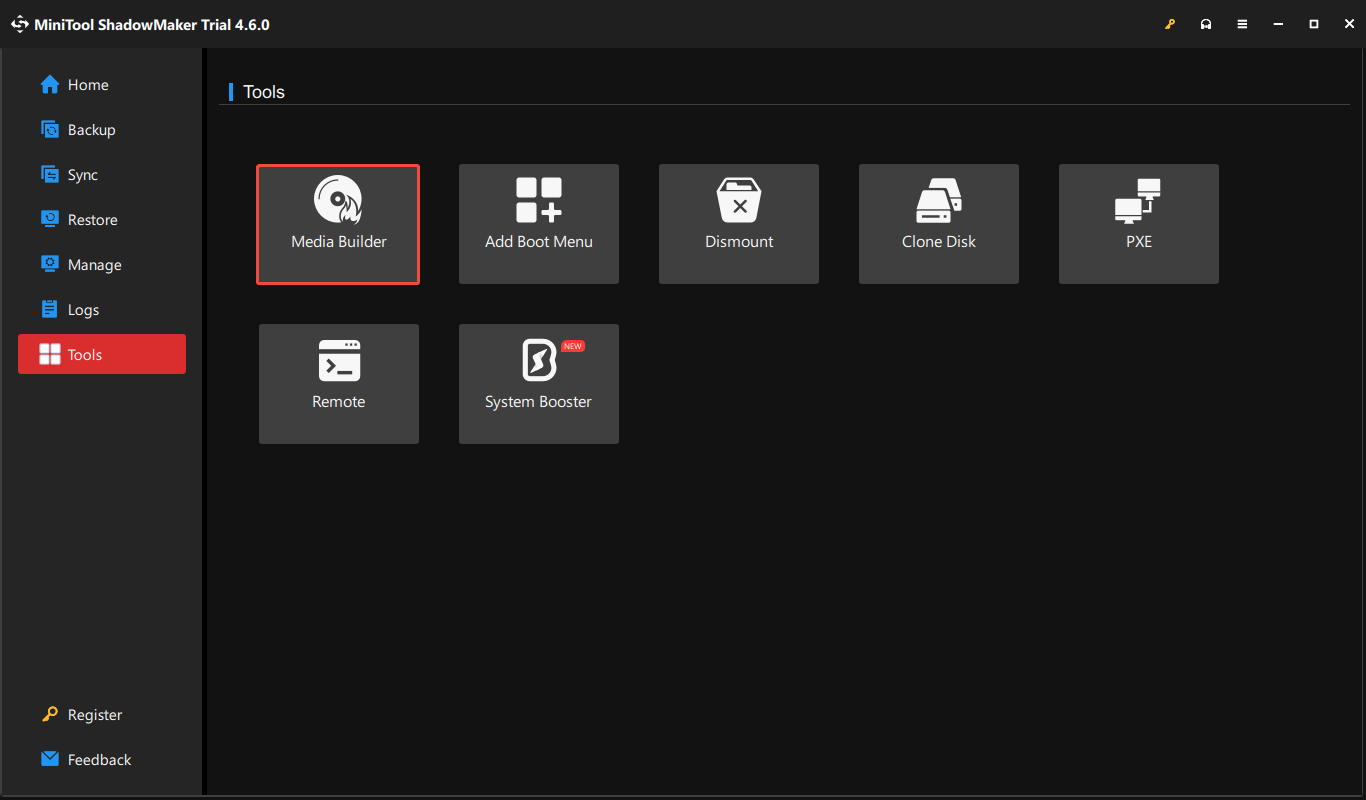
5. When the backup process finishes, you can go to Tools > Media Builder to create a bootable media. Once your system can’t boot, you can restore your system to the previous state with the media.
Step 3: Update to Windows Server 2025
At last, you can start to update to Windows Server 2025.
1. Download the installation media. You can obtain the Windows Server 2025 ISO image from the Windows Insider Program page.
2. Use the built-in Windows tool to create a bootable USB. Insert a USB drive with at least 8GB capacity.
3. Run Command Prompt as administrator. Type diskpart and press Enter.
4. Copy the downloaded ISO files to the USB drive.
5. Insert the USB drive into the server or PC.
6. Restart the system and access the boot menu (typically by pressing F12, F10, or Esc during startup).
7. Select the USB drive as the boot device.
8. Then, you need to choose language, time and current format, and keyboard or input method. After choosing them click Next to continue.
9: In the next window, click Install Now. Follow the on-screen instructions to finish the rest steps.
Final Words
This article offers an in-depth comparison between Windows Server 2025 and its previous version, Windows Server 2022. Besides, you can know how to update Windows Server 2022 to Windows Server 2025. Before you perform the actions, you had better back up your important data or the whole system with MiniTool software.
Windows Server 2022 vs Windows Server 2025 FAQ
Windows Update
Windows Server Update Services (WSUS)
User Comments :