
Some users reported encountering MDF/NDF file loss on their computers. If you are among them, what should you do to recover these files? Fret not; this post on MiniTool is coming to help you perform a successful NDF/MDF file recovery.
Have you ever faced such a dilemma that important files are lost? In many instances, it is possible to restore deleted or lost data, not except MDF and NDF files. I have compiled a thorough guide for NDF/MDF file recovery at no cost. No matter the cause of your file loss, this post will provide you with clear directions. Keep reading to get more details.
Overview of the MDF & NDF File
An MDF file serves as the primary data file and constitutes the foundational element of a database. All data about database objects—including tables, stored procedures, views, and triggers—are contained within the primary data file.
Conversely, an NDF file functions as a secondary data file. It is important to note that a database may possess only one primary data file, while any additional data storage is facilitated through secondary data files.
Why Do Your MDF/NDF Files Lost
There are several reasons why MDF and NDF files may be lost or deleted:
- Accidental Deletion: Sometimes you may inadvertently delete MDF or NDF files while trying to remove other files or free up space.
- Hard Drive Failure: Hard drives may fail due to various reasons, such as wear and tear, manufacturing defects, or physical damage. When a hard drive fails, any files may be permanently lost, including MDF or NDF files.
- System Crashes: Unexpected system crashes can interrupt database operations, potentially leading to file loss. This may result from software conflicts, power outages, or hardware malfunctions.
- Improper Shutdown: Shutting down a system without following the proper procedures may damage database files. This abrupt termination may corrupt MDF and NDF files or render them lost.
- Corruption Caused by Bugs in SQL Server: Software bugs or glitches within the SQL Server application may lead to database corruption. This can impact the integrity of MDF and NDF files, making them difficult to recover.
- Bad Sectors on the Storage Device: Storage devices may contain bad sectors, which can result in data loss. If MDF or NDF files are stored in such a bad sector, those files may be lost or corrupted.
Understanding these triggers can help choose an appropriate method to recover deleted or lost MDF and NDF files and take preventive measures to safeguard important database files.
How to Perform an MDF File Recovery on Windows
Are there any of the easiest and simplest ways to recover MDF files and perform an NDF file recovery? Absolutely yes. Now, read the following parts to find the answer.
Note that the methods below are designed to recover healthy MDF/NDF files. If you want to recover corrupted MDF/NDF files, you need to repair them first.

Way 1. Recover Deleted or Lost MDF/NDF Files in SQL Serverwith SSMS
This method outlines the most frequently sought solution for importing an MDF/NDF file into SQL Server, utilizing SQL Server Management Studio (SSMS). Let’s dive right into the method:
Step 1: Go to the official website to download and install this tool, and launch Microsoft SQL Server Management Studio.
Step 2: Navigate to the Object Explorer section.
Step 3: Right-click Database and select Attach from the menu.
Step 4: An Attach Databases wizard will pop up and click the Add button.
Step 5: Locate the MDF or NDF file corresponding to the database you wish to restore and click OK.
Step 6: At this point, you should see the MDF and NDF files listed under the database details section. Then, click OK to restore the database in SQL Server.
Step 7: Refresh the database, and you will find the MDF file database that you just attached.
Way 2. Recover Deleted or Lost MDF/NDF Files from the Recycle Bin
If you download MDF/NDF files on your computer, you can simply perform an MN file recovery from the Recycle Bin. This is a simple yet useful feature on the Windows operating system, primarily designed to recover NDF files that you have temporarily deleted from local drives.
Step 1: To open the Recycle Bin, double-click the Recycle Bin icon on your desktop.
Step 2: Look for the MDF/NDF files you need. If you find them, right-click on the files and select Restore. The chosen files will then be retrieved to their original locations. Alternatively, you can simply drag and drop the desired files to a location of your choice.

Keep in mind that there are certain situations where files cannot be recovered from the Recycle Bin:
- Deleted using Shift + Delete: Files deleted using the Shift + Delete key combination are not recoverable in the Recycle Bin.
- Recycle Bin is full: If the Recycle Bin is full, any files deleted afterward will not be placed in it.
- Deleted using CMD: Files deleted using CMD command lines will not be found in the Recycle Bin.
- Deleted using third-party software: Files removed by third-party file cleaning software will not appear in the Recycle Bin.
- Deleted shared network files: Files deleted from a shared network folder or remote server do not pass through the local Recycle Bin.
- Deleted Files in external device: Files removed from external storage are not shown in the Recycle Bin.
- File system is damaged: If the system drive is physically compromised, access to the Recycle Bin folder is no longer possible.
- Etc.
Way 3. Recover Deleted or Lost MDF/NDF Files from Backup
As you can see, there are numerous situations where files do not end up in the Recycle Bin. Fortunately, if you backed up your MDF/NDF files, whether through File History, a cloud backup service, or third-party backup software, you can recover deleted or lost MDF and NDF files directly from the backup.
Option 1. Recover files from a cloud backup service.
To access OneDrive, Google Drive, or other cloud services, you’ll need to log into your account and then download the required MDF/NDF files from the cloud.
Option 2. Recover files from backup software.
If you are using a professional data backup tool, launch the software and utilize its built-in restoration feature to recover the backup files.
Option 3. Recover files from Windows Backup.
If you enabled File History and backed up your MDF/NDF files using it, you can recover them in it.
Step 1: To open File History, navigate to Settings > Update & Security > File backup > click More options under Back up using File History.
Step 2: Scroll down and select Restore files from a current backup. In the new window, choose the files you wish to restore and press the green Restore button.
Way 4. Recover Deleted or Lost MDF/NDF Files Using Third-party Software
None of the above works? Don’t be frustrated. The final workaround is using a professional data recovery tool to recover your deleted or lost MDF/NDF files. In fact, the files aren’t completely removed from your computer; instead, the space they use on the disk is simply marked as free and ready to be overwritten.
At this time, with the assistance of secure data recovery software, you still have an opportunity to recover MDF files. Among the various available data recovery solutions, MiniTool Power Data Recovery is the most highly recommended.
This MDF file recovery software supports a wide range of file types for recovery, such as documents, videos, images, audio, emails, database files, and more. This free file recovery tool also offers options to carry out fast desktop recovery, Recycle Bin restoration, and recovery of specific folders. This tool features a user-friendly and intuitive interface.
Thus, by adhering to the detailed instructions provided below, you can easily perform an MDF file recovery.
Step 1. Click the download button below to obtain and install MiniTool Power Data Recovery Free on your computer. This version allows you to recover up to 1 GB of files at no charge.
MiniTool Power Data Recovery FreeClick to Download100%Clean & Safe
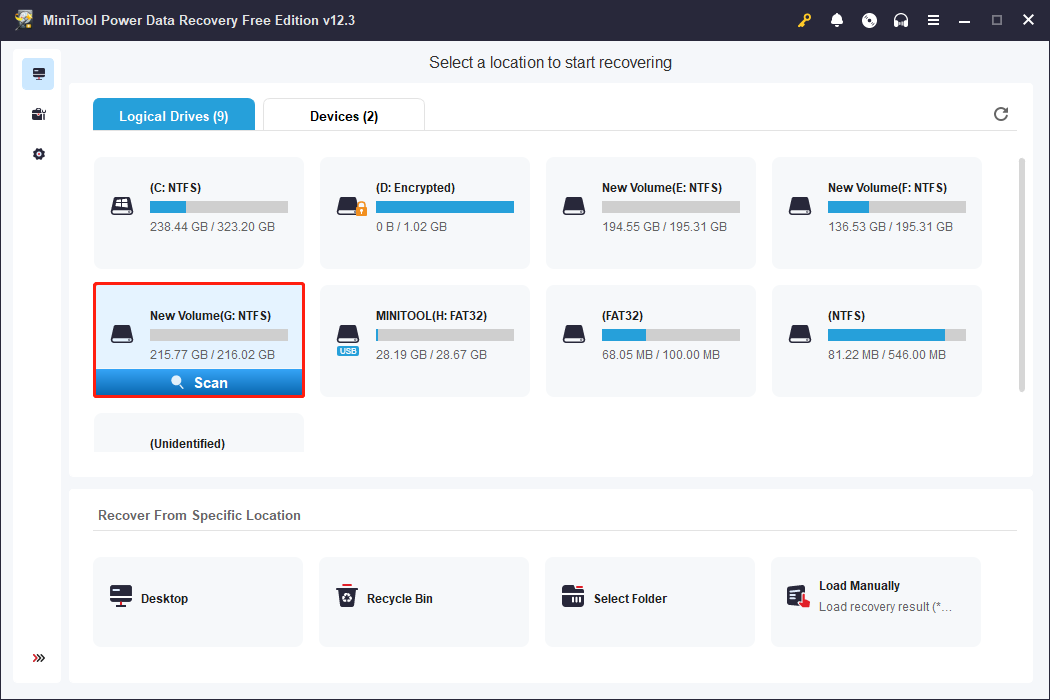
Step 2. Open the MDF file recovery software to access its main interface. You will find three sections here:
- Logical Drives: In this tab, all partitions on your internal and external drives will be visible, including existing partitions, lost partitions, and unallocated space. Typically, these partitions are shown with details such as volume size, drive letter, file system, and other disk information.
- Devices: By switching to this tab, you will view all the disks connected to your computer.
- Recover From Specific Location: This section offers three quick scan and recovery options, which include the Desktop, the Recycle Bin, and a specific folder.
What you need to do is to choose the drive, disk, or location from which you wish to recover deleted or lost MDF and NDF files and then click Scan to begin scanning. Here, I have selected drive G: for scanning.
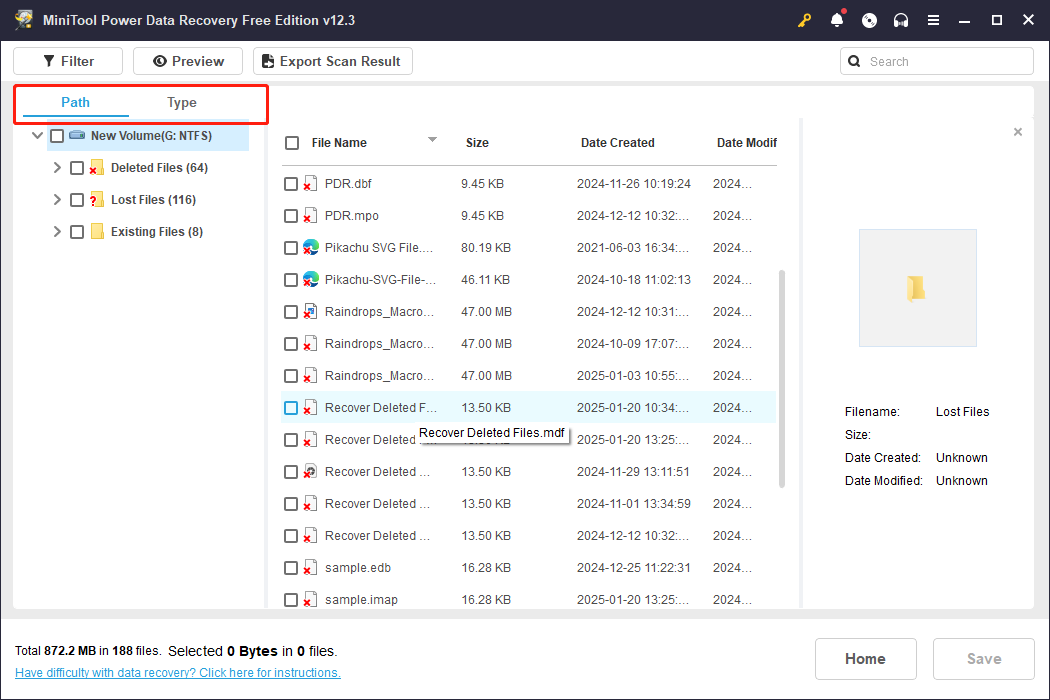
Step 3. Once the scanning process is complete, you can easily expand each folder under the Path tab to locate the files you wish to recover. Usually, deleted items can be found in the Deleted Files folder, but this is not always guaranteed. In some instances, when the scanned drive has file system errors or other issues, the scan results may be displayed in a different way.
Additionally, you can navigate to the Type category to sort the recovered files by their type and format.
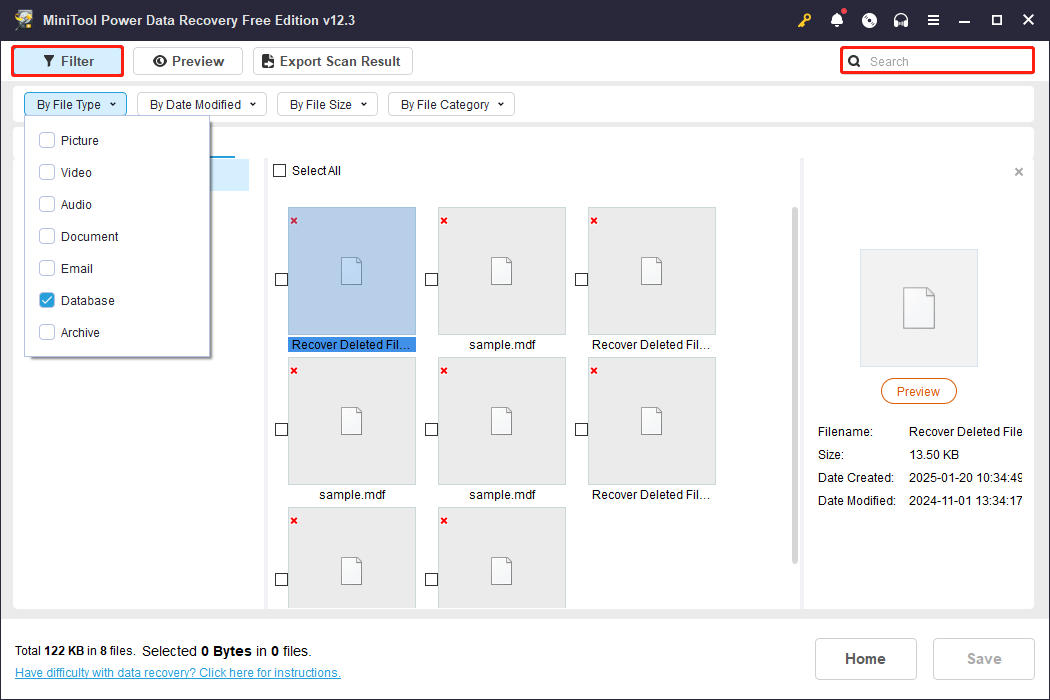
If it’s challenging to locate specific files among a large selection, you can utilize the Filter and Search options to narrow down the file range.
- Filter: The Filter feature provides various options to filter files by file type, file size, file modification date, and file category.
- Search: The Search function lets you look for a specific file by inputting either a partial or full file name and pressing Enter.
Step 4. Finally, click the Save button, then select a secure file location to store the recovered files. Keep in mind that you should avoid saving the recovered files in their original location to prevent data overwriting. After the MDF file recovery process is finished, you can navigate to the chosen directory to check if the files are accessible and not corrupted.
If you receive a prompt to upgrade the software to recover additional files, it indicates that the 1 GB of free file restore capacity is used up. In that case, you will need to upgrade to a full version to retrieve the remaining files.

Necessary Tips: Back up Your MDF/NDF Files
Data recovery serves as a temporary fix for lost information, but cultivating a regular file backup habit offers a more lasting solution. Consider using the professional and free data backup software, MiniTool ShadowMaker, to create file images or even system images.
It offers efficient and automated backup solutions that ensure comprehensive protection for files, folders, partitions, disks, and systems. Additionally, its user-friendly interface makes it easy to establish a file backup.
To try it out, click the button below to download the trial version, which is free for 30 days.
MiniTool ShadowMaker TrialClick to Download100%Clean & Safe
Step 1. Open the backup utility and select Keep Trial to proceed.
Step 2. Once on the home page, navigate to the Backup section from the left menu bar.
Step 3. In the SOURCE section, click on Folders and Files to choose the files or folders you wish to back up, or select Disk and Partitions to back up a partition or disk. Then, in the DESTINATION section, choose a safe location to save the backup files.
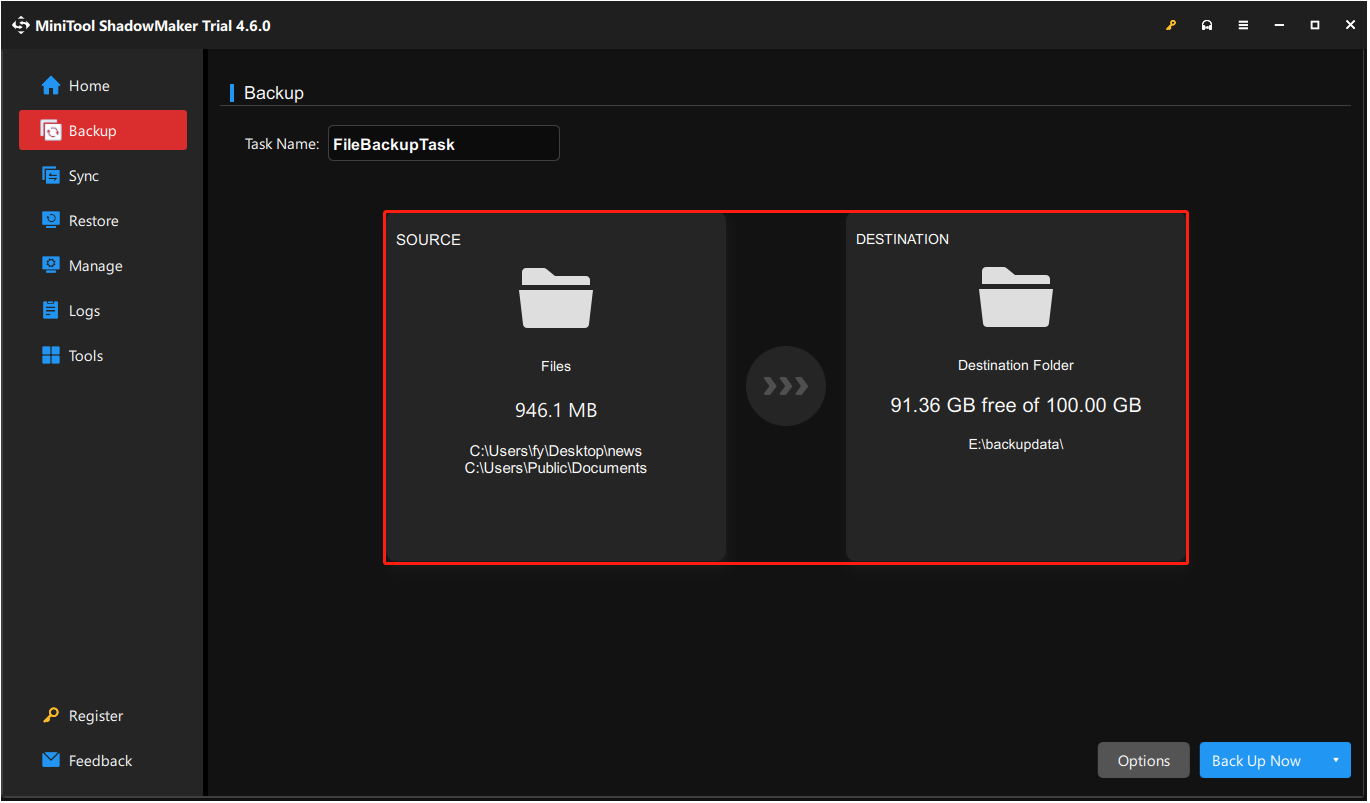
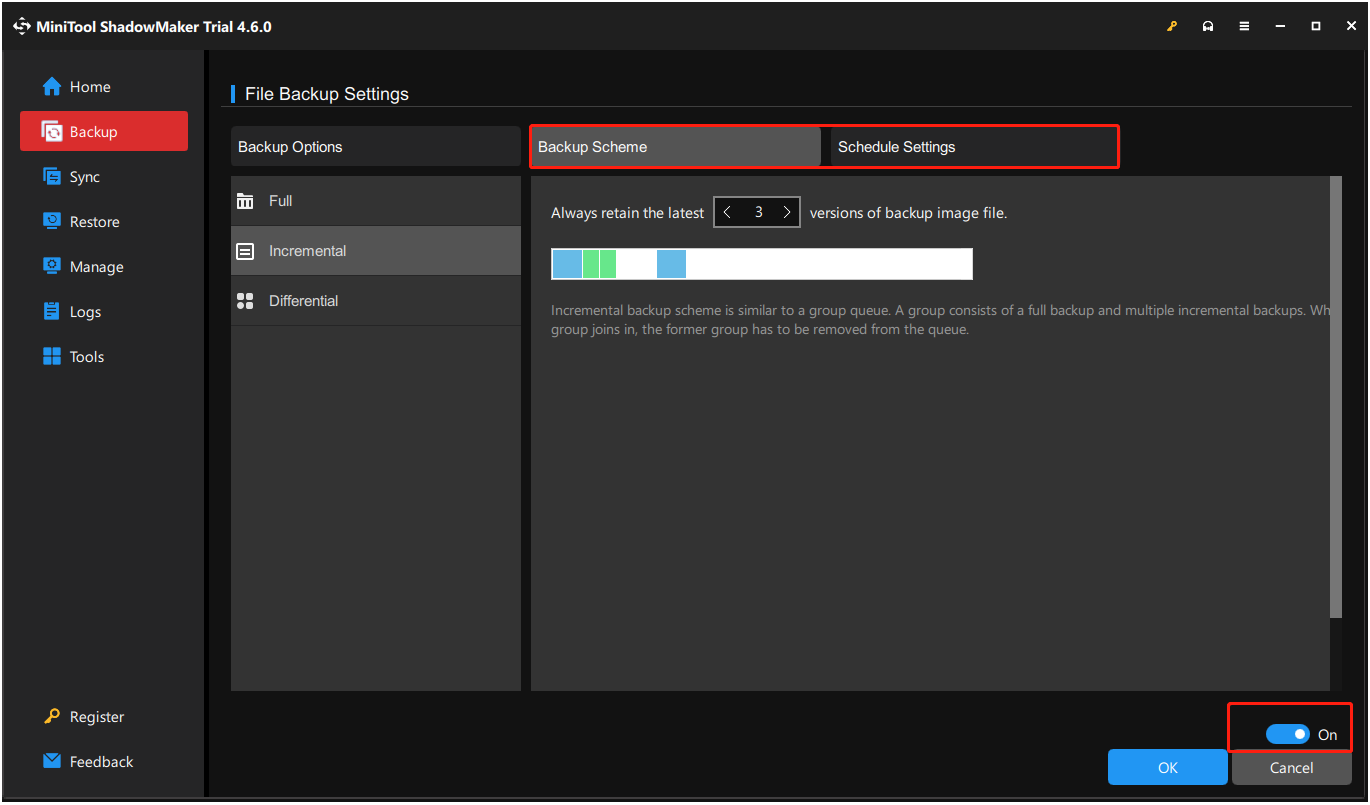
Step 4. Lastly, click the Back Up Now button to initiate the backup process. The backup files will be saved in an image format. When you need to retrieve your files, open MiniTool ShadowMaker and navigate to the Restore tab to do so.

Wrapping Things Up
After reading this guide, you may know there still is an opportunity to perform an NDF/MDF file recovery. MiniTool Power Data Recovery must be your strongest backing. Once the files are restored, take some precautionary measures to protect your data.
If you have any problems when using MiniTool products, please do not hesitate to contact the support team via [email protected].
User Comments :