
iPhone Reminder is a useful application on the device. However, you may lose or delete some important iPhone reminders by mistake. In this situation, do you know how to recover reminders on iPhone? Read this article to get the solutions you need.
Section 1: iPhone Reminders Disappeared
iPhone Reminders (Application) is a component of iOS. With reminders, you can keep track of projects, groceries, and anything else you want to. You are able to set when and where you want to be reminded.
In addition, you can also remind yourself to get back to something you’re doing in another app. And with iCloud, you can keep your reminders up to date across all of your iOS devices.
iOS data loss is a common issue which may be encountered by everyone. iPhone reminders disappeared is one type of this issue. Please see the following real life example:
All of my reminders have disappeared from my iPhone and then I saw they were on my iPad. All of a sudden they all disappeared as well. They are not on my iCloud. Help!!!!!!!!!!!!!!!!!!!! How do I get them back?discussions.apple.com
Why the iPhone reminders disappeared?
There are many situations which can lead to iPhone reminders loss.
For instance, you just want to factory reset your iPhone to solve some software issue, but you discover that you lost all of your iPhone data finally, and iPhone reminders are included. Besides, iOS updating may delete your iPhone data.
Then you must want to know how to restore reminders on iPhone if they are important to you. Fortunately, there are two solutions which can be used to retrieve iPhone reminders.
The following sections will introduce these two solutions one by one. Hope they can assist you to recover deleted reminders on iPhone.
Section 2: How to Restore Reminders on iPhone
Solution 1. Retrieve iPhone Reminders from iCloud Backup
According to the suggestion from official Apple website, if you have made an iCloud backup before the loss/deletion of iPhone reminders, you can go to iCloud.com and restore them from the previous iCloud backup.
Actually, several things happen when you restore an earlier version of your calendars and reminders:
All your sharing information will be removed, and you have to share these reminders or ask their owners to share them again.
All your scheduled events will be cancelled and recreated, and invitations reissued. The schedules events invitees will first see a cancellation and then a new invitation.
The archive of calendars and reminders you select will replace the calendars and reminders on all your iOS devices.
These several changes indicate that you don’t have the right to choose the ones you want to save, and some settings are changed which will bring you inconvenience.
Solution 2. Recover iPhone Reminders with PhoneRescue for iOS
PhoneRescue for iOS is a professional iOS data recovery tool designed to recover lost or deleted data from iPhone, iTunes backups, and iCloud.
It supports various types of iOS data, including contacts, messages, notes, calendars, reminders, photos, videos, and more. You can recover data directly from an iPhone or selectively retrieve specific files from an iTunes or iCloud backup without restoring the entire backup to your device.
PhoneRescue for iOS provides three recovery options for different situations: Recover from iOS Device, Recover from Backup, and Recover from iCloud. You can choose a suitable option according to where your lost reminders are stored.
Phone Rescue for iOS (Windows)Click to Download100%Clean & Safe
Phone Rescue for iOS (Mac)Click to Download100%Clean & Safe
Method 1. Recover Deleted Reminders Directly from iPhone
If you accidentally deleted reminders from your iPhone, you can try Recover from iOS Device in PhoneRescue for iOS.
Step 1. Connect Your iPhone to the Computer
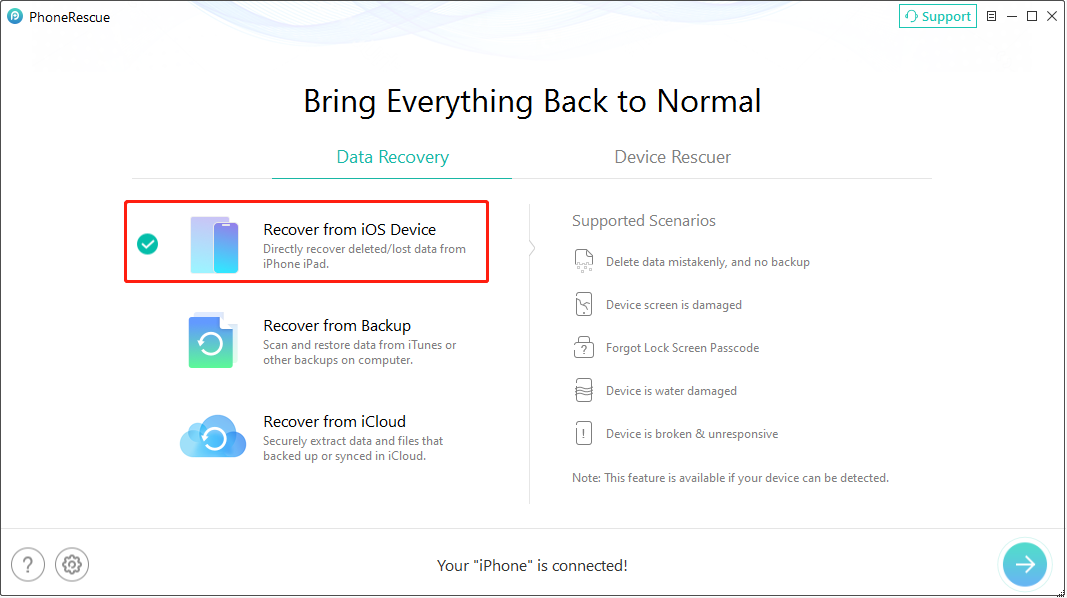
Connect your iPhone to the computer with a USB cable and launch the recovery program. It will detect your iPhone automatically after the device is successfully connected.
On the main interface of the software, select Recover from iOS Device to continue.
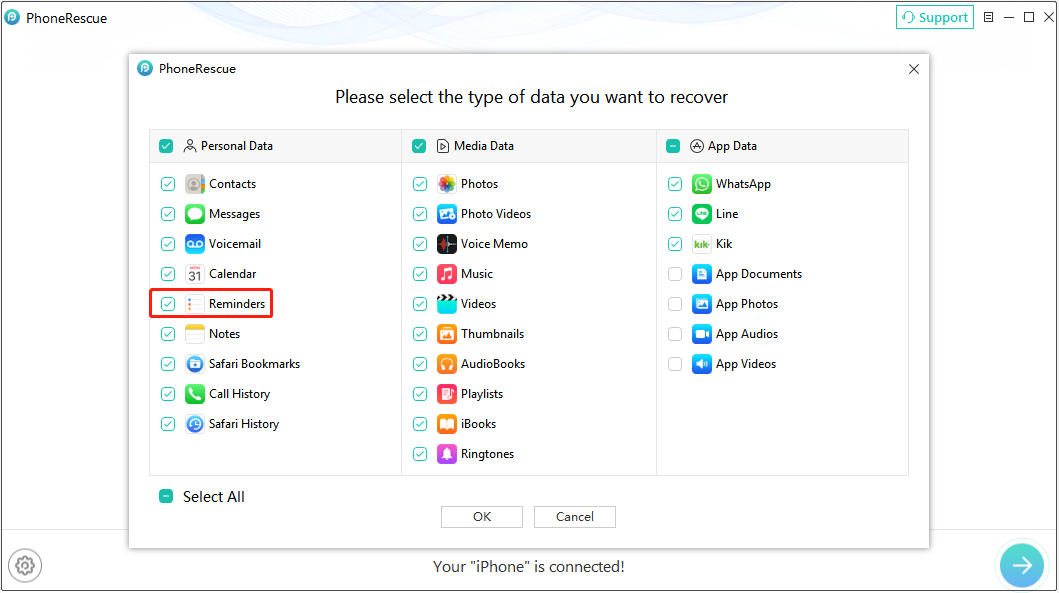
Step 2. Select Reminders and Scan the iPhone
PhoneRescue will display the data types that can be scanned. Select only Reminders under Personal Data and start analyzing the device.
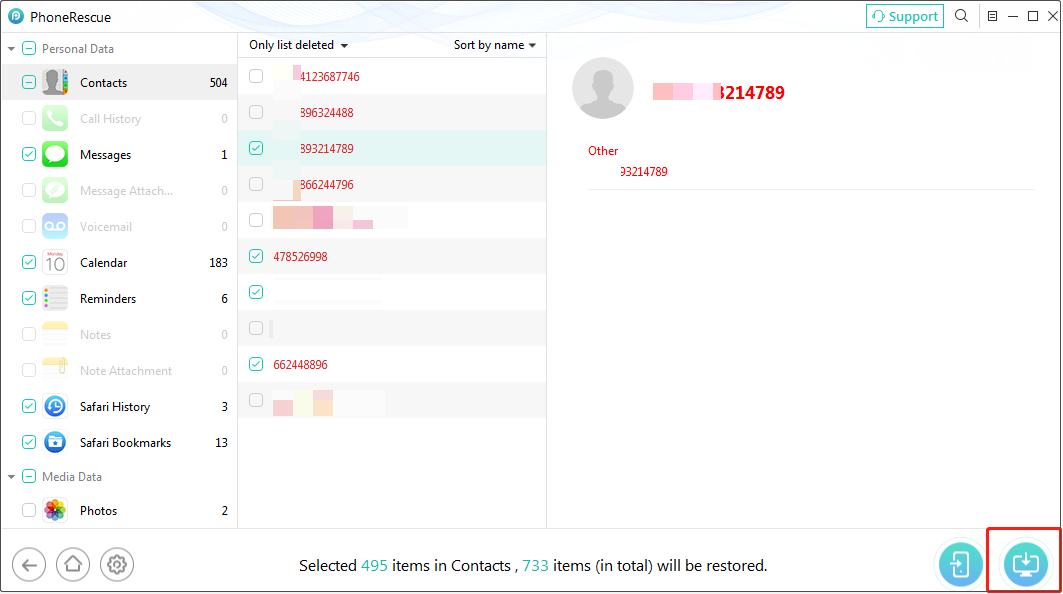
Step 3. Recover the Reminders
When the scan is complete, browse the available reminders. Select the reminders you want to restore and click Restore to Computer to save them to your PC. Till now, reminders are not supported to be restored to your iPhone directly.
Method 2. Recover Deleted iPhone Reminders from an iTunes Backup
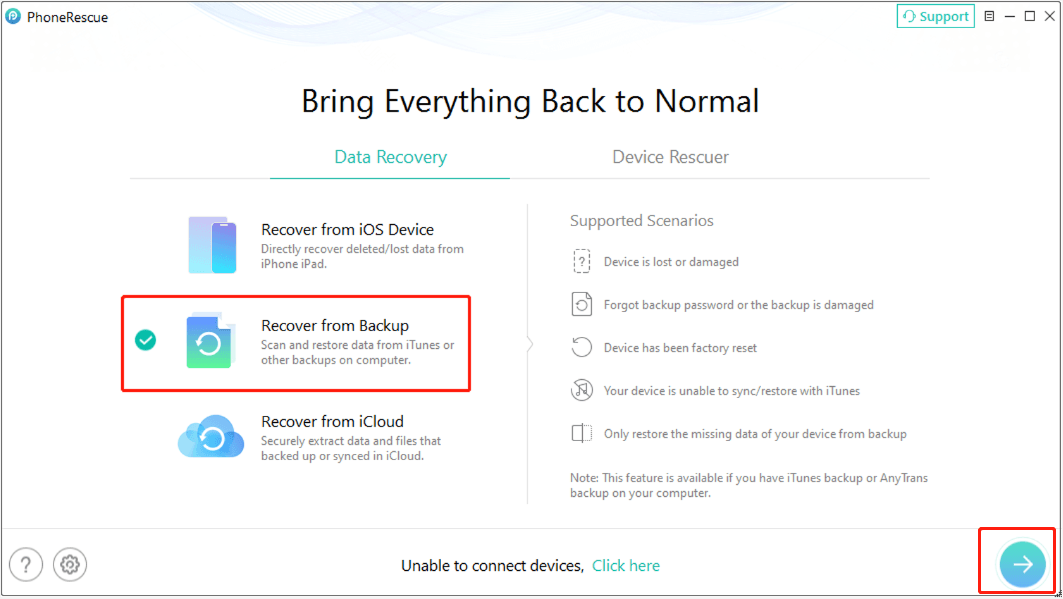
If you have previously backed up your iPhone with iTunes, you can use Recover from Backup in PhoneRescue for iOS to find and recover the lost reminders.
Unlike restoring an entire iTunes backup to your iPhone, PhoneRescue allows you to scan the backup and selectively recover the required data without replacing your current iPhone content.
Step 1. Select Recover from Backup
Launch PhoneRescue for iOS and select Recover from Backup on the main interface.
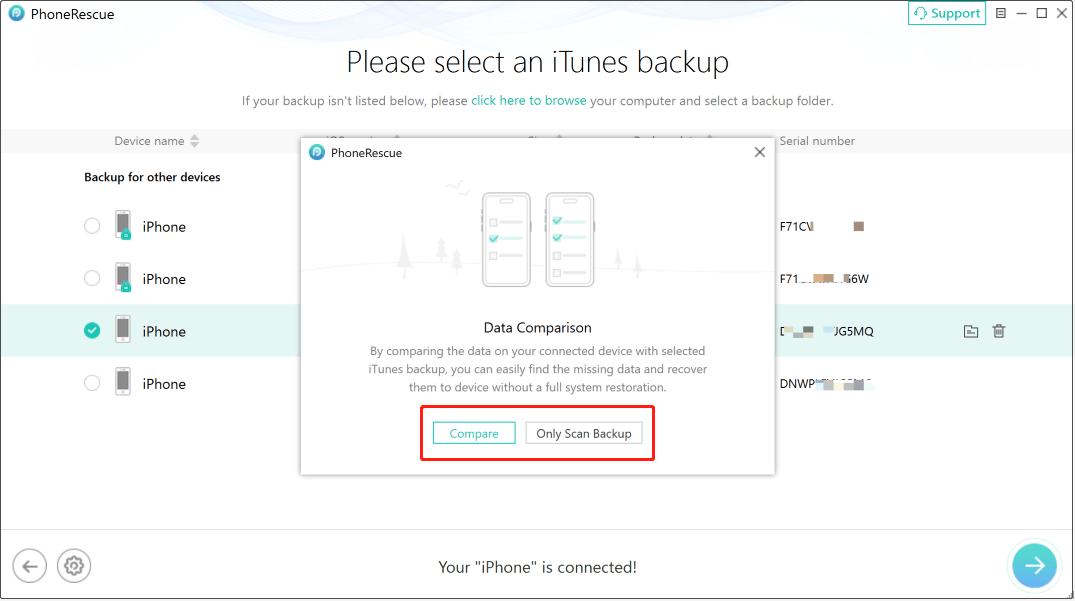
PhoneRescue will automatically detect the iTunes backup files stored on your computer. Select the backup that may contain the deleted reminders.
If you want to compare the backup with the current data on your iPhone, choose Compare. If you want to view the complete contents of the selected backup, choose Only Scan Backup.
Step 2. Select Reminders to Scan
After selecting the backup, choose Reminders from the available data types and continue.
Step 3. Recover the Reminders
After the scan is complete, select the reminders you want to recover and store them to your computer.
Method 3. Recover Deleted iPhone Reminders from iCloud
If your deleted reminders were synced with iCloud or included in an iCloud backup, you can try the Recover from iCloud option in PhoneRescue for iOS.
PhoneRescue supports recovering data from both an iCloud Account and an iCloud Backup. Reminders are among the supported personal data types.
Step 1. Select Recover from iCloud
On the home page of the recovery tool, select the Recover from iCloud option.
Step 2. Sign in to iCloud
Sign in to iCloud using your Apple ID and password to access your iCloud data.
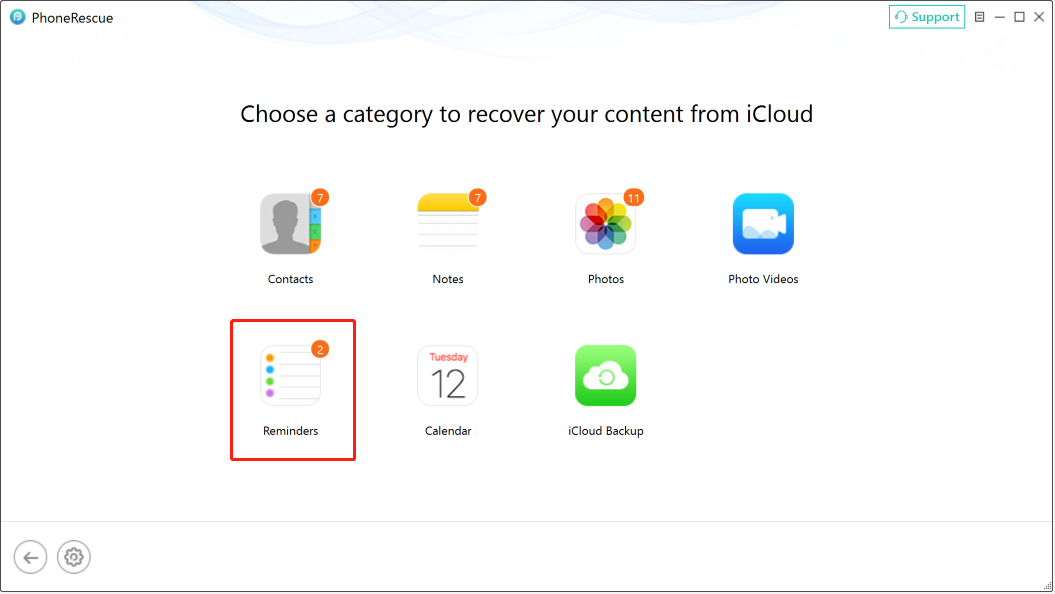
Step 3. Select Reminders and Scan the Backup
Choose Reminders from the available data categories and start the scan.
Step 4. Recover Required Reminders
Finally, select the reminders you want to retrieve and save them to your computer.
Section 3: The Importance of Creating Regular iPhone Backups
After you read solution 1 and solution 2, you must discover that except method 1 of solution 2, the rest iOS data recovery methods are based on the previous iCloud backup and iTunes backup. So, you will know how important it is to make backup regularly.
To make the backup process easily and conveniently, you can set iCloud to automatically back up your iPhone data when the device is plugged in, locked and connected to WLAN, and set iTunes application to back up your iPhone data automatically when you are using iTunes.
With iCloud and iTunes backup files, you are even able to restore your iOS data after they are wiped from iPhone forever.
Section 4: Bottom Line
Two solutions to restore reminders on iPhone are introduced in this post, and you can see that with PhoneRescue for iOS, you can make e reminders recovery easily and flexibly.
How to Restore Reminders on iPhone FAQ
2. Tap Calendars.
3. Swipe down on the screen list to refresh your events and reminders.
About The Author

Position: Columnist
Shirley holds a bachelor’s degree in English and has been an editor at the MiniTool Team for many years. She specializes in IT-related content, with a focus on data recovery, file backup, disk management, and other technical topics. She is committed to delivering clear, accurate, and practical solutions to help users resolve common computer issues.
User Comments :