
The error 0x80030001 often happens when you are attempting to copy files. The error code will be accompanied by a message that tells “unable to perform requested operation”. If you are struggling with this error, you can read this article on MiniTool Website.
What Is the Windows Error 0x80030001?
The “error 0x80030001 unable to perform requested operation” can occur when you transfer data or copy files from one location to another one. Some people also get this error 0x80030001 when they attempt to access some files.
Targeting this situation, the first thought goes to if the file has been corrupted or damaged. Sometimes, hard drive errors can stop you from doing any operations to the file.
It is hard to get your corrupted files recovered and that reminds every inflicted user to back up your important files regularly so that your data can be retrieved easily.
You can use this free backup software – MiniTool ShadowMaker to back up your systems, files & folders, and partitions & disks. This program provides password protection to enhance data security and save your storage with different backup schemes.
Try this software and here, a 30-day free trial version is available for you.
MiniTool ShadowMaker TrialClick to Download100%Clean & Safe
We have concluded some useful ways to troubleshoot the Windows error 0x80030001. Here is the way.
How to Fix the Windows Error 0x80030001?
If the error 0x80030001 happens when you are prepared to copy the whole files at once to another location, you can try to copy them one by one to see which files get corrupted. If none of them can be transferred, you can do the following methods.
Method 1: Run CHKDSK
CHKDSK (check disk) is a built-in Windows utility that scans your hard drive for file system errors. You can use it to make sure all data in your disks are kept well.
Step 1: Input Command Prompt in Search and run it as an administrator.
Step 2: Please input this command chkdsk c: /r and press Enter to execute it.
Note: chkdsk c: /r can check for the bad sectors and try to recover the readable information from the bad sectors. If you want to know more about this command, you can read this: CHKDSK /F or /R | Difference Between CHKDSK /F and CHKDSK /R.
Then when the fix finishes, please restart your computer to check if the error has been resolved.
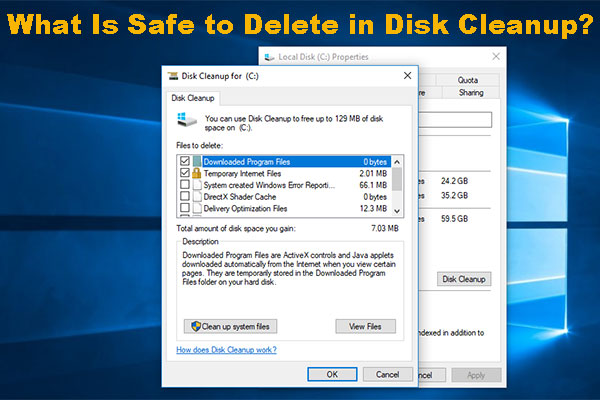
Method 2: Clear Space via Disk Cleanup
If there isn’t enough storage space on your device, the data transfer will fail and the error 0x80030001 happens.
Step 1: Input Disk Cleanup in Search and open it.
Step 2: Choose the drive that requires more storage space and click OK; check the unwanted files to click OK in the next window.

Step 3: If a window pops up to ask for your confirmation, please click Delete Files. Wait until the process ends and you can try copying the files again.
Method 3: Check for the System Time and Date
Sometimes, misconfigured system time and date can make the error 0x80030001 and you can follow these steps to fix 0x80030001.
Step 1: Right-click on the date and time section on your system tray and choose Adjust date/time.
Step 2: In the Date & time settings, check if your Time zone is set correctly and choose the right one. Close the window and your system will automatically update the time and date.

Method 4: Use a Clean Boot
Another method to fix 0x80030001 is to use a clean boot that can help figure out whether the issue is related to some aggressive programs.
Step 1: Open Run by pressing Win + R and input msconfig to enter.
Step 2: In the Services tab, check the box next to Hide all Microsoft services and then click Disable all.

Step 3: In the Startup tab, click the Open the Task Manager link, and in the next window, right-click on each app labeled Enabled to click Disable.
At last, in the System Configuration window, click Apply and OK to save the changes.
Wrapping It Up
This article has given you an introduction to 0x80030001 and this error can be fixed with the above easy steps. If you need any help, you can leave your messages below.
User Comments :