
Have you ever encountered the OneDrive can’t sync issue? This issue is often accompanied by some error codes for different reasons. This article on MiniTool Website will develop around the error code 0x8004deea and give you some useful methods to get rid of it.
What Is Error Code 0x8004deea?
OneDrive is an online cloud storage service that can be used to share and synchronize files. When the error code 0x8004deea happens, you will be stopped from syncing data.
This OneDrive sync error 0x8004deea can occur for many different reasons. For example, the OneDrive server is down and that can stop syncing files. Besides, outdated or corrupted OneDrive software can also lead to sync issues.
You may check for your Internet connection because that can be a common reason for the OneDrive error code 0x8004deea. Some other possible culprits include incorrect system configurations or conflicts with other software.
If you are eager to start the sync, you may try another useful sync tool – MiniTool ShadowMaker. This program is not only a sync tool but also free backup software. It can help sync files quickly and easily, accompanied by multiple advanced features and functions.
You can download and install the program to enjoy a 30-day free trial version.
MiniTool ShadowMaker TrialClick to Download100%Clean & Safe
Then you can try the following methods for troubleshooting.
How to Fix the Error Code 0x8004deea?
Fix 1: Unlink Your PC and Relink It
You can try to unlink OneDrive from your PC to fix the sync issue. This method has been proven useful by some inflicted users. It is worth trying!
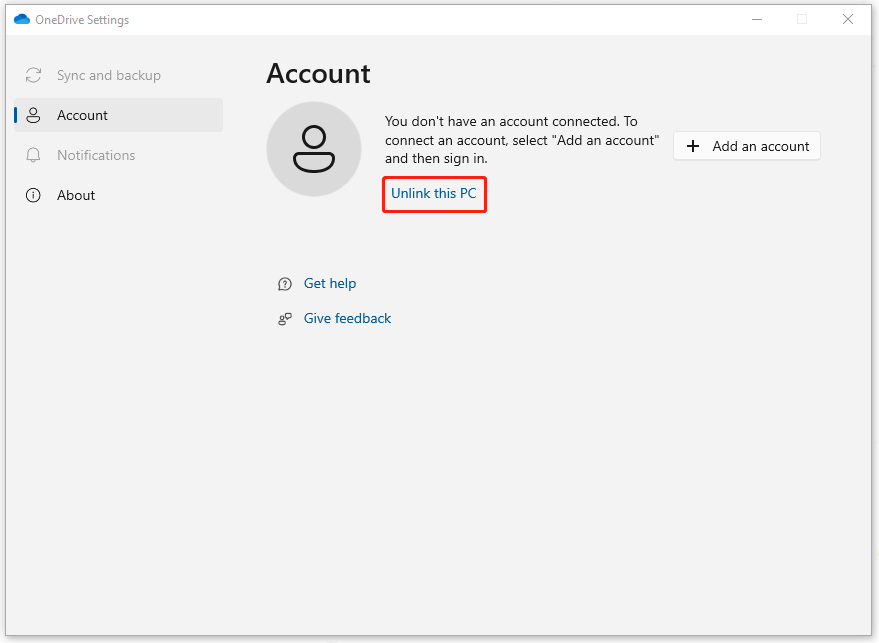
Step 1: Click on the OneDrive icon on the system tray and click Help & Settings (a gear icon) to choose Settings from the drop-down list.
Step 2: Click on Unlink this PC to refresh the sync portal with your registry key and then you can relink the PC.
Now you can try to check for the error 0x8004deea.
Fix 2: Reset OneDrive
Since OneDrive bugs and glitches can make the OneDrive sync error 0x8004deea, you can try to restart the program; if that can’t work, then you can reset OneDrive to see if the error can be removed.
Step 1: Open the Run dialog box by pressing Win + R and input and enter wsreset.exe to reset or clear the Windows Store.
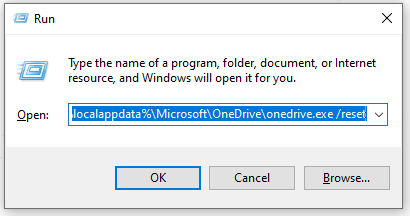
Step 2: After you see a blank prompt appears and then close automatically, you can check if the OneDrive sync issue has been fixed. If not, you can copy and paste this command to execute in the Run dialog box.
%localappdata%\Microsoft\OneDrive\onedrive.exe /reset
Step 3: Then type OneDrive in Search and launch it manually.
Fix 3: Delete the OneDrive Registry Key
Another method is to delete the OneDrive registry key and you can try that.
Step 1: Type regedit in the Run dialog box to enter Registry Editor and copy and paste this path in the address bar to enter.
HKEY_LOCAL_MACHINE\SOFTWARE\Policies\Microsoft\OneDrive
Step 2: Right-click on the blank space from the right panel and choose New to add Key and save it with the name AllowTenantList.
Step 3: Once you created it, right-click on the AllowTenantList key and choose New to select String Value. Change the name of String Value as your tenant ID.
Then you can close the window to check if the error has been fixed.
Fix 4: Reinstall OneDrive
The last method is to directly uninstall and reinstall OneDrive.
Step 1: Press Win + I to open Settings and click Apps.
Step 2: Scroll down to choose Microsoft OneDrive and click Uninstall to remove it.
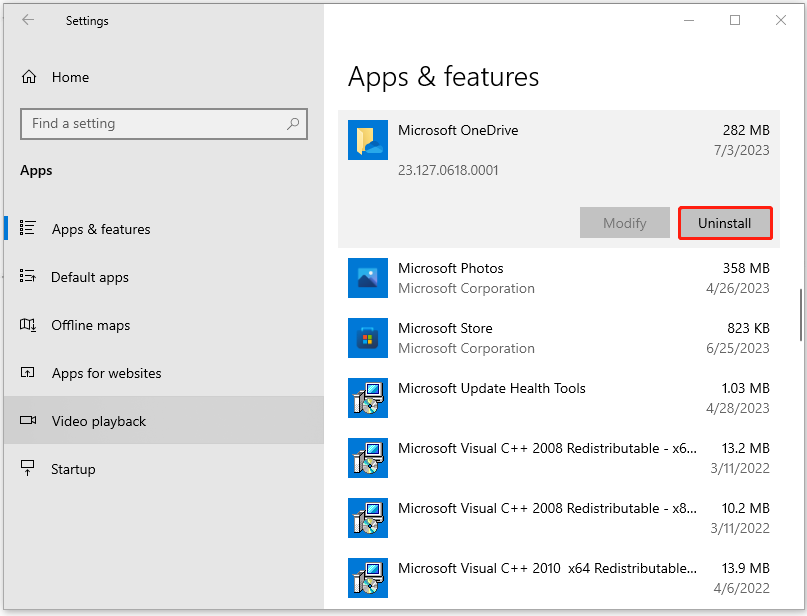
Step 3: After the removal, open Microsoft Store to search for OneDrive and download and install it.
Usually, the error code 0x8004deea can be fixed by this method. If you are still struggling with this error code, you may contact the official support.
Wrapping It Up
The OneDrive error code 0x8004deea can be easily removed by the above methods. If you need any other help with the error, you can leave a message below.
User Comments :