
Windows update error code is what users usually encountered and that often appears when users attempt to update their Windows. Then this article will develop around the Windows update error code 0x800F0223 and MiniTool will show you a series of useful methods to get rid of the error.
What Causes the Windows Update Error 0x800F0223?
Some Windows users reported that they ran into the error code 0x800F0223. It is a pity to hear about it but don’t worry, to make the issue resolved, we will list some possible culprits that you can check for yourself and follow the corresponding solution to fix it.
- Damaged or corrupted system files
- Internet connection issues
- Software conflicts
- Faulty Windows update components
- Stopped Windows Update service
- Incorrect system configuration

Suggestion: Back up Your Data Regularly
Even though the Windows update error can be fixed with some simple tips, some users find their data gets lost after the error occurred. So, we highly recommend that you should back up your important data before you start the update.
You can try this free backup software – MiniTool ShadowMaker. This program includes all necessary backup functions and develops backup schemes and schedules to improve the experience. You can also apply password protection for your backup.
Download and install the program to gain its 30-day free trial version.
MiniTool ShadowMaker TrialClick to Download100%Clean & Safe
How to Fix the Windows Update Error 0x800F0223?
Before you start the following methods, you can restart your system and check the Internet connection first to see if the bug can be fixed.
Fix 1: Run the Windows Update Troubleshooter
The Windows update troubleshooter is designed to fix the error codes while downloading and installing Windows updates.
Step 1: Go to Start > Settings > System > Update & Security > Troubleshoot.
Step 2: Click Additional troubleshooters from the right panel and click Windows Update and then Run the troubleshooter under Get up and running.
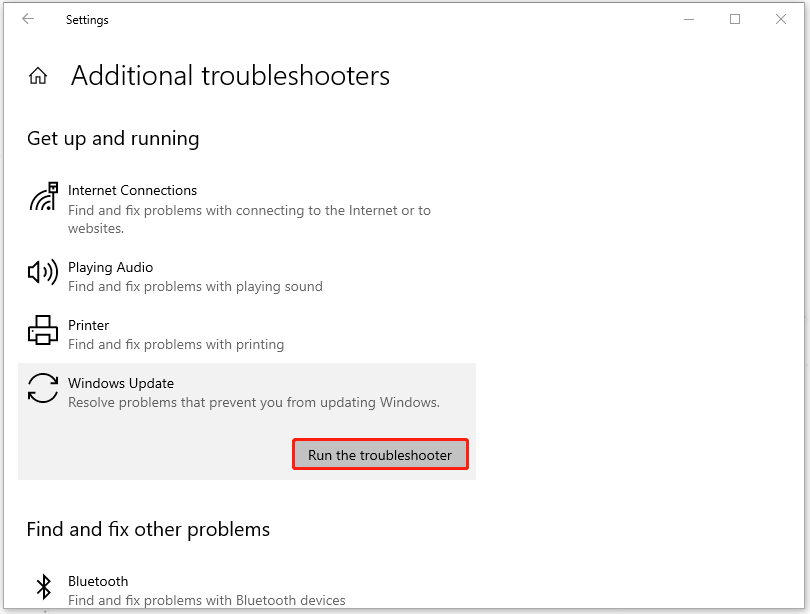
When the process ends, you can try to update Windows to check if the error 0x800F0223 has been resolved.
![[Full Guide] How to Fix Windows Update Troubleshooter Not Working](https://images.minitool.com/minitool.com/images/uploads/2023/03/windows-update-troubleshooter-not-working-thumbnail.png)
Fix 2: Run an SFC Scan
To fix corrupted system files, you can run an SFC scan to scan and replace the damaged files with new ones.
Step 1: Type Command Prompt in Search and run it as an administrator.
Step 2: Type sfc /scannow in the window and press Enter.
It will start automatically checking for your system files and repairing damaged ones. When the scan finishes, you can close the window to restart your system and then see if 0x800F0223 persists.
Fix 3: Restart the Related Services
You need to make sure the Windows Update-related services are running, or the Windows Update feature can fail to run.
Step 1: Press Win + R to open Run and input services.msc to enter.
Step 2: Scroll down to locate and double-click Background Intelligent Transfer Service. If the service is not running, select Automatic under the Startup type drop-down menu and click Start, Apply, and OK successively.
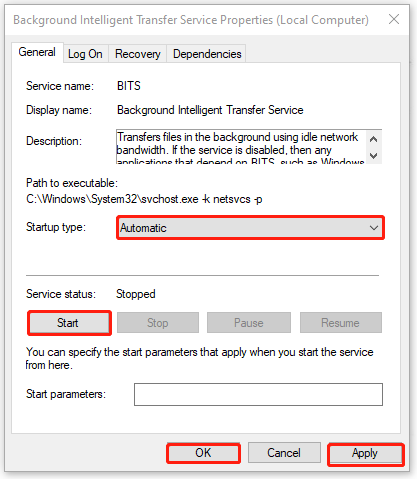
Step 3: Then please repeat step 2 to check for Windows Update and Cryptographic Services.
Besides, faulty Windows Update components can make Windows update fail, leading to 0x800F0223, so you may reset these related components to see if your issue can be resolved.
Wrapping It Up
After reading this article, you can follow these methods to get rid of the Windows update error 0x800F0223. It is easy to go and won’t cost much time. If you have any other useful methods, you can also share them with us.
User Comments :