
What causes the error code 0xc0020036? How to solve the Windows 10 activation error 0xc0020036? This post from MiniTool will show you the solutions to error 0xc0020036. In addition, you can visit MiniTool to find more Windows solutions and tips.
What Causes the Error Code 0xc0020036?
It is common for you to encounter the Windows 10 activation error, such as the error 0xc004c003, error code 0x803fa067, 0xc0020036 and so on. And in this post, we will focus on the error code 0xc0020036. This Windows 10 activation error 0xc0020036 seems to occur in situations where users have previously upgraded from an older Windows version to Windows 10.
Then do you know what may cause the error 0xc0020036? In general, several causes may lead to this Windows 10 activation error 0xc0020036. In this post, we will list some of them.
- The license product key is incorrect.
- Bad Windows 10 updates.
- Corrupt license key.
- Corrupt system files.
- License key is hard-wired inside the registry.
Meanwhile, do you know how to fix the error code 0xc0020036? In the following part, we will show you the solutions to the Windows 10 activation error 0xc0020036.
Top 6 Ways to Fix Windows 10 Activation Error 0xc0020036
In this part, we will show you how to fix the error code 0xc0020036.
Way 1. Re-enter License Key
As we have mentioned in the above part, this error 0xc0020036 may be caused by the incorrect license key. So, if you come across the same error, you can try entering the license key and check whether the error is removed.
If this solution does not work, you can try other solutions.
Way 2. Install Every Pending Update
The error code 0xc0020036 may be caused by the bad Windows 10 updates. So, in order to fix this Windows 10 activation error, you can choose to install every pending update.
Now, here is the tutorial.
- Press Windows key and I key together to open Settings.
- Then click Update & Security.
- Then on the left panel, choose Windows Update.
- Then choose Check for updates to continue.
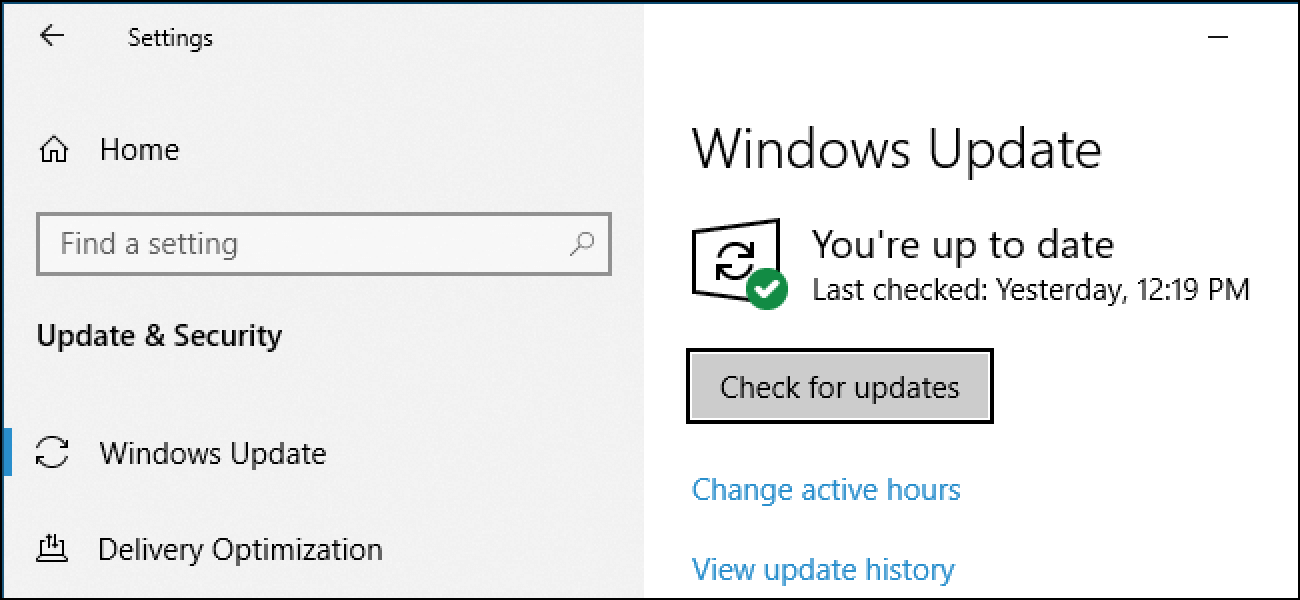
After all pending updates are installed, reboot your computer and check whether the error code 0xc0020036 is fixed.
Way 3. Uninstall and Clear Existing License Key
The Windows 10 activation error 0xc0020036 can also be caused by an inconsistency in the way that your activation key is viewed by the activation wizard. In this situation, you can choose to uninstall and clear existing license key.
Now, here is the tutorial.
1. Open Command Prompt as administrator.
2. In the command line window, type the following commands and hit Enter after each command to continue.
slmgr /upk
slmgr /cpky
3. Then exit the command line window.
4. After that, re-enter the license key to activate Windows 10 and check whether the error 0xc0020036 is fixed.
If this solution is not effective, try another one.
Way 4. Perform SFC and DISM Scan
If there are corrupted system files on your computer, you may come across the error code 0xc0020036. In this situation, you can choose to run SFC and DISM tools to check and repair the corrupted system files on your computer.
Now, here is the tutorial.
- Open Command Prompt as administrator.
- In the command line window, type the command sfc /scannow and hit Enter to continue.
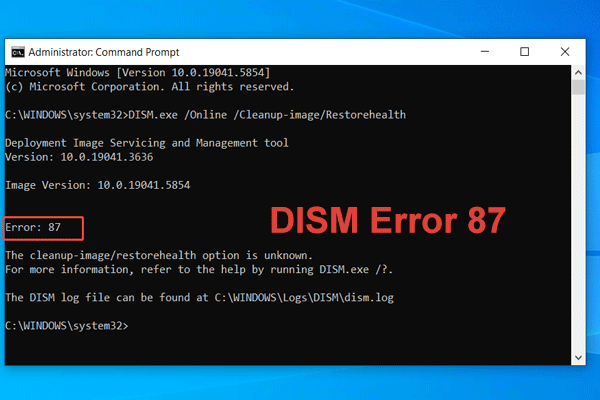
- If it does not work, open Command Prompt as administrator again and type the command DISM /Online /Cleanup-Image /RestoreHealth and hit Enter to continue.

When it is finished, reboot your computer and check whether the error code 0xc0020036 is fixed.
Way 5. Adjust the Value of SPPSV
In order to solve the error code 0xc0020036, you can choose to adjust the value of sppsv in the registry editor.
Now, here is the tutorial.
- Press Windows key and R key together to open Run dialog.
- Type regedit in the box and click OK to continue.
- Then navigate to the following path: Computer\HKEY_LOCAL_MACHINE\SYSTEM\CurrentControlSet\Services\sppsvc
- On the right panel, choose Start key and double-click it.
- Then change its value data to 2 and check the option Hexadecimal.
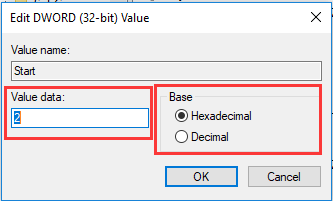
When it is finished, reboot your computer and check whether the error code 0xc0020036 is removed.
Way 6. Contact Microsoft License Activation Center
If the above solutions cannot fix the Windows 10 activation error 0xc0020036, you can contact the Microsoft license activation center. Then they may help you to fix the error 0xc0020036.
Final Words
To sum up, this post has shown what causes the error 0xc0020036 and shown 6 solutions to fix the Windows 10 activation error 0xc0020036. If you come across the same error, you can try these solutions. If you have any better idea to fix this error 0xc0020036, you can share it in the comment zone.
User Comments :