
This post on MiniTool Website mainly discusses how to fix Adobe CEF Helper.exe causing high CPU on Windows 10/11. Read it carefully, and you will benefit a lot from it. Hope you will get a superb experience when using your PC.
Adobe CEF Helper.exe Causing High CPU on Windows 10/11
Adobe CEF Helper.exe is a process that is required by Adobe Creative Cloud. Many of you may find that this progress can cause your PC to slow down. It takes up substantial CPU resources even if you don’t launch it. At the same time, if not installed properly, Adobe CEF Helper.exe causing high CPU on Windows 10/11 might occur. Therefore, you must check if all your programs are the latest.
How to Solve Adobe CEF Helper.exe Causing High CPU on Windows 10/11?
As mentioned above, when you run Creative Cloud, you will catch sight of a weird phenomenon – a large number of processes with the same or similar names are running in the backstage. Some anti-virus software might think it is a virus while actually, it is not.
What if Adobe CEF Helper.exe is causing high CPU on Windows 10/11?
Fix 1: Restart Your Computer
If you are facing Adobe CEF Helper.exe causing high CPU on Windows 10/11, the first method that comes to your mind should be restarting your PC.
Step 1. Close all the progress that you are running.
Step 2. Click the Windows icon to launch the menu.
Step 3. Press Power and choose Restart.
Fix 2: Run the SFC Scan
SFC is one of the most useful Windows inbuilt tools because it can look for and repair corrupted system files for you. Each of you can make full use of it when facing different issues on Windows.
Step 1: Type cmd in the search box to list Command Prompt.
Step 2. Right-click it to select Run as administrator.
Step 3. In the command line, type sfc /scannow and hit Enter.
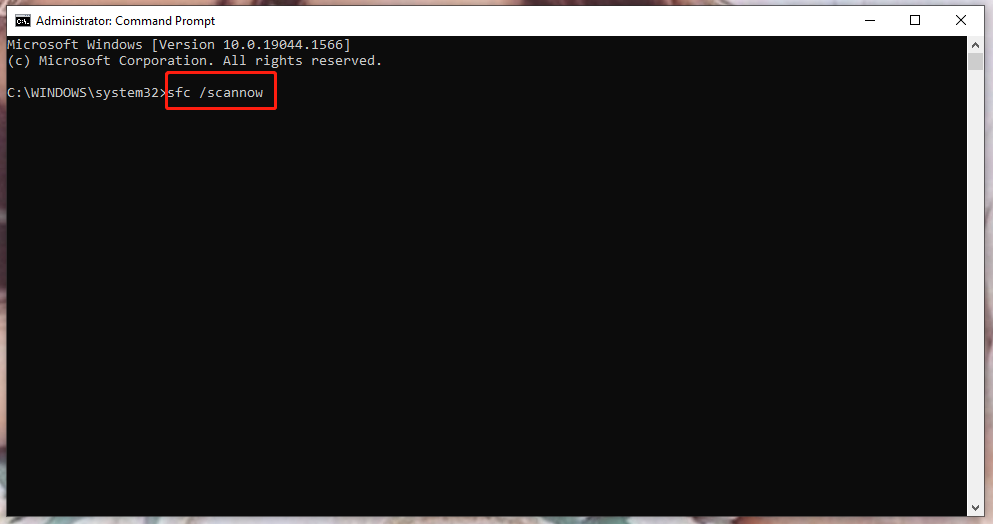
Step 4. After the progress is done, you can reboot your computer to see if this issue is fixed.
Fix 3: Update Windows
Keeping an up-to-date version of Windows is of vital importance when you try fixing Adobe CEF Helper.exe high CPU error hence you are supposed to check it in time.
Step 1. Press Win + I at the same time to open the Settings interface.
Step 2. Scroll down to find Update & Security and click it.
Step 3. In the popping-up window, select Windows Update.
Step 4. Tap on Check for updates under Windows Update.
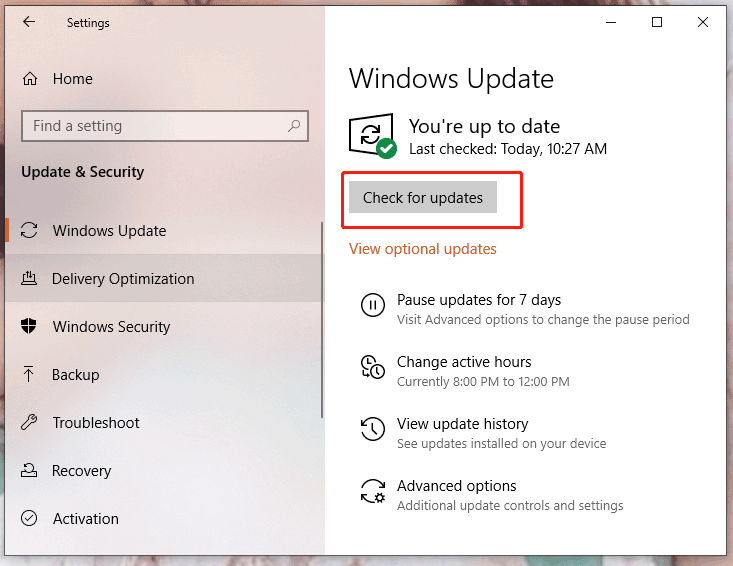
Step 5. The system will search, install and download the latest Windows version for you if you have an available update.
Fix 4: Disable Your Antivirus Temporarily
As reported, many of you may experience screen freezing, glitches and lags alike hence your antivirus software might regard Adobe CEF Helper.exe as a virus. In fact, it is not a virus at all. To solve Adobe CEF Helper.exe causing high CPU on Windows 10/11, what you should do now is to suspend your antivirus software.
Step 1. Right-click the taskbar to open Task Manager.
Step 2. In Processes, find all virus-related programs and right-click them one by one.
Step 3. Select End Task.
Step 4. Reboot your computer to examine if this workaround takes effect.
Fix 5: Uninstall Adobe CEF Helper
Uninstalling Adobe CEF Helper can also help to cope with Adobe CEF Helper.exe causing high CPU on Windows 10/11, but it is the least recommended solution unless you are sure that you don’t need Adobe CEF Helper anymore.
Step 1. Type file explorer beside the magnifier icon and open File Explorer.
Step 2. Copy and paste the following path:
C\:Program Files>Adobe Systems>Adobe CEF Helper or Adobe Creative Cloud >Adobe CEF Helper_uninstall.exe
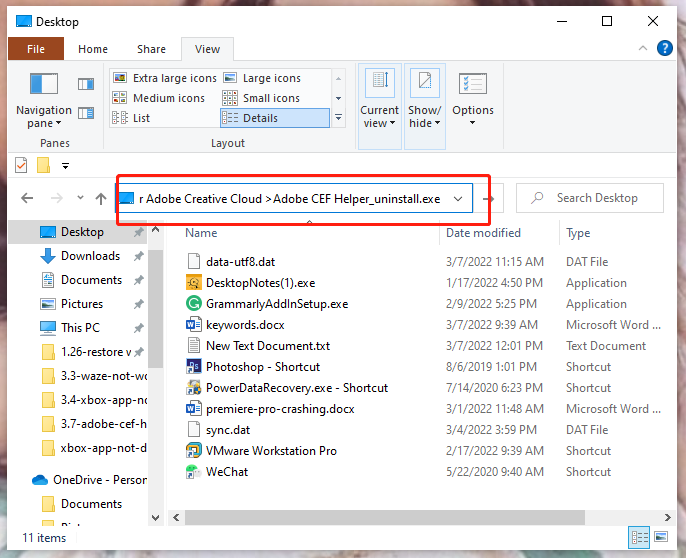
Step 3. Double-click the executable to launch it and the system will uninstall Adobe CEF Helper for you.
Final Words
Now, you must have a full picture of how to deal with Adobe CEF Helper.exe causing high CPU on Windows 10/11. Welcome to tell us which fix works best for you in the comment section below.
User Comments :