
It is frustrating when you fail to connect to the internet. If you are in this situation and try to check the internet connection, you might receive an error message “An Unexpected Error Occurred”. How to fix the problem “An Unexpected Error Occurred” in network connections? Here, this MiniTool guide can help you to fully resolve it.
“An Unexpected Error Occurred” in network connections might be caused by many reasons. The most common reason is the wrong configuration on a network adapter. In fact, this is not a serious problem and it can be fixed with minimum effort.
MiniTool Power Data Recovery FreeClick to Download100%Clean & Safe
Practical Ways to Fix an Unexpected Network Error
Way 1: Update/Reinstall the Network Adapter Driver
Step 1: Press Win + X and select Device Manager from the WinX menu.
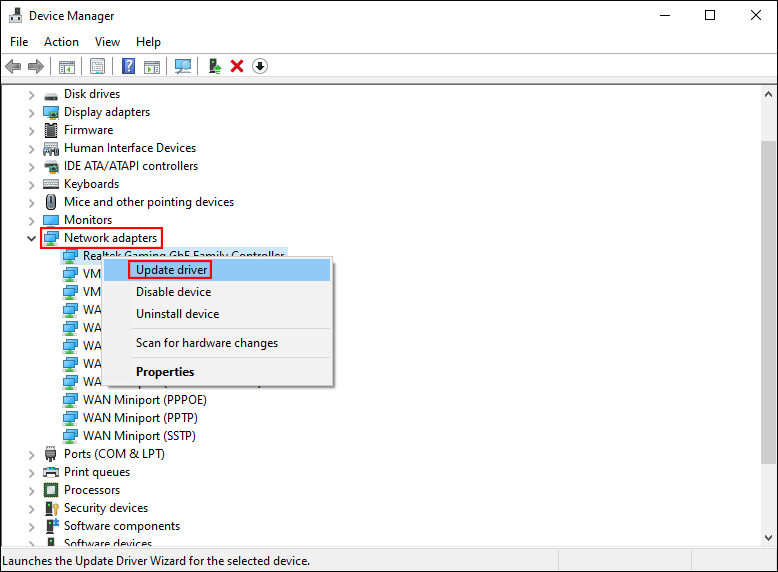
Step 2: Expand the Network adapters to find your adapter.
Step 3: Right-click on it and choose Update driver from the context menu.
Step 4: Select Search automatically for drivers in the prompt window.
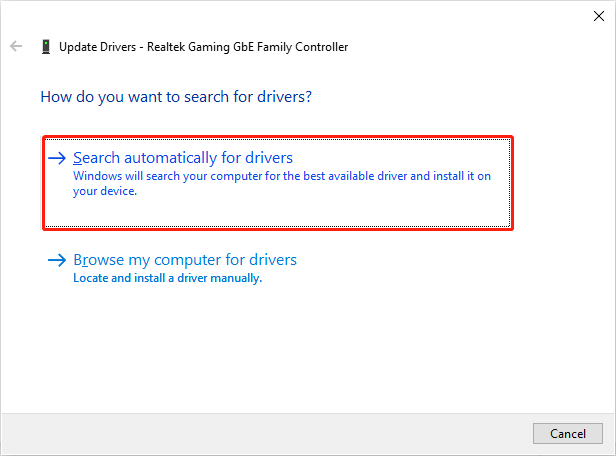
Your computer will find the latest compatible drive for the device and install it automatically. Then you can check whether the network error is solved. If not, you can try to uninstall this device in the same window.
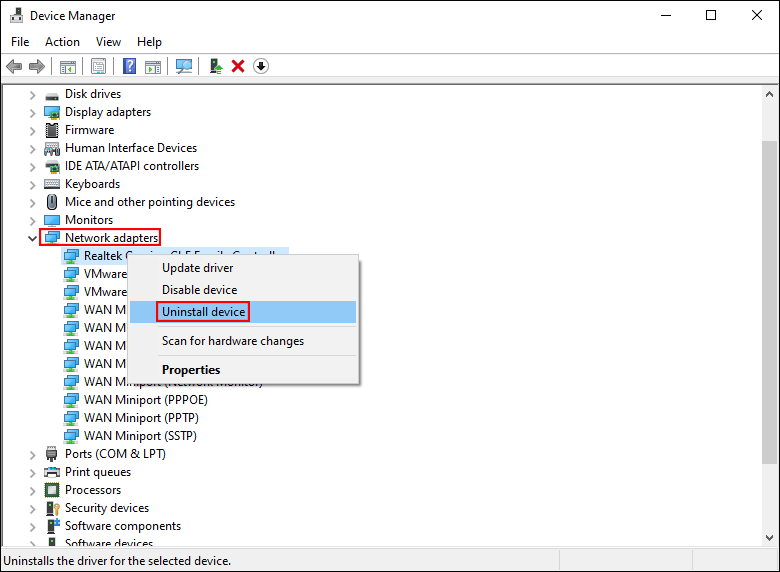
Step 1: Right-click on the corresponding network drive and choose Uninstall device from the context menu.
Step 2: Select Uninstall to confirm.
When it uninstalls successfully, you need to restart your computer. Your PC will install the latest network adapter by itself.
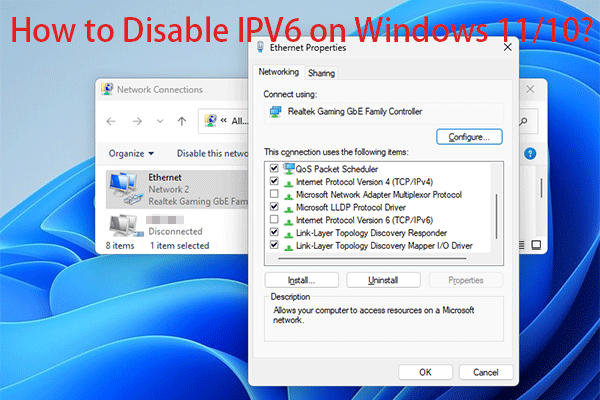
Way 2: Disable IPv6 on Windows
For Windows 10
Step 1: Press Win + I to open Windows Settings.
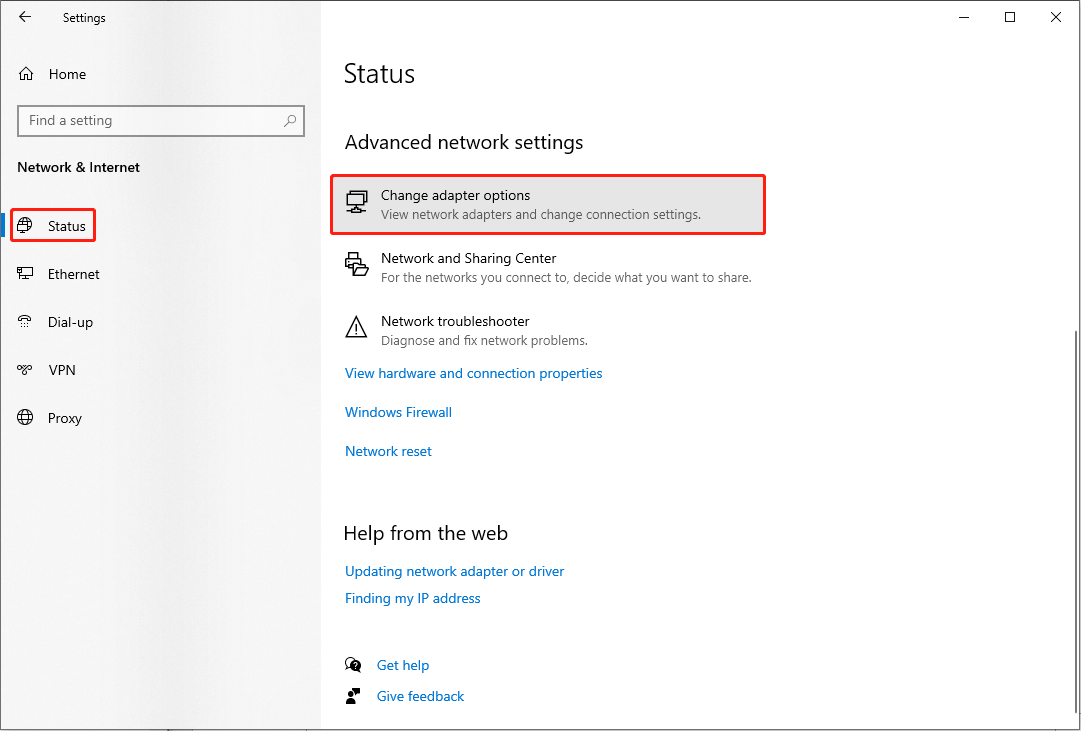
Step 2: Choose Network & Internet and choose the Status tab.
Step 3: Click on Change adapter options under the Advanced network settings.
Step 4: Right-click on the network adapter and choose the Properties option.
Step 5: Uncheck the Internet Protocol Version 6 (TCP/IPv6) in the Ethernet Properties window.
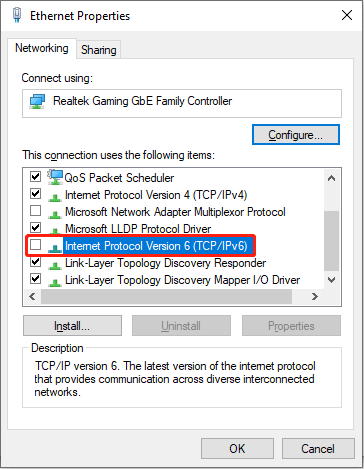
Step 6: Click on OK to save the change.
For Windows 11
Step 1: Press Win + I to open the Settings window.
Step 2: Choose Network & internet and scroll down to find and click on Advanced network settings.
Step 3: Select More network adapter options in the Related settings section.
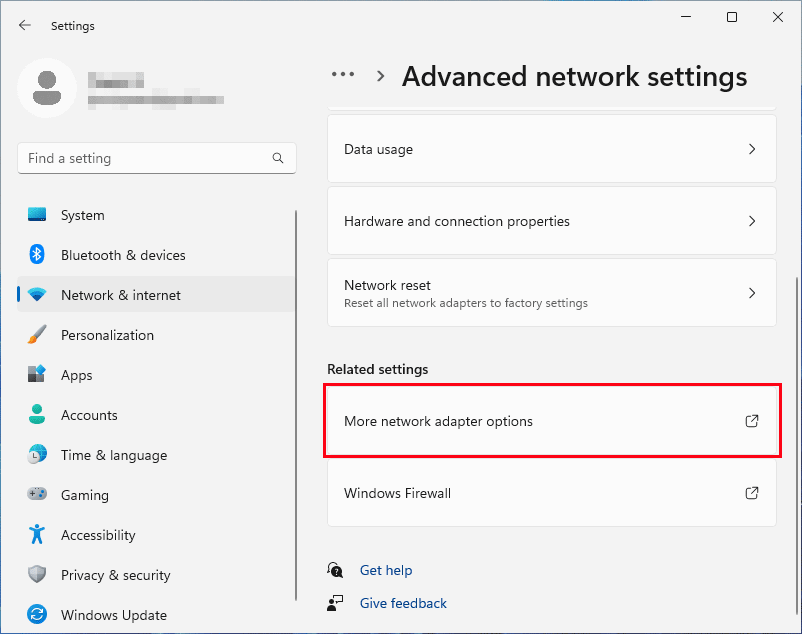
Step 4: Right-click on the target network adapter and choose the Properties option.
Step 5: Uncheck the Internet Protocol Version 6 (TCP/IPv6), then click OK.
After the setup is completed, you can check whether the issue, “An Unexpected Error Occurred” in network connections, is solved or not.
Way 3: Run the Network Adapter Troubleshooter
Step 1: Press Win + I to open the Settings window.
Step 2: Choose Update & Security, then shift to the Troubleshoot tab. If you are a Windows 11 user, you need to choose System > Troubleshooter in this step.
Step 3: Select Additional troubleshooters.
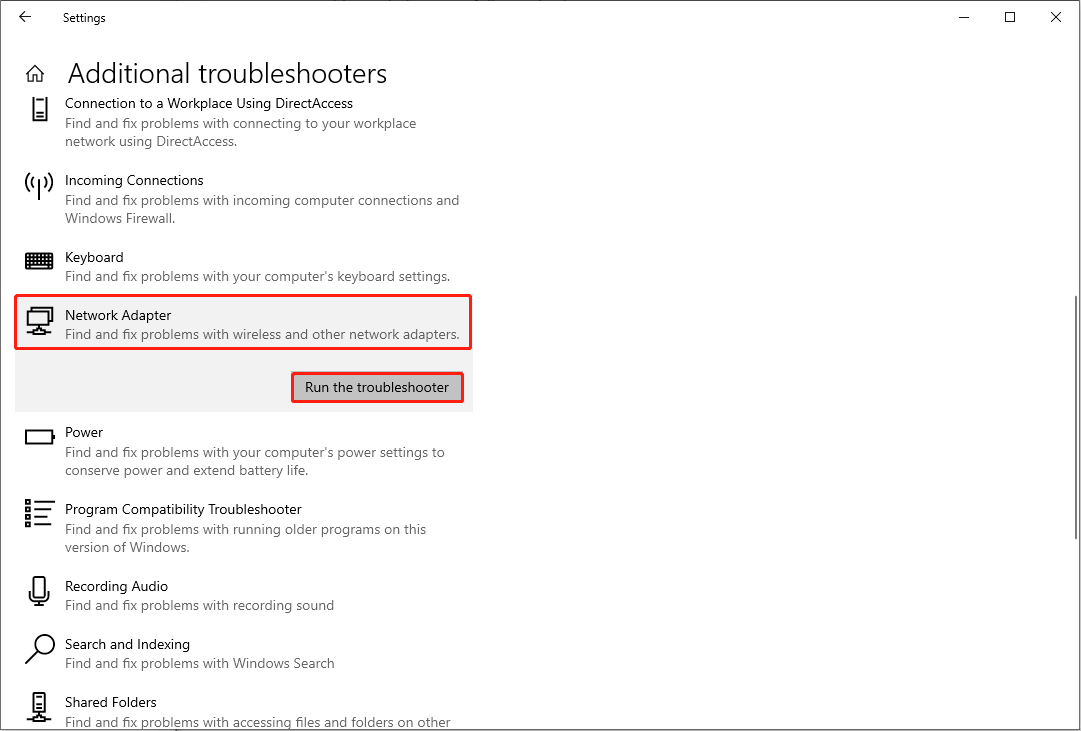
Step 4: Look through the list to find and click on the Network Adapter option.
Step 5: Click on Run the troubleshooter to start the fixing process.
Way 4: Re-Register the “netshell.dll” File
The Windows netshell.dll file is a module that helps to execute the Network Connections Shell, ensuring the network on your computer works properly. When you find an unexpected network error occurred, you can try to re-register this file to fix it.
Step 1: Press Win + R to open the Run window.
Step 2: Type cmd into the text box and press Shift + Ctrl + Enter to run Command Prompt as administrator.
Step 3: Type regsvr32 netshell.dll and hit Enter.
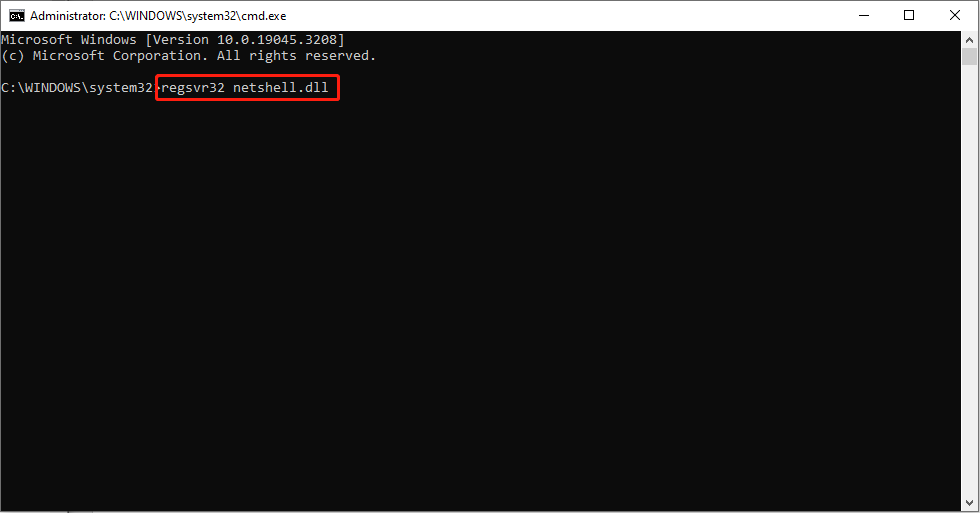
The netshell.dll file is reapplied successfully. You can check whether this method can fix the unexpected network error or not.
![[Solved!] How to Register a DLL File on Windows?](https://images.minitool.com/minitool.com/images/uploads/2020/06/register-dll-file-on-windows-thumbnail.jpg)
Bottom Line
The problem, “An Unexpected Error Occurred” in Ethernet properties, happens casually. Once it happens, it brings you troubles in configuring internet settings. Hope these methods can help you resolve the problem.
User Comments :