
A blank screen after installing Windows 11 Moment 3 might trouble you now. You can use the two methods in this post to solve the problem. If you need to recover your lost or deleted files, you can try MiniTool Power Data Recovery.
Moment 3 Is Causing a Blank Screen Problem
Windows 11 Moment 3 update is a new feature preview update that is available for Windows 11 22H2 users recently. We believe that many users have downloaded and installed Moment 3 on PCs. The good news is that users can experience the new features in the update. The bad news is that some users find their computer goes into a blank screen immediately after installing Moment 3. This is a rare issue. But if you encounter this problem, you need to take measures to solve it.
What to do if your PC goes into a blank screen after installing Moment 3? MiniTool Software will introduce two methods in this post.
Fix 1: Restart Your Computer
Some users reported that they solve the problem by restarting the computer. This is an easy and direct method that is well worth a try.
Restarting a PC will delete temporary files that might be the cause of a blank screen after installing Windows 11 Moment 3. Believe it or not, this can fix many computer issues easily.
You can go to Start > Power > Restart to restart your computer.
Fix 2: Use Task Manager
A Reddit user offers a second way to fix the blank screen issue:
Step 1: Press Ctrl + Alt + Delete (Del), then open Task Manager.
Step 2: Click Run new task to continue.
Step 3: Type explorer.exe into the box of the pop-up window, then press Enter.
Step 4: Click Run new task again.
Step 5: Type cmd.exe into the Open box and press Enter.

Step 6: When the Command window opened, Windows will display the desktop and a notification that ExplorerPatcher had downloaded new symbols.
Until then, the blank screen issue is solved.
Recover Data Using MiniTool Power Data Recovery
MiniTool Power Data Recovery is the best free data recovery software that can work on all Windows versions. You can use it to recover data from USB flash drives, SSDs, hard disk drives, memory cards, etc.
This software can find existing, lost, and deleted files on a drive. This means that you can use it to recover deleted files, recover files from inaccessible data storage drives, and recover formatted data. Even if your PC is unbootable, you can use the MiniTool WinPE medium builder to create a bootable drive, boot the PC from the bootable drive, open MiniTool Power Data Recovery Bootable Edition, and recover your files to an accessible drive.
With the free edition of this software, you can recover 1 GB of files without paying any cent.
MiniTool Power Data Recovery FreeClick to Download100%Clean & Safe
Step 1: Launch MiniTool Power Data Recovery.
Step 2: Select the drive you want to recover data from and click the Scan button to start scanning the drive.
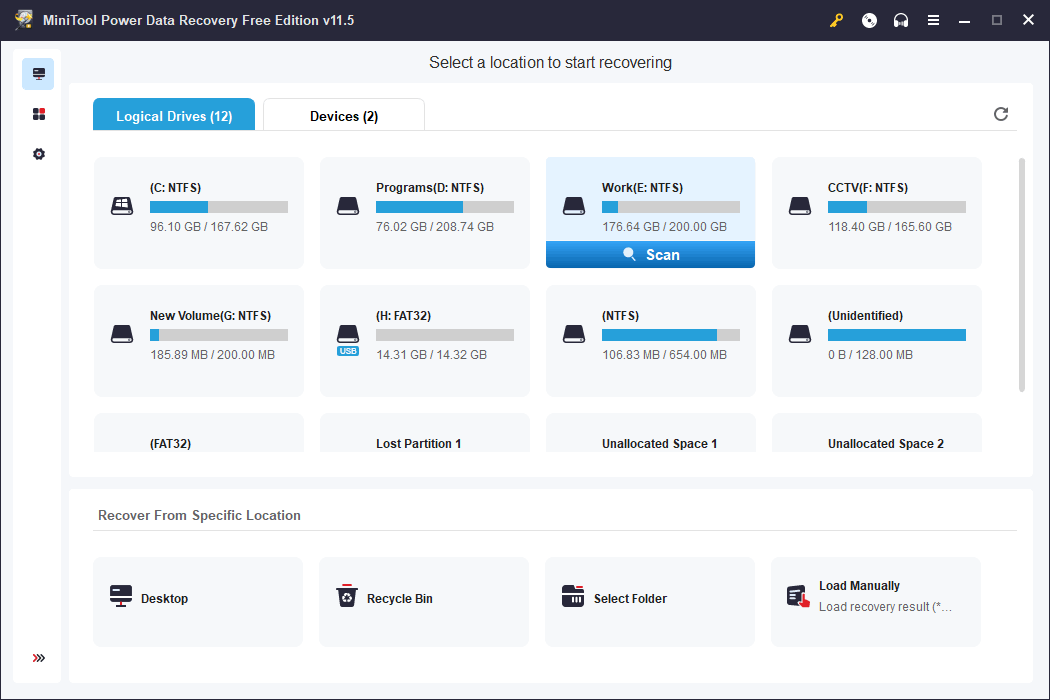
Step 3: After scanning, you can select your files from the scan results. You are allowed to choose files from different folders or paths. You can quickly find your files with the help of Type, Filter, and Search. You can also preview files to exactly find your needed files.
Step 4: Click the Save button and select a suitable location to save the selected files. The destination drive should not be the original location of the missing files. This can prevent the lost and deleted files from being overwritten.
MiniTool Power Data Recovery FreeClick to Download100%Clean & Safe
If you want to use this software to recover more files, you can use a full edition.
Bottom Line
Here are the two easy methods to help you out of the blank screen after installing Moment 3. There should be a proper method for you. Besides, you also get a data restore tool to help you get your data back when necessary. If you have issues related to this MiniTool data recovery software, you can contact [email protected] for help.
About The Author

Position: Columnist
Stella has been working in MiniTool Software as an English Editor for more than 8 years. Her articles mainly cover the fields of data recovery including storage media data recovery, phone data recovery, and photo recovery, videos download, partition management, and video & audio format conversions.
User Comments :