
Bluetooth Button Greyed Out on Windows
Connecting wireless devices, like a keyboard, mouse, earphones, etc., to your computer is convenient. However, those Bluetooth peripherals sometimes cannot connect properly because of the Bluetooth button greyed out or some other problems.
When you find Bluetooth greyed out on Windows, keep reading and try to resolve the problem.

Fixes for the Bluetooth Greyed Out
Here are four ways to resolve the Bluetooth button greyed out issue on your computer, but before that, you can restart your computer to see if this works. Sometimes, the computer glitches cause the improper display of the Bluetooth function. If the problem exists after restarting the device, move on to the following methods.
Way 1. Run the Bluetooth Troubleshooter
Running the Windows-embedded troubleshooter may resolve the issue easily.
Step 1. Press Win + I to open Windows Settings.
Step 2. For Windows 10 users, go to Update & Security > Troubleshoot > Additional troubleshooters > Bluetooth and click Run the troubleshooter.
For Windows 11 users, head to System > Troubleshooter > Other troubleshooters > Bluetooth and click Run.
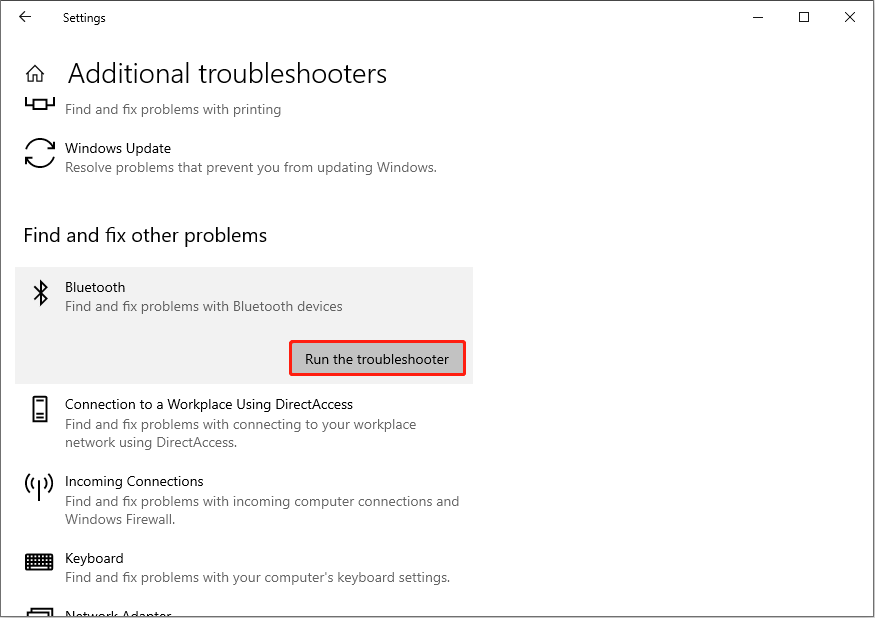
Wait for the detection process to finish. If there are any problems found, you can follow the on-screen instructions to complete the repair tasks.
After that, check whether the Bluetooth button shows properly. If not, please go on to the next way.

Way 2. Modify Bluetooth Services
The improper configuration of Bluetooth services results in the abnormal function of the Bluetooth utility. Here is how to modify them on your device.
Step 1. Press Win + R to launch the Run window.
Step 2. Type services.msc into the dialog and hit Enter to open the Services window.
Step 3. You should look through the service list to find the related ones, including Bluetooth Audio Gateway Service, Bluetooth Support Service, and Bluetooth User Support Service_e430804.
Step 4. Double-click on the Bluetooth Audio Gateway Service. You should first check the Service status to ensure it is running; otherwise, click Start to enable this service. Afterward, choose Automatic from the drop-down menu of the Startup type option. Click Apply > OK to save your changes.
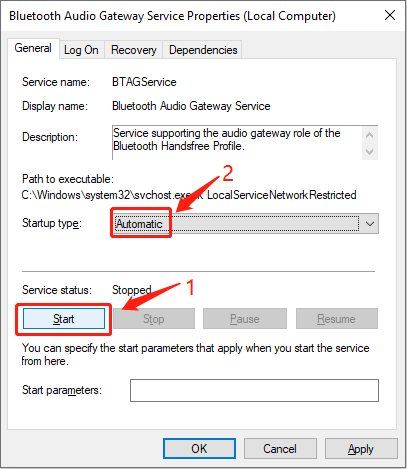
Step 5. Repeat Step 4 to change the same configuration of the Bluetooth Support Service and Bluetooth User Support Service_e430804 services.

Way 3. Uninstall the Latest Windows Update
If the Bluetooth icon is grey after upgrading the Windows operating system, it might be caused due to a compatibility issue between the latest Windows update and Bluetooth. Try to uninstall the latest Windows update.
Step 1. Type Control Panel into the Windows Search box and hit Enter to open it.
Step 2. Click Uninstall a program under the Programs option and choose View installed updates on the left sidebar.
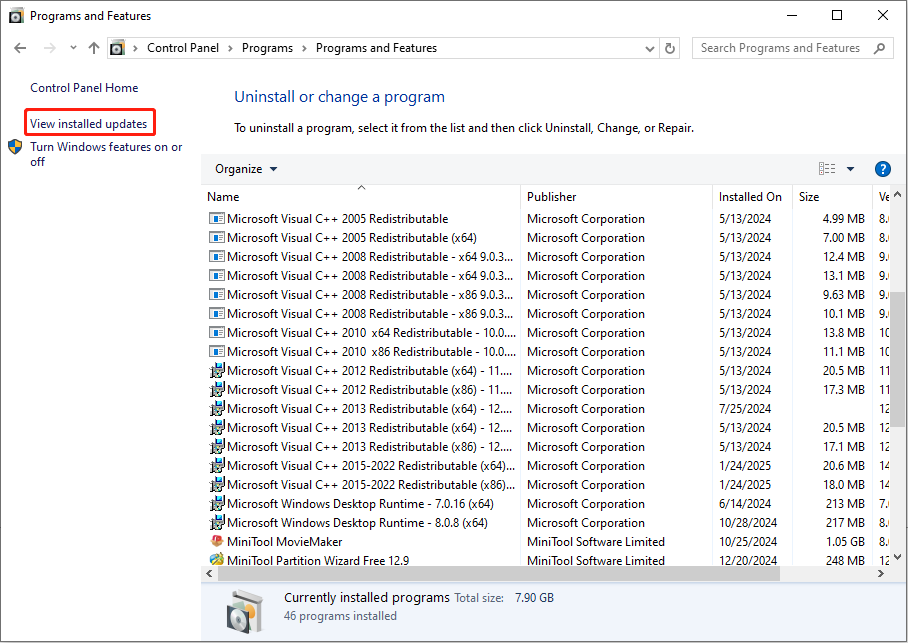
Step 3. Right-click on the latest installed update and choose Uninstall.
Way 4. Update BIOS
According to some computer users, they have resolved the Bluetooth greyed out in Device Manager issue by updating the BIOS. You may give it a try, but you should be careful during the update process. As BIOS is important to the computer’s performance, improper operations can cause your computer to fail to launch. Therefore, you’d better back up the computer before updating the BIOS.
MiniTool ShadowMaker is a versatile backup tool that is able to back up files, folders, partitions, and disks within a few clicks. You can also run this software to back up files on a schedule automatically. Get this software and start backing up your computer.
MiniTool ShadowMaker TrialClick to Download100%Clean & Safe
After that, you can update the BIOS with this detailed guide on your computer.
Closing
This post gives four solutions in total to fix the Bluetooth button greyed out on Windows. You should give those methods a try one by one to find which works on your case effectively. Hope here is useful information for you.
User Comments :