
Computer Management is a Windows built-in tool that allows you to configure Windows system tools like Task Scheduler, Event Viewer, Local Users and Groups, and other services. Thus, you can imagine how great the impact of Computer Management not opening will be. This problem can be caused by several reasons, but luckily, you can fix it easily with this guidance.

How to Fix Computer Management Not Opening
Fix 1: Run the Command Prompt
The primary cause of Computer Management failed to open is corrupted or missing system files. You can execute the corresponding command lines via Command Prompt to find and repair the problematic system files.
Step 1: Press Win + R to open the Run window.
Step 2: Type cmd into the text box and press Shift + Ctrl + Enter to run Command Prompt as administrator.
Step 3: Type sfc /scannow and hit Enter to run the command.
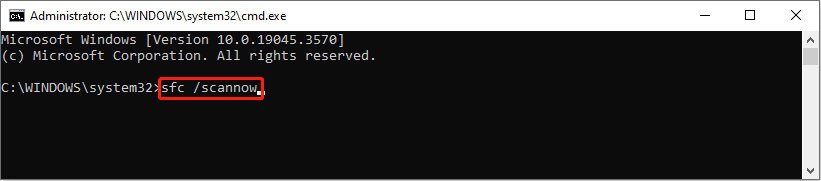
Step 4: When this command is finished, you can input the following command lines and hit Enter at the end of each command.
DISM /Online /Cleanup-Image /Checkhealth
DISM/ Online /Cleanup-Image /Scanhealth
DISM /Online /Cleanup-Image /Restorehealth

Fix 2: Check for Update
In some cases, you can’t access Computer Management because of outdated problems. You can go to check updates on your computer.
Check for Windows Update
Step 1: Press Win + I to open Windows Settings.
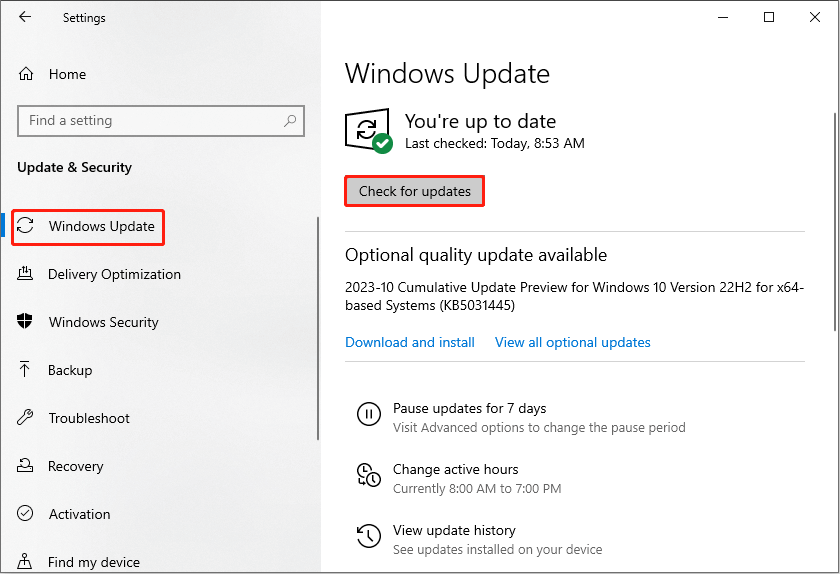
Step 2: Navigate to Update & Security > Windows Update.
Step 3: Click on Check for updates on the right pane to see if there is any update on Windows.
Check for Drives Update
Step 1: Press Win + X and choose Device Manager from the WinX menu.
Step 2: Expand each option to see whether there is a driver marked with a yellow exclamation.
Step 3: If you find one, right-click on it and choose Update drive from the context menu.
Step 4: Select Search automatically for drivers from the following window.
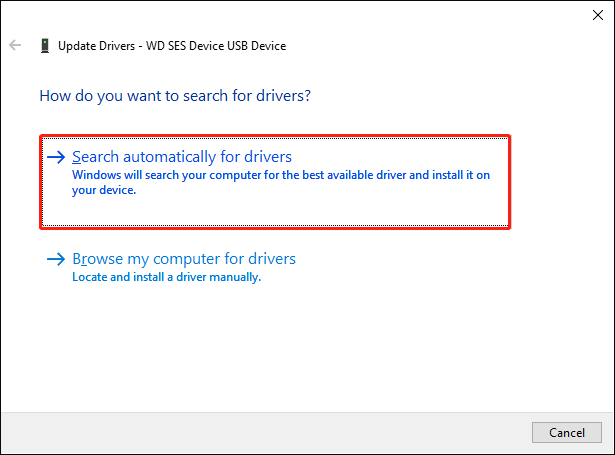
Your computer will find and install the latest compatible driver for you automatically.
Fix 3: Check Account Permissions
Since Computer Management is an administrative tool, if your current account does not have sufficient permission, you are unable to open this tool as well. You can change your account type to an administrator to solve the problem.
Step 1: Press Win + I to open Windows Settings.
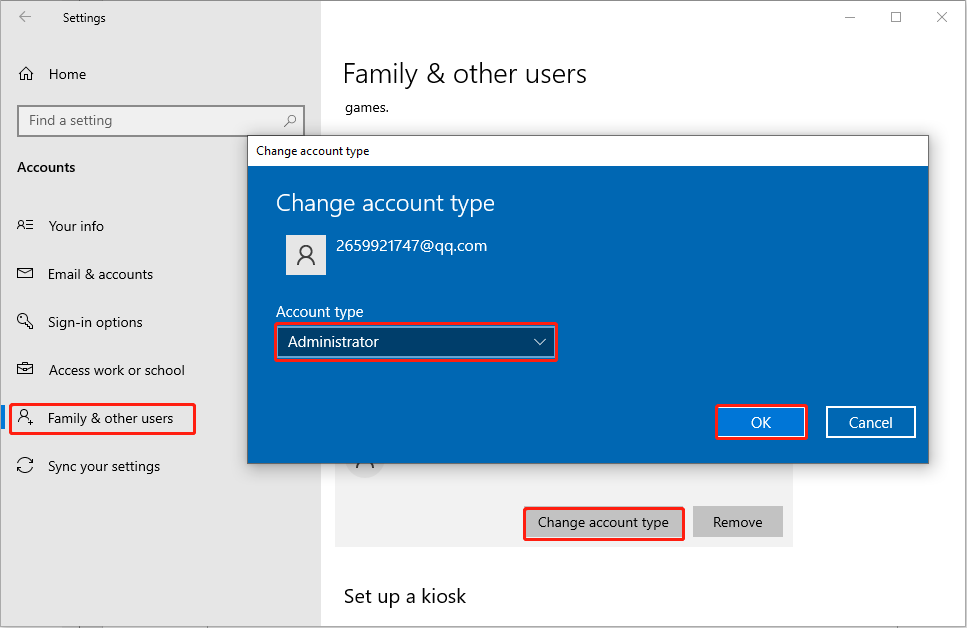
Step 2: Select Accounts > Family & other users. Then, you can find your local account under the Other users section at the right pane.
Step 3: Select the account and click on Change account type.
Step 4: In the prompt window, select Administrator from the drop-down menu.
If you don’t have a local account, you should add one first. Read this post to learn specific information about how to add a local account on your Windows:
Fix 4: Perform System Restore
If all the methods above don’t resolve your problem, you can use this one as the last solution. System Restore is able to return your computer back to the status when the problem doesn’t happen. But using this method requires you to create system restore points earlier. If you have, follow the next steps to start the system restore process.
Step 1: Type Control Panel into the Search box and hit Enter to open the window.
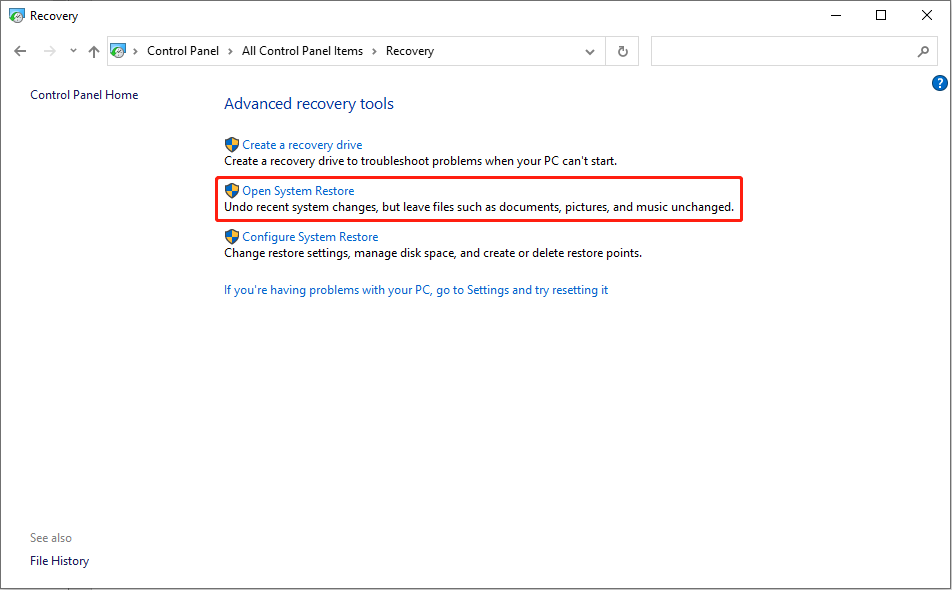
Step 2: Choose Recovery when the View by option is chosen Large icons.
Step 3: Select Open System Restore.
Step 4: In the prompt window, click Next to choose a system restore point you have created, then click Next.
Step 5: Check the information and click Finish to start the system restore process.
MiniTool Power Data Recovery FreeClick to Download100%Clean & Safe
Bottom Line
Computer Management not opening is inconvenient when you need to change any settings. Hope these methods can fix the problem in your situation.
User Comments :