
The problem of Deadzone: Rogue crashing prevents you from playing this game. If you are bothered by it, you can find answers in this MiniTool article, which also tells you why the game crashes at startup.
Deadzone: Rogue Crashing/Not Launching
Deadzone: Rogue is a first-person shooter (FPS) game with a deep universe background, combined with Roguelike elements, developed by Prophecy Games. Although it has received a lot of praise on Steam, some players have said that they have encountered game crashes, which makes it impossible for players to play the game normally.
If you are confronted by this problem, don’t worry, let’s take a look at its possible reasons first.
- Unreal Engine 5 compatibility issues: Some players report that the game encounters an EXCEPTION_ACCESS_VIOLATION error when launching, which may be related to the game’s UE5 engine.
- Graphics card driver issues: If your graphics card driver is not updated, it may cause the game to crash.
- Firewall or anti-virus software interference: Some firewalls or anti-virus software may prevent the game from running.
- Game file corruption: You can try to verify the integrity of the game files in Steam to ensure that there are no damaged files.

How to Fix Deadzone: Rogue Crashing on Steam PC
Method 1: Verify Integrity of Game Files
Incomplete game files may lead to a crash problem. To fix the problem of Deadzone: Rogue crashing, you can try verifying integrity of game files, which can help detect and fix some issues. Here are the steps.
Step 1: Open the Steam app and switch to the Library tab.
Step 2: Right-click Deadzone: Rogue and choose Properties.
Step 3: In the Installed Files section, click Verify integrity of game files.
When this process ends, run the game to see if it can work properly.
Method 2: Run the Game as Administrator
Insufficient permissions can be one of the causes. In this case, it is best to run the game as administrator to gain more permissions. Here is how you can do it.
Step 1: Type Deadzone: Rogue in the Windows search box, right-click the best match, and choose Open file location.
Step 2: Right-click this file and choose Properties.
Step 3: Click the Compatibility tab and check the box for Run this program as an administrator.
Step 4: Finally, click Apply > OK to confirm the change.

Method 3: Delete or Rename the sl.pcl.dll File
Deleting or renaming the sl.pcl.dll file can fix game crashes or freezes. You can do as follows.
Step 1: Open your Steam and go to the Library tab.
Step 2: Find and right-click Deadzone Rogue, and click Manage > Browse local files. It will open the Game Installation folder. The path is as follows:
C:\ProgramFiles (x86) > Steam > steamapps > common > Deadzone Rogue
Step 3: Now open Engine > Plugins > Rendering > Streamline > Binaries > ThirdParty > Win64 folder.
Step 4: Find the sl.pcl.dll file. Right-click it and choose Delete. Alternatively, you can rename it to something else, such as oldsl.pcl.dll file.
After that, open your game and check if this problem is fixed. Some players have found that this reduces crashes and freezes, but if the problem persists, you may need to update your graphics driver.
Method 4: Update Graphics Card Driver
An outdated graphics driver may cause many problems. You can try updating the graphics card driver to solve the problem of Deadzone: Rogue crashing. Here is a way.
Step 1: Right-click the Start button and choose Device Manager.
Step 2: Double-click Display adapters and right-click your card.
Step 3: In the drop-down menu, choose Update driver.
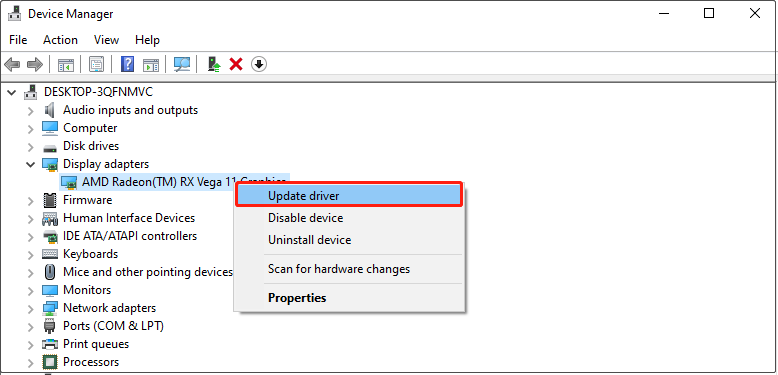
Step 4: In the new window, click Search automatically for drivers.
After that, follow the instructions to finish the whole process.
Method 5: Allow the Game Through the Firewall
The firewall is very powerful and can effectively block the invasion of malware. Sometimes the game is considered harmful and cannot run normally. In this case, you need to unblock the game from the Firewall.
Step 1: Type Control Panel in the Windows search box and press Enter.
Step 2: Click the View by box and choose Large icons or Small icons from the drop-down box.
Step 3: Select Windows Defender Firewall. Then, click Allow an app or feature through Windows Defender Firewall.
Step 4: Click Change settings > Allow another app to add the game to the list.
Step 5: Find the game and tick the boxes under the Public and Private tabs.
MiniTool Power Data Recovery FreeClick to Download100%Clean & Safe
Wrapping Things Up
Now you know how to fix the problem of Deadzone: Rogue not launching. I hope you can have a better gaming experience.
User Comments :