
Windows Compatibility Telemetry service on PC is known for occupying high CPU usage all the time. What should you do to disable CompatTelRunner.exe process in Windows 10? This guide on MiniTool Website will give you a satisfying answer.
CompatTelRunner.exe Process in Windows 10
There are plenty of background processes and services in Windows which occupy substantial system resources and space. CompatTelRunner.exe is among them. This executable process collects and sends usage and data to Microsoft.
The company elaborates that CompatTelRunner.exe Process improves the experience of Windows users like you. However, it is reported to be so resource-consuming that it slows down computer performance.
Therefore, you should disable it to avoid CompatTelRunner.exe high disk usage Windows 10. In this article, we will show you how to disable it hand by hand.
How to Disable CompatTelRunner.exe Process in Windows 10/11?
Method 1: Modify the Registry
This method requires you to run Registry Editor and turn off CompatTelRunner.exe in Windows 11/10.
Step 1. Type Registry Editor in the search bar and hit Enter.
Step 2. Right-click it to choose Run as administrator.
Step 3. Paste the next path in the box to navigate TelemetryController.
HKEY_LOCAL_MACHINE\SOFTWARE\Microsoft\Windows NT\CurrentVersion\AppCompatFlags\TelemetryController
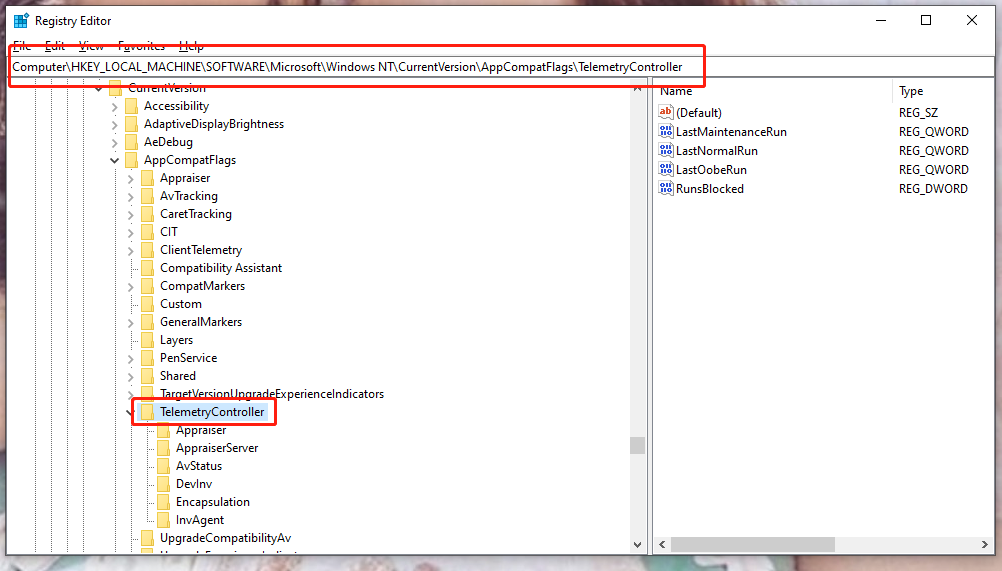
Step 4. Right-click it and choose Rename.
Step 5. Tweak the name into TelemetryControllerX and press Enter.
Step 6. Restart your computer.
Method 2: Make Use of Task Scheduler
Task Scheduler is one of the components of Windows which enables you to arrange the running of programs or scripts after defined intervals. You can take advantage of it to disable CompatTelRunner.exe process in Windows 10 by the following steps:
Step 1. Press Win + R to launch the Run box.
Step 2. Type taskschd.msc and press Enter.
Step 3. Go to Task Scheduler Library > Microsoft > Windows > Application Experience.
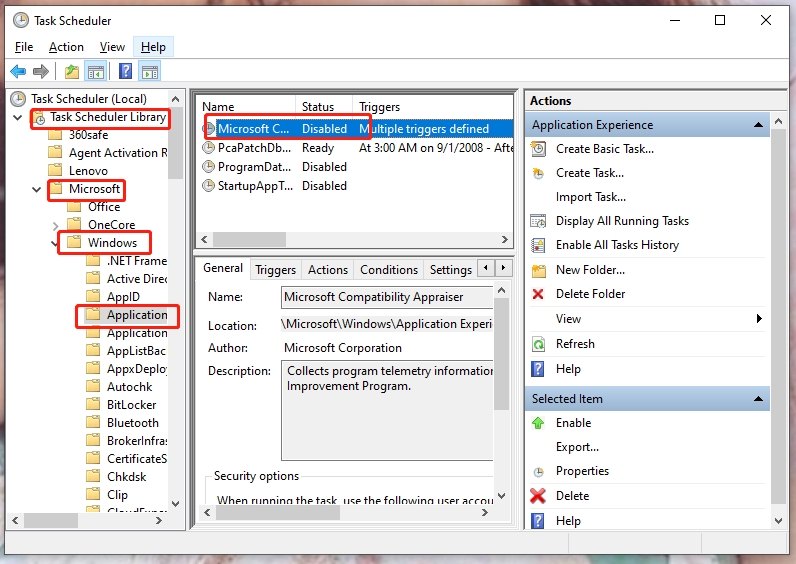
Step 4. Right-click Microsoft Compatibility Appraiser.
Step 5. Choose Disable.
Method 3: Run SFC Scan
The SFC scan allows you to fix corrupted system files by replacing them. Come on and follow the lead to execute the SFC scan to disable Windows Compatibility Telemetry service on PC.
Step 1. Type cmd in the search box to navigate Command Prompt.
Step 2. Right-click it to choose Run as administrator.
Step 3. Copy & paste sfc /scannow and tap on Enter.

Step 4. Wait for a while until this repair process completes.
Method 4: Run a Clean Boot
Running a clean boot allows you to start your PC with the fewest drivers and programs thus you can know whether there is a background program interfering with your games or other programs. As a result, it can help to disable CompatTelRunner.exe process in Windows 10.
Step 1. Paste msconfig in the Run window and hit Enter to launch System Configuration.
Step 2. Check Hide all Microsoft services and click Disable all.
Step 3. Right-click the taskbar and open Task Manager.
Step 4. In the Startup interface, right-click every startup item and disable them one by one.
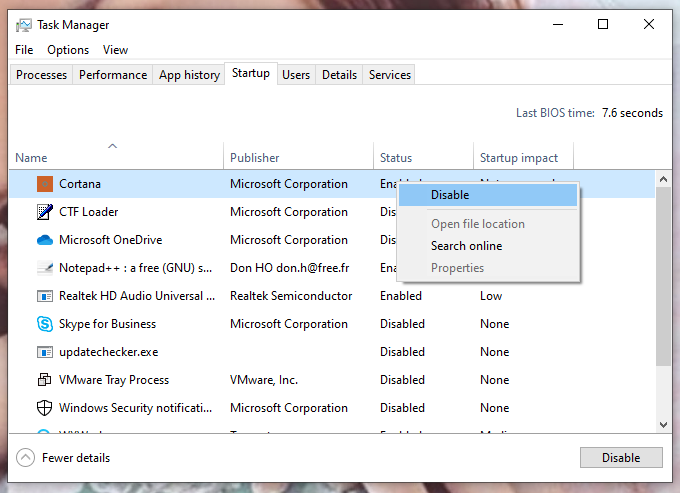
Step 5. Exit Task Manager and reboot your computer.
User Comments :