
Dune Awakening is a massively multiplayer online survival game developed by Funcom, set in the universe of the sci-fi masterpiece Dune. The game was officially released on June 10, 2025, supports the Windows platform, and will also be available on PlayStation 5 and Xbox Series X/S in the future.
Dune Awakening Controller Not Working
In Dune Awakening, some players are experiencing issues with controllers not being recognized or not functioning properly, particularly when using Xbox or PlayStation controllers on PC.
- Only some controllers are supported. The game is currently marked as “partial controller support” on Steam and is mainly compatible with Xbox controllers. Other brands of PlayStation controllers may require additional configuration tools (such as DS4Windows) to be recognized normally.
- The menu operation is not smooth. Some players have reported that although the character movement is normal, the way the controller simulates the mouse when operating in the menu is “awkward”, resulting in a poor experience.
- The driver or firmware is not updated. Failure to update the controller driver may also cause recognition failure. Xbox controllers can be updated through the Xbox Accessories app, and PS controllers are recommended to use the DS4Windows tool.
- Game bugs or compatibility issues. Funcom’s official technical support center lists several known issues, including controller compatibility, and the development team is continuously releasing patches to fix them.

How to Fix Controller Not Working in Dune Awakening
Fix 1: Update Controller Drivers
Updating the controller driver is one of the key steps to solve the problem of the controller not working properly in Dune Awakening. The game update may introduce new input interfaces or recognition methods. The old version of the driver may not support these features, resulting in the controller not being recognized or responding abnormally. Some driver updates not only include software patches but also push controller firmware upgrades simultaneously to improve the stability and response speed of the device.
Step 1: Right-click the Windows icon and choose Device Manager.
Step 2: Click the small arrow in front of Human Interface Devices to expand it.
Step 3: Right-click the Controller and select Update driver.
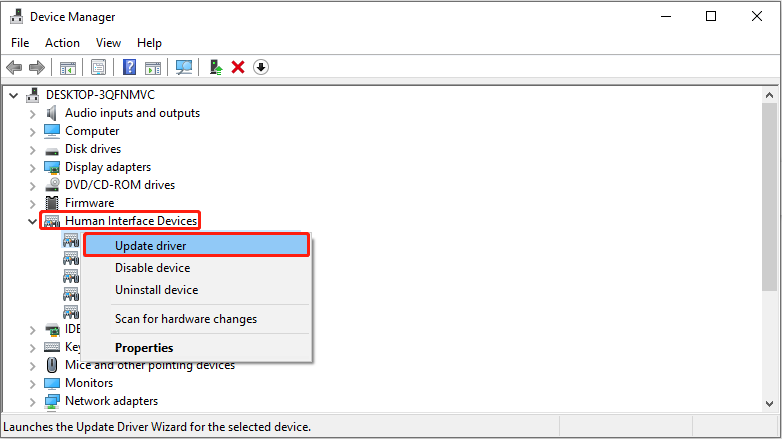
Step 4: Select Search automatically for drivers. Follow the on-screen instructions to complete the whole process.
Step 5: Finally, restart your PC and check whether the controller works properly.
Fix 2: Enable or Disable Steam Input
Enabling or disabling Steam Input may affect controller recognition and operation. Dune: Awakening recognizes the controller directly through Windows, and Steam may also try to control input at the same time, causing a conflict.
Step 1: Launch Steam and go to the Library tab.
Step 2: Right-click Dune Awakening and select Properties.
Step 3: Find the Controller and click Use default Settings.
Step 4: Select Enable Steam Input and then check if it works first. Then select Disable Steam Input and see if this works for you.
Step 5: If the controller isn’t working properly, try toggling these two options to see which works better for your device.

Fix 3: Verify Integrity of Game Files
During the game installation or update process, some files may be damaged, lost, or accidentally deleted, causing the controller module to fail to load properly. The controller’s button mapping, input response, etc., rely on specific configuration files. If these files are modified or damaged, it may cause the controller to be unrecognizable or operate abnormally. Verifying integrity can force a re-download of missing or incorrect files.
Step 1: Open Steam and switch to the Library section.
Step 2: Find and right-click the game and choose Properties.
Step 3: Go to the Installed Files tab and click Verify integrity of game files.
Fix 4: Update Your Windows
Updating your Windows system is often a critical step in resolving issues with Dune Awakening Gamepad not working. Older systems may not properly load the latest controller drivers or Steam Input modules, causing the game to not recognize the controller. Windows updates will repair these low-level modules and ensure that the game can correctly recognize the controller.
Step 1: Open Settings and click Update & Security > Windows Update.
Step 2: Click Check for updates. When the available update shows up, click Download & install to get it.

MiniTool Power Data Recovery FreeClick to Download100%Clean & Safe
Bottom Line
When the problem of the Dune Awakening Controller not working occurs, try these methods, such as updating controller drivers, verifying the integrity of game files, and so on. Hope they can help you.
User Comments :