
Issue: Elden Ring: Nightreign Screen Tearing
What a terrible thing to encounter the Elden Ring: Nightreign screen tearing problem! It severely impacts the game’s overall performance, hinders the experience, and frustrates any player in such a visually pleasing and mechanically sound game, right?
Bandai Namco stated in the 1.01 patch notes for Elden Ring: Nightreign that the update “seeks to enhance gameplay and stability.” Additionally, a note at the bottom of the page reads: “We have identified that certain PC setups with the most recent graphics cards might face frame rate drops. We are actively looking into the issue.”
If you’ve ever experienced annoying screen tearing during your Elden Ring: Nightreign journey, you’re not the only one. This issue arises when the game’s frame rate doesn’t align with your monitor’s refresh rate, resulting in images that appear choppy and difficult to follow.
In this guide, we provide a couple of methods for players to try to fix the Elden Ring: Nightreign screen tearing on PC. Keep reading to get more details.
How to fix the Elden Ring: Nightreign Screen Tearing Issue on PC
For now, there are several potential solutions available that could enhance your gaming experience and resolve screen tearing in Elden Ring: Nightreign.
Method 1. Update Your Graphics Drivers
Outdated graphics drivers are a significant factor contributing to screen tearing, especially in resource-intensive games like Elden Ring: Nightreign.
Step 1. If you’re utilizing the NVIDIA or AMD driver, you should head over to the official NVIDIA site or the AMD official page to download and install the latest update.
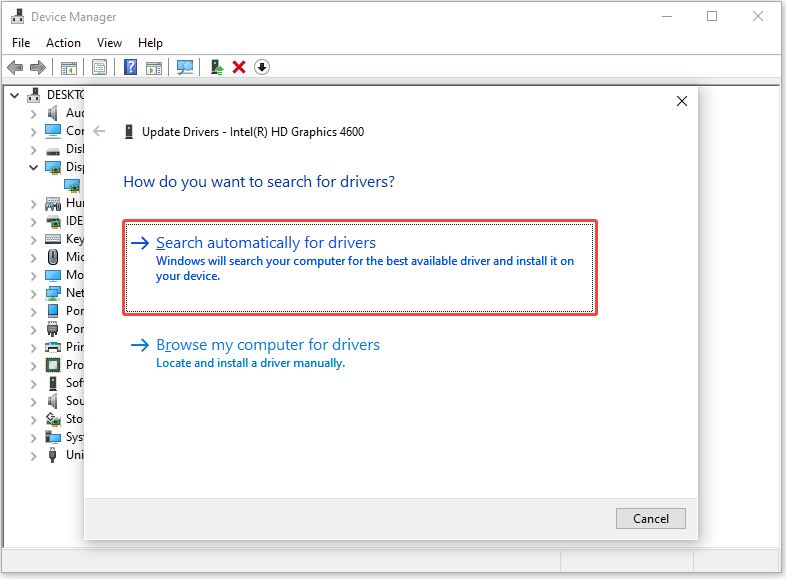
Step 2. Additionally, you can update your driver via Device Manager. Press Win + X to access the Power User menu and select Device Manager from the list.
Step 3. Expand the Display adapters section, right-click on your graphics driver, and choose Update driver.
Step 4. In the new window, select Search automatically for drivers. Then, follow the on-screen instructions to finish the update.
Method 2. Run Game in Borderless Windowed Mode
Several players experienced the Elden Ring: Nightreign screen tearing issue while playing in full-screen mode. They resolved this problem by switching to borderless window mode.
While playing the game, you can toggle between full-screen and borderless windowed mode by pressing Alt + Enter. If that doesn’t work, you can follow the steps provided below.
Step 1. Open Elden Ring: Nightreign and go to the System menu.
Step 2. Navigate to the Graphics tab.
Step 3. Select Borderless Windowed next to Screen Mode.
Step 4. Restart the game and see if the issue is gone.
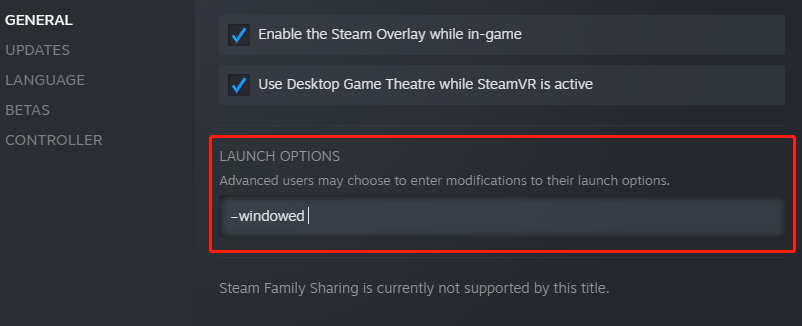
Alternatively, you can exit the game and go to your Steam Library. Right-click Elden Ring: Nightreign and select Properties. Next, go to the General tab, type -windowed in the box under the Launch Options section to run the game in Borderless Windowed mode.
![Elden Ring: Nightreign White Screen [Troubleshooting Guide]](https://images.minitool.com/minitool.com/images/uploads/2025/06/elden-ring-nightreign-white-screen-thumbnail.png)
Method 3. Enable V-Sync
V-Sync is a technology designed to eliminate screen tearing by syncing your game’s frame rate with your monitor’s refresh rate. It is recommended to enable the V-Sync feature for Elden Ring: Nightreign to resolve any possible graphical issues.
>> For NVIDIA Crad:
Step 1: Open the Nvidia Control Panel from the Start menu. If your computer does not have this application installed, visit the Microsoft Store to download it.
Step 2: Within the Nvidia Control Panel, go to 3D Settings > Manage 3D settings.
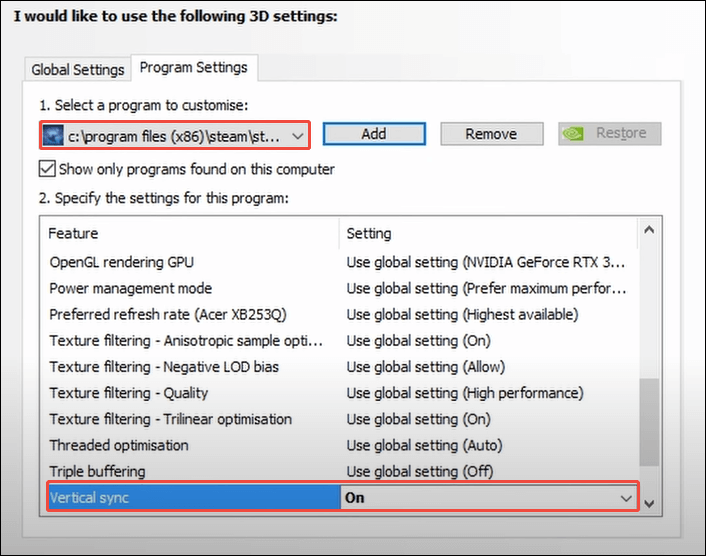
Step 3: Click on the Program Settings tab, then click the Add button, and select Elden Ring: Nightreign from the list of apps. Next, click the Add Selected Program button.
Step 4: Scroll down to find and click Vertical Sync and select On from the drop-down menu
Step 5: Restart your computer to implement the change and reopen the game to verify if the issue persists.
>> For AMD Card:
Step 1: Right-click on your desktop and launch the AMD Radeon Software.
Step 2: Navigate to the Gaming tab and select Elden Ring: Nightreign.
Step 3: In the Profile Graphics section, find the Wait for Vertical Refresh option and choose Always On or Enhanced Sync.
Step 4: Apply the modifications.
Step 5: Check if the tearing problem has improved.
Method 4. Enable G-Sync
Before enabling G-Sync or FreeSync, confirm that your GPU is compatible with these technologies. Additionally, verify that your monitor supports G-Sync or FreeSync and that it is connected through DisplayPort or HDMI for optimal performance.
>> For NVIDIA GPUs:
Step 1. Right-click on the desktop and open the NVIDIA Control Panel.
Step 2. In the left sidebar, double-click on Display and select Set up G-Sync.
Step 3. In the right panel, check the option to Enable G-SYNC, G-SYNC Compatible, and choose the Enable for windowed and full screen mode setting.
Step 4. Click Apply to confirm the changes.
>> For AMD GPUs:
Step 1. Right-click on your desktop and open AMD Radeon Software.
Step 2. Select the Display tab and ensure the AMD FreeSync Premium toggle is turned On.
Step 3. Apply the changes.
Optional Hardcore Steps
There are some other feasible methods to fix the Elden Ring: Nightreign screen tearing issue on PC:
- Disable overlay.
- Verify game files.
- Enable High-Performance graphics card settings for Elden Ring: Nightreign.
- Limit your FPS.
- Adjust your monitor’s refresh rate.
Bottom Line
There are four methods in total to fix the Elden Ring: Nightreign screen tearing problem. Apart from the above solutions, you can also keep an eye on the game update patches. Hope your problem can be handled!
User Comments :