
MiniTool Power Data Recovery is the best free data recovery software for Windows. It can help you recover files from all kinds of storage devices like hard drives, SSDs, memory cards, USB flash drives, and more. You can try the free edition and see if it can find the files you want to recover.
MiniTool Power Data Recovery FreeClick to Download100%Clean & Safe
Microsoft Teams Dark Mode
Dark Mode has become a popular feature in various applications, offering a soothing visual experience, reducing eye strain, and saving energy on devices with OLED screens. Microsoft Teams, the versatile collaboration tool, also offers this feature to its users. In this guide, we’ll walk you through the process of enabling dark mode by changing settings in Appearance and accessibility in Microsoft Teams to enhance your workspace aesthetics and usability.
How to Enable Microsoft Teams Dark Mode?
You can use these steps if you want to enable dark mode in Microsoft Teams:
Step 1: Update Microsoft Teams
Before you enable dark mode in Microsoft Teams, you should make sure that you have the latest version of Microsoft Teams installed on your device. You can update the application through your device’s app store or by following prompts within the Microsoft Teams application.
Step 2: Access Settings
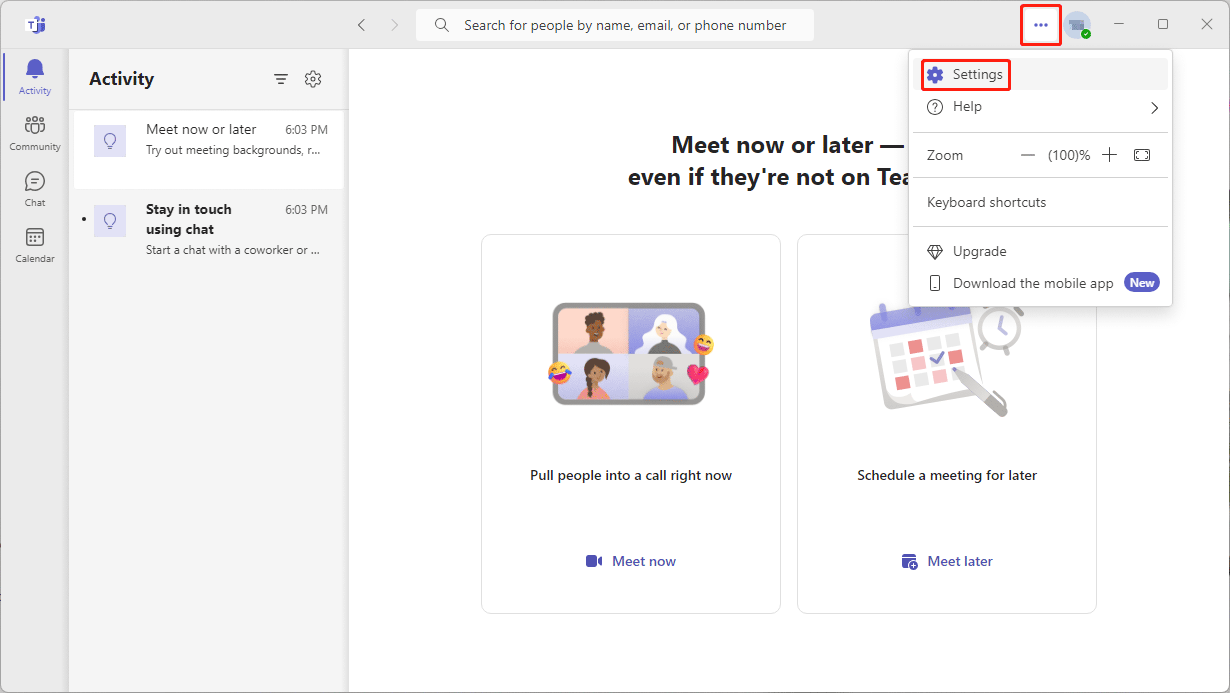
Launch Microsoft Teams on your device. In the top-right corner of the main interface, you need to click the 3-dot menu next to your profile picture and then select Settings from the drop-down menu.
Step 3: Choose Theme
Within the Settings menu, look for the Appearance and accessibility option on the left sidebar, then click it to continue.
Step 4: Select Dark Mode
Expand the options under the Theme settings. Here, you have various options to choose from, including Follow operating system theme, Light, Dark, and High contrast. Select the Dark option to turn on Dark Mode in Microsoft Teams.
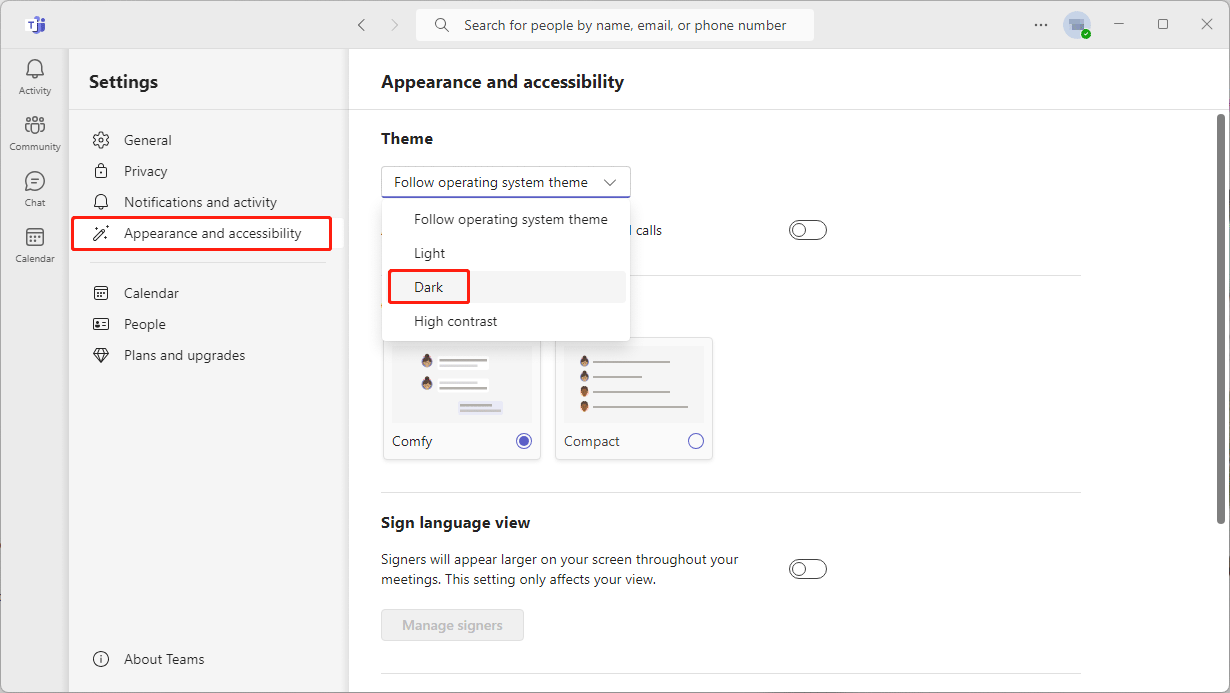
If you want to disable Microsoft Teams dark mode, you can select Light under Theme instead.
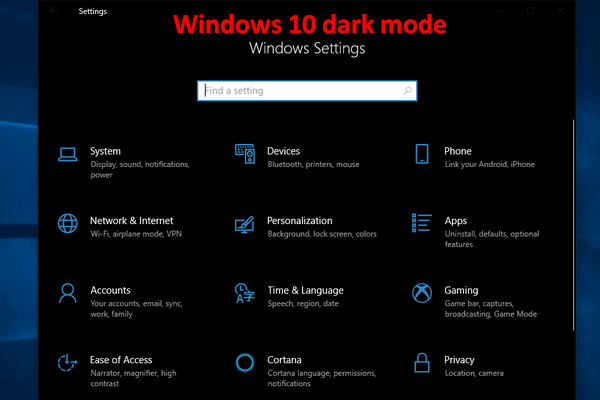
Besides, you can see the Follow operating system theme option. This means that if you enable dark mode for your system and select this option under Theme settings in Microsoft Teams, this will also enable dark mode in Microsoft Teams.
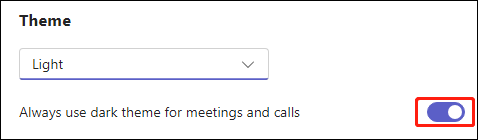
You can also turn on the button for Always use dark theme for meetings and calls if you want to do this.
Now, you can experience the visually pleasing and comfortable interface as you collaborate with your team.
Embrace the Elegance of Dark Mode in Microsoft Teams
Enabling Dark Mode in Microsoft Teams is a simple yet effective way to enhance your workspace experience. With its soothing color scheme and reduced strain on your eyes, Dark Mode is an excellent choice for both day and night use. By following these easy steps, you can transform your collaboration hub into a visually appealing and ergonomic platform that boosts your productivity and creativity. Say goodbye to the glare and embrace the elegance of Dark Mode in Microsoft Teams.
Bottom Line
You see it is very simple to enable dark mode in Microsoft Teams. Just experience this mode on your device. If you encounter issues while using MiniTool software, you can contact us via [email protected].
About The Author

Position: Columnist
Stella has been working in MiniTool Software as an English Editor for more than 8 years. Her articles mainly cover the fields of data recovery including storage media data recovery, phone data recovery, and photo recovery, videos download, partition management, and video & audio format conversions.
User Comments :