
When using Windows 10, you may often encounter some problems. In today’s post, the error “failed to load hardware monitor driver” will be discussed by MiniTool. If you find MSI DVD Setup is not working along with this error, try these solutions in the following part.
Failed to Load Hardware Monitor Driver MSI
When inserting a DVD and trying to install drivers (especially the motherboard driver) from it in Windows 10, you may get the error: “Failed to load Hardware Monitor Driver! This program must run as administrator”, as shown below.
This error is often reported by users who are using MSI motherboards. It is usually concerned with the DVD on your computer. How annoying the issue is! And you may be thinking about what you should do to get rid of the error.
Don’t worry since it can be fixed. In the following part, you can get some methods to resolve this problem. Now, let’s go to see them.
Fix Failed to Load Hardware Monitor Driver
Fix 1: Turn off Driver Signature Enforcement
The issue can be triggered by driver signature enforcement that is a safeguard for your computer since it can prevent you from installing malicious, badly written or broken drivers which can cause various problems to your computer.
When you install drivers from a DVD, the drivers may be blocked by this module, leading to the error “failed to load hardware monitor driver”. To get rid of the error, you should disable driver signature enforcement by following these steps.
Step 1: In Windows 10, click Restart from the power button and hold the Shift key to boot the PC to Windows Recovery Environment.
Step 2: Navigate to Troubleshoot > Advanced options > Startup Settings > Restart.
Step 3: Press F7 to disable driver signature enforcement.

Then, check if the hardware monitor error disappears from Windows 10. If you still see it, continue with the next solution.
Fix 2: Manually Install Driver
If the above method doesn’t work, you can try installing the drivers manually that you need from the manufacturer’s website. This can bypass the error “failed to load hardware monitor driver MSI” when installing drivers from the DVD disc.
Step 1: Just go to websites from suppliers. For example, if you want to install the MSI graphics card driver, you can go to the download page of MSI to download the latest driver to your computer.
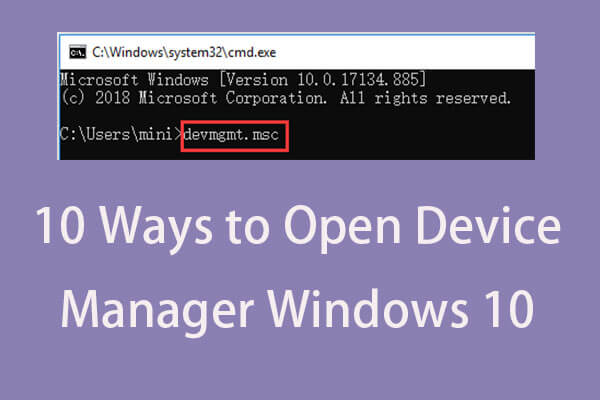
Step 2: Open Device Manager from the Windows 10’s start menu.
Step 3: Expand Display adapters and right-click your driver to choose Update driver.
Step 4: Click Browse my computer for driver software.
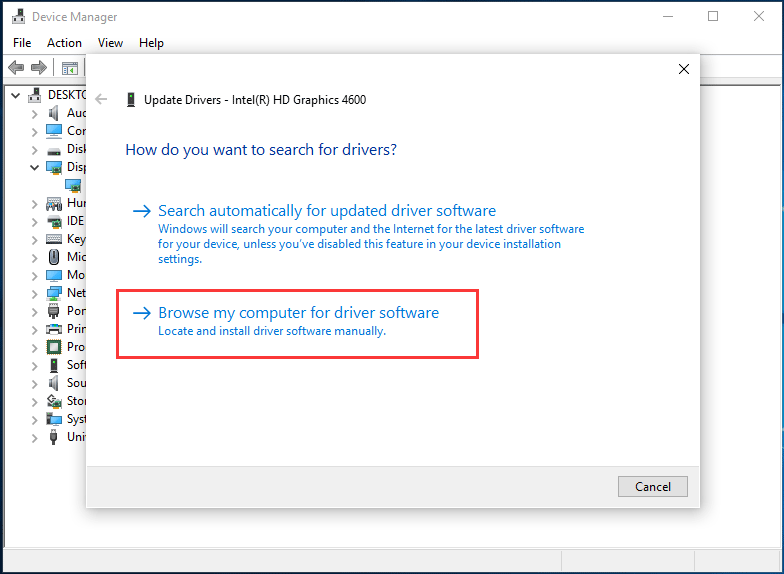
Step 5: Click Browse and go to the driver which you have downloaded and then install it from there.
Fix 3: Perform a Clean Install of Windows 10
If these two solutions are not working for you, perhaps the issue is caused by faulty files or configurations in the Windows system. To fix the hardware monitor error, you can try to perform a clean install.
To do this work, you need to create a bootable USB drive and boot the PC from it. Then, follow the on-screen instructions to finish the installation process.
1. A clean install can lead to data loss, thus, you should back up your important files firstly.
2. For more steps on the clean install, you can refer to this post – Windows 10 Reset VS Clean Install VS Fresh Start, Details Are Here!
Bottom Lines
Is MSI DVD Setup not working with the error “failed to load hardware monitor driver”? If you are encountering this error in Windows 10, now you should try these methods above and you can easily get rid of the error.
About The Author

Position: Columnist
Vera has been working at the MiniTool Team for over 10 years as a technical editor and content writer. She mainly focuses on disk and partition management, data recovery, Windows backup and restore, and PC troubleshooting. Through in-depth software testing and hands-on experience, she has helped users solve a wide range of computer problems and better protect their data on Windows devices.
User Comments :