
Error: Copying File Stops Halfway
Transferring files in Windows happens almost all the time. However, many users find that file transfer is stuck at 0 bytes halfway through or even stops completely. This problem especially occurs when the transferred files are too large.
In addition, drive file system issues, outdated disk drivers, problematic Windows programs, etc. may cause this “file transfer stops halfway” problem.
Now, it is time to try the methods below to address this issue.
6 Solutions to File Copying Stops Halfway Windows 11/10
Solution 1. Check the Drive Storage Space
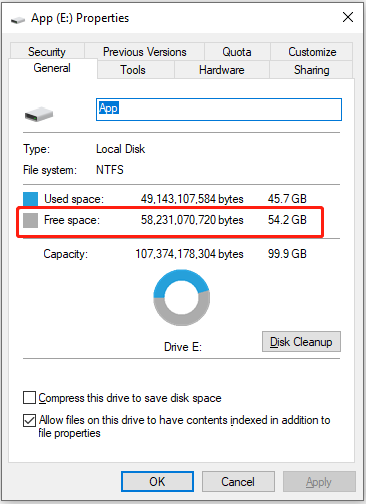
When copying files between two drives, file copying may stop midway if the destination drive has less or only slightly larger storage space than the file being copied.
You can confirm the free storage space of the target drive by right-clicking the target drive that you want to copy files to and clicking Properties in File Explorer. If there is insufficient space, please delete some files to free up disk space.
Solution 2. Optimize the Drive
Disk optimization defragments your hard drive, consolidates free space, and improves computer performance. Performing disk defragmentation can be an effective way to resolve the problem where file stops copying halfway Windows 11.
This post shows you how to defrag your hard drive: 3 Steps to Defrag Windows 10 Computer Hard Disk Drive.
Solution 3. Update the Disk Driver
The stopped file copying process may also be related to outdated or corrupted drivers. To rule out this cause, you can update the disk drivers manually from Device Manager.
Follow the simple guide below.
Step 1. On your taskbar, right-click the Start button to select Device Manager.
Step 2. Expand the Disk drives category, then right-click the target disk and select Update driver.
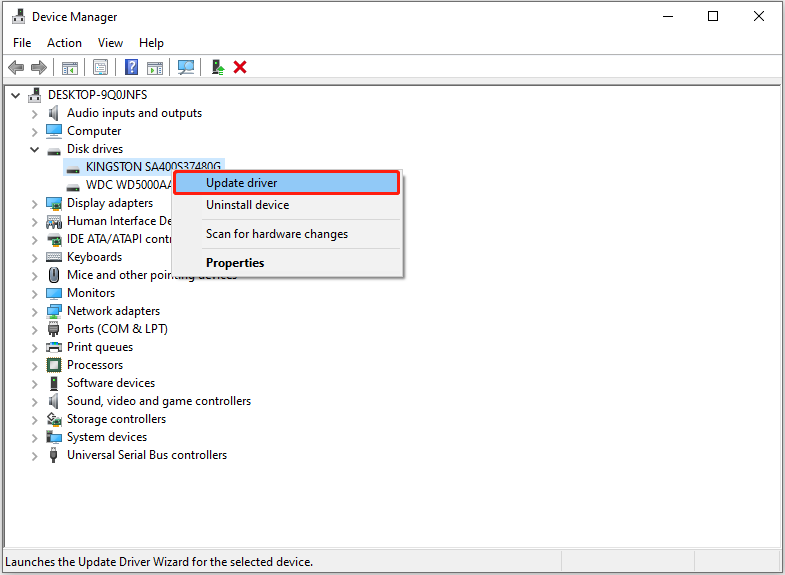
Step 3. Complete the necessary actions according to the on-screen prompts.
Solution 4. Check the Drive for Errors
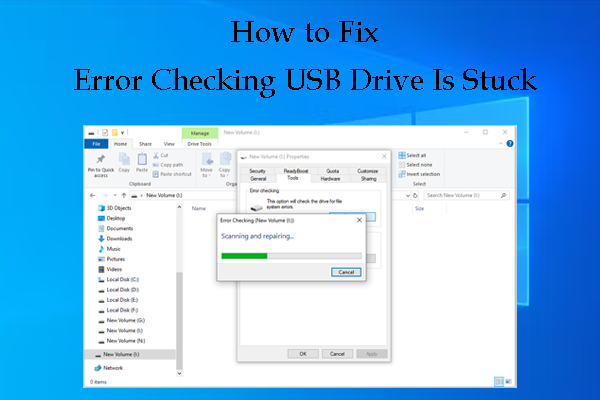
Disk file system errors can also be responsible for the file copying stops halfway issue. To detect and repair the corrupted file system, you can use the Windows built-in disk error-checking tool.
Step 1. In File Explorer, right-click the destination drive that you want to transfer files to, then click Properties from the context menu.
Step 2. In the new window, move on to the Tools tab, then click the Check button under Error checking.
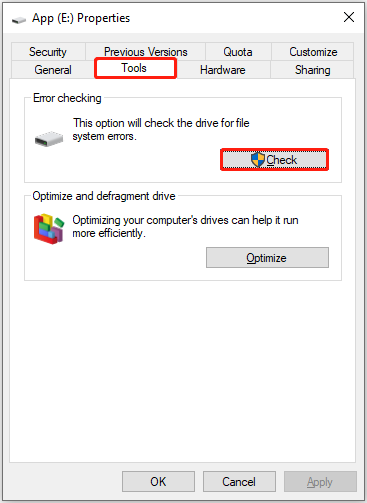
Step 3. After that, this tool will start to scan your drive for file system errors and fix them. You need to wait for the process to complete.
Solution 5. Clean Boot Windows
The hard drive may stop transferring data midway due to software conflicts. When you start Windows in a clean boot state, only the necessary components of Windows will run and all third-party programs will be disabled. This can help you determine whether a software conflict is causing the file transfer to fail.
Multiple ways are effective in performing a clean boot, and you can choose one from this post: How to Clean Boot Windows 10 and Why You Need to Do So?
Solution 6. Format the Drive to NTFS
Windows file transfers may also get stuck or interrupted if the drive is not properly formatted. Additionally, FAT32 drives cannot accommodate individual files larger than 4 GB. Therefore, the last way to fix the “copying file stops halfway” issue is to reformat the drive to NTFS.
MiniTool Power Data Recovery FreeClick to Download100%Clean & Safe
The easiest way to format a drive is to format it in File Explorer. However, some users reported that they received the “Windows was unable to complete the format” error while formatting. So, if you encounter the same issue, you can use the free partition manager, MiniTool Partition Wizard, to format the drive free.
Step 1. Download, install, and launch MiniTool Partition Wizard.
MiniTool Partition Wizard FreeClick to Download100%Clean & Safe
Step 2. On its main interface, select the partition that needs to be formatted, then click the Format Partition button from the left menu bar.
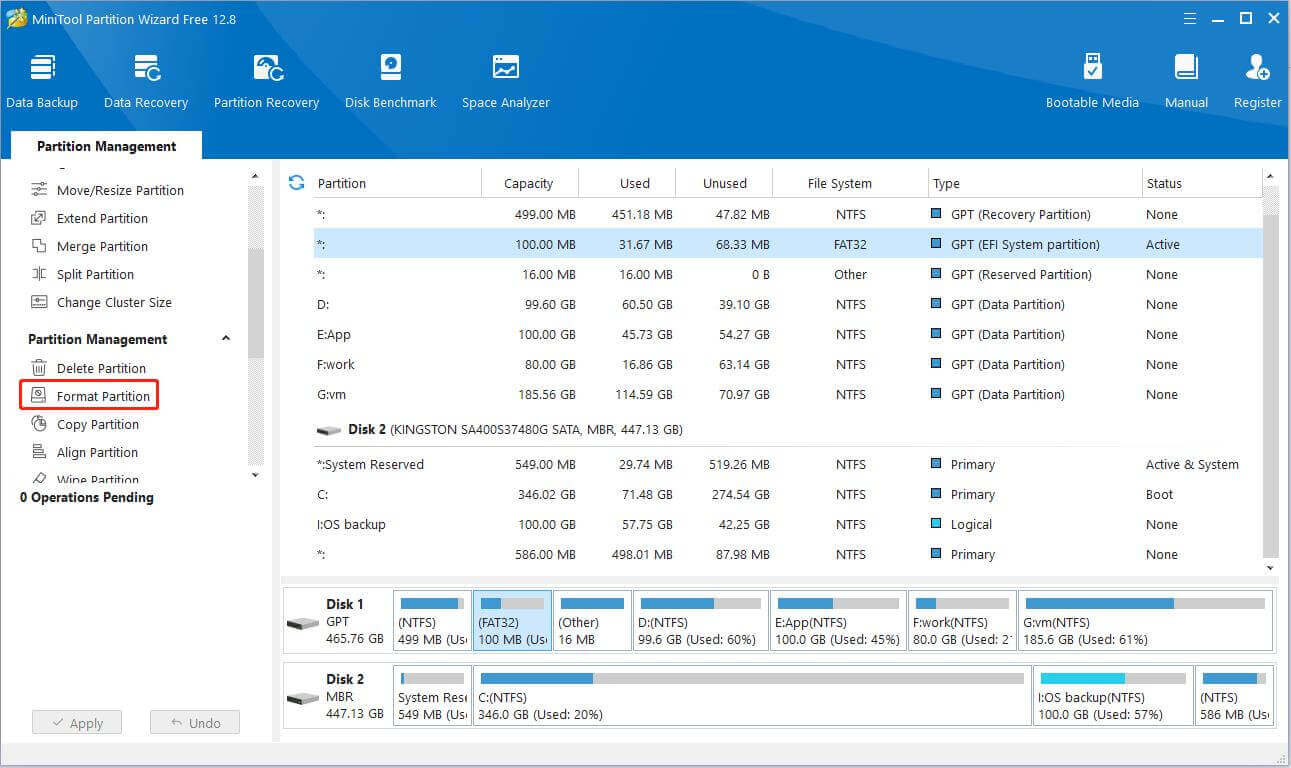
Step 3. In the new window, specify the partition label and file system (NTFS), then click OK.
Step 4. Click the Apply button located in the lower left corner.
After formatting the drive, you can try to transfer the files again and check if the issue has been resolved.
Wrapping Things Up
To resolve the file copying stops halfway issue, you can try the methods listed above. Hope they are beneficial to you.
Should you have any questions about the approaches or MiniTool software, please contact us by sending an email to [email protected].
About The Author

Position: Columnist
Shirley holds a bachelor’s degree in English and has been an editor at the MiniTool Team for many years. She specializes in IT-related content, with a focus on data recovery, file backup, disk management, and other technical topics. She is committed to delivering clear, accurate, and practical solutions to help users resolve common computer issues.
User Comments :