
You might encounter the system restore error 0x80042306 when you are trying to create a system restore point. If you can’t create system restore points successfully, you are unable to use the System Restore utility on your computer. MiniTool Solutions provides several methods to help you fix this problem.
The system restore error 0x80042306 occurs to tell you the shadow copies (also known as system restore points) of shared folders not working. This error occurs due to corrupted system files, insufficient system space, improper working of the Volume Shadow Service (VSS), and other reasons. A comprehensive guide on how to solve this error will be provided in the following part.
MiniTool Power Data Recovery FreeClick to Download100%Clean & Safe
How to Fix System Restore Error 0x80042306
Fix 1: Check Disk Space
At the very beginning, you should check whether there is enough disk space for the system restore point to store. if this error is triggered by the low disk space, you can run the Windows built-in cleanup tool, Disk Cleanup, to remove unnecessary files.
Step 1: Type Disk Cleanup into the Windows Search bar and hit Enter to open it.
Step 2: Select the drive you need to free up and click OK.
Step 3: Choose the content you want to delete from the Files to delete section and click OK.
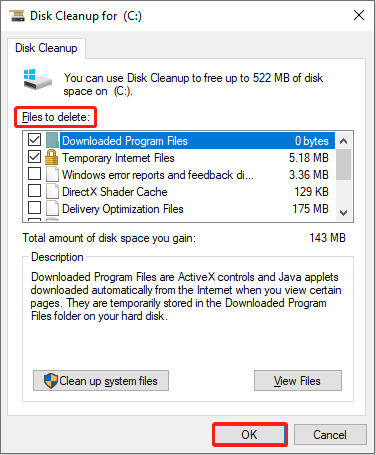
Step 4: Choose Delete Files to confirm.
Fix 2: Restart the Volume Shadow Copy Service
In some cases, your computer might interfere with the working of the Volume Shadow Service. This service will then be turned to stop causing the system restore error 0x80042306. In this situation, you can restart the service to easily fix it.
Step 1: Press Win + R to open the Run window.
Step 2: Type services.msc and hit Enter to open the Services window.
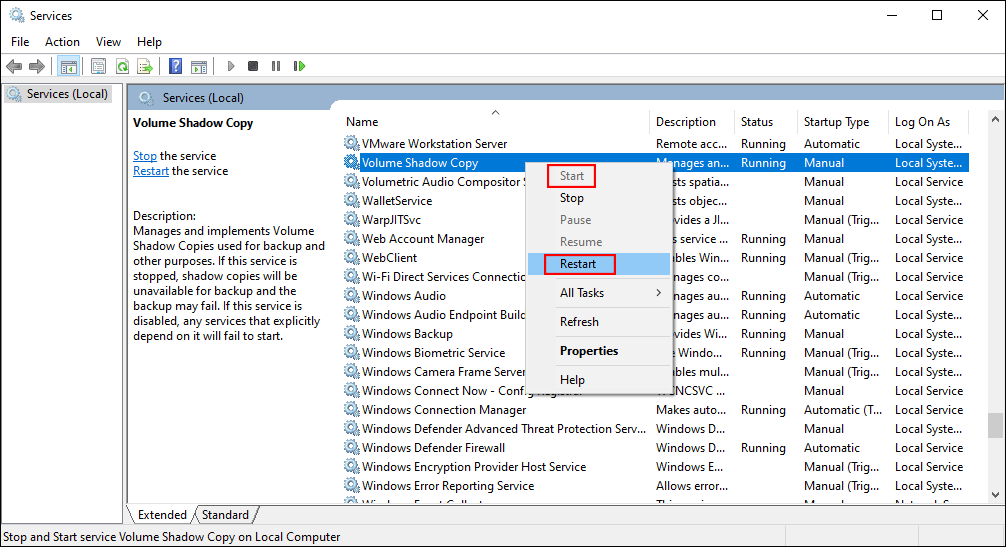
Step 3: Scroll down to find the Volume Shadow Copy service on the right pane.
Step 4: Right-click on the service. If the service is stopped, you should choose Start from the context menu; if it is running, choose Restart.
Step 5: Double-click on the service and choose Automatic from the drop-down menu of the Startup type section.
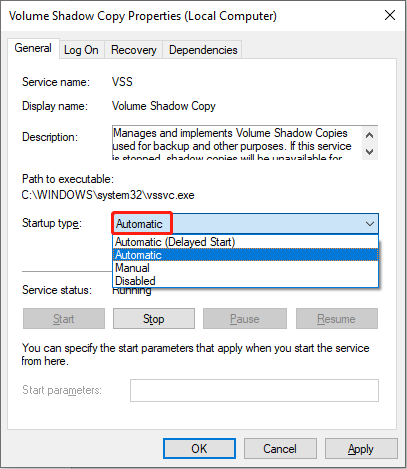
Step 6: Choose Apply > OK to save the changes.
Fix 3: Run SFC and DISM Commands
As we mentioned before, if you receive an error message like cannot create a system restore point error 0x80042306, corrupted system files may be responsible for it. Windows snap-in tool can be utilized to repair the corrupted system files.
Step 1: Type Command Prompt into the search bar.
Step 2: Right-click on the best-matched option and choose Run as administrator from the context menu.
Step 3: Type sfc /scannow and hit Enter to detect and repair the corrupted or missing system files.
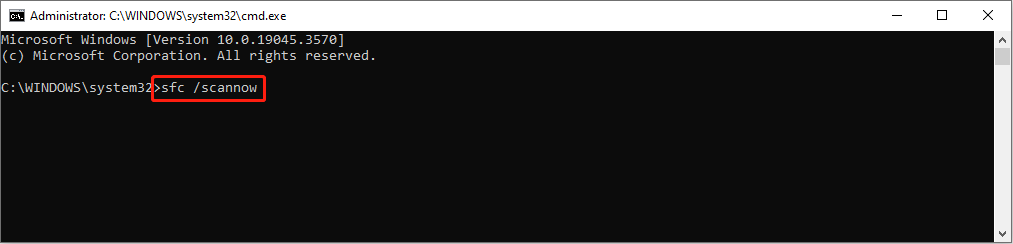
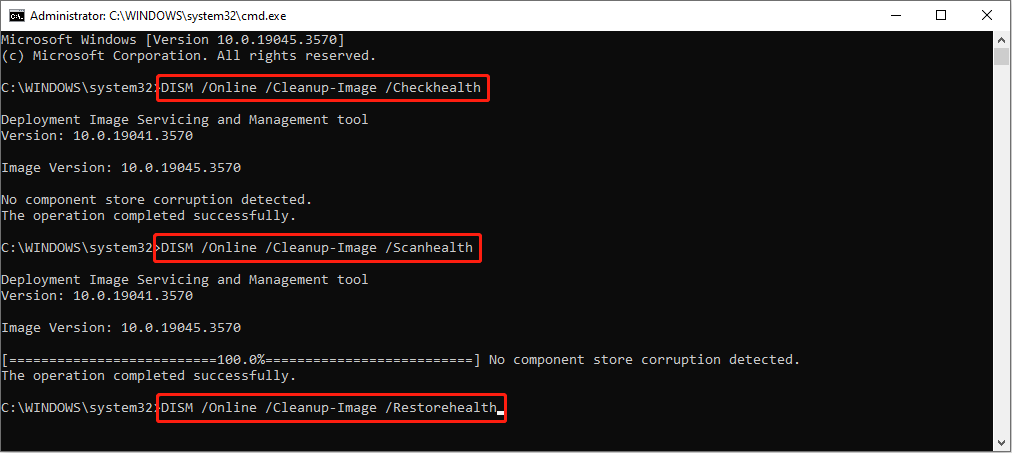
Step 4: Wait until this command ends. Then, you need to input the following command lines and press Enter at the end of each command.
- DISM /Online /Cleanup-Image /Checkhealth
- DISM /Online /Cleanup-Image /Scanhealth
- DISM /Online /Cleanup-Image /Restorehealth
Fix 4: Create a System Restore Point in Safe Mode
You can try to create a system restore point in Safe Mode. When you boot your computer in Safe Mode, it will start up with a limited set of files and drives. If you can successfully create system restore points in Safe Mode, it means the basic settings and basic device and drivers are not the cause.
Here is how to boot your computer into Safe Mode.
Step 1: Press Win + S and type System Configuration into the search bar.
Step 2: Hit Enter to the window.
Step 3: Change to the Boot tab and check the Safe boot option.
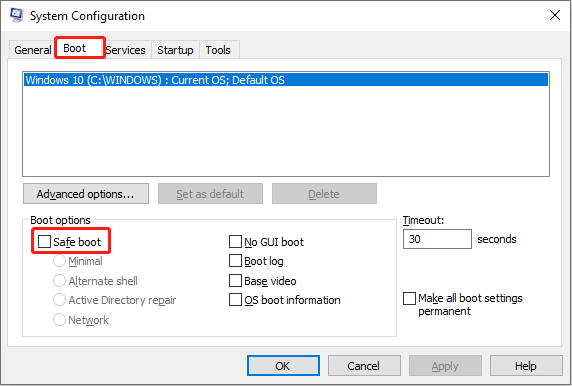
Step 4: Click Apply > OK to save the change. Then you can restart your computer to enter the Safe Mode.
After this, you can try to create a system restore point to see whether the error code 0x80042306 still occurs.
If you have successfully created system restore points, you can exit Safe Mode and use your computer as normal.
Bottom Line
You can’t predict when and what kind of computer errors will happen. But most of the errors can be solved easily including the cannot create a system restore point error 0x80042306 issue. Hope the methods mentioned in this post can help you fix the problem.
User Comments :