
Fortnite edit delay is a usual issue reported by many users. How to fix edit delay Fortnite? If you also run into this annoyance, don’t panic and you come to the right place. MiniTool will show you much information about the delay issue, as well as some useful fixes for your PC.
Edit Delay in Fortnite on PC
To gain an advantage over your rivals and advance your play, you can create structures and edit them in Fortnite. Fast edits determine the progress in this game and you can configure the game settings via multiple ways to advance your play and make the game faster.
However, the delay issue happens when editing structures in Fortnite. Fortnite edit delay could be caused by an outdated/corrupt driver, network connection issues, corrupt game installation files, and more. How to stop edit delay Fortnite on your PC? Go to find some fixes from the following part.
Fortnite Edit Delay Fixes: How to Edit Faster in Fortnite PC
Game Files Verification
Most times, it is useful to fix the installation corruption that stops you from running the game smoothly via game files verification. To edit faster in Fortnite on your PC, try this way.
Step 1: If you play Fortnite via the Epic Games launcher, open it.
Step 2: Go to Library, locate Fortnite, click on the three dots and choose Verify.
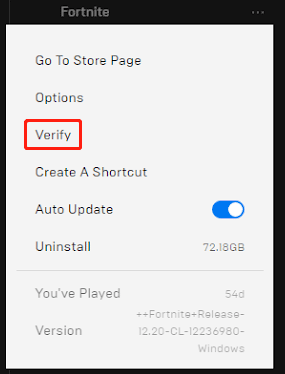
Based on the size of this game, the verification time varies. After that, launch this game and the edit delay issue should be decreased.
Delete Temporary Files
Removing temporary files is a good way to speed up the game since these files may take up much disk space, making it hard to edit faster in the game. To stop Fortnite edit delay, you can delete these files, which won’t cause any issue.
Step 1: Press Win + R, type in %temp% and click OK to open the Temp folder.
Step 2: Press Ctrl + A to choose all the files to delete them.
When getting a message saying the action cannot be completed, tick the box of Do this for all current items and click Skip.
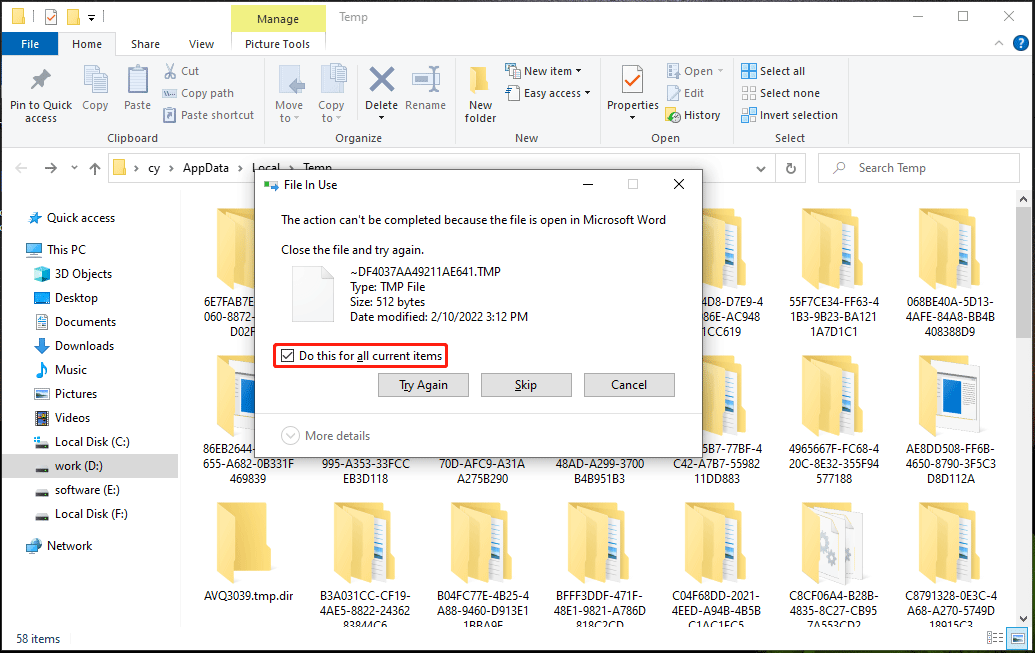
Modify Additional Command Line Arguments
This is helpful to boost FPS and remove edit lag. Follow the steps below:
Step 1: In Epic Games, click Settings.
Step 2: Scroll down to click Fortnite and check the option of Additional Command Line Arguments.
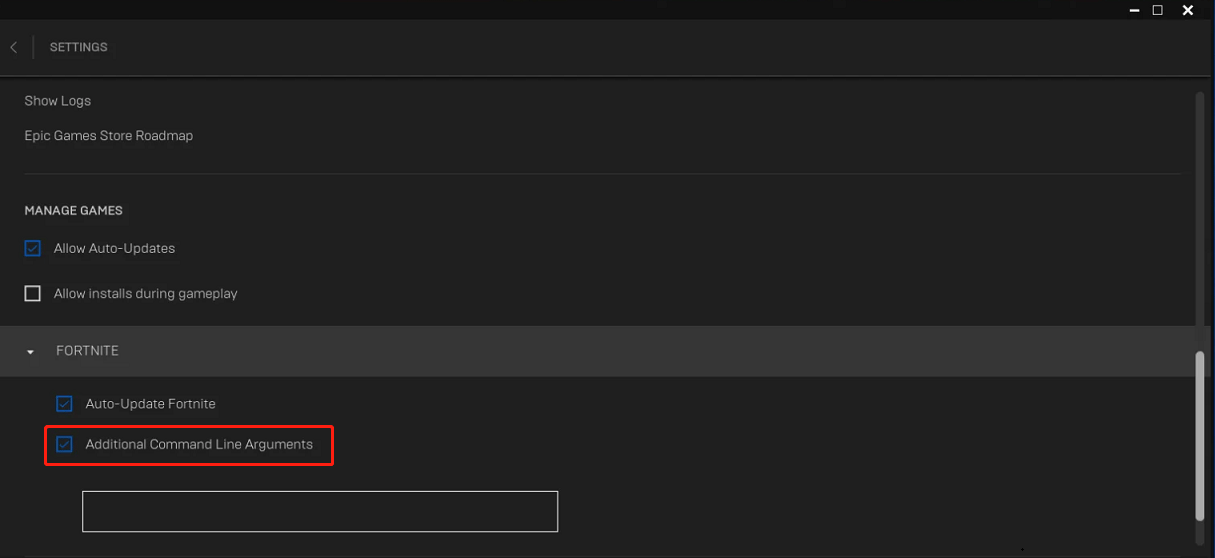
Step 3: Type -USEALLAVAILABLECORES -NOSPLASH -PREFERREDPROCESSOR 4 -NOTEXTURESTREAMING -LANPLAY –LIMITCLIENTTICKS in the text box
Update Your GPU and Mouse Driver
Fortnite edit delay can be caused by an outdated GPU or mouse driver and you should update them to the latest version. You can go to Device Manager, right-click the corresponding driver and choose Update driver. Then, follow prompts on the screen.
Of course, you can try other ways, for instance, go to download the driver from the website of your manufacturer to install or use a professional driver update tool.

Change DisplayGamma Value
Incorrect DisplayGamma value in Fortnite can lead to edit lag and you can change it to improve the edit speed.
Step 1: Exit Fortnite, type %localappdata% to the Run dialog (press Win + R) and click OK.
Step 2: Open the FortniteGame folder, go to Saved > Config > WindowsClient.
Step 3: Right-click on the GameUserSettings file and choose Properties.
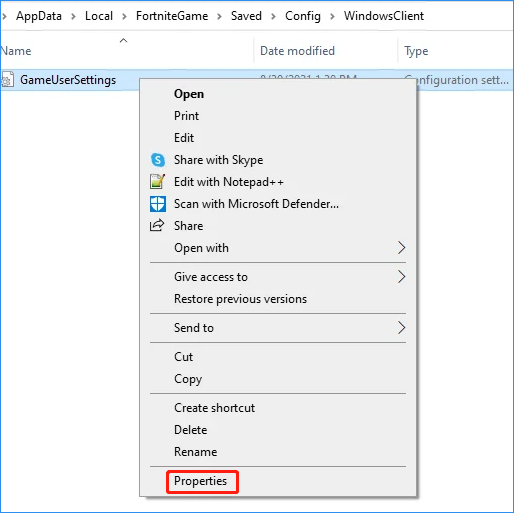
Step 4: Untick the Read-only box and click OK.
Step 5: Right-click this file to open with Notepad.
Step 6: Locate the DisplayGamma line, change the value to 1.000000.
Step 7: Click File > Save. Then, launch Fortnite to see if the edit delay issue is fixed.
Other Tips for Fortnite Edit Delay PC Fix
In addition, there are some other ways you can try to get rid of edit delay Fortnite:
- Use an Ethernet cable
- Buy a new controller
- Flush your DNS cache
About The Author

Position: Columnist
Vera has been working at the MiniTool Team for over 10 years as a technical editor and content writer. She mainly focuses on disk and partition management, data recovery, Windows backup and restore, and PC troubleshooting. Through in-depth software testing and hands-on experience, she has helped users solve a wide range of computer problems and better protect their data on Windows devices.
User Comments :