
Grand Theft Auto V is not a new game, but is still welcome among game players. With the update of this game, diverse problems might arise, such as freezing, crashing, and data error. As this post concentrates on the GTA V corrupt game data error. Just try the following methods to resolve your problem with us.
Way 1. Verify the Game File Integrity
As the error message, GTA V ERR_SYS_FILELOAD corrupt game data, indicates that there could be corrupted game files. You should first take action to verify the game file integrity. Here is how to do it via different game platforms.
- In Steam: Find GTA 5 in Steam Library, and then right-click on it to choose Properties. In the following window, change to the Installed Files tab to click Verify integrity of game files.
- In Epic Games: Go to the Library to find GTA 5 and click on the three-dot icon. You can choose Manage from the menu and click Verify in the Verify Files section.
Wait for the game launcher to complete the file verification process automatically and then try to access the game.
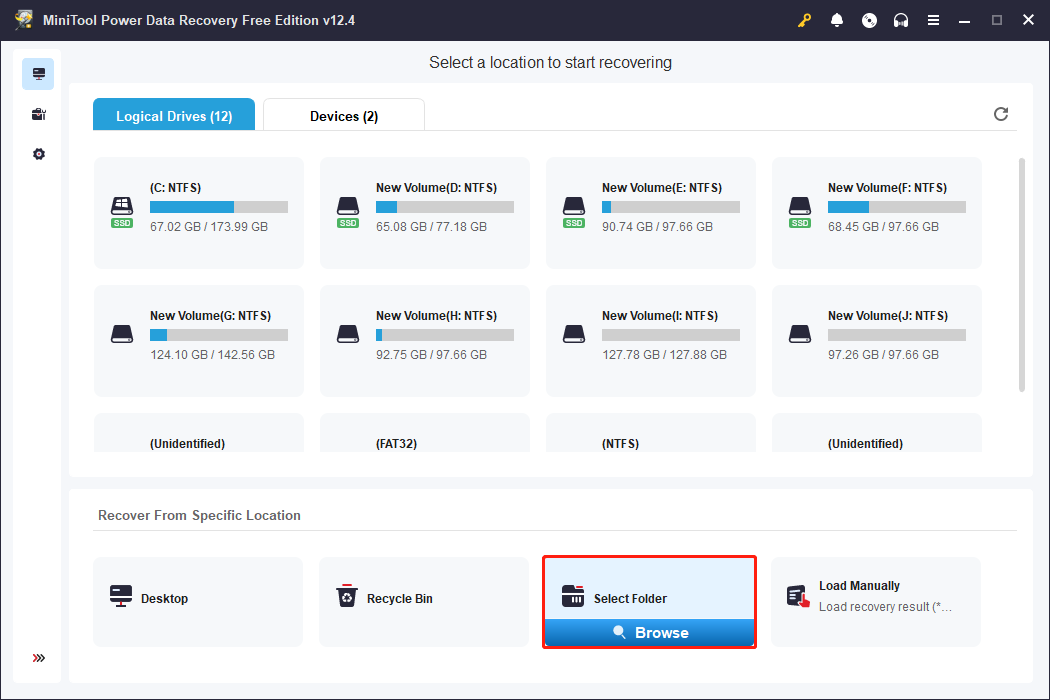
In case of the necessary game file missing, you are unable to launch the game as well. In this case, you can run MiniTool Power Data Recovery to restore the lost game files. This free file recovery tool can discover and recover types of files from the local hard drive and other data storage devices. You can run it to scan the game file save folder only to shorten the scan duration.
MiniTool Power Data Recovery FreeClick to Download100%Clean & Safe

Way 2. Identify and Remove Problematic Mod
If you encounter the GTA 5 ERR_SYS_FILELOAD error after installing and using different mods, the problem is most likely to be caused by a problematic mod. You can resolve this error easily by removing the problematic mod from the game folder. Here is how to do it.
Step 1. Right-click on the game icon and choose Open file location from the context menu.
Step 2. Look through the file list to locate the mods folder, where there are several RPF files. You can move one of them out of the game folder and launch the game to see if your game can be opened properly. Repeat this operation to find the problematic one and delete it.
Way 3. Reinstall the Game
Reinstalling the game should be the last method to fix GTA 5 corrupt game data. In addition to uninstalling the game from your computer, you should also delete all the relative files and mods stored on your computer to ensure a clean installation of the game. Otherwise, the problem might still appear after reinstallation.
Step 1. Type Control Panel into the Windows Search bar and hit Enter to launch the utility.
Step 2. Click Uninstall a program under the Programs section. You can look through the program list to find the GTA V application and right-click on it to choose Uninstall.
Step 3. Afterward, head to the corresponding file path to delete the target files.
- C:\Program Files\Rockstar Games\Grant Theft Auto V\ (for non-Steam version)
- C:\Program Files (x86)\Steam\steamapps\common\Grand Theft Auto V\ (for Steam version)
- C:\Program Files\Epic Games\GTA (for Epic Games version)
Your game settings and recordings are saved in the following file paths. Please note that those files are not backed up; thus, you can back them up before removing them with the help of MiniTool ShadowMaker.
MiniTool ShadowMaker TrialClick to Download100%Clean & Safe
- C:\Users\username\Documents\Rockstar Games\GTAV
- C:\Users\username\AppData\Local\Rockstar Games\GTAV
Final Words
This is all about how to fix the GTA V corrupt game data error. Due to the different triggers of this error, you should use different methods. Thus, try the above three methods one by one to resolve your issue.
User Comments :