
When you set up a Wi-Fi hotspot via Command Prompt, “the hosted network couldn’t be started” may occur in your Windows 10 computer. How can you fix this error? Now, this post from MiniTool introduces some possible solutions to you and you can try them to easily get rid of the trouble.
Microsoft Hosted Network Could Not Be Started Connectify
Hosted Network is a feature that was first introduced in Windows 7 and it is also supported in Windows 8/10 with the Wireless LAN Service installed. This feature is used by Connectify Hotspot to create its wireless access points.
That is, it allows you to share the Wi-Fi connection of your laptop or desktop with phones and tablets. Your computer has turned into a wireless hotspot.
However, when you set up a Wi-Fi hotspot in Windows 10/8/7 via Command Prompt, you get the following error message:
“The hosted network couldn’t be started.
The group or resource is not in the correct state to perform the requested operation.”
Or “The hosted network couldn’t be started. A device attached to the system is not functioning”.
The error indicates the hosted network isn’t working and it is usually a Wi-Fi driver or network adapter configuration issue. But don’t worry and here is how to fix the hosted network couldn’t be started error in Windows 10/8/7.
Fixes for the Hosted Network Couldn’t Be Started Windows 10/8/7
Run the Network Adapter Troubleshooter
The Network Adapter Troubleshooter may help you to fix the netsh wlan start hostednetwork not working issue. You can also have a try.
Step 1: In Windows 10, input troubleshoot to the search bar and click the result to open the setting.
Step 2: Locate Network Adapter and choose Run the troubleshooter.
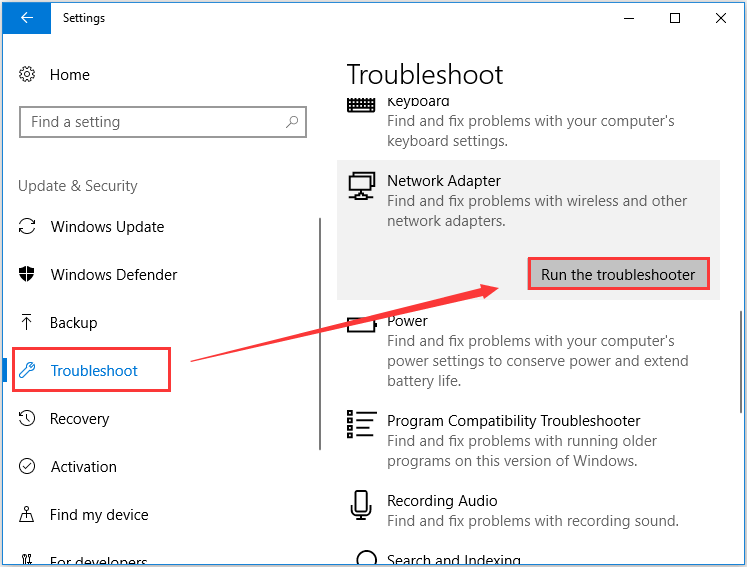
Step 3: Select the network adapter that you need to diagnose. If you don’t know which one to choose, select All network adapters. And click Next to start detecting and fixing found issues.
Check the Sharing Settings
When hosted network can’t start, the required sharing settings may not be chosen in Windows 10/8/7. So, here you should have a check as instructed.
Step 1: Launch the Run window by pressing Win and R keys.
Step 2: Type ncpa.cpl to the text box and click OK.
Step 3: After opening the Internet Connections window, right-click your connection and choose Properties.
Step 4: Under the Sharing tab, make sure the box of Allow other network users to connect through this computer’s internet connection< is checked.
If this can’t fix the hosted network couldn’t be started error, try another way.
Check the Power Management Settings of Network Adapter
In addition, you should also check your wireless network adapter to see if the required option is selected in case of netsh wlan start hostednetwork not working. Follow these steps now:
Step 1: Go to Device Manager and expand Network adapters.
Step 2: Right-click your network adapter to choose Properties.
Step 3: Go to the Power Management tab and check the box of Allow the computer to turn off this device to save power.
Step 4: Click OK to save the change.
Enable Microsoft Hosted Network Virtual Adapter
In Windows, there is a Microsoft Hosted Network Virtual Adapter that may not be found in Device Manager. You need to enable it by following these steps:
Step 1: In Device Manager, click View and choose Show hidden devices.
Step 2: Right-click Microsoft Hosted Network Virtual Adapter after expanding Network adapters and choose Enable device
Set up your Wi-Fi hotspot to see if the hosted network couldn’t be started error disappears.
Update Your Wi-Fi Driver
It is useful to fix your issue via driver update and here is what you should do:
Step 1: Right-click your wireless network adapter and choose Update driver in Device Manager.
Step 2: Click Search automatically for updated driver software.
Step 3: Windows will detect and install the updated driver for your PC.

Alternatively, you can go to the website of your supplier, download and install the latest wireless network adapter on your PC.
Final Words
Are you bothered by “the hosted network couldn’t be started” in Windows 10/8/7? Now, try these solutions to easily fix your issue and then you can set up the Wi-Fi hotspot successfully.
About The Author

Position: Columnist
Vera has been working at the MiniTool Team for over 10 years as a technical editor and content writer. She mainly focuses on disk and partition management, data recovery, Windows backup and restore, and PC troubleshooting. Through in-depth software testing and hands-on experience, she has helped users solve a wide range of computer problems and better protect their data on Windows devices.
User Comments :