
When choosing a storage card for photography, the question of “How many pictures can a memory card hold?” is worth considering. You can find the answer in this MiniTool guide. In addition, this post explains how to choose a suitable memory card and how to restore your lost pictures.
When choosing or using memory cards on a camera, one of the most pressing practical questions is: how many photos can a memory card hold?
The results can vary significantly depending on the device and shooting mode. Understanding these variables helps you choose a suitable card and better plan the shooting volume.
How Many Pictures Can a Memory Card Hold
As mentioned before, how many pictures a memory card can hold depends not only on the card’s capacity. It also varies based on image format, camera resolution, and compression level.
Factors Affecting Picture Count
The following content provides a detailed introduction from various aspects.
Card size
A memory card’s capacity refers to the total amount of data it can store, usually measured in GB (gigabytes) or TB (terabytes).
Common capacities range from 8 GB, 16 GB, 32 GB, 64 GB, to 128 GB, 256 GB, 512 GB, and even 1 TB and 2 TB.
The larger the capacity, the more photos, videos, and other types of files can be stored. However, different host devices support different maximum capacities.
Image file format
JPEG, RAW, and DNG are the three most common image formats.
- JPEG is a compressed image format with a small file size and high versatility, suitable for everyday shooting and quick sharing.
- RAW files are large but offer significant post-processing flexibility. This makes them suitable for professional photography and scenarios requiring fine-tuning.
- DNG (Digital Negative) is essentially also RAW. It combines the high quality of RAW with better compatibility and long-term storage advantages. And this format is often used in professional workflows.
Megapixels (MP)
Higher resolution sensors produce larger files, thus reducing the number of photos that can be stored on the card.
Compression settings
Many cameras offer JPEG image quality levels. A higher quality/lower compression ratio will require more storage space.
So, how many photos does the SD card hold? Since 24-megapixel camera sensors are popular, this table uses 24MP images to estimate how many JPEG and RAW photos each memory card can hold.
| Card Capacity | JPEG Photos (approx. 24MP) | RAW Photos (approx. 24MP) |
| 32 GB | 4,000 | 2,000 |
| 64 GB | 8,000 | 4,000 |
| 128 GB | 16,000 | 8,000 |
| 256 GB | 32,000 | 16,000 |
| 512 GB | 64,000 | 32,000 |
After determining the required capacity, the next step is to check the different types of memory cards.
Memory Card Type: SD, microSD, CF, and CFexpress
This section introduces different types of memory cards from various perspectives.
1. SD Card (Secure Digital Card)
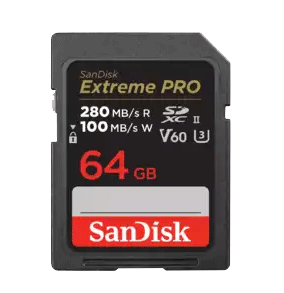
Image source: https://shop.sandisk.com/
An SD card is a portable flash memory card whose standard is defined by the SD Association. It is small, consumes little power, and is highly durable. This makes it the most common and universal type of memory card.
2. microSD Card
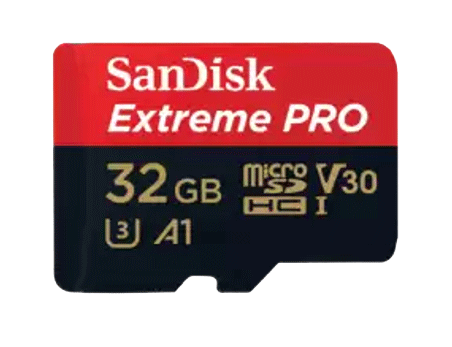
Image source: https://shop.sandisk.com/
A microSD card is an ultra-small, removable flash memory card, a mini version of the SD standard. Nowadays, it is widely used in smartphones, tablets, action cameras, and other devices that require compact storage.
3. CF Card(CompactFlash Card)
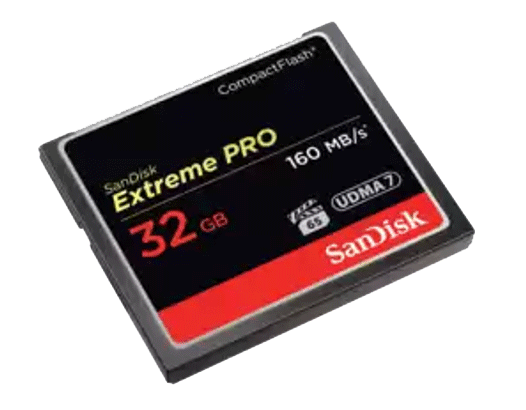
Image source: https://shop.sandisk.com/
The CF card, introduced by SanDisk in 1994, is an early flash memory standard widely used in professional cameras and industrial equipment. It is known for its large size, robust construction, stable speed, and high durability.
4. CFexpress Card
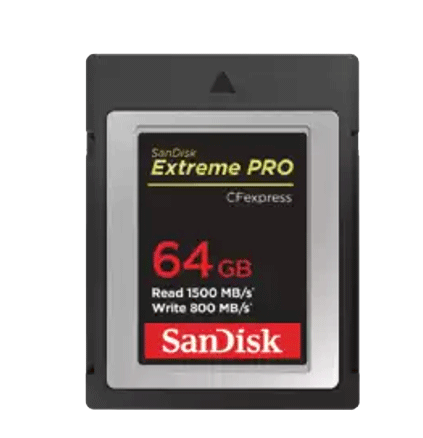
Image source: https://shop.sandisk.com/
The CFexpress card is a high-performance memory card designed for professional photography and film production. It uses PCIe and NVMe technologies (similar to computer solid-state drives), making it faster than traditional cards.
Comparison of memory card types:
| Card Type | Physical Size | Common Uses | Capacity | Speed |
| SD Card | 32mm x 24mm x 2.1mm | Universal for cameras | Up to 2TB | Up to 300 MB/s |
| microSD Card | 15mm x 11mm x 1mm | Mobile phones/small devices | Up to 1TB | Up to 160 MB/s |
| CF Card | 42.8mm x 36.4mm x 3.3mm | Older professional cameras | Up to 512GB | Up to 160 MB/s |
| CFexpress Card | 38.5mm x 29.8mm x 3.8mm | High-end cameras with high-speed video/continuous shooting | Up to 2TB | Up to 1,700 MB/s |
After reviewing the different memory card types, continue reading to learn how to select the most suitable card.
How to Choose a Suitable Memory Card
This section explains how to choose the right memory card based on several principles.
- Capacity: Shooting 4K video or recording long clips requires more capacity. Regular photography doesn’t need to be as large.
- Speed class: Speed affects read and write performance, especially when shooting video, continuous shooting, or running applications.
- Brand and reliability: Choosing a reliable brand can reduce the risk of card damage and data loss. It is especially crucial when shooting professionally or storing important data.
- Durability and environment: For devices used in harsh environments, choose memory cards that are waterproof, shockproof, and resistant to high and low temperatures.
Bonus Tips: What if You Lost Pictures
Have you ever lost your pictures from your memory card for any reason? Try MiniTool Power Data Recovery to get them back. This tool is capable of restoring various image formats, including JPEG, RAW, and PNG.
This software can recover lost pictures due to accidental deletion, card formatting, disk crash, and more. It is compatible with Windows 11/10/8.1/8.
This free file recovery software enables you to recover up to 1 GB of files without incurring any costs. Now, start to recover lost pictures.
Step 1: Insert your memory card into your computer using a card reader.
Step 2: Click the following button to download and install MiniTool Power Data Recovery.
MiniTool Power Data Recovery FreeClick to Download100%Clean & Safe
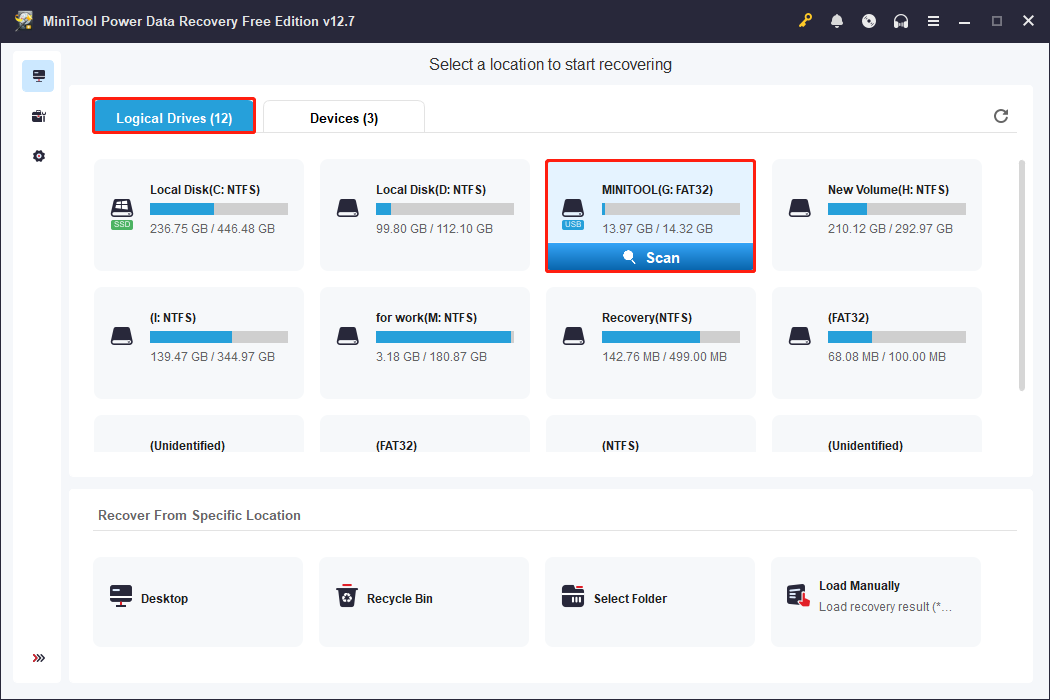
Step 3: Launch the software. Under the Logical Drives tab, find your SD card and click Scan.
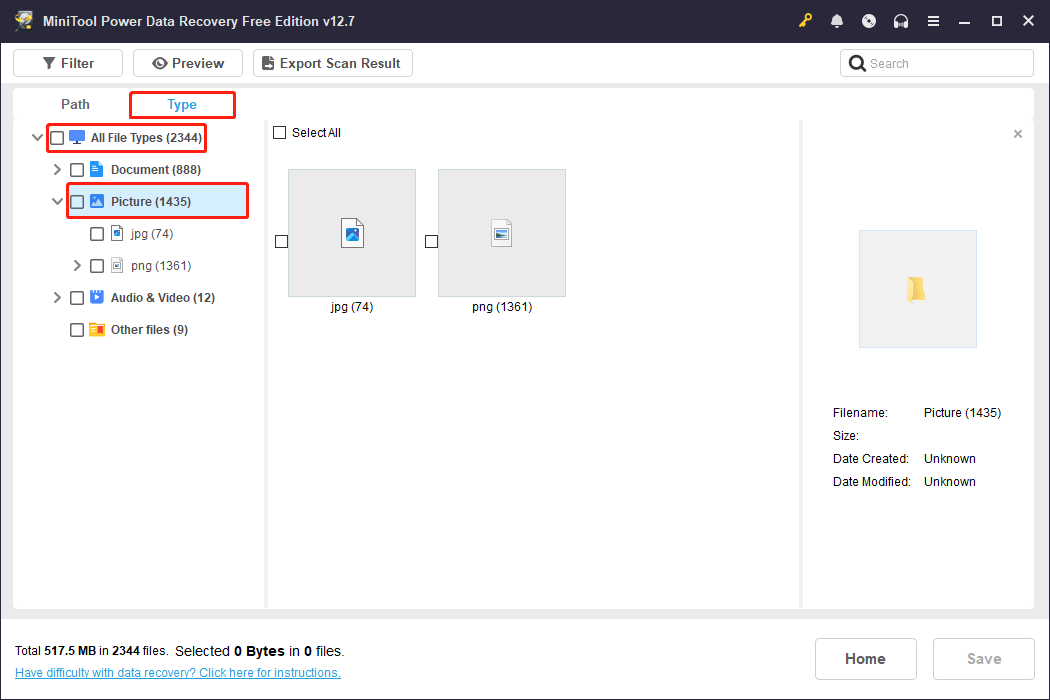
Step 4: When the scan ends, switch to the Type tab and expand All File Types > Picture.
Step 5: Find the target pictures and double-click them to preview.
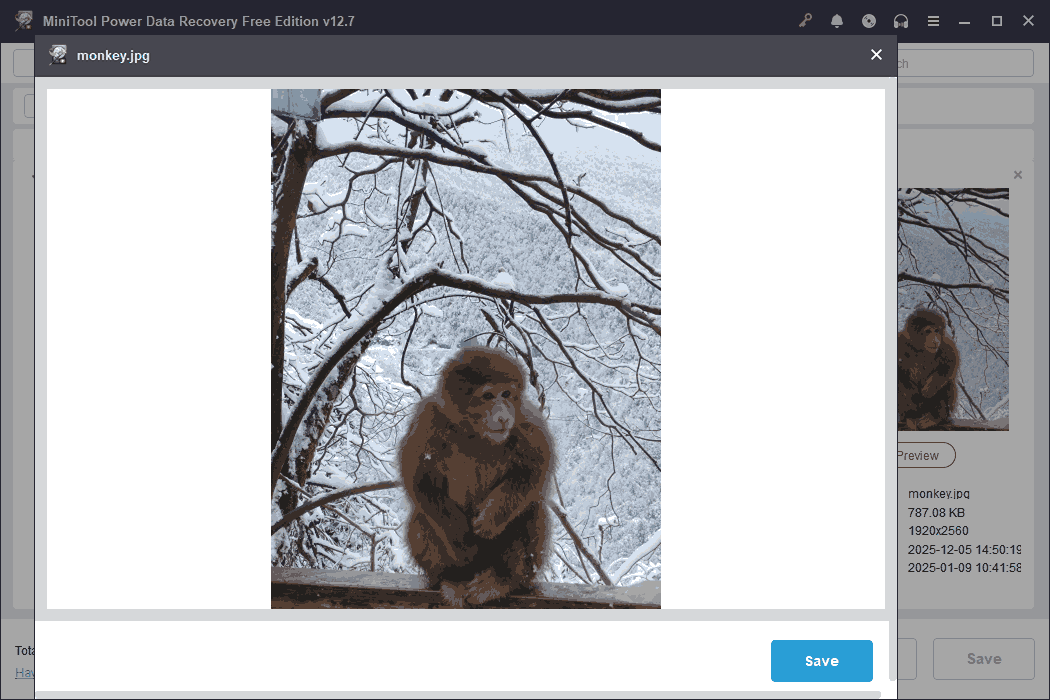
Step 6: Check the needed pictures and then click Save.
Step 7: In the pop-up window, choose a new path and click OK.
When the recovery completes, check your files.
To Sum Up
This guide has explained how many pictures can a memory card hold, how to choose a suitable card, and how to recover lost photos. You should now have a clearer understanding of these key aspects of using a memory card.
If you need assistance with any MiniTool product, please reach out to our support team at [email protected].
User Comments :