
Figure out why the SD card is not accessible and how to fix this problem in MiniTool. First, do some basic physical checks on the devices. Then try changing the drive letter, updating or reinstalling the driver, running the CHKDSK tool, or formatting the card to fix it.
Issue: SD Card Is Not Accessible
SD cards are widely used in mobile phones, cameras, tablets, and other digital devices due to their portability and high capacity.
However, you may encounter the problem of “SD card is not accessible”. It not only affects the normal use of the device but may also lead to data loss.
Before repairing it, take a look at why the SD card is not accessible.
Why Is the SD Card Not Accessible
The “SD card is not accessible” problem indicates that the device cannot read the SD card. It may be caused by various factors, such as hardware malfunctions, file system errors, or driver problems. Here are some common causes.
1. Physical damage or poor contact
- The SD card itself is damaged, such as chip aging or breakage.
- Improper insertion or removal causes hardware damage.
- The card slot or reader may have poor contact due to dust buildup, oxidation, or physical wear.
2. Write protection and permission restriction
- Physical write protection is turned on.
- Access restrictions are set on the file or partition, causing an “access denied” error.
3. File system corruption
- The file system is corrupted or not supported by the current device.
- Sudden power outages or card removal during use can cause data structure abnormalities.
4. Driver or system problem
- Windows did not load the SD card driver correctly.
- The driver is outdated or corrupted.
- The drive letter assigned to the SD card may be missing or conflicting with another device.
After knowing the possible causes for the “SD card is not accessible” issue, it is time to troubleshoot and fix it.
How to Fix SD Card Is Not Accessible
This section explains how to resolve the issue of SD card not accessible by checking for physical damage, changing the drive letter, updating the driver, or formatting the card.
Method 1: Do Some Basic Checks
When your SD card is not accessible, perform a physical check first. Many problems originate at the most basic hardware level.
Only after ensuring a stable hardware connection is any further diagnostic and data recovery process meaningful.
1. Check the card and card reader
Remove the SD card and check the metal contacts for dirt, oxidation, or damage. Then, gently wipe them with a clean, soft cloth.
Check the card reader interface for dust, bent metal pins, or other physical damage.
2. Check the write-protection switch
Standard-sized SD cards (not microSD cards) typically have a small slider labeled “Lock” or “Unlock” on the left edge.
If the slider is in the “Lock” position, write protection is enabled, and the SD card cannot be written to or formatted. You need to slide the slider to the “Unlock” position.
3. Try a different device
Remove the SD card from the current device and insert it into the new device to see if it is recognized.
If it works normally on the new device, the problem may be with the original device. If it is not recognized on multiple devices, the problem is likely with the SD card itself.
Method 2: Change the Drive Letter
The SD card may have been assigned a drive letter that conflicts with another existing drive. When this happens, the system may be unable to mount or access the card.
By changing the drive letter, you can assign a unique and unused drive letter to the SD card. This will restore its accessibility in File Explorer. Here are the steps.
Step 1: Right-click the Windows button and select Disk Management.
Step 2: Right-click the disk partition and select Change Drive Letter and Paths.
Step 3: Click the Change button in the pop-up window.
Step 4: Click the Assign the following drive letter box and choose an unused letter.
Step 5: Click OK > Yes to confirm the change.
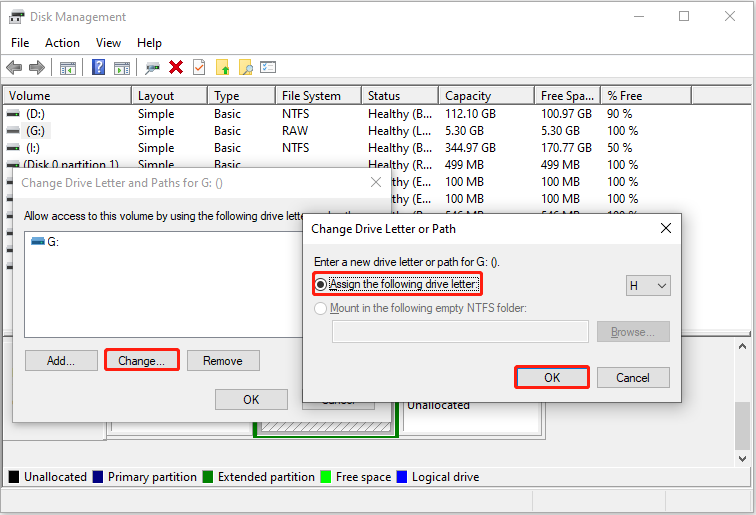
Now, open File Explorer and check if your SD card can be accessed successfully.
If the issue persists, try the following approaches.
Method 3: Update or Reinstall the Driver
A corrupted, outdated, or incompatible SD card driver can prevent the device from correctly recognizing the card, resulting in “SD card access denied”.
Updating or reinstalling the driver can restore communication between the system and the SD card, resolving recognition failures. Here is how to do it.
Step 1: Press Win + X and select Device Manager.
Step 2: Expand Disk drives, right-click your card, and select Update driver.
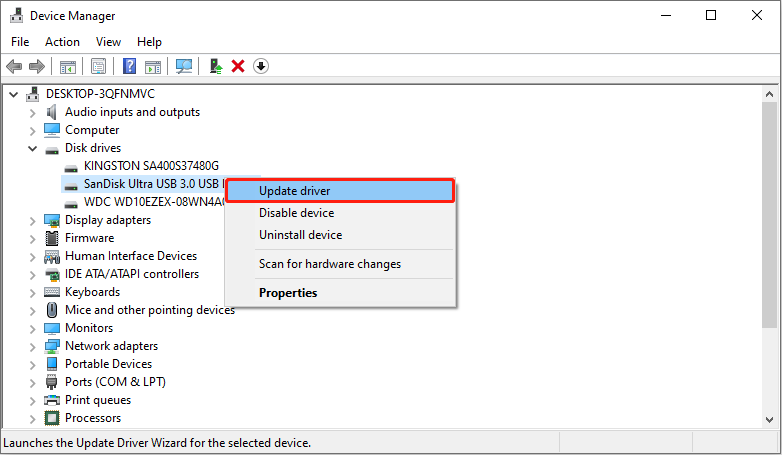
Step 3: Select Search automatically for drivers to search for the new one.
If the system finds the latest driver, follow the prompts to complete the installation. It is recommended to restart your computer after installation to ensure the driver takes effect.
To completely eliminate driver issues, reinstall it.
Step 1: Right-click the card and select Uninstall device.
Step 2: In the prompt window, click Uninstall to confirm the change.
When the uninstallation process finishes, restart your computer. During startup, Windows will install the new driver automatically.
If your SD card is still not accessible, proceed with the next method.
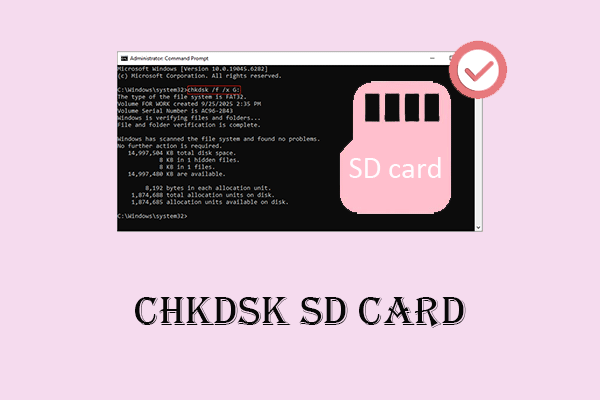
Method 4: Run the CHKDSK Tool
The file system errors can cause the “SD card not accessible” problem. In this case, run CHKDSK to fix the error.
CHKDSK (Check Disk) is a built-in disk check and repair tool in Windows systems. It is used to scan for and repair file system errors on disks. Here is how to run it.
Step 1: Type cmd in the Windows search box, right-click Command Prompt, and choose Run as administrator.
Step 2: When prompted by the UAC window, click Yes to continue.
Step 3: Type chkdsk G: /f /r and press Enter. Replace G with the drive letter of your SD card.
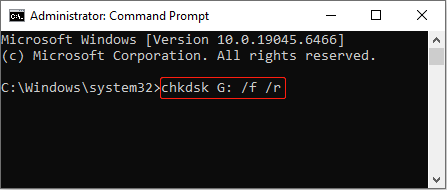
The system will immediately begin checking and attempting to fix the errors.
If the problem remains unresolved, try the last resort.
Method 5: Format the Card to Normal
If other repair methods fail, try formatting the SD card. Formatting can clear all error messages, rebuild a valid file system, and restore the SD card to a usable state.
How to recover data from an inaccessible SD card?
Since formatting will erase all data, recovering data from your inaccessible SD card should be done in advance. How to recover an inaccessible SD card?
MiniTool Power Data Recovery is an option worth considering. This robust tool can scan an inaccessible SD card and recover data from it.
This software supports a wide range of file formats for recovery, such as documents, pictures, videos, and audio. It is compatible with Windows 11/10/8.1/8.
In addition to SD cards, it can recover data from hard drives, USB flash drives, etc. This tool is suitable for various data loss scenarios, such as accidental deletion, formatting, system crashes, and virus attacks.
Most importantly, this free file recovery software provides 1 GB of free recovery capacity. Proceed with the instructions below.
Step 1: Download and install the recovery tool
Click the following button to get MiniTool Power Data Recovery installed on your computer.
MiniTool Power Data Recovery FreeClick to Download100%Clean & Safe
Step 2: Scan your inaccessible SD card
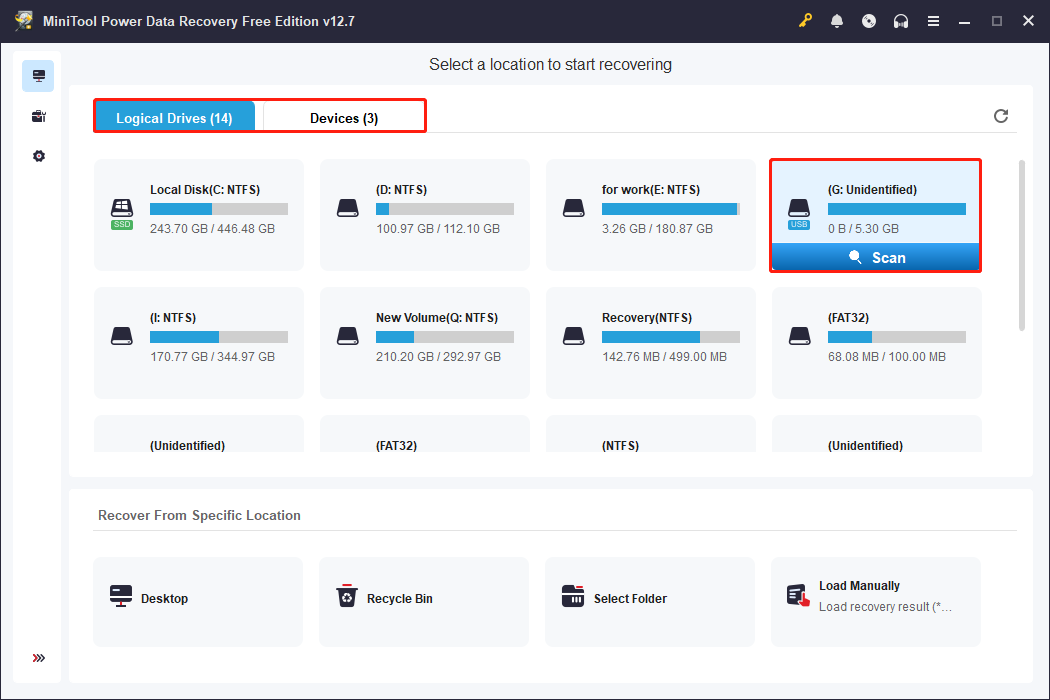
Make sure your SD card is connected to your computer. Open MiniTool Power Data Recovery. Under Logical Drives, find the target partition, move your cursor to the part, and click Scan.
Alternatively, switch to the Devices tab, locate the card, and click Scan to scan the whole disk.
Step 3: Find the required files using Path, Type, Filter, and Search
Wait patiently for the scan process to complete. When it ends, it’s time to find the needed files.
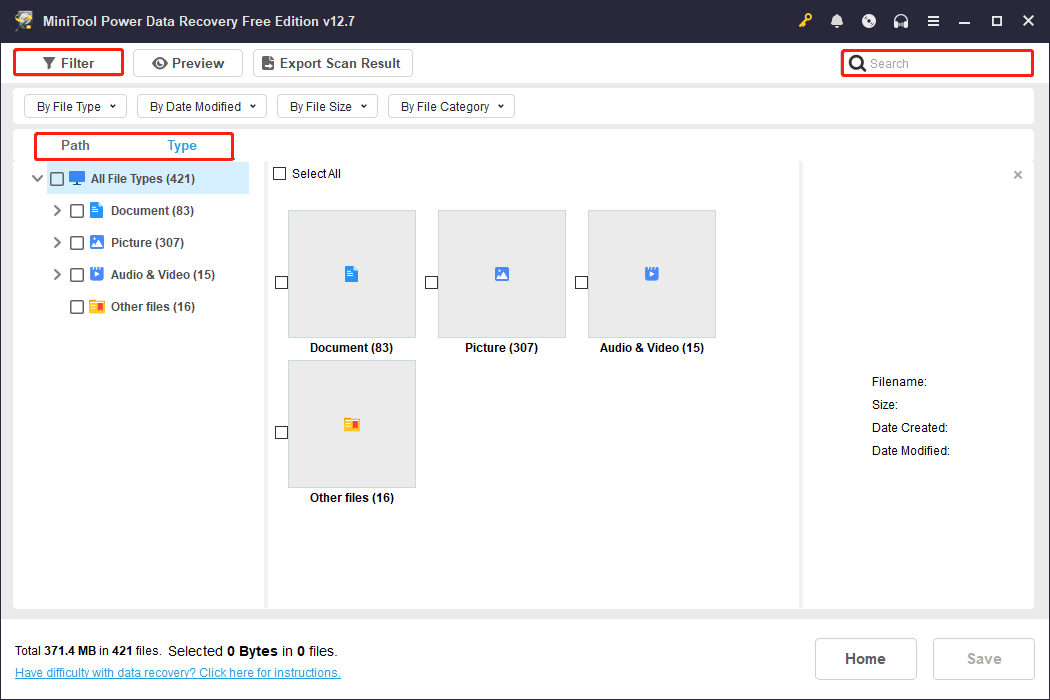
The scan results will be listed under the Path tab by default. This view displays found files in their original folder structure, based on how they were stored on the card. It is useful if you remember which folder the files were originally stored in.
Type categorizes the found files by type and format, such as pictures (.jpg/.png), documents (.doc/.pdf), videos (.mp4), etc. This is suitable for recovering files of a specific type.
Filter allows you to narrow the scope by setting file type, modification date, file size, and file category at once.
Enter keywords (a partial or full filename) in the Search box in the upper right corner and press Enter. The software will search for matches in the current results.
Step 4: Preview the file content before recovery
Once you’ve found the file, double-click it to preview its contents before recovery. The Preview feature supports common formats such as images, documents, and videos.
Step 5: Save files to a safe location
After checking the file content, check all the files you want and click the Save button. In the directory window, choose a safe location and click OK.
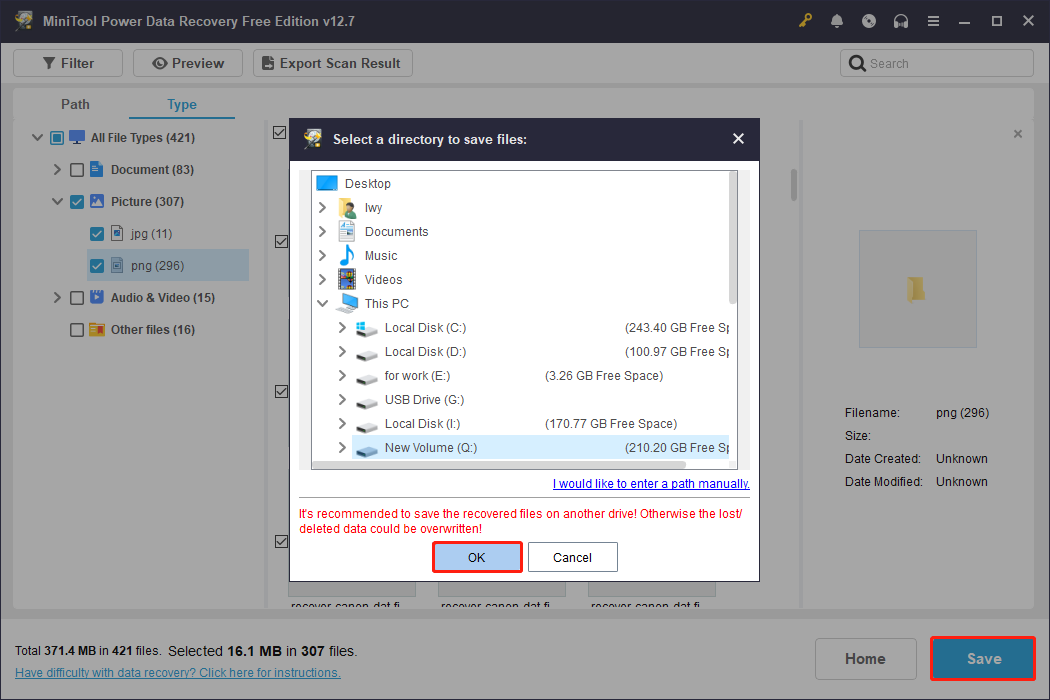
When the Recovery Completed window shows, check your files.
After ensuring your data is secure, it’s safe to format the SD card.
Option 1: Format the card in Disk Management
Disk Management is a built-in disk utility on Windows. It can safely format partitions and rebuild file systems on SD cards. Here is how to use it to format your SD card.
Step 1: Right-click the Start button and select Disk Management.
Step 2: Right-click the target drive and choose Format.
Step 3: Type a new volume label, choose a file system, check Perform a quick format, and click OK.
Option 2: Format the card with MiniTool Partition Wizard
When the SD card is inaccessible and system tools cannot format it, try using a third-party partitioning tool.
MiniTool Partition Wizard is a professional and powerful disk management tool used to create, resize, and format disk partitions.
This software provides more powerful low-level disk management capabilities. It can sometimes bypass system restrictions and force format damaged or RAW partitions.
Download and install the software, and then follow the steps below to complete formatting.
MiniTool Partition Wizard FreeClick to Download100%Clean & Safe
Step 1: Launch MiniTool Partition Wizard and select the target drive. In the left pane, click Format Partition under Partition Management.
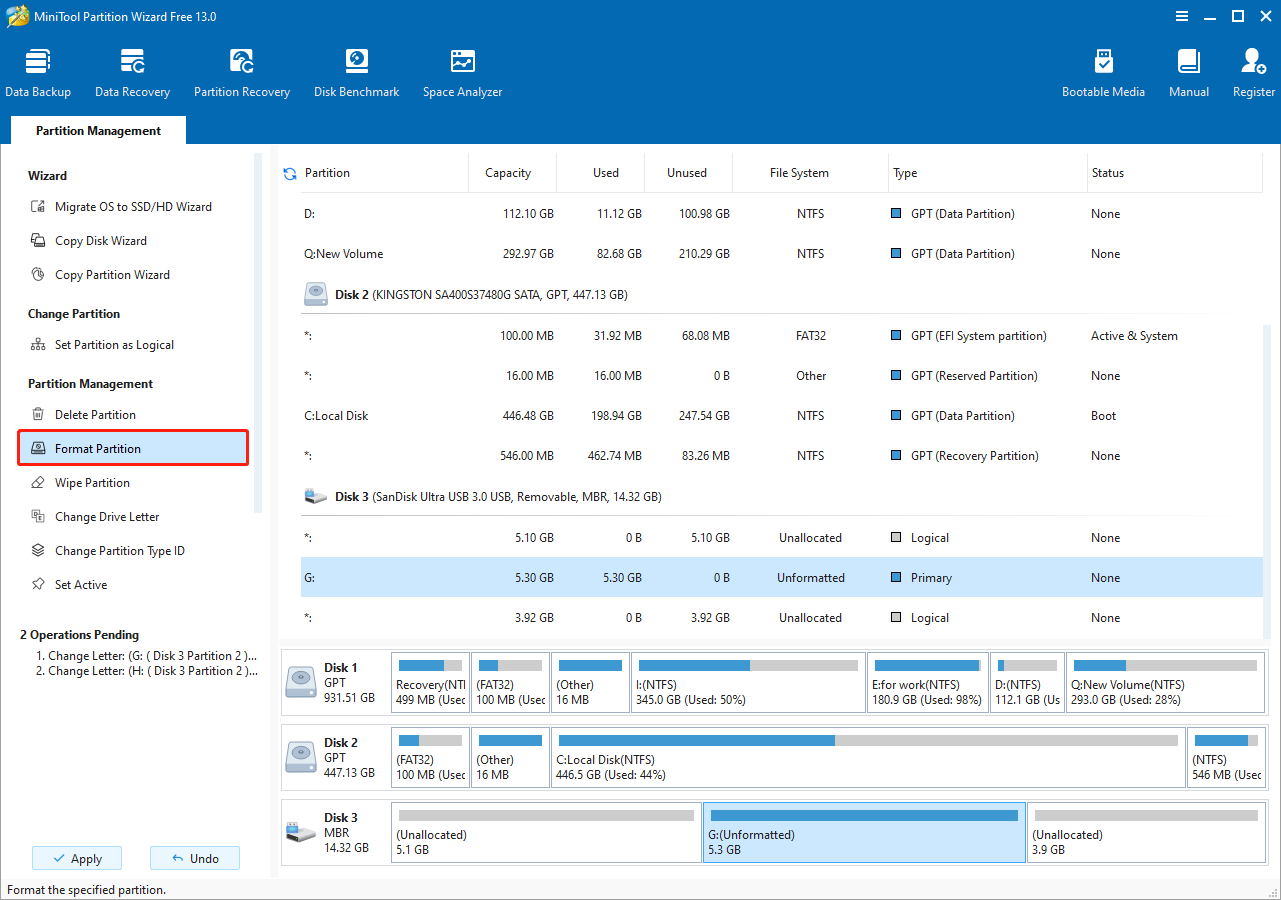
Step 2: Set a new partition label and file system, and click OK.
Step 3: Click Apply in the bottom left corner of the main interface.
After formatting the SD card, the inaccessibility issue should be resolved. If you don’t want to encounter this problem again, take some measures to protect your card.
How to Protect Your SD Card in the Future
While inaccessibility issues can be resolved, it will still take some time and effort. Here are some suggestions to avoid such a problem in the future.
- Safely remove the SD card. Ensure there are no read/write operations and use the “Safely Remove Hardware” function to prevent data corruption when removing the card.
- Use high-quality card readers and equipment. Choose branded equipment to ensure compatibility and stability. Inferior card readers may cause poor contact or unstable voltage, damaging the cards.
- Protect the physical write-protect switch. A protective box can be used for storage to prevent the switch from becoming loose or damaged.
- Keep away from high temperatures, high humidity, and strong magnetic fields. SD cards should be stored in a dry, well-ventilated environment. Avoid placing them near induction cookers, microwave ovens, strong magnets, or similar devices.
- Back up your SD card regularly. Copy important files to your computer or cloud storage periodically to prevent accidental loss.
Bottom Line
If your SD card is not accessible on Windows 10/11, check hardware connections first of all. If that does not help, try changing the drive letter, checking for file system errors, updating the driver, or formatting the card.
To avoid data loss, remember to use MiniTool Power Data Recovery to recover data before formatting.
MiniTool Power Data Recovery FreeClick to Download100%Clean & Safe
If you have any questions, concerns, or require further clarification regarding MiniTool products, do not hesitate to contact us through [email protected].
User Comments :