
Broken Arrow Stuck on Loading Screen
Broken Arrow is a large-scale modern warfare real-time tactical game developed by Steel Balalaika and published by Slitherine. It was released exclusively on the Steam platform on June 19, 2025.
Since the release of Broken Arrow, many players have encountered the problem of being stuck on the loading screen when starting the game. This problem may be caused by a variety of reasons. Here are the main reasons summarized by players and the community:
- Game file corruption: File corruption may occur during the download or update process, causing the game to fail to load properly.
- Background program conflicts: Programs such as Discord, Razer Synapse, OBS, etc., may interfere with the game, especially applications with overlays.
- Outdated drivers or system components: Missing or outdated graphics card drivers, DirectX12, or Visual C++ Redistributables may cause the game to freeze or black screen.
- Antivirus or firewall interference: Some security software may prevent the game from accessing necessary resources or servers.
- Unstable network connection or server problems: Broken Arrow is an online game, and server pressure or poor network may also cause loading to get stuck.
- System compatibility issues: Some players have encountered compatibility issues on Windows 11 and may need to run the game in compatibility mode.

How to Fix Broken Arrow Stuck on Loading Screen
Fix 1: Check System Requirements
If your computer does not meet the game’s minimum requirements, the game may not run or load properly. Checking System Requirements is a critical first step in troubleshooting technical issues, such as Broken Arrow getting stuck on loading screens.
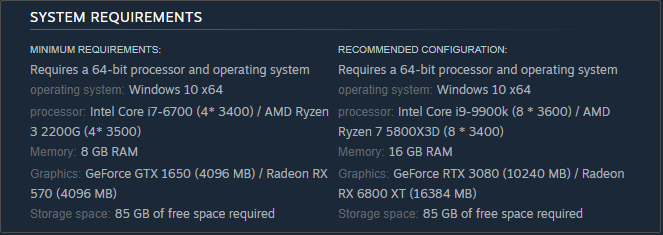
Fix 2: Run the Game as Administrator
Insufficient permissions may cause the game to load slowly or crash. In this case, you can run the game as an administrator.
Step 1: Type Broken Arrow in the Windows search box, right-click the game, and choose Open file location.
Step 2: Right-click the .exe file and choose Properties.
Step 3: Switch to the Compatibility tab and tick the box for Run this program as an administrator.
Step 4: Finally, click Apply > OK to make the change take effect.

Fix 3: Disable Fullscreen Optimization
Disabling Fullscreen Optimization may help resolve issues such as stuttering, loading freezes, and unstable framerates in Broken Arrow, as it allows the game to run in true exclusive fullscreen, resulting in higher performance and lower latency.
Step 1: Go to the game folder and right-click on the Broken Arrow EXE file to choose Properties.
Step 2: Go to the Compatibility tab and tick on Disable Full Screen Optimizations box.
Step 3: Finally, click the Apply and OK buttons.
Fix 4: Allow the Game Through the Firewall
Windows Firewall restricts network access to unknown programs by default. If Broken Arrow is not listed as an allowed app, it may not be able to connect to the game server, causing loading to get stuck.
Step 1: Type Control Panel in the Windows search box and press Enter.
Step 2: Change the view to Large icons or Small icons and choose Windows Defender Firewall.
Step 3: Click Allow an app or feature through Windows Defender Firewall.
Step 4: Click Change settings > Allow another app to add the game to the list.
Step 5: Make sure both the Public and Private boxes are ticked.
Fix 5: Update Graphics Driver Card
An outdated graphics driver can lead to this problem. In this case, you can try updating the card to fix this issue. Here is how you can do it.
Step 1: Press the Win + X keys and choose Device Manager.
Step 2: Click the small arrow in front of Display adapters to expand it.
Step 3: Right-click your card and choose Update driver.
Step 4: In the new window, click Search automatically for drivers.
Wait for the process to complete and follow the on-screen wizards to finish the whole process.

MiniTool Power Data Recovery FreeClick to Download100%Clean & Safe
Final Thoughts
How to fix Broken Arrow stuck on loading screen? The methods listed in this article can help you fix the Broken Arrow not loading error. Hope they can work for you and give you an enjoyable gaming experience.
User Comments :