
What is Instagram Threads? Is Threads available for Windows? How to install Threads on Windows? To find out the answers to these questions, continue reading. In this post, MiniTool introduces many details on this online social media service including 2 ways to install Threads for your PC.
What Is Threads
Threads, a social app, is operated by Meta Platforms for real-time conversations and sharing, aiming to offer a similar experience to Twitter. You can run Threads to post and share text, images, and videos. To be specific, it allows you to share text updates of up to 500 characters including a maximum of 5 minutes of video content. Threads accounts are closely integrated with Instagram accounts.
Since the release of Threads, it has gained tremendous popularity. To use it, you can download and install it on your Android or iOS devices.
Then, you may ask: is Threads available for Windows? Currently, Threads is only available on mobile devices and there is no desktop version. What if you want to use Threads on a Windows PC? Find the ways from the next part now.
Related post: 7 Best Alternatives to Twitter When Twitter Not Working
How to Install Threads on Windows 11
To use Threads on your Windows PC, you can install it via BlueStacks or Windows Subsystem for Android (WSA). Let’s see them one by one.
Install Threads on PC via BlueStacks
BlueStacks is a famous Android emulator that enables you to run Android applications on computers running Windows and macOS. Follow the steps below to install Threads for Windows:
Step 1: Access the official download page of BlueStacks and download this tool for Windows 11.
Step 2: Double-click on the .exe file (we download BlueStacks 10) and follow the on-screen instructions to install BlueStacks on your PC.
Step 3: After finishing the installation, click BlueStacks Player from the left side, tap on System apps to expand the folder, and run Play Store.
Step 4: Use your account to log in to Google Play Store.
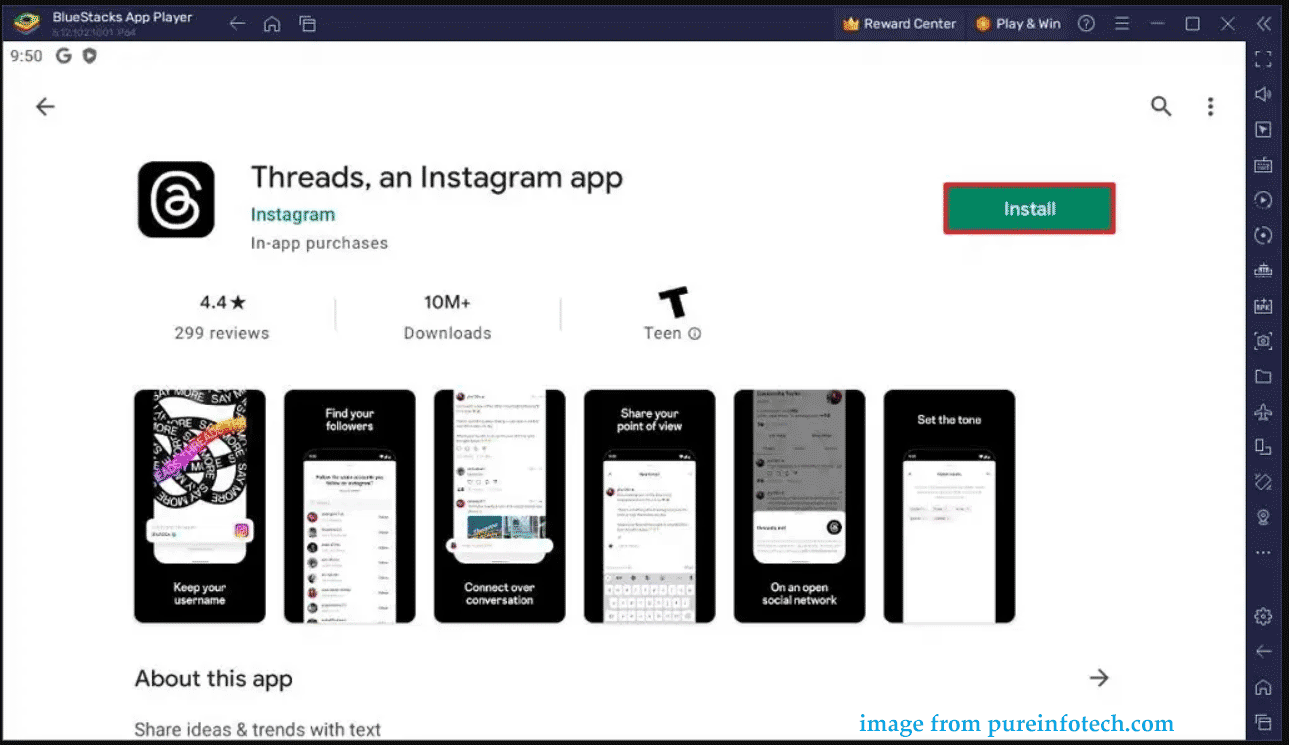
Step 5: Search for Threads and install it. Then, you can use Threads on your Windows 11 PC.
Threads Download for Windows 11 & Install via WSA
In Windows 11, Microsoft offers native support for Android apps that can be downloaded and installed via Amazon Appstore. If you need to install Threads on Windows 11, it is available. This way requires several steps. Now, let’s see some details.
Move 1: Install Amazon Appstore/Windows Subsystem for Android
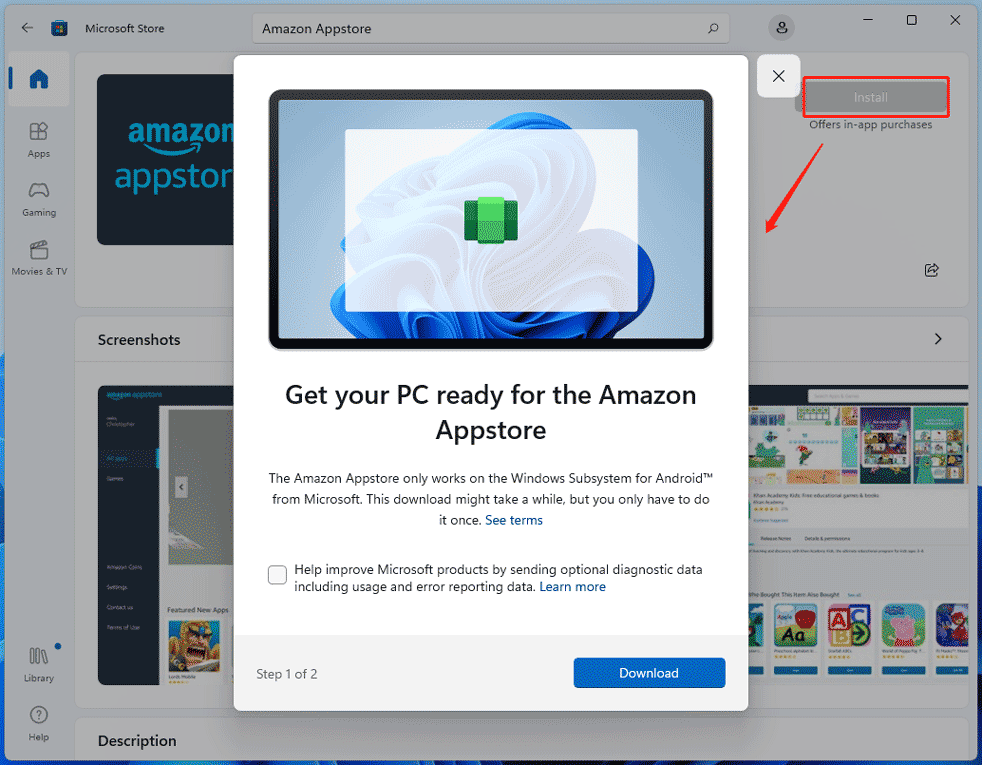
Step 1: Open Microsoft Store, search for Amazon Appstore and click the Install button.
Step 2: Then, tap on Download in the popup. After a while, you install Amazon Store and Windows Subsystem for Android.
Move 2: Turn on Developer Mode
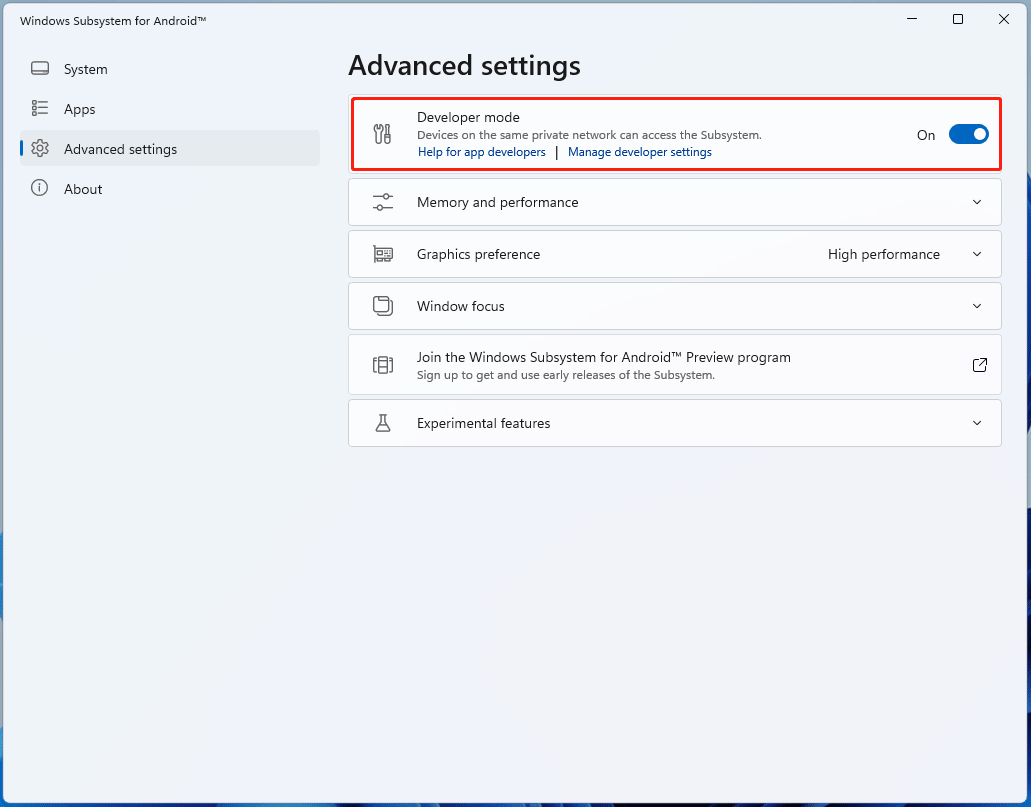
Step 1: Find Windows Subsystem for Android via Start Menu and open it.
Step 2: Go to Advanced settings and enable Developer mode.
Move 3: Install WSATools & Threads
Step 1: Go to download a Threads APK file – in Google Chrome, search for “Threads download APK” and then get a .apk file via the given links.
Step 2: In Microsoft Store, search for WSATools, and find WSATools – APK installer and more. Then, install it on your Windows 11 PC.
Step 3: Later, run this utility and then click Install an APK.
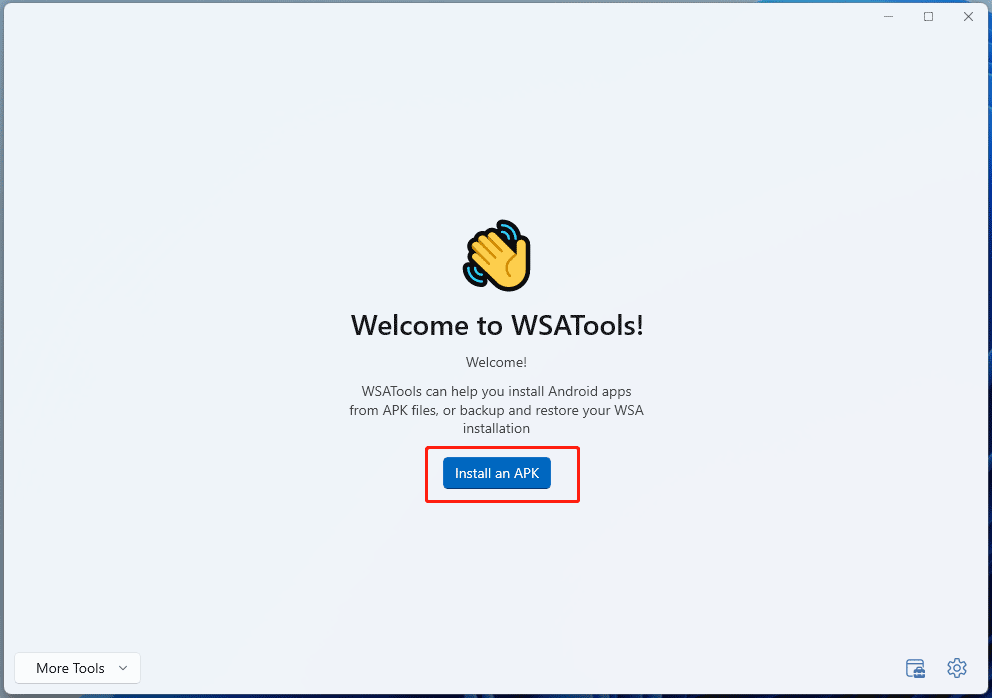
Step 4: Click Install to download ADB (Android Debug Bridge) that is needed for WSATools to work.
Step 5: Tap on Select Folder to choose a path to install ADB.
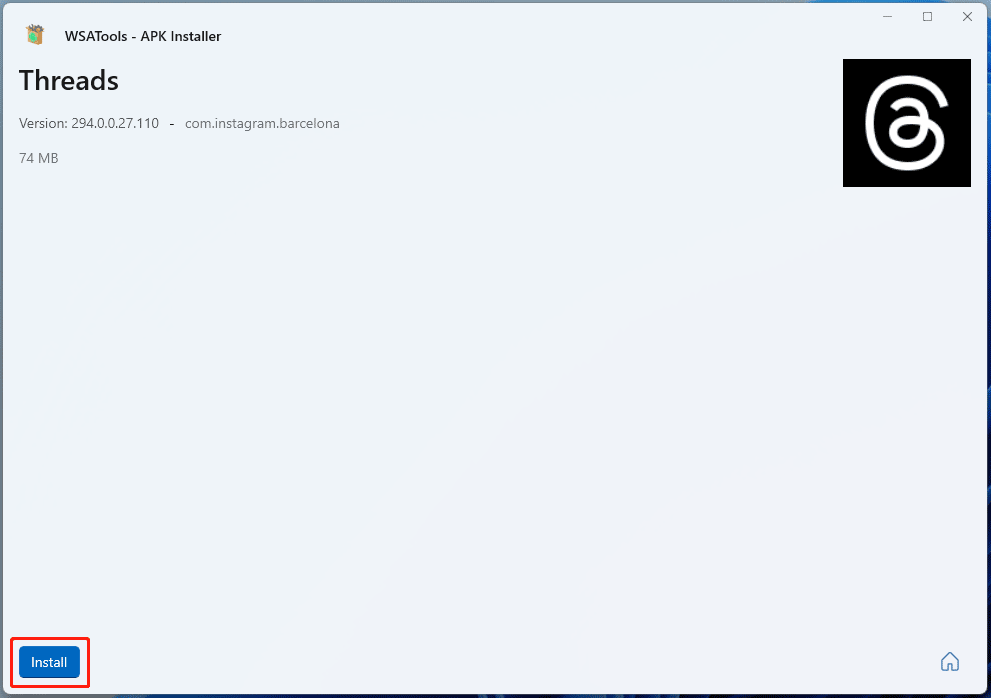
Step 6: Select the Threads APK file you have downloaded before and load it.
Step 7: Hit the Install button to install Threads on your PC.
Verdict
That’s how to install Threads on Windows 11. If you need, follow the given ways to install this media app on your PC. After the installation, you need to sign in to your Instagram account and then join Threads to use it.
About The Author

Position: Columnist
Vera has been working at the MiniTool Team for over 10 years as a technical editor and content writer. She mainly focuses on disk and partition management, data recovery, Windows backup and restore, and PC troubleshooting. Through in-depth software testing and hands-on experience, she has helped users solve a wide range of computer problems and better protect their data on Windows devices.
User Comments :