
Windows 11 Drops Support for Some Intel CPUs
Windows 11 system requirements are higher compared to Windows 10 and previous operating systems, especially in CPU, TPM, Secure Boot, RAM, disk space, etc. Recently, Microsoft has updated its page of supported processors and it removes 44 Intel CPUs.
These CPUs are primarily used for servers and they are not commonly found in everyday PCs, so ordinary users are not likely to be affected. However, it is strange that Microsoft removed them from the list of supported processors without giving an explanation.
What Are Windows 11 Unsupported Intel Processors
What are the incompatible Windows 11 Intel processors? They are offered by Neowin, as shown below:
- Intel Xeon E-2104G
- Intel Xeon E-2124
- Intel Xeon E-2124G
- Intel Xeon E-2126G
- Intel Xeon E-2134
- Intel Xeon E-2136
- Intel Xeon E-2144G
- Intel Xeon E-2146G
- Intel Xeon E-2174G
- Intel Xeon E-2176G
- Intel Xeon E-2176M
- Intel Xeon E-2186G
- Intel Xeon E-2186M
- Intel Xeon E-2224
- Intel Xeon E-2224G
- Intel Xeon E-2226G
- Intel Xeon E-2226GE
- Intel Xeon E-2234
- Intel Xeon E-2236
- Intel Xeon E-2244G
- Intel Xeon E-2246G
- Intel Xeon E-2254ME
- Intel Xeon E-2254ML
- Intel Xeon E-2274G
- Intel Xeon E-2276G
- Intel Xeon E-2276M
- Intel Xeon E-2276ME
- Intel Xeon E-2276ML
- Intel Xeon E-2278G
- Intel Xeon E-2278GE
- Intel Xeon E-2278GEL
- Intel Xeon E-2286G
- Intel Xeon E-2286M
- Intel Xeon E-2288G
- Intel Xeon E-2314
- Intel Xeon E-2324G
- Intel Xeon E-2334
- Intel Xeon E-2336
- Intel Xeon E-2356G
- Intel Xeon E-2374G
- Intel Xeon E-2378
- Intel Xeon E-2378G
- Intel Xeon E-2386G
- Intel Xeon E-2388G
These newly removed CPUs are Xeons CPUs based on 8th-generation Intel parts, released back in 2018. If your PC is equipped with one of the mentioned processors and has installed Windows 11, it doesn’t mean the PC stops working. This PC can still keep running fine but it is ineligible for feature updates in the future.
Check If Your CPU Is Compatible with Windows 11
Now you know much information on the topic – 44 Intel CPUs no longer support Windows 11. If you are running Windows 10 and plan to upgrade to Windows 11, you need to check if your processor supports Windows 11 and if the other PC specifications meet the system requirements of this OS.
To see which CPU you are using in Windows 10, go to Settings > System > About. Under the Device specifications section, you see your processor model. Next, you can find if it is in the list of Windows 11 supported Intel professors or not.
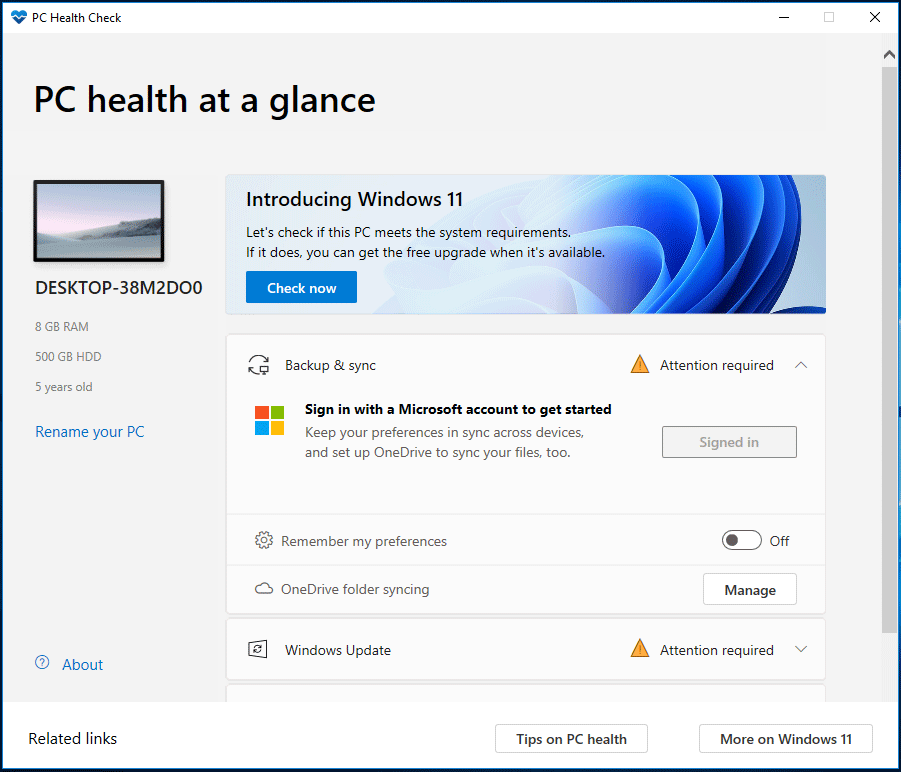
Alternatively, you can directly run a compatibility check to see if your PC is compatible with Windows 11 or not by using the PC Health Check app. Get it from Microsoft’s website – https://aka.ms/GetPCHealthCheckApp and run it.
If your PC CPU is one of the Windows 11 unsupported Intel processors and you still want to install this system, go to bypass the restrictions using Rufus. Just download an ISO file, run Rufus, configure the bypassing operation, and burn the ISO to a USB drive to use the USB drive to perform an installation.
Final Words
Although 44 Intel CPUs no longer support Windows 11, the influence is little. Even if your PC doesn’t meet the CPU requirement of Windows 11, you can take action to install this OS. Of course, currently, nobody knows when Microsoft will completely block OS installation on older CPUs in the future.
About The Author

Position: Columnist
Vera has been working at the MiniTool Team for over 10 years as a technical editor and content writer. She mainly focuses on disk and partition management, data recovery, Windows backup and restore, and PC troubleshooting. Through in-depth software testing and hands-on experience, she has helped users solve a wide range of computer problems and better protect their data on Windows devices.
User Comments :