
By default, most PCs can go to sleep to save power after a certain period of time. If you want to always keep your PC awake, you can change the settings or try Microsoft PowerToys. To get more information, refer to this post from MiniTool to know how to keep Windows 11 awake with PowerToys or via Windows Settings.
How to Make Your Windows 11 PC Never Go to Sleep
Method 1: Keep Windows 11 Awake Using PowerToys
Microsoft PowerToys is a set of free system utilities for power users that are used to customize Windows for greater productivity. And the currently available utilities include PowerToys Awake, Color Picker, FancyZones, File Explorer add-ons, Image Resizer, Keyboard Manager, and more. Microsoft PowerToys is available in multiple Windows operating systems including Windows 10 and Windows 11.
Related articles:
- Using PowerToys: FancyZones, Power Renamer, and Shortcut Guide
- Microsoft PowerToys Is Now Available For Windows 10
Awake can be used to keep your PC awake and you won’t need to manage the power & sleep settings. It is quite useful if you need to run time-consuming tasks, especially when you don’t want the PC to go to sleep or turn the screens.
With Microsoft PowerToys Awake, you can always keep your PC awake. Well then, how can you use this tool to let the PC never go to sleep? Follow the steps below.
How to keep Windows 11 awake with PowerToys?
Step 1: Microsoft PowerToys Download & Install
1. If you first use PowerToys, you need to download and install this software. Go to this website and click PowerToysSetup-XXXX-x64.exe to download this tool. The current version is V0.49.1.
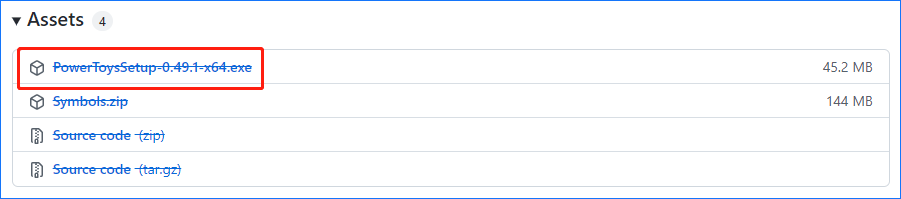
2. Double-click on the downloaded file and start installing this tool on your Windows 11 computer by following the setup wizards on the screen.
Step 2: Run PowerToys as Administrator
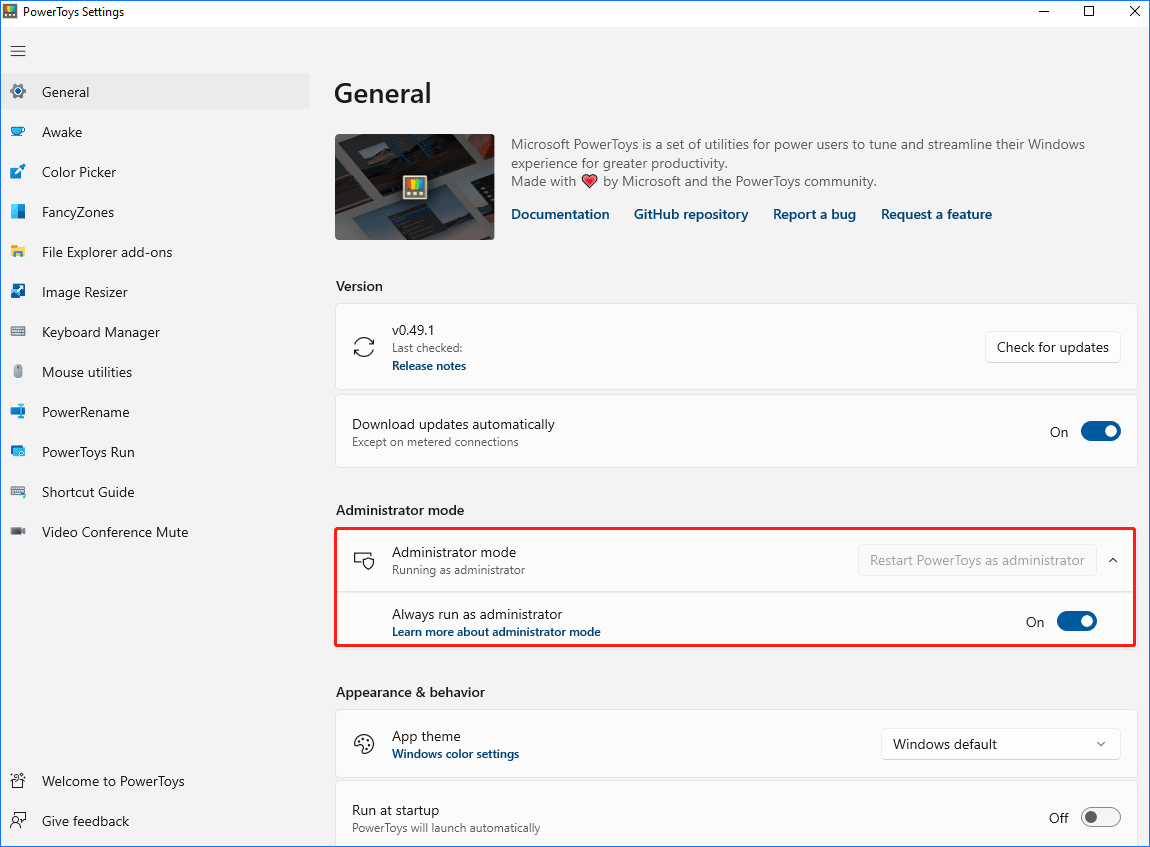
1. After installing PowerToys, you should launch it to make your Windows 11 PC never go to sleep. Click the search box, type powertoys, and click it to open it. Or you can right-click on it to choose Run as administrator. Then, the settings window of PowerToys will open.
2. If you don’t run this tool with admin rights, go to the General You need to click Restart PowerToys as administrator. After this tool re-opens, enable the option – Always run as administrator.
Step 3: Choose a Mode for Awake
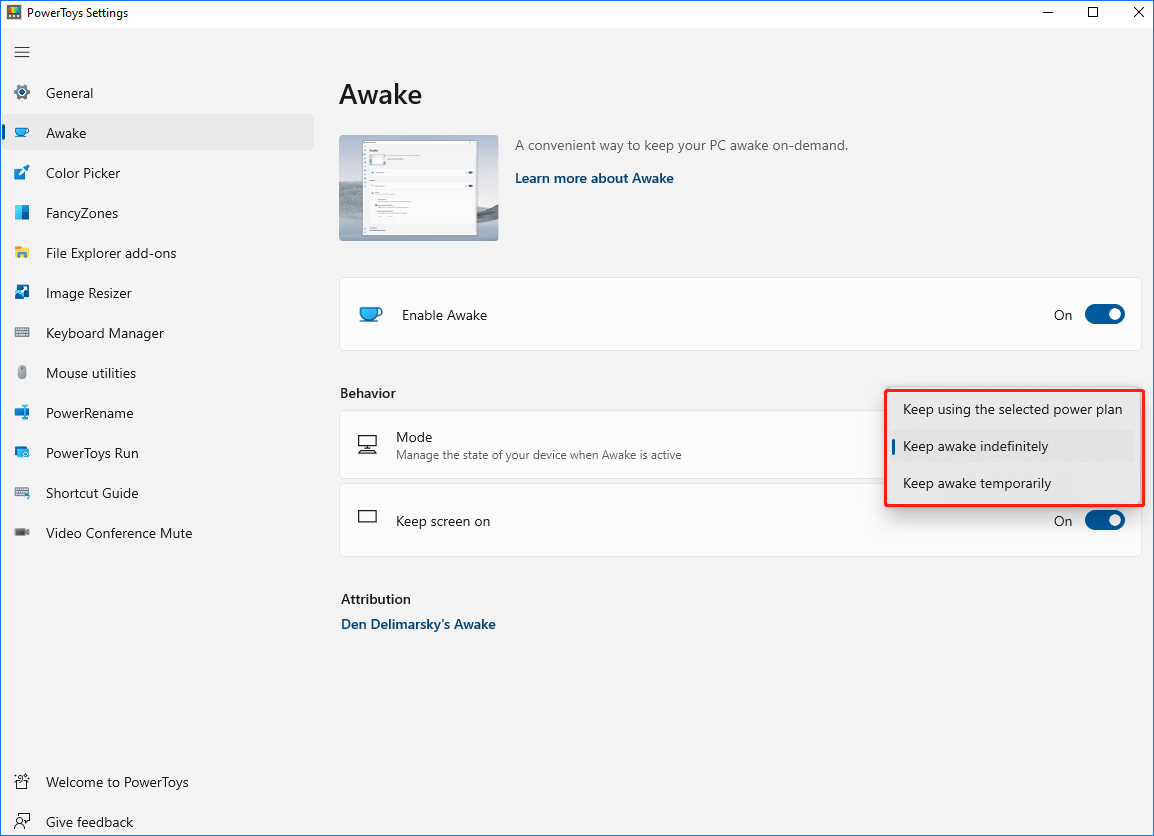
1. Go to the Awake tab, enable Awake.
2. Tick the checkbox of Keep screen on.
3. You can configure the Awake mode based on your needs:
- Keep using the selected power plan: The PC operates according to its current power plan.
- Keep awake indefinitely: The PC will stay awake until the setting is disabled.
- Keep awake temporarily: Your PC keeps awake until the time elapses.
Method 2: Keep Windows 11 Awake in Settings
In addition to using PowerToys to keep your PC awake, you can also directly do this task in Windows 11 Settings by following these steps.
Step 1: Press Win + I to open Windows 11 Settings.
Step 2: Go to System > Power & battery.
Step 3: Expand Screen and sleep, configure the system to never turn off your screen and never put the device to sleep.
Final Words
In this post, you know how to keep Windows 11 awake with PowerToys. Besides, another way to keep the PC awake is also told to you. Just choose one based on your needs so that you can let the PC stay awake without turning off the screen.
About The Author

Position: Columnist
Vera has been working at the MiniTool Team for over 10 years as a technical editor and content writer. She mainly focuses on disk and partition management, data recovery, Windows backup and restore, and PC troubleshooting. Through in-depth software testing and hands-on experience, she has helped users solve a wide range of computer problems and better protect their data on Windows devices.
User Comments :