
Microsoft has updated Windows Store for Windows 11. But some users can’t find this new Store on their Windows 11 computer. If Microsoft Store is missing on Windows 11, do you know how to get it back? In this post, MiniTool Software will show you some easy and effective solutions.
Microsoft Store Is Missing, Not Showing, Not Installed On Windows 11
Windows 11 has been released for a while. You should know that this new operating system has a new Microsoft Store. After upgrading to Windows 11, you must want to experience this new app immediately. If you can open it successfully, everything will be OK. However, some users report that they can’t find the new Windows Store on Windows 11. We call this situation: Microsoft Store is missing on Windows 11 or Microsoft Store is not installed on Windows 11.
Microsoft Store app missing/not showing on Windows 11 is a common issue. When you search for this issue on the internet, you can find that many users are bothered by it. Well then, what you should do if you can’t find Microsoft Store on Windows 11. In this post, we will show you some useful solutions.
Method 1: Use Another Method to Open Microsoft Store on Windows 11
Normally, the Windows Store app is preinstalled on Windows 11. You can click the Start button in the taskbar and select Microsoft Store from the Start menu to open it. If you can’t find it there, this app may be removed from the Start menu unexpectedly. To rule out this possibility, you can try another method to open it.
However, if you still can’t find Windows Store on Windows 11 after using the methods mentioned above. You should take measures to get it back. You can find more solutions as follows.
MiniTool Power Data Recovery TrialClick to Download100%Clean & Safe
Method 2: Reset Cache for Microsoft Store
You can reset the Microsoft Store cache to get the missing Store back:
- Press Win+R to open Run.
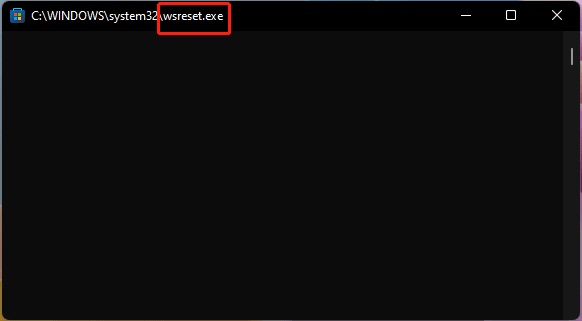
- Type wsreset in Run and press Enter to continue.
- The wsreset command will work in the Command Prompt window to reset the Microsoft Store cache. The window is blank, which is normal. You should wait until the process ends. Then, Microsoft Store will automatically open.
Method 3: Run Windows Store Apps Troubleshooter
Windows has built-in troubleshooters to repair the snap-in apps’ issues on your computer. If Microsoft Store is not showing on Windows 11, you can use Windows Store Troubleshooter to scan for issues and fix the found problems.
- Go to Start > Settings > System > Troubleshoot > Other troubleshooters.
- Find Windows Store Apps and click the Run button next to it to start running the troubleshooter.
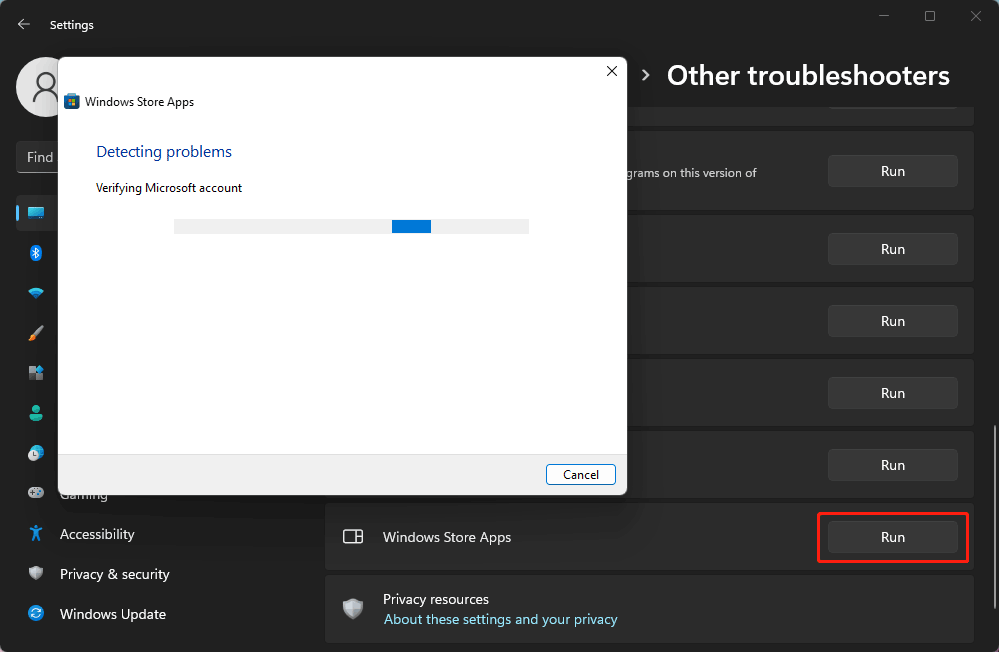
This tool can automatically scan for errors and fix the found issues to make the Store app go back to normal.
Method 4: Perform a DISM Scan
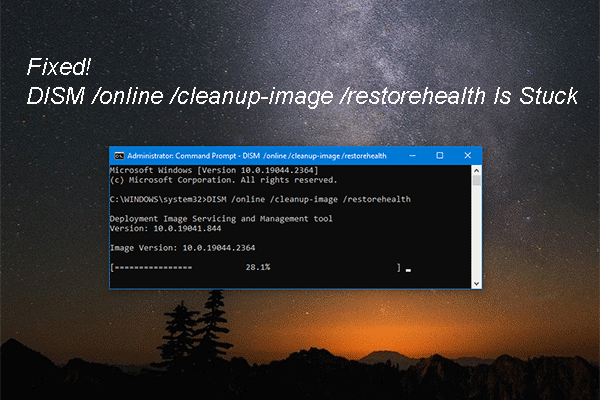
Microsoft Store app missing on Windows 11 may be caused by a corrupt Windows image, you can run a DISM scan to repair the image and solve the Microsoft Store issue.
1. Click the search icon in the taskbar and type cmd.
2. Select Run as administrator from the search result.
3. If the User Account Control interface pops up, you need to click Yes to continue.
4. Copy and paste the following commands to Command Prompt and press Enter after each:
DISM /Online /Cleanup-Image /ScanHealth
DISM /Online /Cleanup-Image /CheckHealth
DISM /Online /Cleanup-Image /RestoreHealth
5. When the above commands execute successfully, you need to restart your computer.
Method 5: Manually Reset Microsoft Store
You can also manually reset Microsoft Store to restore this app:
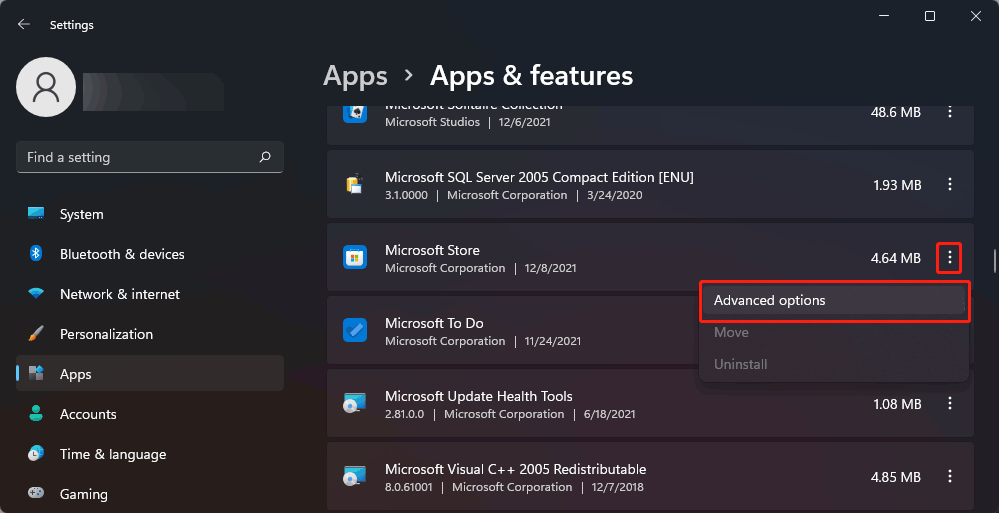
- Go to Start > Settings > Apps.
- Find Microsoft Store and click the 3-dot menu.
- Click Advanced options.
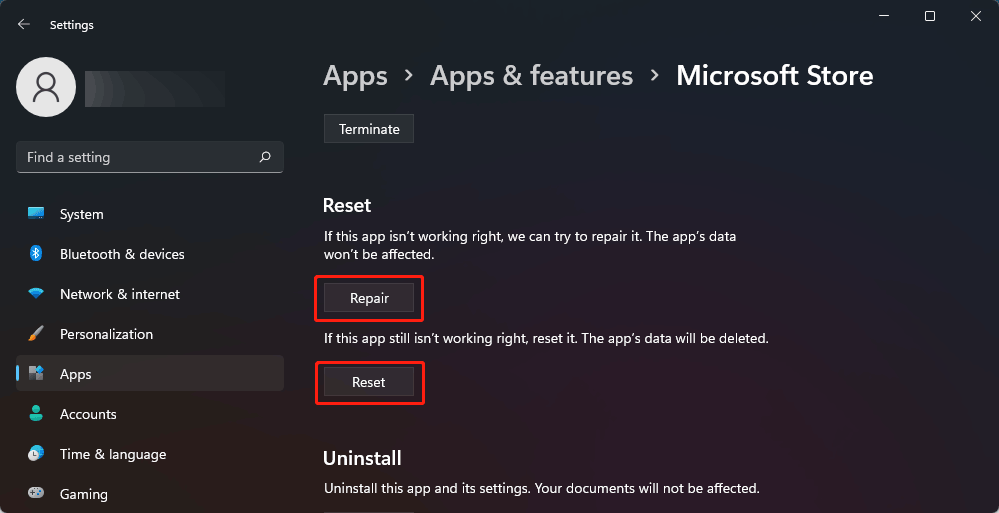
- Click the Reset or Repair button under the Reset section.
Method 6: Create a New User Account
Some users solve the issue by creating a new user account. You can also do this to have a try.
- Go to Start > Settings > Accounts > Family & other users.
- Click Add account under Other users.
- Click I don’t have this person’s sign-in information on the pop-up interface.
- Click Add a user without a Microsoft account on the next page.
- Enter your user name and password.
- Click Next.
After creating a new user account, you need to switch to this new account and see if you can find the Microsoft Store app.
You can find more ways to create a new user account from this post: How to Add or Remove a User/Microsoft Account on Windows 11?
Method 7: Manually Install Microsoft Store on Windows 11
If Microsoft Store is not installed on Windows 11, you can choose to manually download and install the app on your device. This method is useful when all the above methods don’t work for you.
Method 8: Perform a System Restore
If you have created a system restore point before, you can perform a system restore to restore your computer to a previous state when the Windows Store app works normally.
Microsoft Store Is Missing on Windows 11! How to Fix It?
If Microsoft Store is missing, not showing, or not installed on your Windows 11 computer, you can use the methods mentioned in this post to get it back. However, if these methods can’t help you out, you can reset Windows 11 or reinstall Windows 11 to try.
Should you have any other related issues that need to be fixed, you can let us know in the comments.
About The Author

Position: Columnist
Stella has been working in MiniTool Software as an English Editor for more than 8 years. Her articles mainly cover the fields of data recovery including storage media data recovery, phone data recovery, and photo recovery, videos download, partition management, and video & audio format conversions.
User Comments :