
0x800704b3 Windows 11/10
Network error code 0x800704b3 often crops up on Windows 10 or Windows 11 PCs, making you very frustrated. This common error indicates a network connection failure, which blocks you from connecting to the Internet or accessing network resources including shared files, printers, etc.
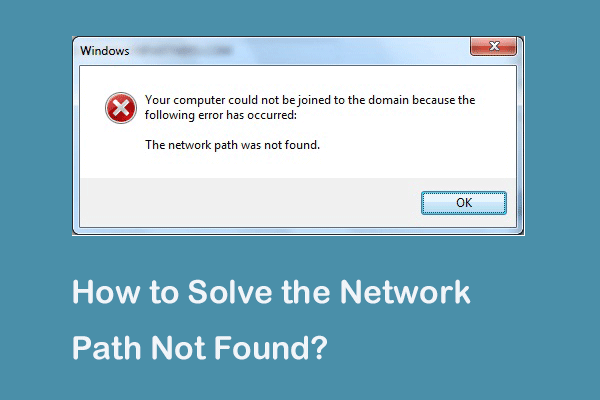
On the screen, the popped-up error message states “The network path was either typed incorrectly, does not exist, or the network provider is not currently available”. Why does the error happen on your computer? Corrupted system files, enabled SMB 1.0 protocol, not running network-related services, a conflict from an antivirus tool, etc. may give rise to the network error 0x800704b3.
Thankfully, a bunch of solutions below can easily help you out, and let’s walk them through.
Fix 1. Run Network Troubleshooter
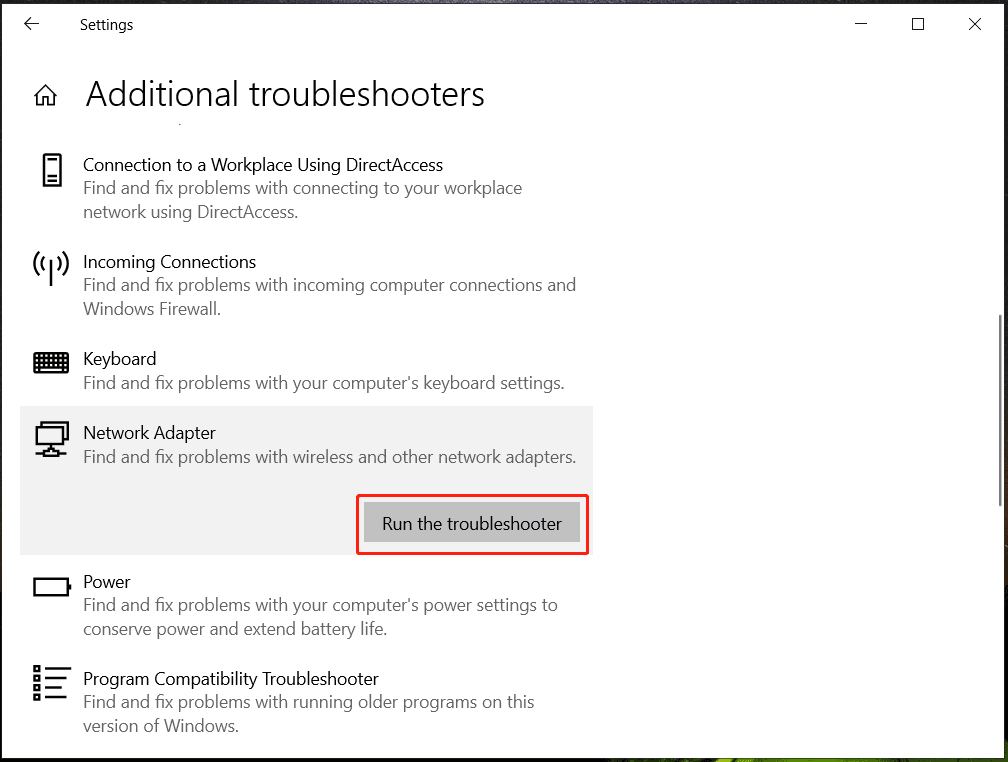
When confronted with network error code 0x800704b3, first of all, running the network troubleshooter will be wise. With this handy tool built into Windows 11/10, you can detect some common issues and fix them.
Step 1: Open Settings using Win + I on your keyboard.
Step 2: Go to Troubleshoot > Update & Security > Additional troubleshooters in Windows 10. Or go to System > Troubleshoot > Other troubleshooters on Windows 11.
Step 3: Locate Network Adapter and click the Run or Run the troubleshooter button to begin the troubleshooting process.
Fix 2. Disable SMB Protocol 1.0
SMB, short for Server Message Block, refers to a protocol that allows you to share files, printers, and other resources on a network. If the old version, SMB 1.0, is enabled on your PC, some network issues like error code 0x800704b3 may arise. Just go to check and disable this protocol.
Step 1: Type Windows features into the search box and hit Turn Windows features on or off.
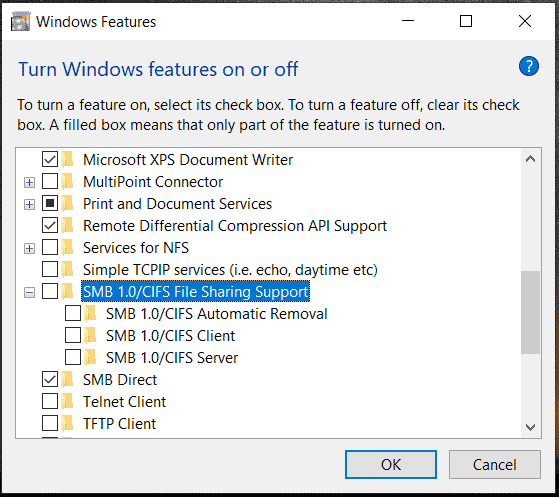
Step 2: In the subsequent window, find SMB 1.0/CIFS File Sharing Support, untick this option and the boxes associated with it.
Step 3: Hit OK to save the change and restart your PC.
Fix 3. Enable Network Services
On Windows 11/10, there are many services responsible for proper network connectivity but incorrect settings of these services may result in network error code 0x800704b.
Step 1: Type services into the search box and hit Enter to open Services.
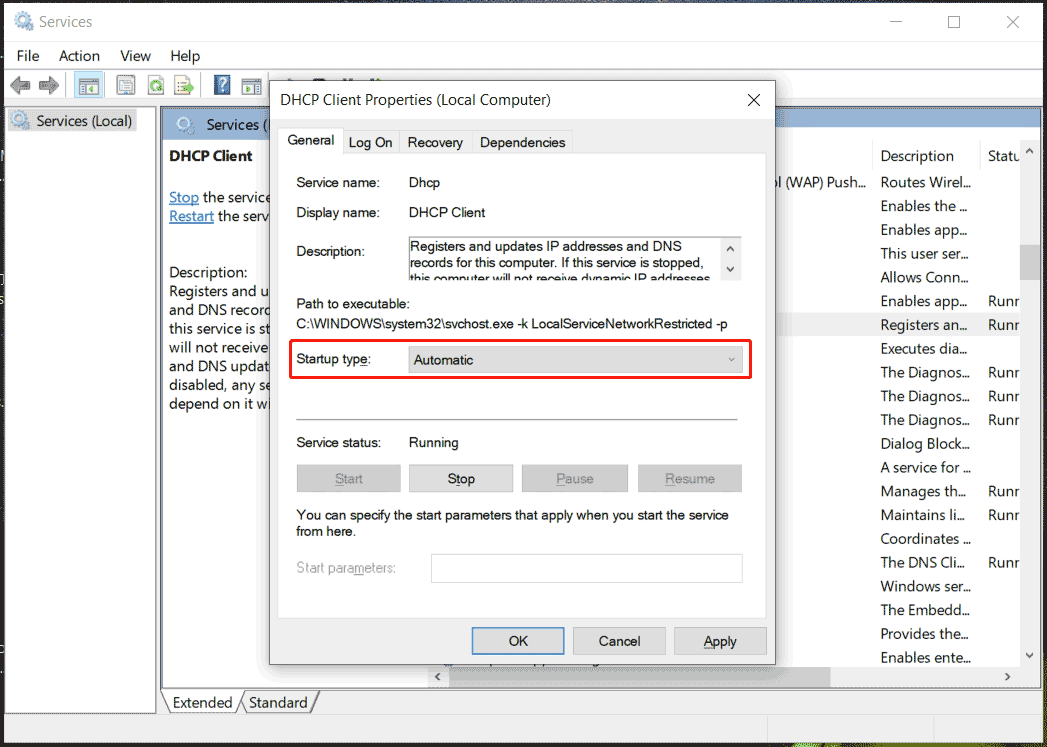
Step 2: Find the DHCP Client service, double-click on it, and hit Start if it isn’t running. Or tap Stop and then Start. Also, set the Startup type to Automatic.
Step 3: Do the same thing for the following services:
- DNS Client
- Network Connections
- Network Location Awareness
- Network List Service
- TCP/IP NetBIOS Helper
- WLAN AutoConfig (when using Wi-Fi)
Later, check if Windows 11/10 0x800704b3 has been solved. If not, continue troubleshooting it.
Fix 4. Fix Windows System Files
Corruption in Windows system files sometimes may be the culprit behind your network error. When confronted with error code 0x800704b3, run SFC or DISM.
Step 1: Open Command Prompt with admin rights by typing cmd into the search box and clicking Run as administrator on the right side.
Step 2: Execute this command – sfc /scannow. Don’t forget to hit Enter.
Step 3: Run DISM /Online /Cleanup-Image /RestoreHealth.

Fix 5: Uninstall Antivirus Software
Recall your mind if Windows 10/11 network error code 0x800704b3 appears after installing a third-party program like antivirus software, VPN app, firewall, etc. Then, remove it from your PC.
Step 1: Open Control Panel via the search box.
Step 2: Tap on Uninstall a program under Programs.
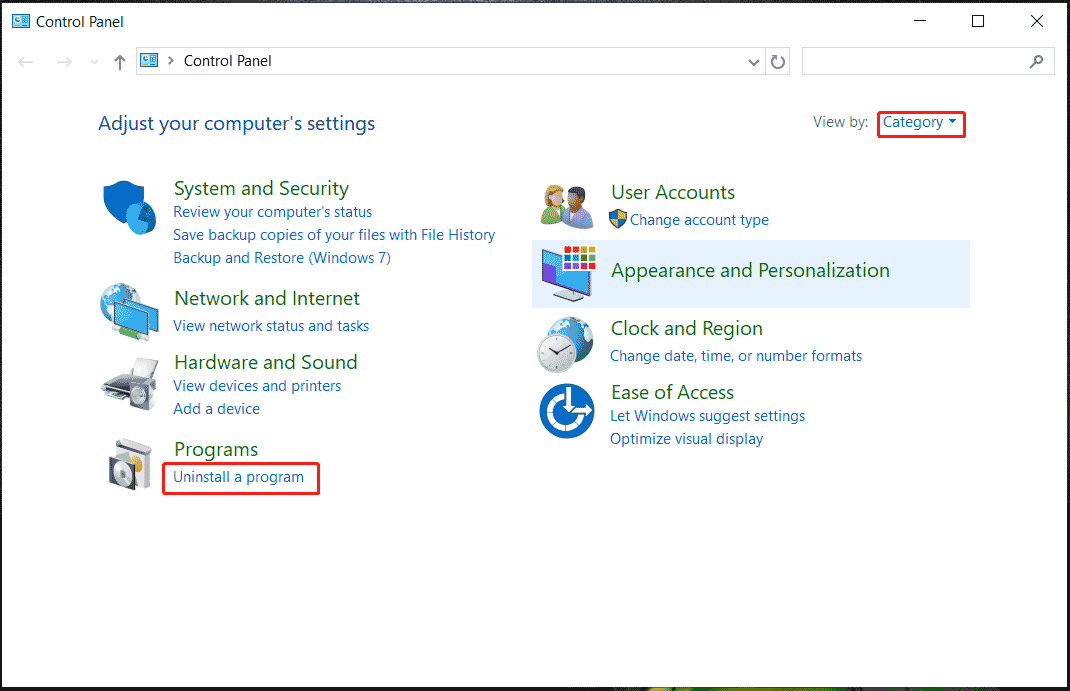
Step 3: Locate the one that may cause the network error and uninstall it.
Fix 6. Create a New User Account
A corrupt user profile may be responsible for Windows 11/10 network error 0x800704b3 and we suggest creating a new user account to see if it solves the issue. For details, refer to this guide – How to Add or Remove a User/Microsoft Account on Windows 11.
Bottom Line
Network issues can be annoying, especially when you urgently need it for browsing. Hopefully, multiple fixes are mentioned in this post to get you rid of the network error code 0x800704b3.
In case you fail to address it, the last one you can resort to will be reinstalling the Windows 11/10 system. Before the reinstallation, make sure you back up your important files using MiniTool ShadowMaker, brilliant PC backup software.
About The Author

Position: Columnist
Vera has been working at the MiniTool Team for over 10 years as a technical editor and content writer. She mainly focuses on disk and partition management, data recovery, Windows backup and restore, and PC troubleshooting. Through in-depth software testing and hands-on experience, she has helped users solve a wide range of computer problems and better protect their data on Windows devices.
User Comments :