
Parts of PC Screen Not Refreshing/Parts of the Screen Freezing
During the use of your computer, you may encounter various display issues, and one of them is parts of PC screen not refreshing, which I will explain how to fix in this post. This problem typically manifests as certain sections of the screen becoming stuck and not refreshing, even after pressing the Refresh button. According to user reports, this issue often occurs when using browsers or Discord.
The problem is usually caused by outdated or problematic graphics card drivers, Multi-Plane Overlay technology, graphics acceleration features, bugs from Windows updates, and so on.
Pressing the Ctrl + Shift + Win + B key combination can temporarily resolve the issue. However, based on user experience, the screen freeze often reoccurs after a few minutes. To fully resolve the problem, follow the instructions below.
How to Fix Desktop/Laptop Screen Not Fully Updating
Method 1. Downgrade/Update/Reinstall the Graphics Card Driver
The first step in troubleshooting display issues is to update, downgrade, or reinstall the graphics card driver.
Update the display card driver:
- Right-click the Start button and choose Device Manager.
- Expand Display adapters.
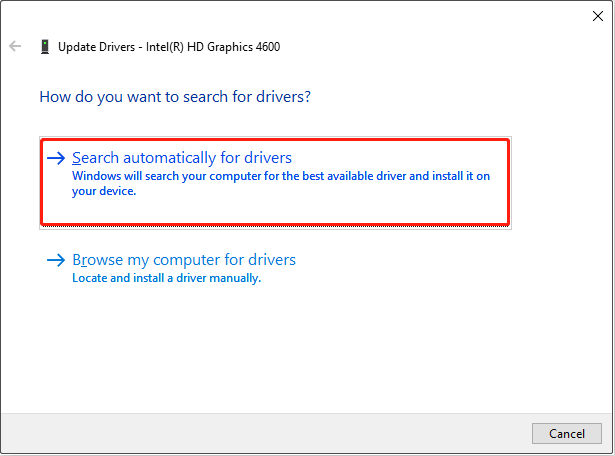
- Right-click your device and choose Update driver.
- Select Search automatically for drivers and complete the installation.
Downgrade the display card driver:
- Open Device Manager and expand Display adapters.
- Right-click the device and choose Properties.
- Go to the Driver tab and choose Roll Back Driver.
Uninstall and reinstall the display card driver:
You can download the Display Driver Uninstaller (DDU) and use it to completely remove the old driver. Then, visit the official website of your graphics card manufacturer to download the latest driver and install it on your device.
Method 2. Disable MPO
In some cases, display glitches or screen areas failing to update properly may be linked to a feature called Multi-Plane Overlay (MPO). Disabling it can help resolve such issues.
Step 1. Press the Windows + R key combination to open Run. Then type regedit in the text box and press Enter to open the Registry Editor.
Step 2. In the top address bar, type the following path and press Enter:
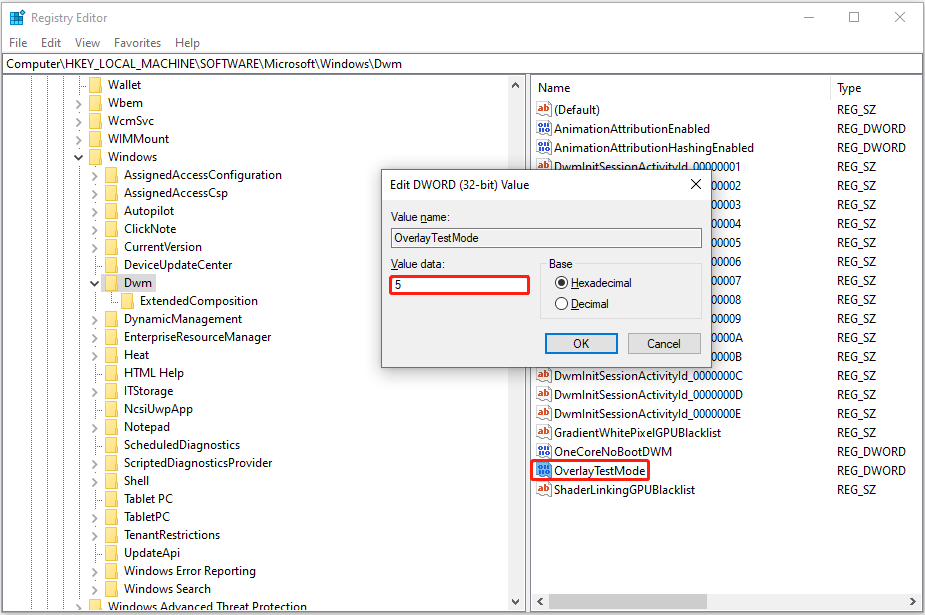
Computer\HKEY_LOCAL_MACHINE\SOFTWARE\Microsoft\Windows\Dwm
Step 3. In the right panel, right-click on any blank area and New > DWORD (32-bit) Value. Name it OverlayTestMode.
Step 4. Double-click on OverlayTestMode and set up its value data to 5. After that, click OK to save this change.
Step 5. Navigate to this location:
HKEY_LOCAL_MACHINE\SYSTEM\CurrentControlSet\Control\GraphicsDrivers
Step 6. Create a new DWORD (32-bit) value and name it DisableMPO. After that, double-click it and set up its value data to 1.
Step 7. Restart your PC and check if the issue is resolved.
Alternatively, you can visit this NVIDIA support page to download and run the .reg file to disable MPO directly.
Method 3. Disable Graphics Acceleration
Some users said that disabling the graphics acceleration or hardware acceleration in their browser settings resolved the parts of screen not refreshing Windows 10/11 issue. So, you can give it a try. Here I take Google Chrome for example.
Step 1. In Chrome, click the three-dot icon in the top right corner and choose Settings.
Step 2. Go to the System tab, and turn off the feature of Use graphics acceleration when available.
Step 3. Relaunch Chrome and verify if it helps.
Method 4. Uninstall Windows Updates
If the desktop computer or laptop screen not fully updating issue occur after you install a Windows update, you may consider uninstalling that update.
For Windows 10:
Open Settings and go to Update & Security > View update history > Uninstall updates. Next, right-click the target update from the list and choose Uninstall.
For Windows 11:
Access Settings > Windows Update. Under Related settings, select Update history > Uninstall updates. Then, select the update you want to remove and hit Uninstall.
If the issue started after upgrading to Windows 11 24H2, you can revert to a previous version within the default 10-day rollback period. Open Settings > System > Recovery. Under the Recovery options section, click the Go back button next to the Previous version of Windows option.
Method 5. Reinstall Windows
Clean installing Windows is the last option to consider for screen refresh issues. If the problem is caused by corrupted system files, incompatible drivers, or leftover system settings from a previous version, reinstalling Windows will most likely work.
MiniTool ShadowMaker TrialClick to Download100%Clean & Safe
Bottom Line
Several ways can be used to fix the parts of PC screen not refreshing issue. You can try them one by one until your screen display is back to normal.
About The Author

Position: Columnist
Shirley holds a bachelor’s degree in English and has been an editor at the MiniTool Team for many years. She specializes in IT-related content, with a focus on data recovery, file backup, disk management, and other technical topics. She is committed to delivering clear, accurate, and practical solutions to help users resolve common computer issues.
User Comments :