
Is Regsvr32.exe Safe?
What is Regsvr32.exe? Usually, Regsvr32.exe is a legitimate system tool running to register and unregister DLL files. it plays an important role in installing and uninstalling software or fixing some DLL-related issues.
However, some users use their antivirus to scan for PC security but the result shows that Regsvr32.exe is a variant Trojan type and many people find the same issue.
Considering the situation, it is possible that the Regsvr32.exe process was disguised by some virus or malware and you can check its resource consumption in Task Manager. Its activities may be conspicuous. If you find the suspicious one, right-click on the process to choose Search online.
Then you will be prompted to the search engine where you may get some clues. And you can also get its file location from that.
Tip: Protect Your Data
Once you realize the virus infiltration into your system, the first thing you should do is to back up data that matter. Malware attack is one of the major causes of data loss. In this way, you can choose a reliable backup software, like MiniTool ShadowMaker, to get your data backed up.
MiniTool ShadowMaker has been dedicated to data backup for many years and it can help your backup files, folders, partitions, disks, and your system. More functions, such as Clone Disk, Sync, Media Builder, etc., are developed for a better user experience.
MiniTool ShadowMaker TrialClick to Download100%Clean & Safe
How to Remove Regsvr32.exe?
If you have checked Regsvr32.exe is a virus, you can follow the next steps to remove Regsvr32.exe virus.
Step 1: End the Process
To get rid of the Regsvr32.exe malware, you need to end the process running first. As we introduced above, locate the task in Task Manager and then you can right-click on it to choose End task.
Step 2: Uninstall Suspicious Programs
Since the virus may come with some unknown software you installed recently, try to recall if you have installed any suspicious utilities and uninstall them.
You can uninstall programs via Control Panel or Settings. For detailed information, you can read this post to check the methods: Four Perfect Ways – How to Uninstall Programs in Windows 10.
Step 3: Delete the Related Files
In case any leftover brings the Regsvr32.exe virus back, you need to make sure its related files and registries are deleted. Windows Registry is a very important component for system running and you’d better rely on some professional software to clear your problematic registries.
To clear the files, you need to find their location in File Explorer and permanently delete them by pressing Shift + Delete.
Step 4: Reset Your Browser
Inserted extensions are other channels by which malware lurks in the system. Therefore, resetting your browser can make everything restore to default. We will take Chrome as an example.
Step 1: Open your browser and click the three-dot icon to choose Settings.
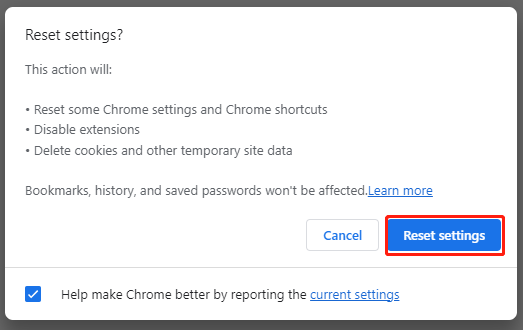
Step 2: Click Reset settings and then Reset settings to their original defaults.
Step 3: Click Reset settings to confirm the choice.
Step 5: Run Antivirus Scan
The last step is to run your antivirus again to check if the Regsvr32.exe virus report appears again. If you have installed a third-party antivirus, please run it; if not, you can follow to run the built-in antivirus for the system.
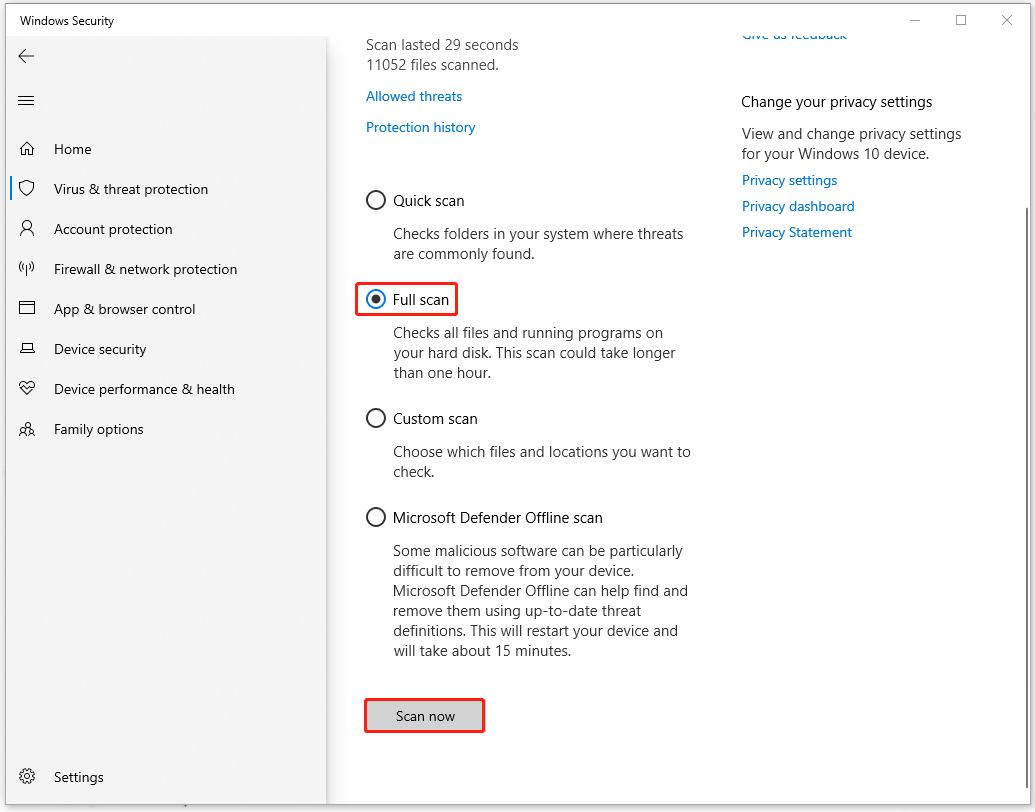
Step 1: Go to Start > Settings > Update & Security > Windows Security > Virus & threat protection.
Step 2: Click Scan options > Full scan > Scan now.
Bottom Line:
What is Regsvr32.exe? Is it a virus or malware? How to remove it and protect your data? After reading this post, you may have learned something. To protect your data, the best way is backup.
User Comments :