
Rockstar Games Launcher Crashing or Freezing?
Rockstar Games Launcher is a game platform that enables you to obtain and play diverse games. However, this game launcher may cause various issues that worsen the game experience and even prevent you from accessing games, such as Rockstar Games Launcher crashing, freezing, not working, etc.
Why does my Rockstar Games Launcher freeze then crash but not close when I try to open GTA or the Rockstar Games Launcher? I have to restart my PC every time this happens, and I can't play GTA because of it. It's really annoying and I don't know how to fix it.reddit.com
If you are also troubled by the Rockstar Games Launcher freezing or crashing issue, read and try the following three methods to fix it.
Way 1. Delete the Rockstar Games Folder
According to several people, they have fixed the Rockstar Games Launcher freezing or crashing issue by deleting the Rockstar Games folder in the File Explorer. This is possibly because the folder contains corrupted game files or Steam has messed up program files, which prevents the launcher from loading the proper files.
Step 1. Press Win + E to open File Explorer.
Step 2. Go to the Documents folder to find the Rockstar Games folder. Right-click on it and choose Delete. Optionally, you can simply rename this folder.
Step 3. Relaunch the Rockstar Games Launcher. The launcher will create a new file folder automatically.
Hopefully, it can run properly without any problem. Otherwise, try the other solutions in the following content.
Way 2. Change the Download Path
If Rockstar Games Launcher crashes when selecting a game, you can try this workaround. The problem may be underlying the incompatible issue. You can move the game folder to another drive, different from where the Rockstar Games Launcher is installed.
MiniTool ShadowMaker TrialClick to Download100%Clean & Safe
Step 1. Press Win + I to launch Windows Settings.
Step 2. Choose Apps > Apps & features. Look through the program list to find the target program.
Step 3. Select it and choose Move. In the prompt window, you can select another drive for the program.
Step 4. Click Move again to let the computer process the operation.
However, some applications cannot be moved through this method. You can read this post to learn other methods to move a program to another drive.
Way 3. Enable the Program Compatibility Assistance Service
The incompatible issue can also happen between the Rockstar Games Launcher SDK and the computer services. You can configure the Program Compatibility Assistance Service to resolve issues. For instance, the Rockstar Games Launcher crashes at startup, the Rockstar Games Launcher failed to initialize, or the Rockstar Launcher freezes while selecting a game.
Step 1. Complete uninstall the Rockstar Games Launcher on your computer and reinstall it from the official website.
Step 2. Type Computer Management into the Windows search bar and press Enter to launch the window.
Step 3. Select Services and Applications and choose Services from the submenu.
Step 4. Look through the services and choose Program Compatibility Assistance Service.
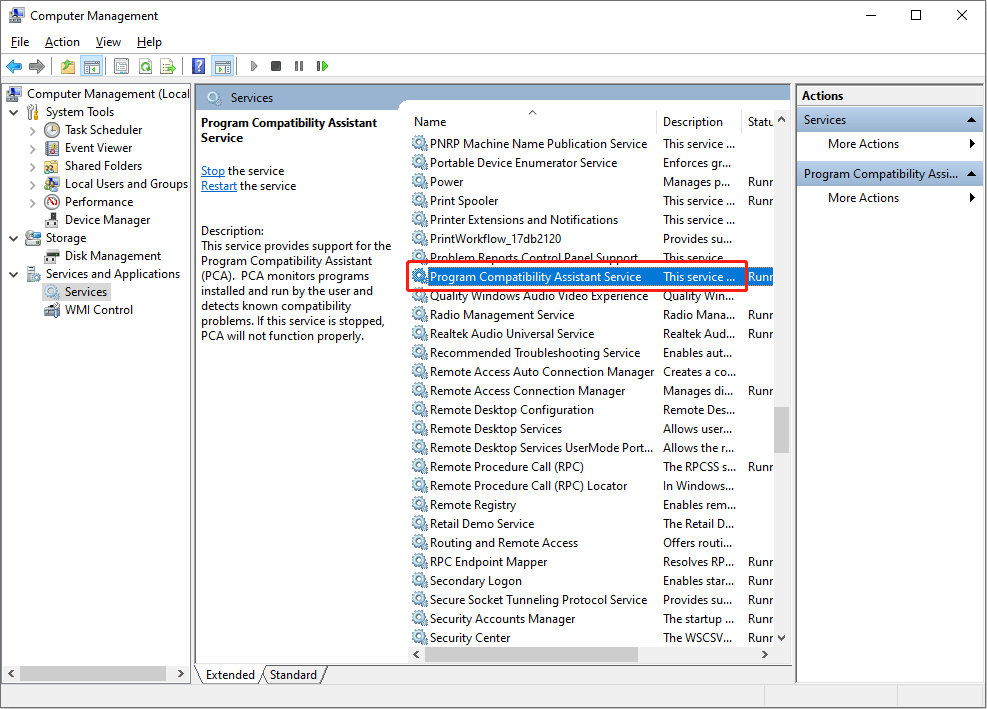
Step 5. Right-click on it and opt for the Properties.
Step 6. You should select Automatic from the dropdown menu of Startup type. Click Apply > OK to save your change.
Afterward, try to launch the Rockstar Games Launcher and play your game to see if the crashing or freezing issue is resolved.
Final Words
This is all about how to fix the Rockstar Games Launcher crashing or freezing issue. Though this problem has troubled numerous people, the three methods are proven to be helpful for some of you. Hope they can give you some inspiration as well.
User Comments :