
Don’t want to use the ringtones that come with iPhone anymore? Do you want your iPhone ringtone to be more unique and personal? Setting your favorite song or sound file as the ringtone for your iPhone is a good choice. But the question is how to set ringtone in iPhone without iTunes. This will be answered later in the following content.
MiniTool Power Data Recovery TrialClick to Download100%Clean & Safe
Set Ringtone in iPhone Using iTunes
If you like a song very much and want to set it as your iPhone ringtone, the easiest way is using iTunes.
How To Fix If Your iTunes Is Not Detecting iPhone?
Buy Ringtones from iTunes Store
- Open iTunes Store.
- Press the More icon (three-dots button).
- Press Tones.
- Confirm which ringtone you want to buy.
- Tap the price and select Set as Default Ringtone.
- Follow the instructions to continue.
Add Custom Ringtone to iPhone with iTunes
How to set custom ringtone on iPhone:
- Get iTunes and open it.
- Select a song or sound file.
- Specify the Start and Stop time.
- Create AAC Version.
- Rename the file name: changing .m4a to .m4r.
- Import & sync the ringtone.
- Open Settings -> Sounds & Haptics -> Ringtone to select the custom ringtone.
iTunes Could Not Connect To This iPhone: Error 0xE8000065.
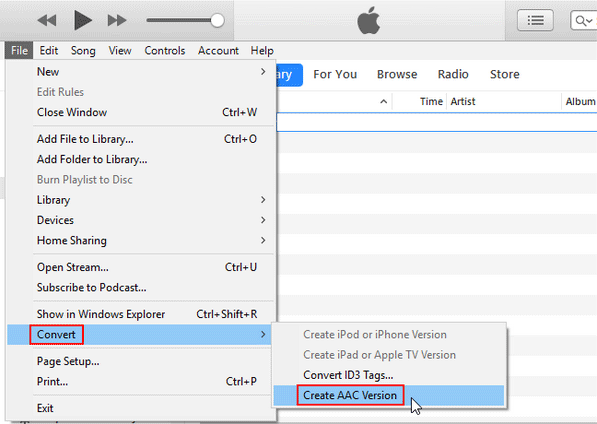
To learn more information, check the guide on how to make and add custom ringtone iPhone.
Can you add ringtone to iPhone without iTunes? How to get ringtones on iPhone without computer? The next part tells all.
How to Set Ringtone in iPhone without iTunes
How to Make Ringtone for iPhone without iTunes
An easy way to make ringtone for and add ringtone to your iPhone is using GarageBand, a free app offered by Apple to its iOS users.
Method 1:
- Open the GarageBand app on your iPhone. If you don’t have it, please download it from App Store.
- The TRACKS tab is selected by default.
- Please select DRUMS to import ringtones to GarageBand.
- Click Smart Drums -> View -> Loop Browser.
- Select the Files tab and search for the song you want to use.
- Drag & drop the song to add it into the GarageBand.
- Click + in the top right corner.
- Click on the arrow and select My Songs.
- Change the file name if you want.
Method 2:
- Repeat step 1 and 2.
- Swipe to find Audio Recorder to start recording sound and use it as the ringtone.
- Disable Metronome.
- Press the Tracks icon and then press the + icon on the timeline to enter Song Sections.
- Press Section A and locate Manual. Configure the counter to 30.
- Tap Done to close.
- Tap the Loop icon and select Music (or Files).
- Browse the songs and find the one you want.
- Press and hold the song for a few seconds. Drag it upwards to reveal the Tracks screen.
- Edit the song: specify a desired starting point and edit it as you like.
- Press the Arrow icon at the top left and select My Songs to save the custom song.
5 Ways: How To Transfer Photos From iPhone To PC Windows 10?
How to Add Ringtones to iPhone without iTunes
Steps to add ringtone to iPhone without computer:
- Go to My Songs in GarageBand.
- Press Select at the top right.
- Press and hold your custom song.
- Select Share.
- Choose Ringtone and continue.
- Give a name to the ringtone and tap Export.
- When that finishes. Tap Use sound as… and select Standard Ringtone.
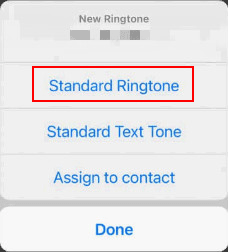
That’s all about how to set ringtone in iPhone without iTunes or computer.
User Comments :