
About the Steam Invalid Platform Error
Steam invalid platform error indicates that the game or software you are trying to add to your Steam library is not compatible with your current operating system. It is quite frustrating to receive such an error message when you want to play a new game on your computer. If you are facing the invalid platform error on Steam, you are not alone.
“I sometimes get an error message from Steam about 'Invalid platform' when trying to start any game that's already installed and was working fine yesterday. The only way to fix this that I found is to do a complete reinstall of every game, which is a bit annoying. Anyone got any idea what triggers this stupid error and how to fix it?”reddit.com
The Steam Invalid Platform error often occurs due to problems with your operating system or the integrity of the game files. Additionally, internal bugs and glitches within Steam or the game itself, which you have received this error message, are triggers for Steam invalid platform error. This error may stop you from updating or even launching the game at times.
Does Steam display that error message every time you attempt to start or update games? If so, look through the troubleshooting guide to find solutions for the Steam invalid platform error.
How to Fix Steam Invalid Platform Error
Fix 1. Check the OS to Meet the Requirements
Steam needs a 64-bit operating system to operate effectively. If you have a 32-bit version of Windows, you’ll have to upgrade to a 64-bit edition of Windows and reinstall Steam. Furthermore, ensure that your system has at least Windows 7, since Steam has discontinued support for Windows XP and earlier versions.
Fix 2. Verify the Integrity of Game Files
One of the easiest solutions is to check the integrity of your game files. Corrupted or missing files can sometimes cause the Steam invalid platform error. To carry out this check:
- Launch the Steam client and go to your Library.
- Right-click on the game that is causing the Steam invalid platform error and choose Properties.
- Navigate to the Local Files tab, then click on Verify Integrity of Game Files.
- Restart your PC and relaunch Steam to check if the issue is gone.
Fix 3. Enable the Force the Use of a Specific Steam Play Compatibility Tool
Some players reported that turning on the Force the use of a specific Steam Play compatibility tool on Steam for the game, which has caused the Steam invalid platform error, helped them fix this issue. Here, the way to do it:
- Open Steam and go to your Library.
- Right-click the game that triggering the issue and select Properties.
- Navigate to the Compatibility tab and check the box for Force the use of a specific Steam Play compatibility tool.
Fix 4. Reconnect Your External Hard Drive
If your game is located on an external hard drive and you are facing the Steam invalid platform error, try launching a Steam game that isn’t stored on that same drive. If that game runs without any problems, the issue might be associated with your external drive.
To fix this, just disconnect your external hard drive and shut down your PC. Wait for a minute or two, and then plug the drive back in.
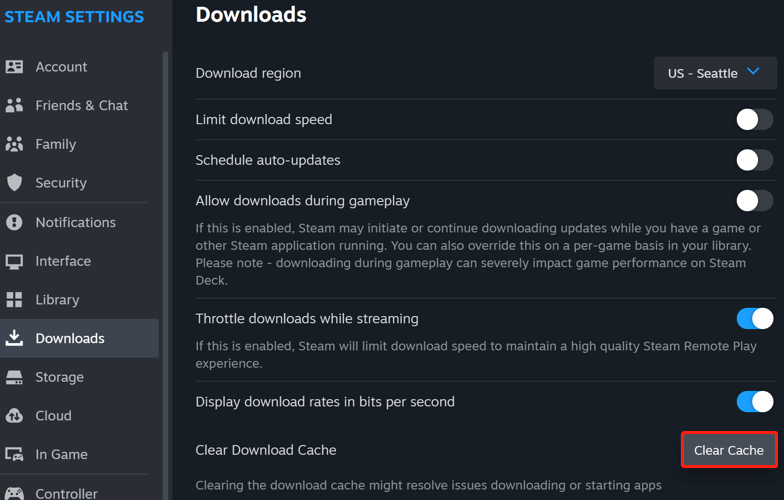
Fix 5. Clear Steam’s Download Cache
As mentioned above, corrupted files can lead to the Steam invalid platform error. In addition to game files, Steam also has cached files on PC. Once the files are corrupted, it will affect the normal operation of Steam. Therefore, consider clearing Steam’s download cache.
- Launch Steam and navigate to the Settings menu.
- Go to the Downloads tab.
- At the bottom, click the Clear Cache button next to the Clear Download Cache option.
- When a window pops up, click the Confirm button. Once you clear the cache, Steam will require a restart, and your upcoming download or update should occur smoothly without any previous issues.
Fix 6. Reinstall the Affected Games or Steam
Last but not least, opt for reinstalling the affected game or Steam client software to reset them and fix the error. Follow the instructions to do it:
>> To reinstall a game:
- Launch Steam and navigate to your Library.
- Right-click the game and choose Manage > Uninstall.
- Click the Uninstall button to confirm the removal.
- Next, click the uninstalled game in the Library sidebar.
- Click the Install button.
>> To reinstall Steam:
- Press Win + I to open Windows Settings and go to Apps.
- In the App & features tab, scroll down to find and click Steam.
- Click the Uninstall button.
- After uninstalling, download Steam again.
Conclusion
This post provides six effective ways to fix the Steam invalid platform error. Hope you can successfully resolve the issue and get back to your game.
User Comments :