
Want to upgrade Windows from 32 bit to 64 bit because your PC cannot use all available memory? This MiniTool guide explains what you need to check before upgrading and how to perform a Windows 64-bit upgrade safely.
Quick Answer
Can you upgrade Windows from 32 bit to 64 bit?
Yes, but only via a clean installation. Microsoft does not support in-place upgrades from a 32-bit Windows to a 64-bit version because they use different system architectures.
Before upgrading, ensure your processor supports 64-bit, that compatible drivers are available, and that you have backed up your important files. After installing the 64-bit Windows, you can then reinstall applications and restore your files.
What Is the Difference Between 32-bit and 64-bit Windows?
The main difference between 32-bit and 64-bit Windows is how much data the system can process and how much memory it can access.
| Feature | 32-bit Windows | 64-bit Windows |
| RAM support | Up to 4 GB | More than 4 GB |
| Performance | Limited multitasking | Better performance |
| Software | Older applications | Modern applications |
| Recommended for | Older PCs | Most modern PCs |
Here is a video guide.
Why Upgrade from 32 Bit to 64 Bit Windows
A 64-bit version of Windows can improve system performance and compatibility with modern hardware and applications. If your processor supports 64-bit architecture, upgrading from 32-bit to 64-bit Windows allows your PC to use more RAM and run more demanding programs.
The main benefits include:
- Support more memory: 64-bit Windows can use more than 4 GB of RAM, while 32-bit systems have limited memory support.
- Better performance: It provides better support for resource-intensive tasks such as gaming, video editing, and multitasking.
- Improved compatibility: Most modern applications and hardware are designed for 64-bit systems.
For most computers with a 64-bit processor, upgrading to 64-bit Windows is recommended for better performance and future compatibility.
How to Upgrade Windows from 32 Bit to 64 Bit
In the following paragraphs, we will walk you through four steps to upgrade Windows to 64 bit.
- Make Sure Your Processor Is 64-Bit Capable
- Ensure Your PC Hardware Has 64-Bit Drivers Available
- Back up Your PC
- Upgrade 32 Bit to 64 Bit
Move 1: Make Sure Your Processor Is 64-Bit Capable
To do this work, go to Settings > Systems > About. On the right-hand side of the interface, navigate to the System type entry.
Then, you will see one of the following system type:
- 64-bit operating system, x64-based processor: Your CPU support 64-bit and you have already installed the 64-bit edition of Windows 10. So, you don’t need to upgrade to 64 bit.
- 32-bit operating system, x64-based processor: Your CPU supports 64-bit, but you have installed the 32-bit version of Windows.
- 32-bit operating system, x86-based processor: Your CPU supports 32-bit and you have installed the 32-bit version of Windows.
To be specific, if you see the second entry, you are in luck and you can move on to the next section to continue Windows 10 64 bit upgrade since your 64-bit Central Processing Unit can run a 64-bit version. But if you see the third entry, you cannot install a 64-bit OS since your CPU doesn’t support 64-bit.
Move 2: Ensure Your PC Hardware Has 64-Bit Drivers Available
In addition, you should check whether other components, for example, video and sound cards, can work properly with a 64-bit version of Windows 10. Simply speaking, 64-bit OS requires 64-bit hardware drivers and the 32-bit drivers won’t work.
Modern hardware should certainly offer 64-bit drivers but some old hardware may no longer support and manufacturers may haven’t offered 64-bit drivers. To check for this, please go to your manufacturer support website to see if 64-bit drivers are available for download.
Move 3: Back up Your PC
Since you are making major changes to your operating system, it is indispensable to make a full backup of Windows 10. When you upgrade 32 bit to 64 bit in Windows 10/8/7, your personal files, settings, and applications will be deleted. And the best thing is to back up all the affected files to your external storage devices or USB drive to avoid data loss.
To back up your important files, you need a free backup program to help you. Which one is worth recommending? MiniTool ShadowMaker, a piece of professional file backup software, will be a good option, coming with many powerful features.
With the help of this freeware, you can create an image file for files & folders, Windows operating system, disk or partition. Besides, it can help you to sync files to other locations for backup. Above all, automatic file backup, differential & incremental backup can be created.
Right now, before you free change 32 bit to 64 bit of Windows 10/8/7, get MiniTool ShadowMaker Trial Edition from the following button to back up your crucial files. Note that this edition only allows you to free use for 30 days. If you want to keep this software all the time, get its Pro Edition.
MiniTool ShadowMaker TrialClick to Download100%Clean & Safe
Step 1: Double-click on this program to open it.
Step 2: Which feature should you use to back up files, Backup or Sync? Both are available. And here, you take the first feature as an example.
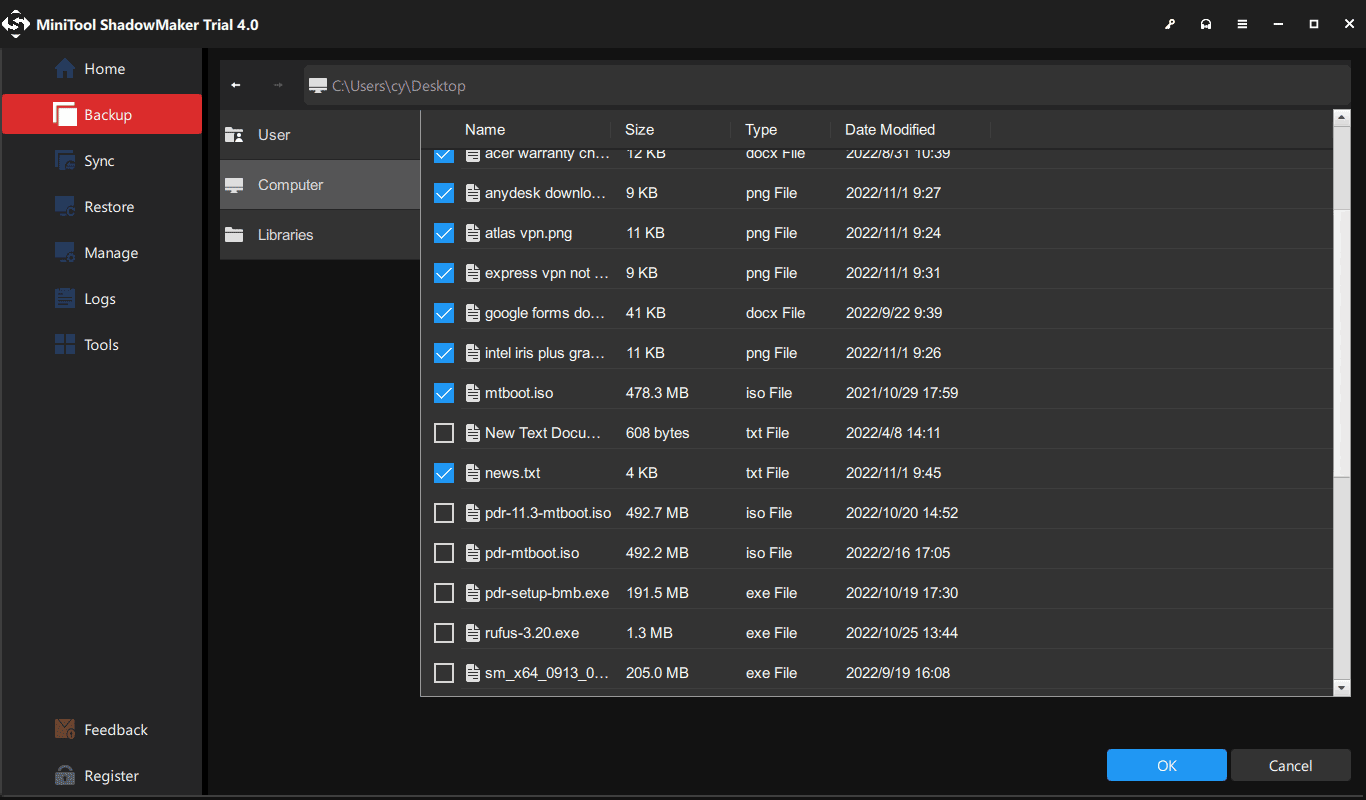
In the Backup window, you need to decide which files to back up and where to save the backup image file. Just go to the Source section and choose personal files you want to back up.
Then, go to the Destination section and choose an external hard drive, USB flash drive, or NAS as the storage path.
Step 3: Finally, start the full backup process of your important files by hitting the Back Up Now button.
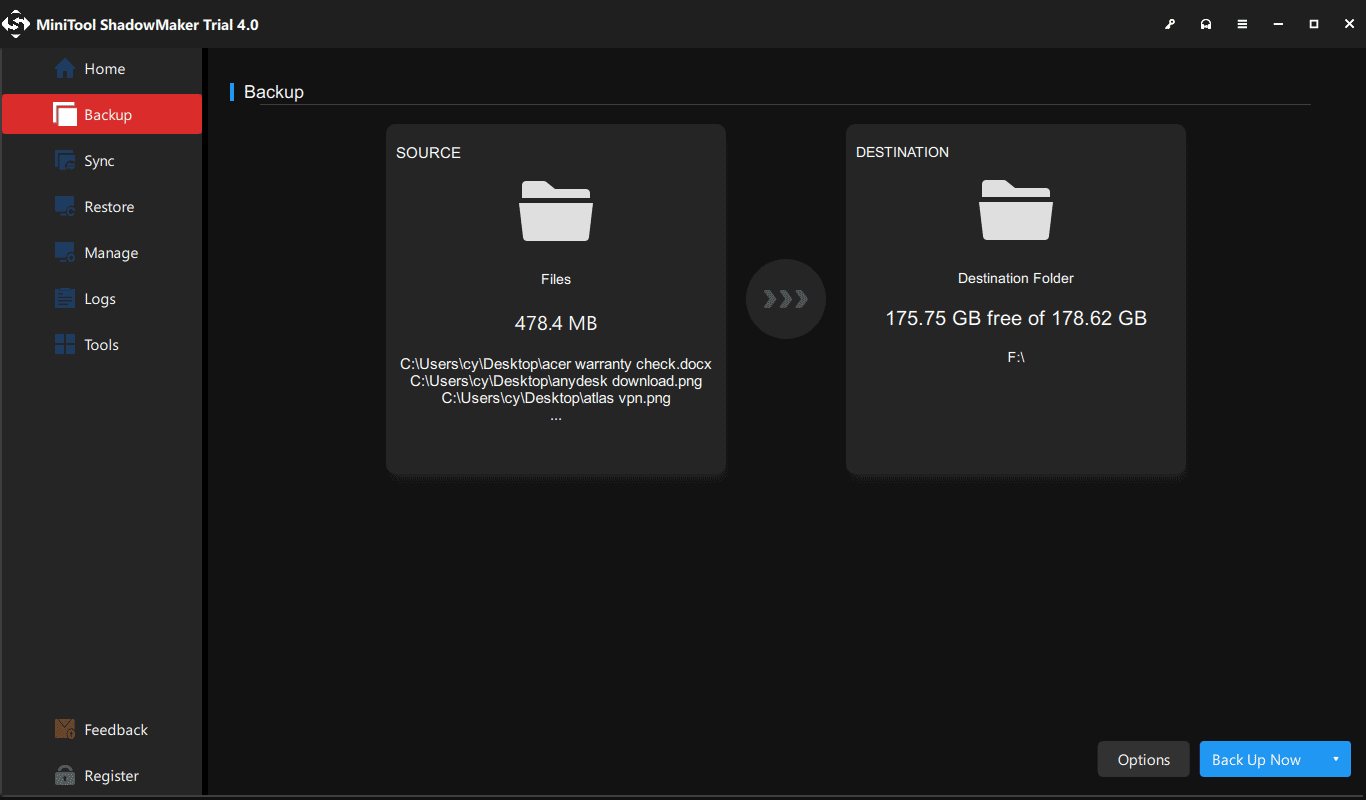
Now, all operations to back up files are told to you. If you are planning to convert 32 bit to 64 bit of Windows 10/8/7 operating system, don’t hesitate to free download this backup software to prevent your data from losing after upgrading to the 64-bit version of Windows.
MiniTool ShadowMaker TrialClick to Download100%Clean & Safe
How to Upgrade Windows from 32 Bit to 64 Bit SafelyClick to Tweet
Right now, the previous three steps are told to you. Reading here, it is time for you to take action to upgrade Windows 10 32 bit to 64 bit. Just go to the next move to follow the corresponding steps for Windows 10 64-bit version upgrade.
Move 4: Upgrade Windows to 64 Bit
How to convert 32 bit to 64 bit Windows 7/8/10? As mentioned above, performing an upgrade from 32-bit to 64-bit version of Windows is actually clean install. Now, follow the steps below to make a reinstallation.
Create a Bootable USB Drive
Here, take Windows 10 64 bit upgrade as an example and we will show you the step-by-step instructions. Right now, insert your USB flash drive with at least 4GB of storage space to your device and to create the 64-bit Windows 10 installation media.
Step 1: Open the official web page to download Windows 10 Media CreationTool.
Step 2: Click Download tool now under Create Windows 10 installation media.
Step 3: Double-click on the MediaCreationTool.exe to run this utility and then accept the Microsoft terms.
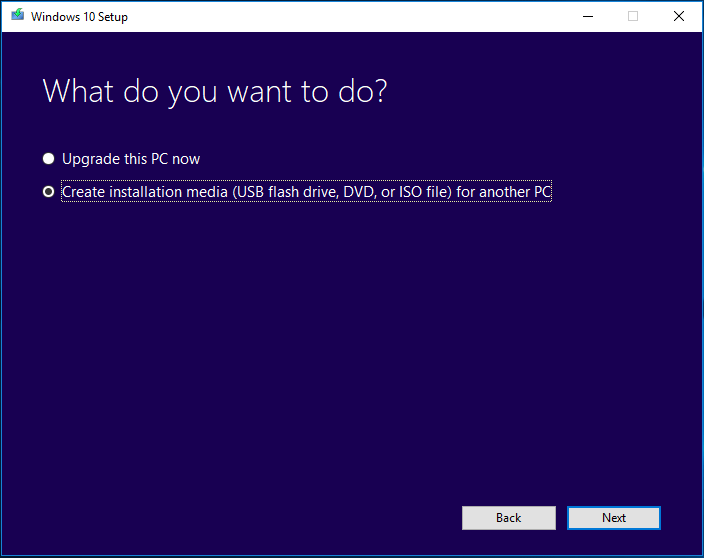
Step 4: There are two options. Check the option Create installation media (USB flash drive, DVD or ISO file) for another PC.
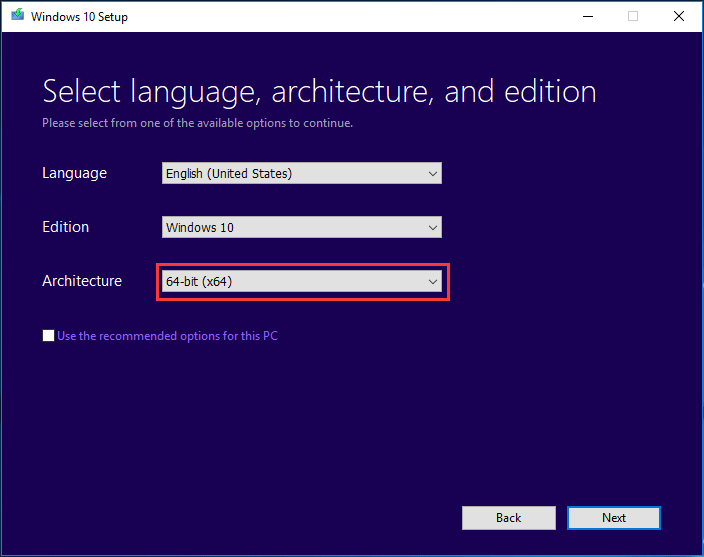
Step 5: Please choose language and edition. To upgrade Windows 10 to 64 bit, here please specify the 64-bit (x64) option for 64-bit Architecture.
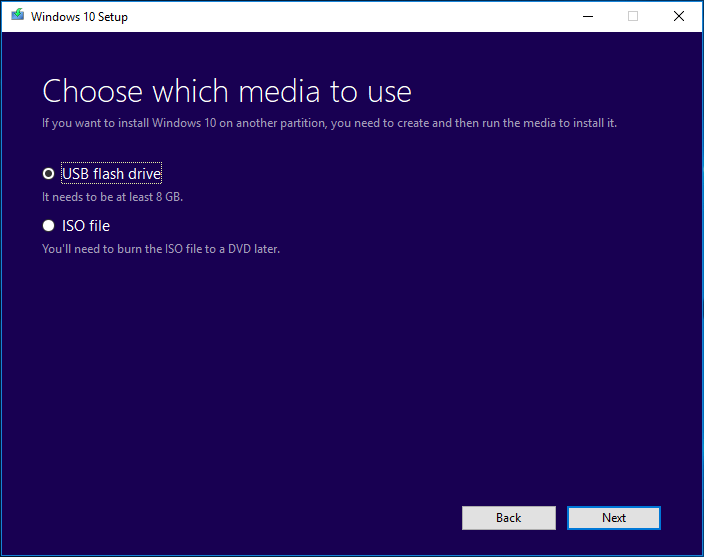
Step 6: Choose the USB flash drive option so as to create a bootable USB drive. Additionally, you can also check the option ISO file but you need to burn the file to a USB drive or CD/DVD. Here, we recommend the first one.
Step 7: Next, all your drives on your computer will be listed. Just choose the USB flash drive from the list to continue.
Step 8: Then, this tool will start downloading needed files and creating a bootable drive from ISO file that is compatible with Windows 10 64 bit. Wait for the process to be finished.
Install Windows 10 64 Bit from Scratch
How to upgrade Windows 7 32 bit to 64 bit without CD or upgrade Windows 8/10 to 64 bit without disk? Now, restart your computer with the bootable USB drive and then follow these steps:
Step 1: After booting your PC from the USB drive, choose language, time and currency format and keyboard.
Step 2: Click Install now to continue.
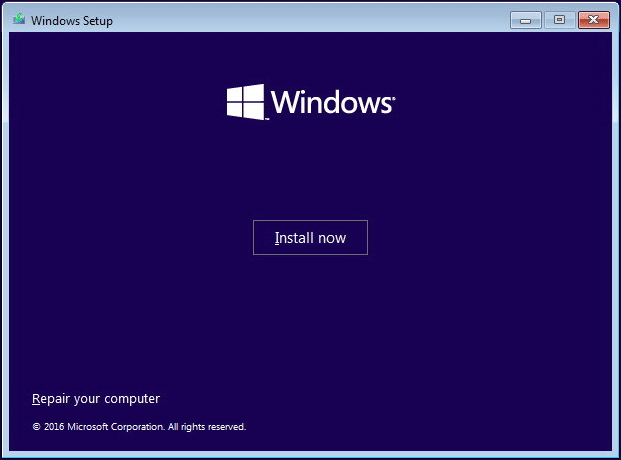
Step 3: Your purpose is to upgrade 32 bit to 64 bit for Windows 10, so you should click the I don’t have a product key link (assuming your PC has been already properly activated).
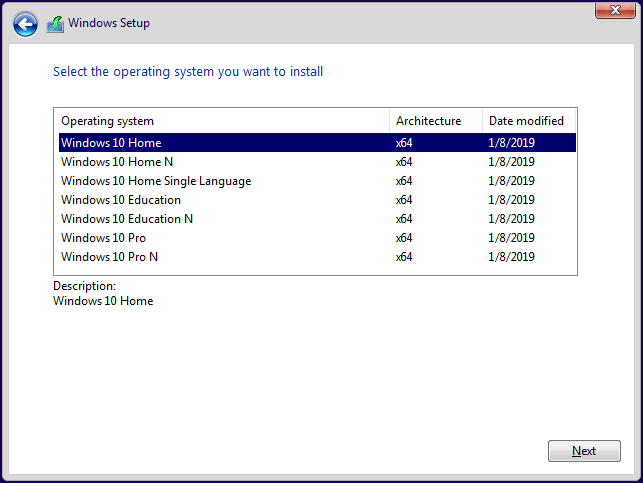
Step 4: Choose the edition of Windows 10 to go on.
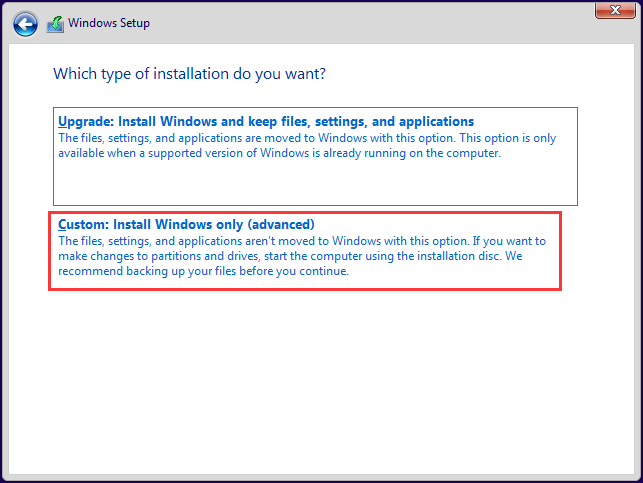
Step 5: Accept the license terms. To upgrade Windows 10 32 bit to 64 bit, please choose Custom: Install Windows only (advanced).
Step 6: You may ask: how to upgrade 32 bit to 64 bit Windows 7/8/10 without formatting? Actually, it is easy. In the following drive list option page, choose the partition(s) with the current installation of Windows, and click the Delete button instead of formatting operation to remove it from the hard drive.
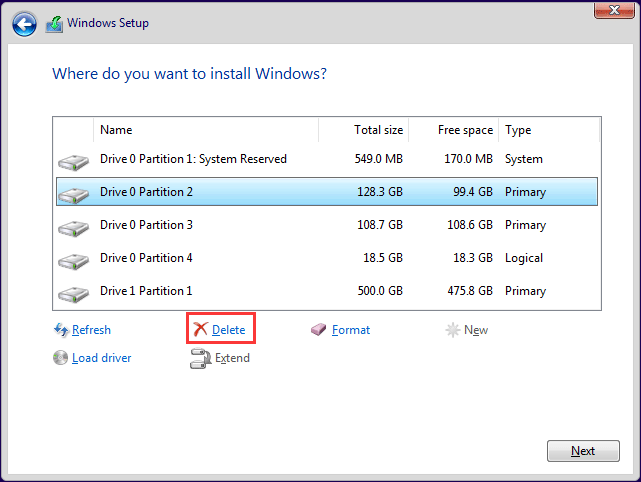
Step 7: Then, click the unallocated space to continue. Then, the setup will install the 64-bit version of Windows 10 on your computer. Later, you need to complete the Out-of-box experience (OOBE) setup the OS with your preferences by following the on-screen directions.
More information feel free to watch this video guide:
How to Upgrade Windows from 32 Bit to 64 Bit SafelyClick to Tweet
Key Takeaways: Upgrade 32 Bit to 64 Bit Windows
- You can’t upgrade 32-bit Windows to 64-bit directly. A clean install is required.
- Verify that your CPU supports 64-bit and that 64-bit drivers are available.
- Back up your files (preferably create a system image) before installation.
- 64-bit Windows supports more RAM and delivers better performance with modern apps.
- Windows 11 is available only as a 64-bit operating system.
Upgrade Windows 32 Bit to 64 Bit FAQ
However, the entire process might take longer since you need additional time for backing up files, creating installation media, installing drivers, reinstalling applications, and restoring personal data. For most users, the full upgrade process can take several hours.
However, this switch is rarely necessary unless legacy software specifically requires it, as modern computers perform significantly better on a 64-bit operating system.
Bottom Line
Upgrading from 32-bit to 64-bit Windows lets you use more memory and improves compatibility with modern software. Unlike a standard Windows update, this process requires a clean installation.
Before you begin, make sure your processor supports 64-bit Windows, check that 64-bit drivers are available for your hardware, and back up your important files to avoid data loss.
If you have any questions or suggestions about MiniTool software, feel free to contact us at [email protected].
About The Author

Position: Columnist
Charlotte is a technology columnist with a strong focus on the Windows operating system, specializing in disk management, backup, and data recovery. She is passionate about analyzing computer errors, identifying root causes, and delivering practical solutions. In her free time, she stays updated on the latest developments in computer systems and hardware while continuously learning new technologies to broaden her expertise. Her writing style is clear and easy to understand, making complex technical topics accessible even to users with limited computer knowledge.
User Comments :