
LowLevelFatalError in Stellar Blade
Stellar Blade, built on Unreal Engine 4, is a highly optimized game for PC. However, some PC players are encountering issues and crashes with the game, including Stellar Blade fatal error crashes. Based on user reports, Stellar Blade keeps crashing randomly or upon startup, and the following Fatal Error message appears:
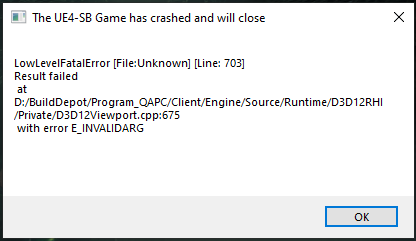
Not every instance of the LowLevelFatalError message is the same. Some players may encounter the error message shown in the image below:
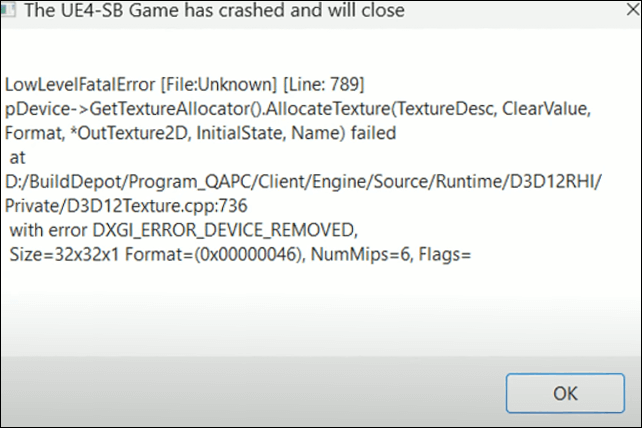
It’s not smooth sailing for everyone. If you’re facing the Stellar Blade fatal error, don’t fret; there are several things that you can attempt to solve this issue.

How to Fix Stellar Blade Fatal Error on PC
Before proceeding to the advanced methods, you can try some simple methods and ensure your system meets the minimum system requirements of the game.
Basic Troubleshooting Steps
Step 1: Reinstall the Game & Verify the Game Files
Have you tried the demo version of this game? If yes, ensure you uninstall it and remove any remaining files that may persist after this process. In some games with demo versions, leftover files can lead to various technical problems, like the Stellar Blade fatal error.
- Go to Control Panel > Programs > Programs and Features, locate and right-click Stellar Blade, and then select Uninstall.
- Press Win + E and locate your game folder. Customarily, it is located in the following path: C:\Program Files (x86)\Steam\steamapps\common\StealtherBlade.
- Delete all of the files and reinstall the game.
- Open Steam and verify the integrity of the game files.
Step 2: Check the Minimum System Requirements
Although Stellar Blade’s system demands aren’t particularly high, ensure that your computer meets them. According to the developers, you’ll need at least GTX 1060 or RX 580 GPU along with either an i5-7600k or a Ryzen 5 1600X processor.
Step 3. Try Other Simple Steps
- Run the game as an administrator.
- Enable Vertical Sync.
- Use Stellar Blade’s In-game FPS Limiter.
- Run Stellar Blade in Windows Compatibility mode.
- Allow the game exe file to Antivirus program/Windows Security & firewall.
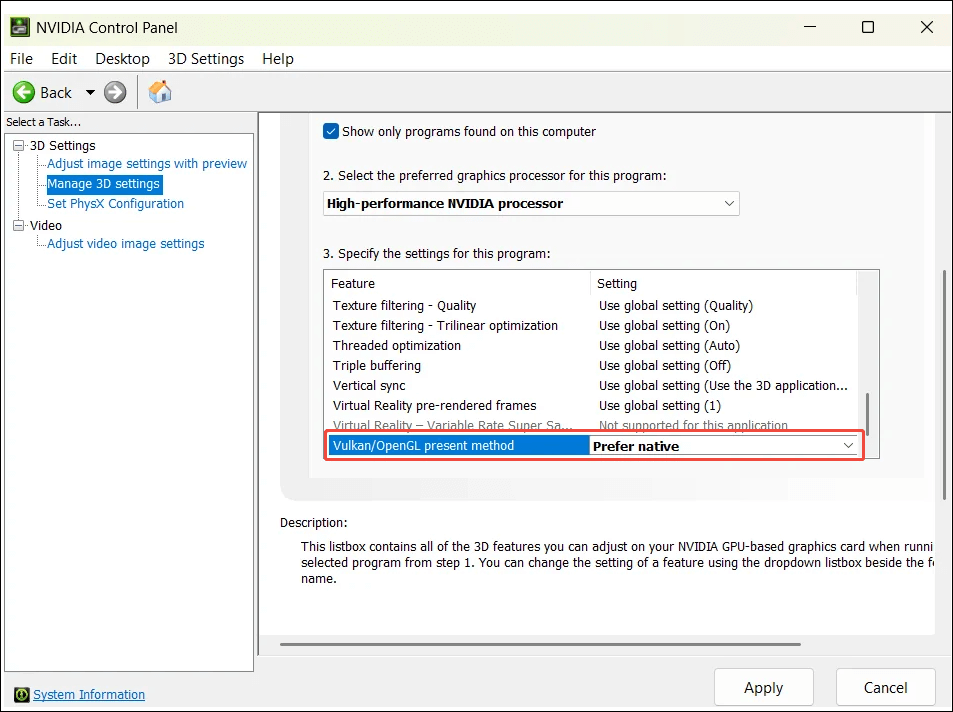
Approach 1. Modify Vulkan/OpenGL Present Method (For NVIDIA Users)
If you are using the NVIDIA driver, you can try this method to resolve the fatal error in Stellar Blade. Here’s the way:
- Open NVIDIA Control Panel.
- Go to Manage 3D Settings.
- Find SB.exe (Stellar Blade, obviously)
- Scroll down and change the setting Vulkan/OpenGL present method from Auto to Prefer Native.
- Click the Apply button.
Approach 2. Repair/Uninstall Microsoft Visual C++ Redistributable & Run the UE4PrereqSetup_x64.exe
Some players reported that the Stellar Blade fatal error could occur due to essential libraries being corrupted or improperly configured, and it may help to manually uninstall and then reinstall Microsoft Visual C++ files to fix the issue.
Step 1. Repair Visual C++ Files
- Access your Steam Library and type Steamworks in the search box.
- Right-click Steamworks Common Redistributables and then select Manage > Browse local files.
- In the explorer window, navigate to _CommonRedist\vcredist.
- You will see a list of folders named by year, starting with 2010.
- Open each folder individually and execute the VC_redis for both x64 and x86 versions.
- Install or repair the Visual C++ Redistributables.
- Reboot your computer.
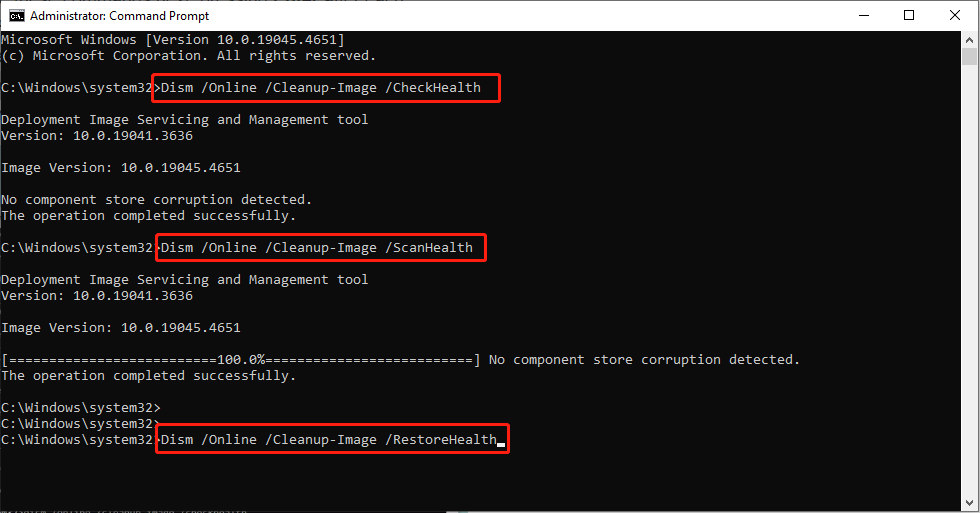
Step 2. Run SFC and DISM Commands
1. Click the Windows Search button on the taskbar, type cmd in the box, right-click the Command Prompt in the list, and choose Run as administrator.
2. Select the Yes button in the UAC prompt.
3. Copy and paste the command and press Enter: sfc/scannow
4. After scanning, copy and paste the following commands in order and press Enter at the end of each command line.
- Dism /Online /Cleanup-Image /CheckHealth
- Dism /Online /Cleanup-Image /ScanHealth
- Dism /Online /Cleanup-Image /RestoreHealth
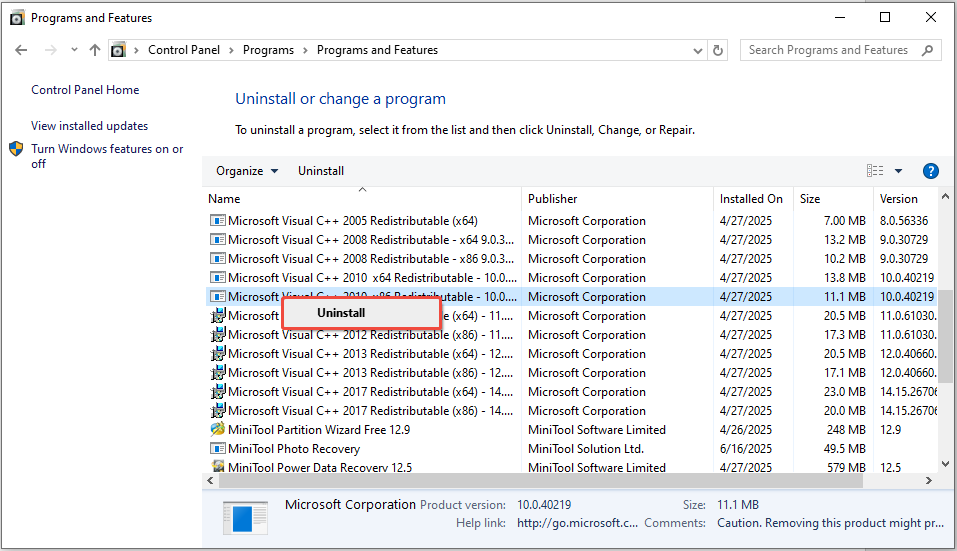
Step 3. Uninstall Microsoft Visual C++ 2015-2022 Redistributable (If the above two steps don’t work)
- Press Win + R to open the Run dialog box, type appwiz.cpl, and hit Enter.
- In the Programs and Features window, scroll down the list of installed programs to the Microsoft Visual C++ Redistributable package, and then right-click it and select Uninstall.
- Click on Yes or Uninstall in the pop-up confirmation window and follow the on-screen prompts to complete the uninstallation.
- Then go to the official Microsoft website, download and install the latest Visual C++ files (Both x64 and x86 versions).
Step 4. Run the UE4PrereqSetup_x64.exe
- Go to steamapps/common/StellarBlade/Engine/Extras/Redist/en-us in the File Explorer.
- Locate and double-click the UE4PrereqSetup_x64.exe file.
Approach 3. Update BIOS (For Intel Driver)
If the issue still persists, some users with 13th-14th Gen Intel CPUs have stated that a BIOS update was needed in order to resolve the Stellar Blade fatal error on their PCs. Therefore, you can give it a shot.
Incorrectly updating the BIOS can lead to significant system problems. Therefore, it is essential to back up important files or the entire system beforehand. For backing up a substantial number of files and system data, MiniTool ShadowMaker is a great option.
MiniTool ShadowMaker TrialClick to Download100%Clean & Safe
Approach 4. Modify the GameUserSettings.ini File
One possible reason for the Stellar Blade to crash at startup with a fatal error is its configuration settings. To resolve this issue, consider changing the GameUserSettings.ini file. Here’s how to make those adjustments:
- Press Win + E to open the File Explorer and then navigate to C:\Users\username\AppData\Local\SB\Saved\Config\WindowsNoEditor.
- Open the GameUserSettings.ini file using Notepad.
- Locate the Fullscreenmode entry and change its value to 1.
- Additionally, find the PreferredFullscreenmode setting and set its value to 1 as well.
- Finally, click File > Save to save the modifications.
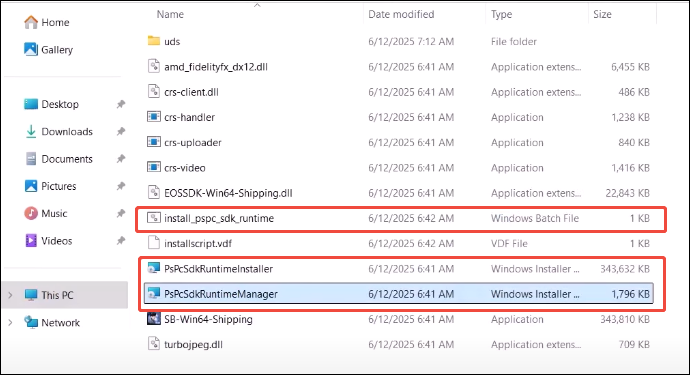
Approach 5. Run install_pspc_sdk_runtime, PsPcSdkRuntimeManager & PsPcSdkRuntimeInstaller
The next method is running these files, including install_pspc_sdk_runtime, PsPcSdkRuntimeManager, and PsPcSdkRuntimeInstaller. To do it:
- Go to your Steam Library, right-click Stellar Blade, and select Manage > Browse local files.
- In the pop-up File Explorer window, navigate to the SB folder > Binaries > Win64.
- Right-click the install_pspc_sdk_runtime file and select Run as administrator. Wait for the installation process to complete.
- Once done, run the PsPcSdkRuntimeManager and PsPcSdkRuntimeInstaller files.
Approach 6. Delete Config Files
Sometimes, the game settings are the cause of fatal errors that lead to crashes. If the game fails to start properly, you can resolve the issue by removing the config file. Here’s how you can do that:
- Open File Explorer and navigate to C:\Users\username\AppData\Local\SB\Saved\Config\WindowsNoEditor.
- Delete all files located in this directory.
Approach 7. Allow the Game in Protection History
In addition to allowing the Stellar Blade exe file to the Antivirus program or Windows Security & firewall, you need to allow the game in Protection History.
- Access the Start menu and type Windows Security in the search bar, then press Enter.
- In Windows Security, select Virus & threat protection.
- Within the Current threats section, click on Protection history.
- Search for any actions taken against an application named SB-Win64-Shipping.exe. Check each application.
- If you find it listed, click Actions and then select Allow on this device.
Approach 8. Delete GameUserSettings.ini File in Documents Folder
Last but not least, you can delete the GameUserSettings.ini file to fix the fatal error. It is worth noting that all the saved game settings will be lost. You can copy and paste this file to the desktop first as a backup.
- Open File Explorer and go to Document/StellarBlade/[Account ID]/WindowsNoEditor.
- Right-click on GameUserSettings.ini file and open Notepad.
- Once the file is open, search for the line that says UpscalerType by pressing Ctrl + F and change it to UpscalerType=SB_GAMEUSERSETTINGS_LOW.
- Click File > Save.
- Now, launch the game and check if that does not work, then open the same folder. Right-click on the GameUserSettings.ini file and delete it. Now, try to launch the game and check again.

Bottom Line
If you encounter the Stellar Blade fatal error, don’t worry. The most common effective solutions are outlined above. Follow them carefully, and in many instances, you’ll be able to have the game running without issues.
User Comments :