
Windows 10 will automatically update Realtek audio drivers if it finds that your Realtek drivers are not up to date. However, if you find Realtek driver can’t work well, you can uninstall it permanently and stop Windows 10 from automatically installing Realtek audio drivers after uninstalling it.
Bad or outdated drivers can cause problems in your Windows 10 system. Therefore, Windows 10 forces to update most device drivers in your system to make your OS work efficiently.
Realtek audio driver are sound drivers in your computer. Realtek Audio Manager comes with Realtek audio driver letting you manage sound settings. If the Realtek audio driver can’t work well, you can uninstall it. However, some people complain that each time they uninstalled the Realtek driver, it automatically reinstalled. How to stop Window 10 from automatically installing Realtek audio drivers? Check the solutions below.
How to Stop Windows 10 from Automatically Installing Realtek Audio Drivers
Way 1. Via Control Panel
Step 1. Open Control Panel on Windows 10. You can press Windows + R, type control panel in Run dialog, and press Enter to open Control panel.
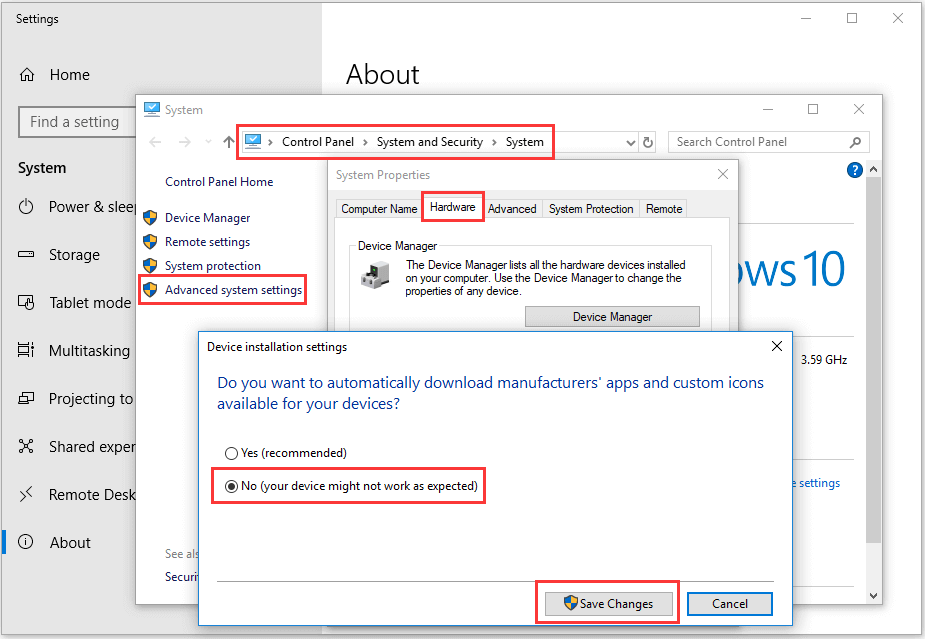
Step 2. In Control Panel window, you can click System and Security -> System -> Advanced System Settings -> Hardware -> Device Installation Settings. Tick “No (you device might not work as expected)” option, and click Save Changes. This will disable Windows 10 from automatically installing Realtek drivers.
Step 3. Next you can press Windows + R, type devmgmt.msc in Run box and press Enter to open Device Manager on Windows 10.
Step 4. In Device Manager window, you can expand “Sound, video and game controllers” and right-click Realtek HD Audio Device and select Disable. Then you can right-click Realtek HD Audio Device again and select Update Driver. Choose “Browse my computer for driver software” option in the pop-up window. Select Microsoft own High Definition Audio Device.
Step 5. Restart your computer and you will see your computer is using Microsoft High Definition Audio Device now.
Tip: If you want to adjust sound settings, you can right-click the Sound icon at the system tray, click Sound and click Playback, right-click your speakers and select Properties. In its properties window, you can click Advanced tab and change the audio sample rate and bit depth if you want.
Way 2. Roll Back Realtek Audio Driver
You can roll back your Realtek driver, Windows 10 will remember this action and will not automatically reinstall Reatek driver any longer.
Step 1. You can press Windows + R, type devmgmt.msc in Run dialog, and press Enter to open Device Manager window.
Step 2. Next you can expand Sound, video and game controllers category, right-click Realtek HD Audio Device and select Properties.
Step 3. Click Driver tab and click Roll Back Driver button to roll back to the previously installed driver.

Bottom Line
If you want to stop Windows 10 from automatically installing Realtek audio drivers, you may try the ways in this post. If you have better ways, please chare with us.
MiniTool Software is a top software developer. Till now, it has released some useful tools incl. MiniTool Power Data Recovery, MiniTool Partition Manager, MiniTool ShadowMaker, MiniTool MovieMaker, MiniTool Video Converter, MiniTool uTube Downloader, etc.
User Comments :