
Event Viewer keeps track of activity for better management. However, if the upper limit of the security log is reached, no more events can be logged. In this post on MiniTool Website, we will show you how to deal with Event ID 1104 the security log is now full on Windows 10/11.
Event ID 1104: The Security Log on the System Is Now Full
Windows Event Viewer is a useful tool because it provides you with data to troubleshoot any machine malfunctions by tracking your activities on your computer. Sometimes, you might receive audit failure or audit success with such an error message:
Auditing log is full.
Event ID 1104: The security log on this system is full. When that happens, only administrators can sign in.
The security log is now full indicates that the log has crossed the maximum size and the system is unable to add new events to ass new events to the security log. In this guide, we will show you a bunch of solutions on how to address the problem. Without further ado, let’s jump into it right now.
For data protection purposes, we recommend creating a backup of your important files with the Windows backup software – MiniTool ShadowMaker. With a backup copy in hand, you can restore your data easily in the event of accidental data loss.
MiniTool ShadowMaker TrialClick to Download100%Clean & Safe
How to Fix Event ID 1104: The Security Log Is Now Full on Windows 10/11?
Fix 1: Enable Event Overwriting
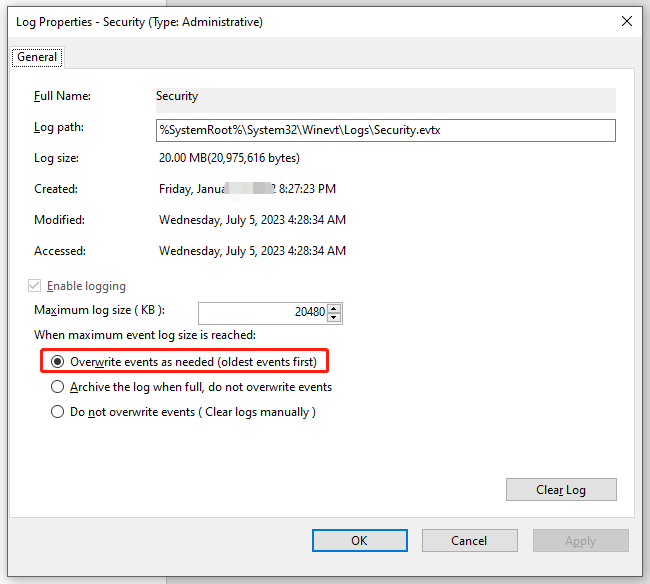
Turning on the overwriting logs option will allow the Event Viewer to overwrite the old logs. It will save the memory and prevent it from getting full. To do so:
Step 1. Type event viewer in the search bar and hit Enter.
Step 2. Expand Windows Logs and select Security.
Step 3. In the right pane, right-click on Properties under Actions.
Step 4. Tick Overwrite events as needed (oldest events first) and hit OK to save the changes.
Fix 2: Enable Event Viewer via Services
Usually, the Event Viewer service might get disabled due to a conflict with another service, leading to The security log is now full. If this is the case, you can enable Event Viewer via Services to see if the problem is fixed.
Step 1. Right-click on the start icon and select Run from the quick menu.
Step 2. Type services.msc and hit Enter to open Services.
Step 3. Scroll down to find Windows Event Log and right-click on it to select Restart.
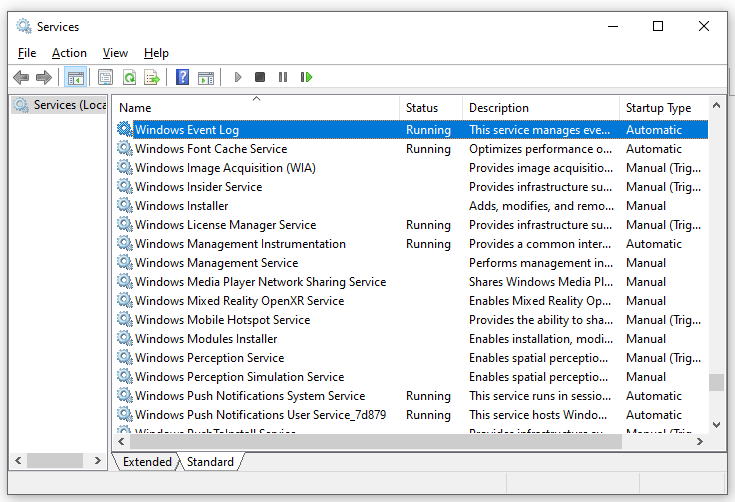
Step 4. If this service is still not running, you can double-click on it > set Startup type to Automatic > hit Start under Service status.
Step 5. Click on Apply & OK to save the changes.
Fix 3: Uninstall Recently Installed Windows Update
The latest Windows update might contain certain compatibility issues or defects. Therefore, uninstalling the most recently installed Windows update might help you to get rid of The security log on this system is full only administrators can sign in.
Step 1. Press Win + I to open Windows Settings.
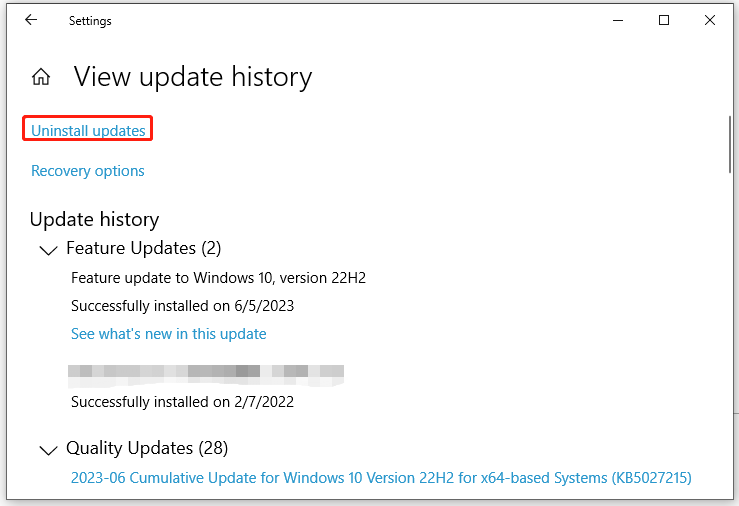
Step 2. Go to Update & Security > Windows Update > View update history.
Step 3. Hit Uninstall updates and right-click on the recently installed update to choose Update.
Fix 4: Run System File Checker
System file corruption is another cause of Event ID 1104 The security log is now full. System Files Checker can help you to identify corrupted or missing system files and replace them with new ones. Follow these steps:
Step 1. Type cmd in the search bar to locate Command Prompt and right-click on it to choose Run as administrator.
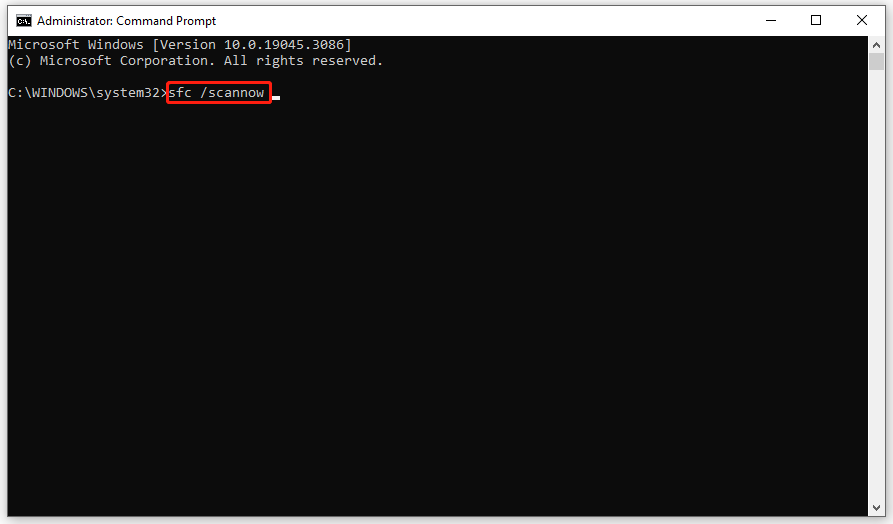
Step 2. In the command window, type sfc /scannow and hit Enter to start the scanning.

User Comments :