
The UE4-hotwheels Game Has Crashed
As one of the most popular digital platforms for purchasing and playing games, Epic Games Launcher offers you a wide range of games. Through the launcher, you install the game and keep it up-to-date. Despite this, it’s not immune to some in-game errors, and the UE4-hotwheels Game has crashed is one of which you are likely to suffer from these days.
In the following paragraphs, we will demonstrate how to solve Hot Wheels Unleashed fatal error in 6 ways. Without further ado, let’s dive into it.
MiniTool ShadowMaker TrialClick to Download100%Clean & Safe
Solution 1: Reinstall Graphics Driver
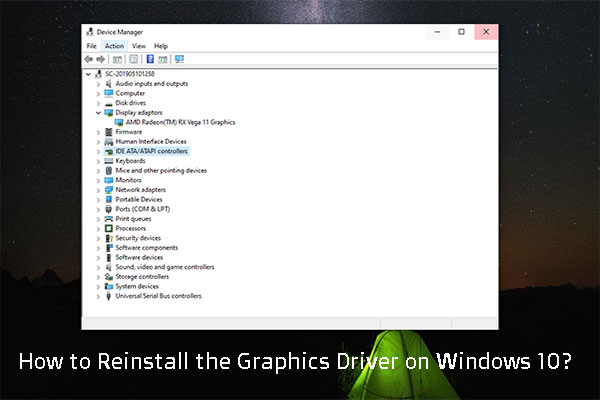
According to some players, the UE4-hotwheels Game has crashed is a GPU-related error, so a fresh install might be effective. During this process, it will remove any corrupted or outdated graphics driver files and replace them with the latest ones. To do so:
Step 1. Right-click on the Start menu to select Device Manager.
Step 2. Expand the Display adapters category and right-click on your graphics card to select Uninstall device.
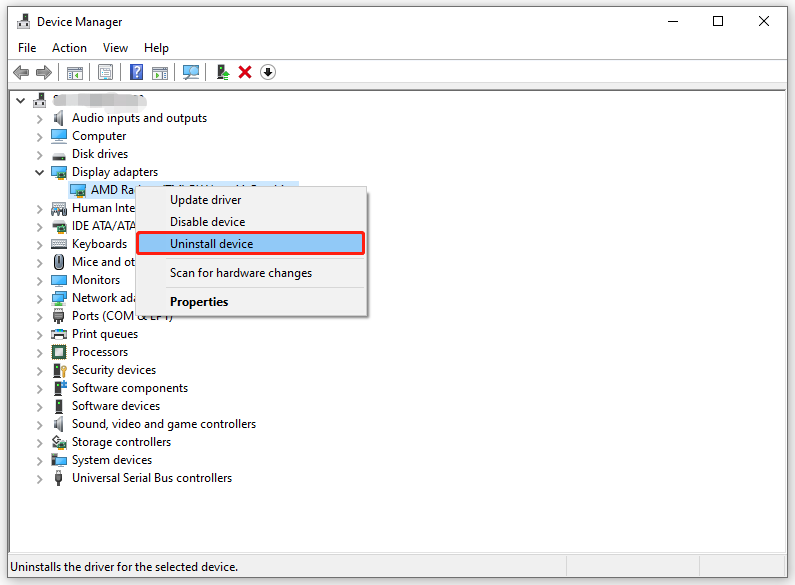
Step 3. Confirm this action.
Step 4. Restart your computer and then Windows will download and install the latest graphics card driver automatically. Then, check if you can run the game without Hot Wheels split screen fatal error.
Solution 2: Press Shift + F3 to Invite Friends
Some players acclaimed on forums that the UE4-hotwheels Game has crashed disappears after pressing Shift + F3 to invite their friends.
Step 1. Run Epic Games Launcher.
Step 2. In the main interface, press Shift + F3 simultaneously to invite your friends.
Step 3. After that, relaunch the game to see if the UE4-hotwheels Game has crashed is still there.
Solution 3: Change Launch Options
Game launch options can affect specific settings related to graphics and performance, resulting in the occurrence of Hot Wheels split screen fatal error. As a result, changing launch options can solve a wide range of in-game issues. Cases approved that launching the game with DirectX 11 is helpful. To do so:
Step 1. Open Epic Games Launcher.
Step 2. In Library, locate the game that you encounter the UE4-hotwheels Game has crashed.
Step 3. Click on the 3-dot icon beside the game > select Manage.
Step 4. Scroll down to find Launch Options > toggle it on > type -dx11.
Solution 4: Play the Game in Windowed Screen
Another solution is to play the game in a Windowed screen. This can alleviate conflicts with other applications running on your computer because it reduces the strain on the GPU. Follow these steps:
Step 1. Launch the problematic game.
Step 2. Go to the game’s lobby and select your Profile icon on the upper right corner.
Step 3. Head to Settings > Video > Display.
Step 4. Under Display, switch to Windowed or Windowed Fullscreen.
Step 5. Apply all the changes.
Solution 5: Update Windows 10/11
Another way to update your graphics card is to update your operating system. Here’s how to update your Windows 10/11:
Step 1. Open Windows Settings.
Step 2. In the settings window, click on Update & Security.
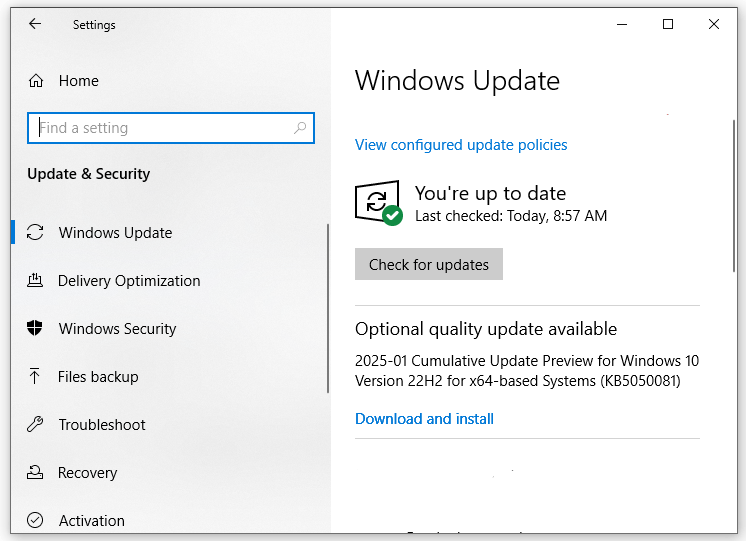
Step 3. Go to Windows Update and hit the Check for updates button to look for any available update. If present, download and install it in time.
Solution 6: Run the Game on a Discrete Graphics Card
Dedicated graphics cards, also known as discrete graphics cards, are designed to handle more complex calculations. Therefore, when you are running video games, video editing software and other resource-demanding programs, it’s better to switch to a dedicated graphics card for better performance.
For NVIDIA graphics card:
Step 1. Right-click on your desktop and select NVIDIA Control Panel.
Step 2. In the left pane, select Manage 3D settings.
Step 3. In the Program Settings section, hit Add under Select a program to customize to select the exe file of the game.
Step 4. Under Select the preferred graphics processor for this program, choose High performance NVIDIA processor.
Step 5. Click on Apply to make all the changes effective.
For AMD graphics card:
Step 1. Launch AMD Radeon Software.
Step 2. In the Gaming tab, hit the 3-dot icon on the right and select Add A Game to add the executable file of the game.
Step 3. Under Graphics, tap on Graphics Profile and then select Gaming.
Final Words
In short, the fatal issue in Hot Wheels Unleashed is GPU-related, hence the majority of the fixes are also tied to your graphics card settings. After applying these solutions and tool mentioned in this guide, we sincerely hope that you can enjoy the game to the fullest.
User Comments :