
Thumbs.db files are database files, generated when you view folders in Thumbnail view. After Windows Vista, a thumbnail cache is centralizedly stored at %LocalAppData% \Microsoft\Windows\Explorer. It helps you to quickly reuse files and improve the computer’s performance. People tend to delete thumbs.db when it forms a huge folder structure without any content. But they are unable to delete thumbs.db because the file is in use.
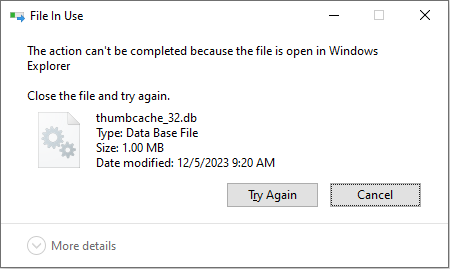
You may try the following four methods to delete the thumbs.db files in Windows and choose one that suits your situation best.
Method 1: Change the View Settings in File Explorer
You can change the View settings in File Explorer, then try to delete the thumbs.db files again.
Step 1: Press Win + E to open File Explorer.
Step 2: Choose View on the top toolbar, then click on the Options choice to open the Folder Options window.
Step 3: Uncheck Display file icon on thumbnails and Hide protected operating system files (Recommended) under the View tab.
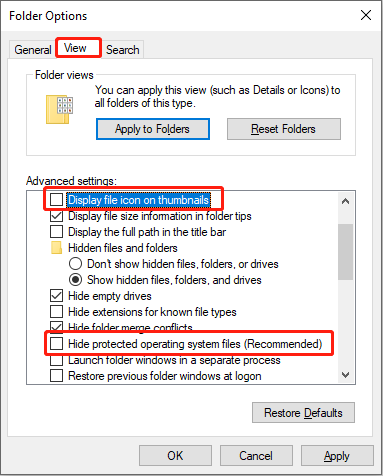
Step 4: Click Apply and OK to save the changes.
Then, you can delete the thumbnail files to see whether the notification still occurs.
Method 2: Change File Extension
According to some Windows users’ responses, you can also fix the unable to delete thumbs.db problem by changing its extension.
You should find the thumbs.db file and change its extension to .dat, then try to delete it. If the thumbs.db file is invisible, you need to check whether you enable the show hidden files option. This post tells how to show hidden files in detail.
Method 3: Tweak Settings in Local Group Policy Editor
If you can’t delete thumbs.db and you are using Windows Pro or more advanced editions, you can change policies in Local Group Policy Editor.
Step 1: Press Win + R to open the Run window.
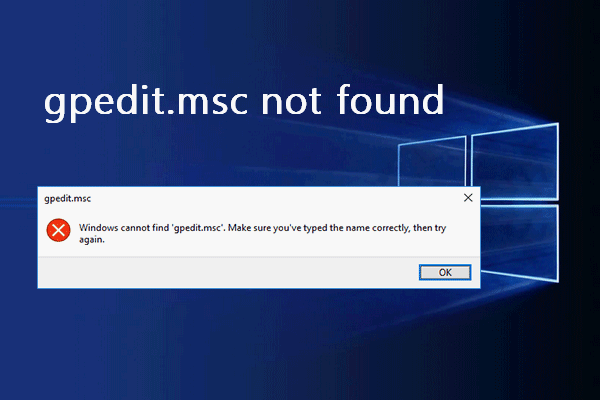
Step 2: Type gpedit.msc and hit Enter to open the Local Group Policy Editor window.
Step 3: Navigate to User Configuration > Administrative Templates > Windows Components > File Explorer. You can find the Turn off the caching of thumbnails in hidden thumbs.db files policy on the right pane.
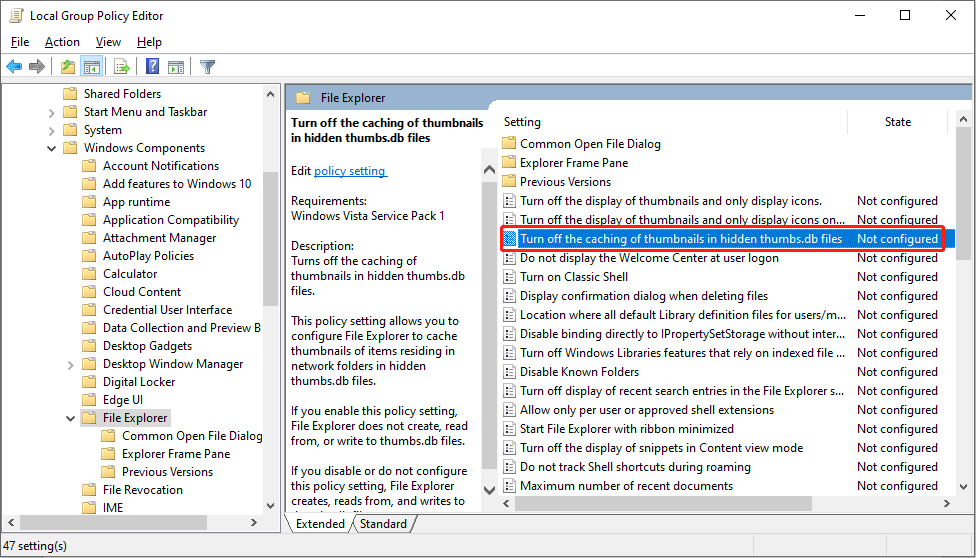
Step 4: Double-click on the policy to modify the policy. Choose Enable in the following window, then click Apply and OK to confirm the change.
You need to restart the computer to fully apply the change to your computer, then try to delete the thumbnail files.
Method 4: Delete Files After a Clean Boot
The last method is to try to delete the thumbs.db files after a clean boot. Clean boot will boot your computer with a minimal set of drives and startup programs. You can try to delete some stubborn files in a clean boot easily.
Step 1: Press Win + R to open the Run window.
Step 2: Type msconfig and hit Enter to open System Configuration.
Step 3: Under the Services tab, tick Hide all Microsoft services and click Disable all.
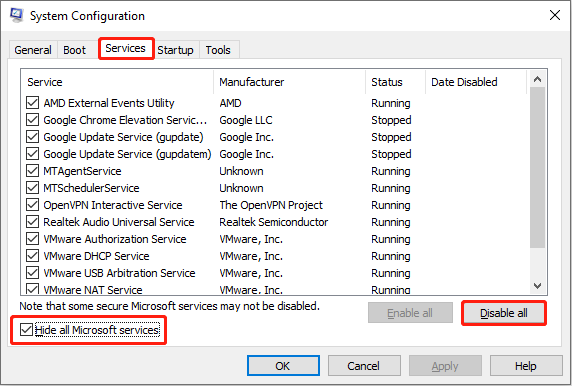
Step 4: Turn to the Startup tab to select Open Task Manager.
Step 5: You need to disable all the programs listed here. After this, close Task Manager.
Step 6: Return to the System Configuration window and click OK to confirm. Your computer will be in a clean boot environment after restarting.
Now, you can try to show the hidden thumbs.db files and delete them.
MiniTool Power Data Recovery FreeClick to Download100%Clean & Safe
Bottom Line
This is all about how to delete thumbs.db in Windows. Different situations need different solutions. Hope you can find one method that can fix your problem.
User Comments :