
Although Windows 10/11 PCs have powerful built-in tools, you may still install third-party apps to obtain additional features.
Some of these apps can improve work efficiency, while others can slow down their PCs or even pose security risks.
In this guide, we will discuss third-party applications that are unnecessary on Windows, explain why remove them, and recommend some third-party apps that you can keep instead.
Why Remove Unnecessary Third-Party Apps on Windows 10/11
There are various reasons to remove unnecessary third-party apps on Windows 10/11, including:
- Improved Performance: Many pre-installed apps may run in the background, consuming CPU, RAM, and battery life. Additionally, they can slow down your PC.
- Increased Storage Space: Removing bloatware can free up disk space, leaving space for other tasks.
- Enhanced Privacy: Some third-party apps will send user data (telemetry) back to developers, causing data leak.
- Reduced Clutter: Removing unnecessary apps simplifies the user interface and minimizes annoying ads or pop-ups.
- System Stability: Unnecessary third-party software can conflict with the system, causing crashes. Removing such software helps improve system performance.
7 Unnecessary Third-Party Apps on Windows 10/11
In this section, I will list 3rd-party apps you don’t need on Windows 10/11.
# 1. Manufacturer Bloatware
Manufacturer bloatware refers to unnecessary software pre-installed on new Windows PCs by OEMs like Dell, HP, and Lenovo.
These applications often duplicate Windows functionality. Common examples include HP Orbit, Dell Customer Connect, etc.
# 2. Pre-installed Third-Party Trialware
Third-party trialware may be pre-installed on some computers to promote services or generate revenue. They can take up storage space, drain battery life, and slow down performance.
They can be trial antivirus software, proprietary support tools, and bundled third-party applications like Dropbox, Spotify, or games (such as Candy Crush).
Stop installing these Windows apps can free your disk space and improve computer performance.
# 3. Unneeded Browser Extensions
Suspicious or unused browser extensions can steal session cookies, track browsing activity, and hijack searches. Therefore, removing unnecessary extensions can improve both speed and security. Here are the common unneeded/suspicious extensions that you should remove:
- Fake AI tools
- Browser toolbars
- Shady VPNs/proxies
- Unused utilities
# 4. Screenshot Apps
The Snipping Tool and keyboard shortcuts in Windows 10/11 provide efficient screen capture and editing options. They support rectangle, free-form, and window captures, eliminating the need for third-party screenshot apps.
Here are the main keyboard shortcuts:
- Windows + Shift + S: Activates the Snipping Tool to select an area, window, or screen for capture.
- Print Screen (PrtSc): Copies the entire screen to the clipboard.
- Alt + Print Screen: Captures only the active window.
# 5. System Cleanup Tools
Windows 10 and 11 come with powerful built-in tools such as Disk Cleanup and Storage Sense, which help remove junk files and optimize system performance without the need for third-party software.
These tools allow you to easily free up gigabytes of space by clearing system cache, temporary files, and old Windows updates. Additionally, Storage Sense offers an option to automatically delete temporary files.
# 6. Driver Updater Tools
Windows 10/11 offers a built-in tool, Device Manager, to manage all device drivers. With it, you can easily manage your device drivers, including updating, uninstalling, and rolling back drivers.
Third-party tools are often unnecessary as they may come with bloatware or malware. They can also cause problems by installing the wrong or outdated drivers.
# 7. Antivirus Programs
Windows includes a built-in antivirus program called Windows Security. It is free, activated by default, and is highly effective. It can detect threats in real-time, protect against ransomware, and block suspicious applications.
In contrast, third-party antivirus tools can lead to system bloat, may generate false positives, and often come with unnecessary paid features.
For the average consumers, Windows Security offers sufficient protection, making additional antivirus software unnecessary.
How to Remove Unnecessary Apps in Windows 10/11
After knowing which unnecessary apps on Windows 10/11 you should remove, you may want to know how to remove them. Follow these steps:
- Press Win + S to open Settings.
- Go to Apps > Install apps.
- Click the three dots next to an app, and select Uninstall.
- Click Uninstall again to confirm.
- Repeat the above steps to remove other unnecessary apps in Windows 10/11.
5 Necessary Third-Party Apps on Windows 10/11
In addition to unnecessary third-party apps, it is crucial to explore the apps that you should keep.
7 Zip
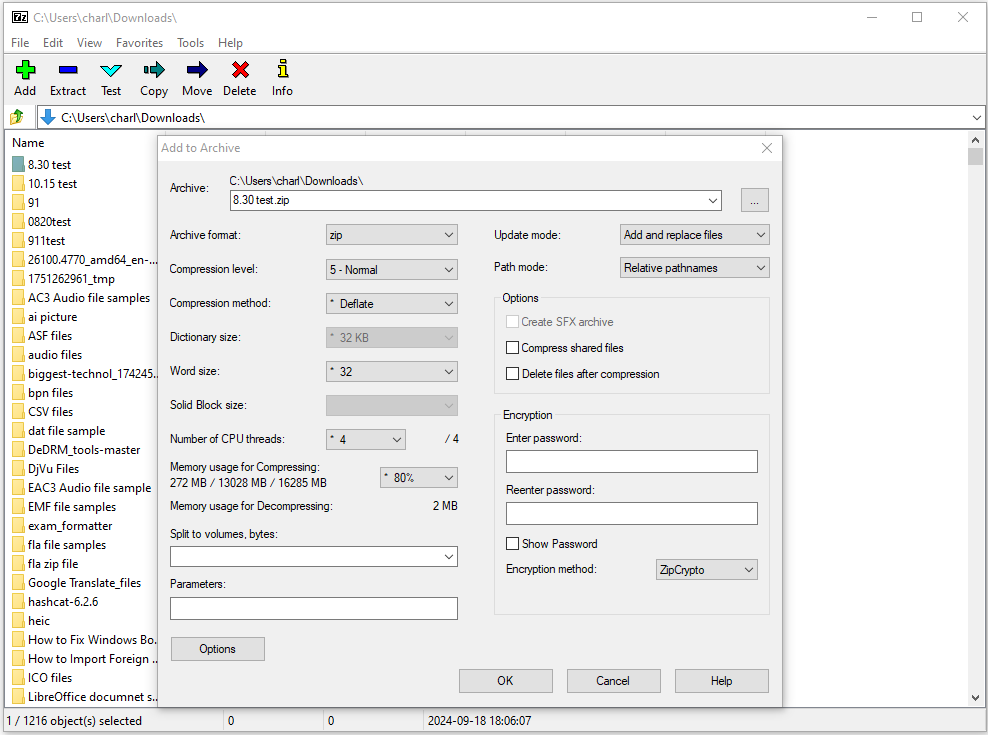
7-Zip is a free and open-source compression tool for Windows that offers several advantages over the built-in compression tools. The key merits include:
- Superior Compression Ratios: It supports advanced LZMA/LZMA2 algorithms.
- Wider File Format Support: It supports a variety of formats, including 7z, ZIP, GZIP, BZIP2, TAR, WIM, and so on.
- Stronger Security: It provides robust AES-256 encryption for enhanced file security.
- Free and Lightweight: The software is completely free to use and doesn’t take up many system resources.
- Advanced Features: It includes a range of advanced features, like split-archiving for large files and robust self-extracting file creation.
Therefore, using 7-Zip will significantly improve your file management experience.
MiniTool ShadowMaker
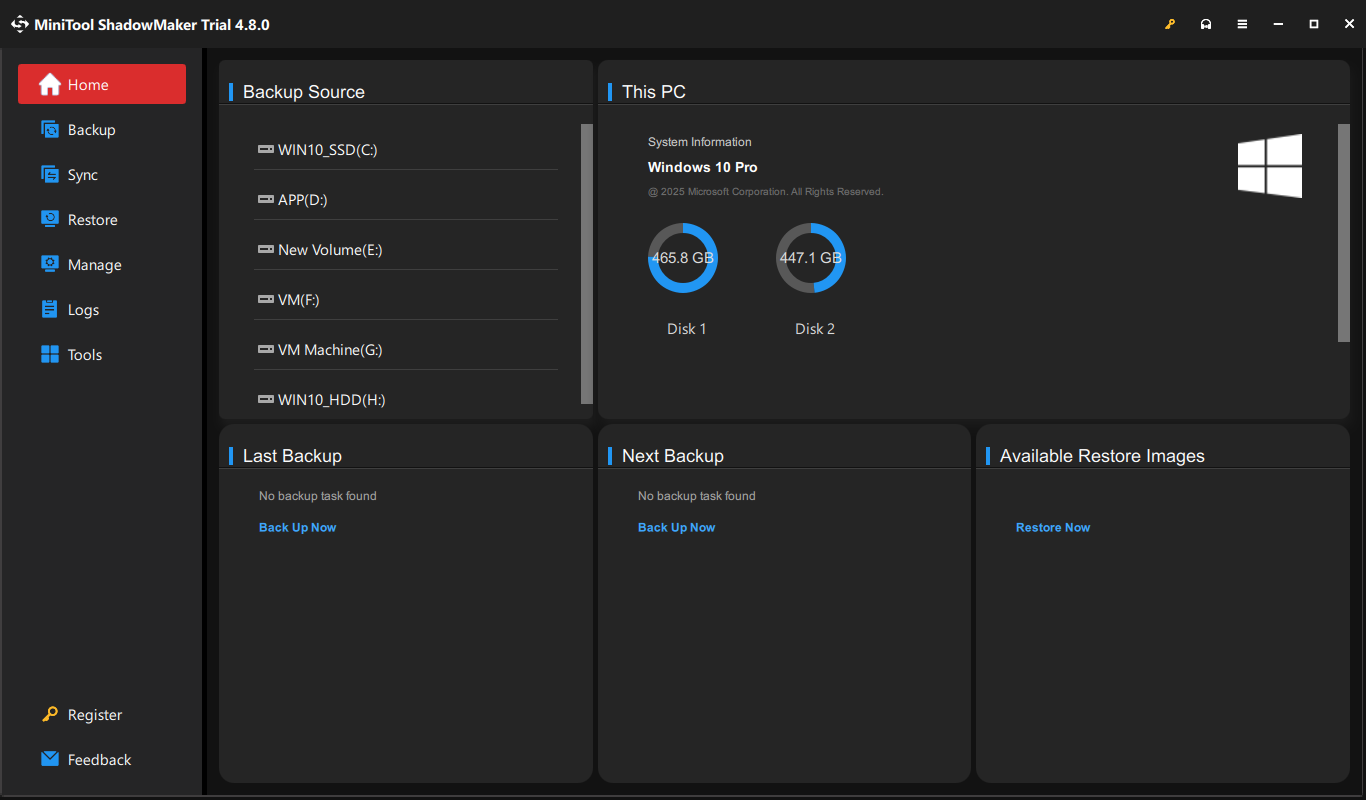
MiniTool ShadowMaker is a comprehensive and user-friendly backup tool for Windows. It can ensure data security through various backup schemes and rapid disaster recovery.
Here are the main reasons to choose this Windows backup software:
- User-friendly interface
- Options for both free and paid versions
- Disk cloning and migration capabilities
- Support for incremental and differential backups
- Ability to create bootable rescue media
- Option to schedule automatic backups
- Reliable for both file backup and system backup
MiniTool ShadowMaker TrialClick to Download100%Clean & Safe
Chrome
Google Chrome is considered an essential application on Windows, with over 70% market share. It is a default browser for web developer testing.
Chrome offers smooth synchronization across devices, integrates with Google services like Gmail and Drive, and utilizes a fast, minimalist interface.
MiniTool Partition Wizard
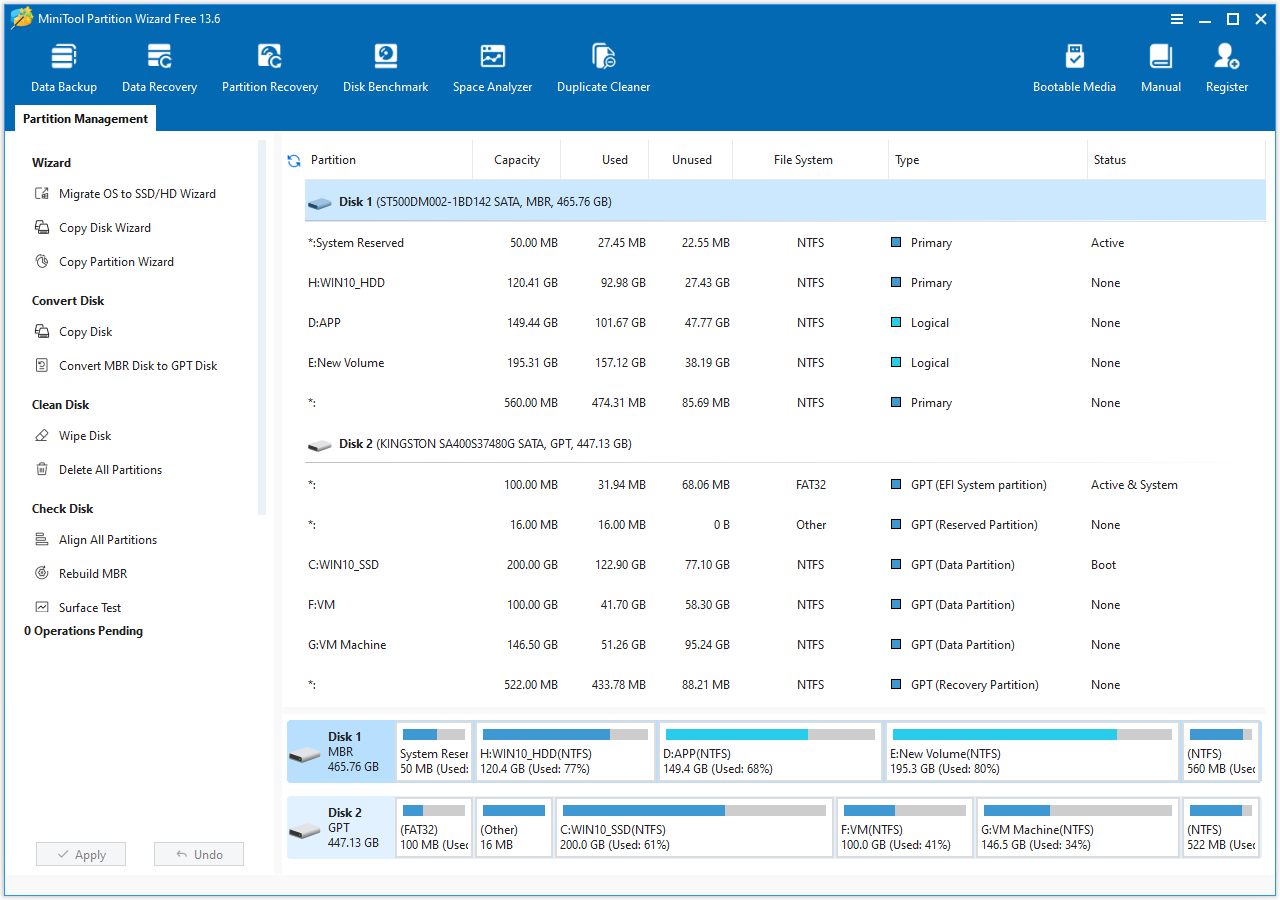
MiniTool Partition Wizard is a professional partition manager, offering many features to manage partitions and disks, including:
- Easily resize, move, split, and merge partitions without data loss.
- Migrate your operating system without needing to reinstall Windows.
- Upgrade your SSD without losing any data.
- Find duplicate files and delete them.
- Support data recovery and partition recovery.
- Convert file systems without losing any data.
- Perform a disk surface test.
- Compatible with various types of storage media.
MiniTool Partition Wizard FreeClick to Download100%Clean & Safe
Discord
Keeping the Discord desktop app on Windows is crucial for better performance, offering features like push-to-talk, notifications, and game overlays. It is essential for communication and community, and useful for gaming.
Wrapping Things Up
Too many useless Windows apps on your PC may slow down the computer’s performance sometimes. This post lists 3rd-party apps you don’t need on Windows and shows how to remove them. Additionally, it introduces some necessary apps you should keep.
Moreover, if you encounter issues while using MiniTool Software, contact us by sending an email to [email protected].
Unnecessary Third-Party Apps on Windows FAQ
1. Press Win + R to open Run.
2. Type shell:appsfolder and click OK.
3. Now, all installed applications will list in the prompted window.
About The Author

Position: Columnist
Charlotte is a technology columnist with a strong focus on the Windows operating system, specializing in disk management, backup, and data recovery. She is passionate about analyzing computer errors, identifying root causes, and delivering practical solutions. In her free time, she stays updated on the latest developments in computer systems and hardware while continuously learning new technologies to broaden her expertise. Her writing style is clear and easy to understand, making complex technical topics accessible even to users with limited computer knowledge.
User Comments :