
Receiving the VALORANT-Win64-Shipping.exe Bad Image error? How can you fix this issue to start a smooth game? This post from MiniTool gives you four feasible solutions. If you are troubled by this issue as well, keep reading and try them one by one.
Valorant is a tactical hero shooter video game developed by Riot Games. Although this game has been released for years, it still has various errors from time to time, such as Valorant crashing, vgk.sys BSOD, and others. Today, we will discuss how to fix the VALORANT-Win64-Shipping.exe Bad Image error, which prevents game players from accessing the game properly.

Way 1. Run the Valorant as Administrator
This error happens probably due to the improper load of the Riot Client and the game. You can modify the settings of the program to see if it helps to fix VALORANT-Win64-Shipping.exe error.
Step 1. Right-click on the Valorant icon and choose Properties from the context menu.
Step 2. Change to the Compatibility tab. You need to tick the Disable fullscreen optimizations and the Run this program as an administrator options.
Step 3. Click Apply > OK to save the modifications.
Afterward, try to launch Valorant to see if the bad image error still appears. If yes, please move on to the next method.
Way 2. Download the MpOAV.dll File
You may notice the complete error message that VALORANT-Win64-Shipping.exe- Bad Image. C:/ProgramData/Microsoft/Windows Defender/Platform/4.18.24090.11-0/MpOav.dll is either not designed to run on Windows or it contains an error.
The MpOAV.dll file is essential for keeping the computer secure. If the error happens because this file is corrupted or missing, you can get this file from a healthy computer or a trusted website and put it to the proper file path.
Afterward, restart your computer to let the device fully apply the change.
Way 3. Reinstall Valorant
Uninstalling and reinstalling Valorant helps resolve the VALORANT-Win64-Shipping.exe bad image error that is caused by the program itself. Doing a clean installation may make sense.
Step 1. Type Control Panel into the Windows Search bar and hit Enter to launch the utility.
Step 2. Click Uninstall a program under the Programs section. You can look through the program list to find Valorant and right-click on it to choose Uninstall. Ensure the Riot Vanguard is uninstalled as well.
Exclusive 50% OFF Revo Uninstaller Pro
Step 3. Download and install Valorant from the Riot Client.
Way 4. Update BIOS
Valorant couldn’t start with VALORANT-Win64-Shipping.exe bad image error due to the outdated BIOS probably. If you haven’t updated BIOS for a long time, you can try this method to fix the error.
However, this operation should be done with caution as improper operations can lead to severe issues, including the computer becoming unbootable. Therefore, you are highly advised to back up files before upgrading the BIOS. MiniTool ShadowMaker is a trustworthy backup tool that can back up your computer safely and quickly within a few clicks. You can get the trial edition to start the backup task.
MiniTool ShadowMaker TrialClick to Download100%Clean & Safe
After backing up files, follow the steps below to update the BIOS.
Step 1. Press Win + R to launch the Run window.
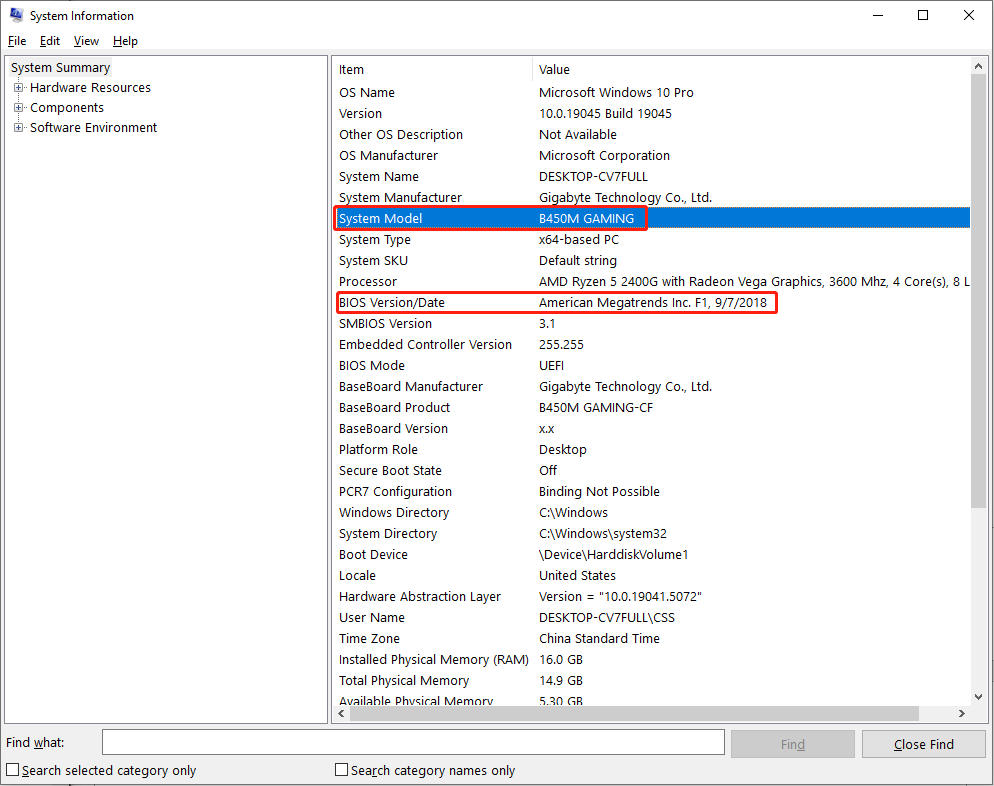
Step 2. Type msinfo32 into the dialog and press Enter to launch the System Information window. Browsing the displayed information on the window, you can find the BIOS Version/Date section to specify the BIOS version of your computer. Then, find the System Model information.
Step 3. Go to the corresponding official website of the computer manufacturer. Go to the Support or Download interface to find out if there is any available BIOS version. If you need to upgrade BIOS, download the file.
Step 4. Unzip the compressed folder and transfer those files to the USB drive. You need to boot the computer into the BIOS menu and find the BIOS update tool to start updating.
You can read a detailed guide about how to update the Gigabyte BIOS.
MiniTool Power Data Recovery FreeClick to Download100%Clean & Safe
Final Words
This is all about how to fix the VALORANT-Win64-Shipping.exe Bad Image error on your computer. Ignoring this issue may result in serious computer issues. You can try the solutions explained in this post to resolve it in time.
User Comments :