
VSS error 0x800423F4 happens when creating a system image on Windows 11/10. If you are plagued by this annoying issue, follow the fixes collected by MiniTool to root out it. Besides, professional Windows backup software like MiniTool ShadowMaker is introduced.
System Image Failure: VSS Error 0x800423F4
System issues happen now and then due to certain reasons, and sometimes the Windows system crashes and even fails to boot. So to reduce downtime, we strongly recommend backing up your PC to restore the machine to its normal state in case of computer accidents. In Windows 10 and 11, you can run the inbuilt tool – Backup and Restore (Windows 7) to create a system image.
However, you may fail to back up your system. On the computer screen, you receive an error popup, saying the backup failed. A Volume Shadow Copy Service operation failed … (0x807800A1). When viewing additional information, you see the writer experienced a non-transient error … (0x800423F4).
The reasons behind the VSS error 0x800423F4 could be stopped VSS service, antivirus software interference, corrupt system files, etc. To fix this issue, you can move to the next part.
How to Fix 0x800423F4 VSS Error
Check and Enable Volume Shadow Copy Service
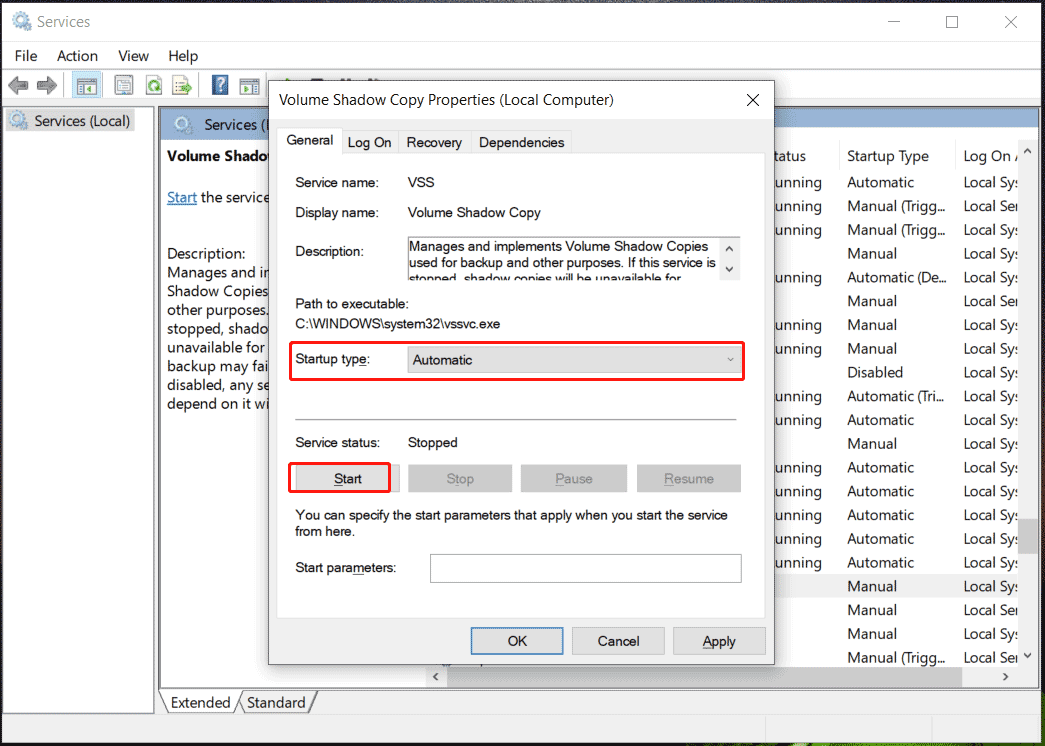
If the Volume Shadow Copy service is not running, system image failure 0x800423F4 may be triggered and you can go to check and enable it.
Step 1: Input services into the search box and click the app to open it.
Step 2: Double-click on Volume Shadow Copy to open the Properties window.
Step 3: Set the Startup type to Automatic. If this service is stopped, click Start to run it.
Step 4: Finally, click Apply > OK.
Disable Windows Defender Firewall
Sometimes VSS error 0x800423F4 happens when you create a system image due to the Windows Defender Firewall. You can go to disable it to see if the issue is fixed.
Step 1: Go to open Control Panel by finding it in the search box. And view all the items by large icons.
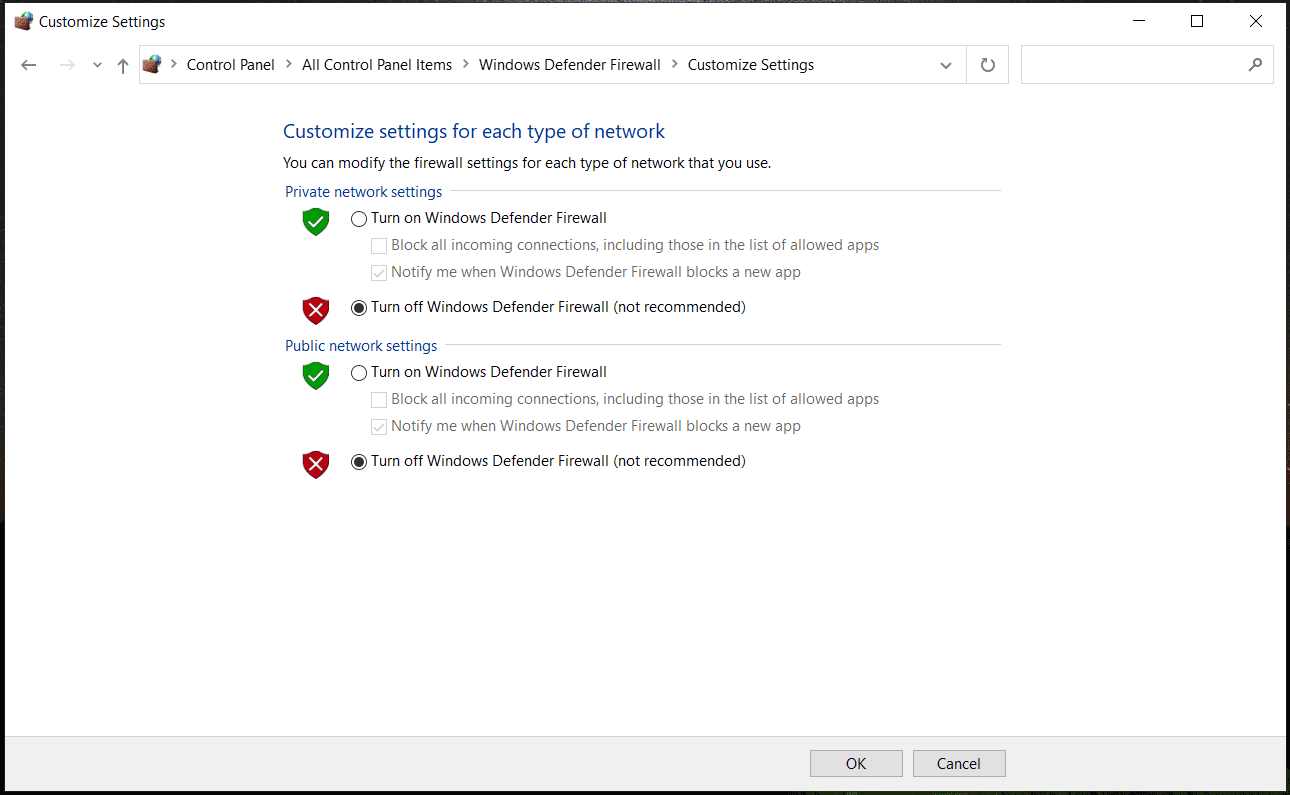
Step 2: Tap on Windows Defender Firewall > Turn Windows Defender Firewall on or off.
Step 3: Choose Turn off Windows Defender Firewall under Private network settings and Public network settings. Then, click OK.
Disable Antivirus Program
VSS error 0x800423F4 sometimes appears due to the conflict of an antivirus program, so you can try to disable this program to see if it does the trick.
If you use the inbuilt Windows Defender/Windows Security, go to type Windows Security in the search box and click it to open. Then, go to Virus & threat protection > Manage settings and disable Real-time protection.
If you are running third-party antivirus software, also disable it. The way to disable this tool is different from each one and you can find detailed steps online.
Run SFC and DISM to Fix VSS Error 0x800423F4
Corrupt system files may lead to 0x800423F4 VSS backup error and you can use SFC and DISM to repair the corruption.
Step 1: Launch Command Prompt with admin rights.
Step 2: Enter sfc /scannow and press Enter.

Step 3: Run these two commands one by one after the SFC scan:
DISM /Online /Cleanup-Image /ScanHealth
DISM /Online /Cleanup-Image /RestoreHealth
After the scan, restart your PC and then create a system image to see if the backup operation successfully finishes.
Check Hard Drive Errors
To check hard disk errors, you can follow the steps:
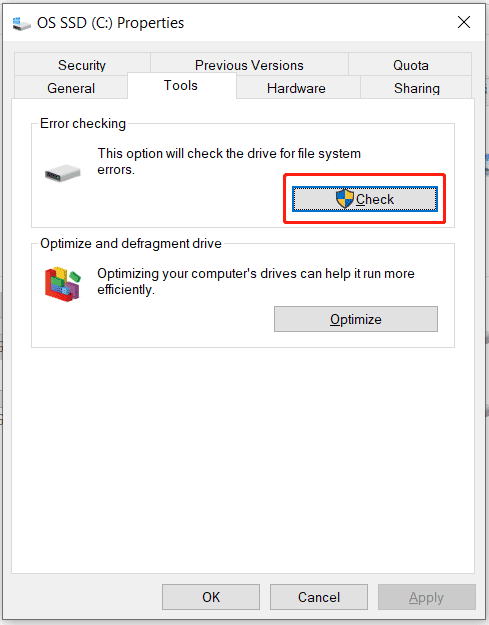
Step 1: In File Explorer, right-click on the drive you want to check for errors, and choose Properties.
Step 2: Under Tools, click Check.
Step 3: Hit on Scan drive.
These are the common fixes to solve Volume Shadow Copy error 0x800423F4. If you finally fail to solve this issue, the best way is to run a third-party backup PC backup software to back up your system or files. Here, we recommend using MiniTool ShadowMaker.
Use MiniTool ShadowMaker in Case of 0x800423F4 VSS Error
MiniTool ShadowMaker, designed for Windows 11/10/8/7, can help you easily create a system image and back up files, folders, disks, and partitions. Also, it supports scheduled backups, incremental backups, and differential backups. Besides, you can delete old backups to free up space with ease.
In addition, MiniTool ShadowMaker enables you to clone a hard drive to another hard disk for disk upgrade or backup and sync your files & folders for data backup. Now, get it via the following button for a trial.
MiniTool ShadowMaker TrialClick to Download100%Clean & Safe
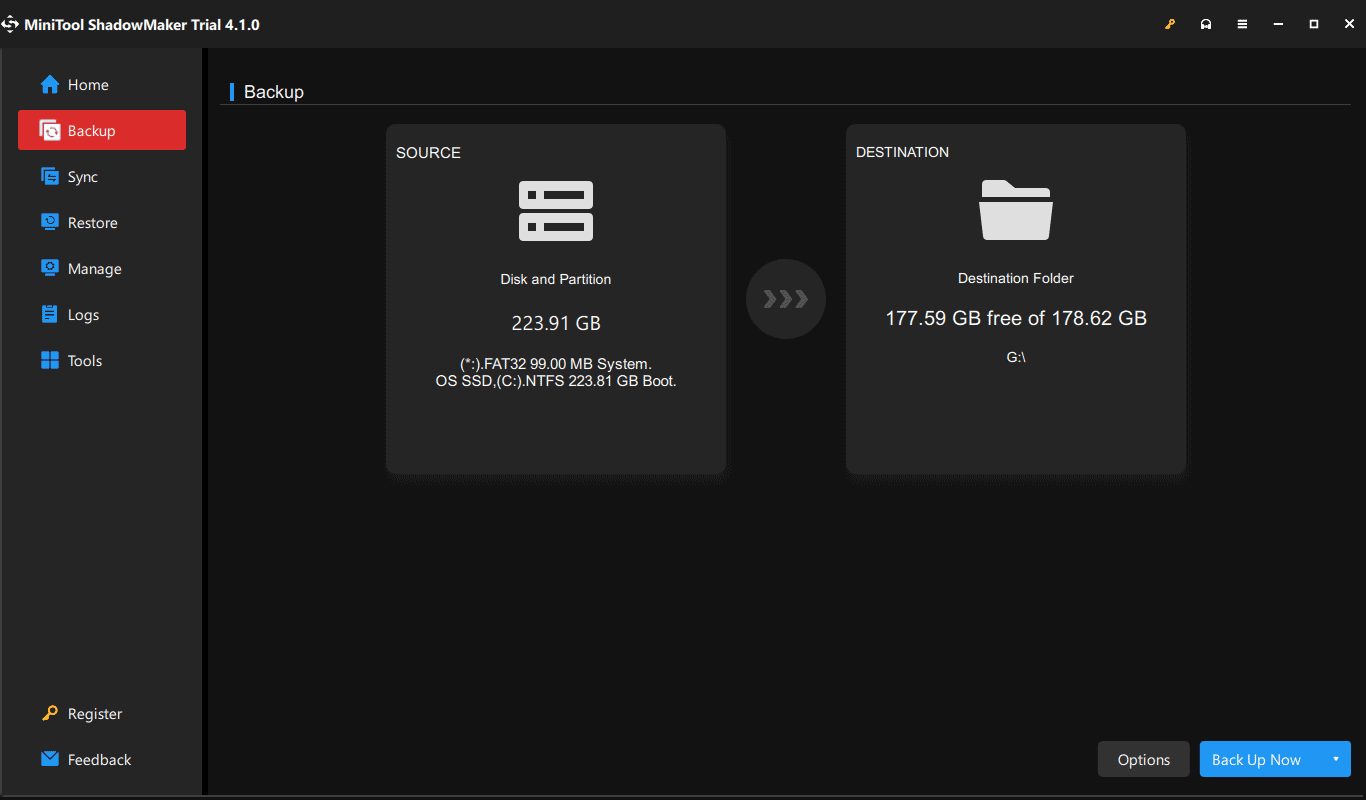
Step 1: Open MiniTool ShadowMaker Trial Edition on your PC.
Step 2: Go to Backup and you can see this tool has chosen system partitions as the backup source. Directly tap on DESTINATION and select an external drive to save the system image.
Step 3: At last, tap on Back Up Now.

Final Words
Are you bothered by the annoying VSS error 0x800423F4 when creating a system image in Windows 11/10? Try the given solutions to address it. If they cannot help, try the backup software – MiniTool ShadowMaker for PC backup.
About The Author

Position: Columnist
Vera has been working at the MiniTool Team for over 10 years as a technical editor and content writer. She mainly focuses on disk and partition management, data recovery, Windows backup and restore, and PC troubleshooting. Through in-depth software testing and hands-on experience, she has helped users solve a wide range of computer problems and better protect their data on Windows devices.
User Comments :